If you just switched from an Infinix Android phone to a new iPhone, the first thing you may worry about is how to transfer contacts from Infinix to iPhone safely and quickly. Since the two systems use different data ecosystems, many users are unsure which method is the most efficient. Fortunately, there are several reliable ways to move your phonebook, including wireless transfer and wired transfer. This article walks you through every method step by step so you can choose the best one according to your needs.
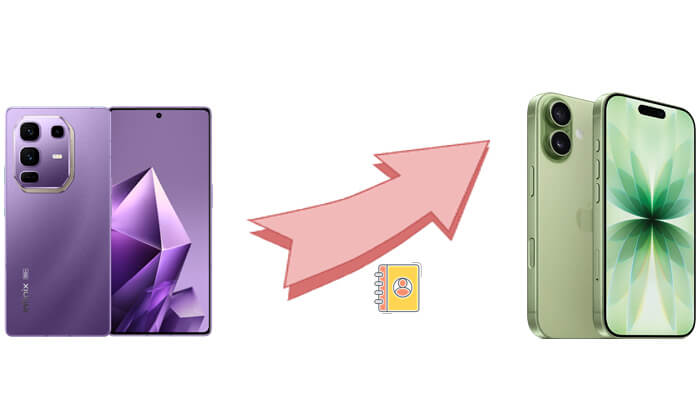
Wireless transfer options are convenient because they do not require cables or computers. This part introduces the three most commonly used wireless methods. Whether your iPhone is brand new or already set up, you'll find a suitable solution to transfer contacts from Infinix to iPhone easily.
Move to iOS is Apple's official transfer tool designed specifically for Android users who want to switch to iPhone. It uses a direct Wi-Fi connection to transfer contacts, messages, calendars, photos, and more. This method is ideal if your iPhone is new or has been reset to factory settings because it only works during the initial setup.
How do you transfer contacts from an Infinix to an iPhone? Here are the steps:
Step 1. On your Infinix phone, go to the Google Play Store and install Move to iOS.
Step 2. Turn on your new iPhone and start the setup process.
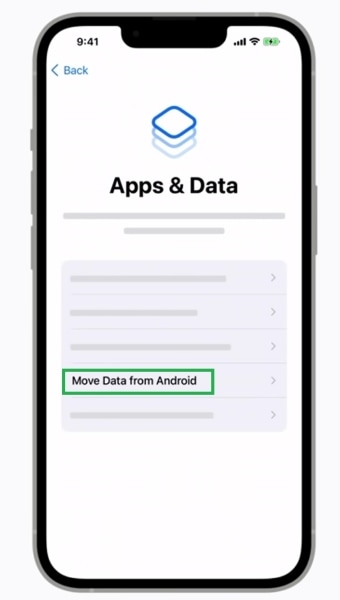
Step 3. When you reach the "Move Data from Android" option, tap it.
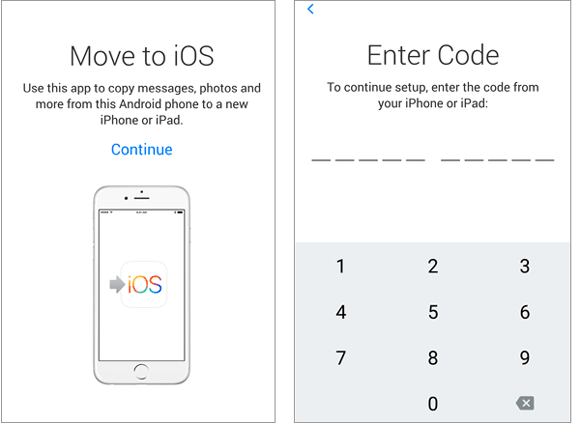
Step 4. On your Infinix phone, open Move to iOS and tap "Continue".
Step 5. Enter the code displayed on your iPhone into the Infinix device.
Step 6. Select "Contacts" as one of the data types to transfer.
Step 7. Tap "Continue" and wait until the transfer completes. (Move to iOS taking forever?)
Step 8. Finish setting up your iPhone, and your contacts will appear in the Contacts app.
Most Android users sync their contacts with a Google account by default. If that applies to you, this method might be the easiest and fastest way to transfer contacts from Infinix to iPhone. It works on any iPhone, even if you've already completed setup. Once you sign in with the same Google account on the iPhone, the contacts sync automatically.
Here is how to sync contacts from Infinix to iPhone using a Google account:
Step 1. On your Infinix device, go to "Settings" > "Accounts" > "Google".
Step 2. Ensure the toggle for "Contacts Sync" is turned on.
Step 3. On your iPhone, go to "Settings" > "Mail" > "Accounts".
Step 4. Tap "Add Account" and select "Google".
Step 5. Sign in using the same Google account used on your Infinix phone.
Step 6. Make sure "Contacts" syncing is enabled.
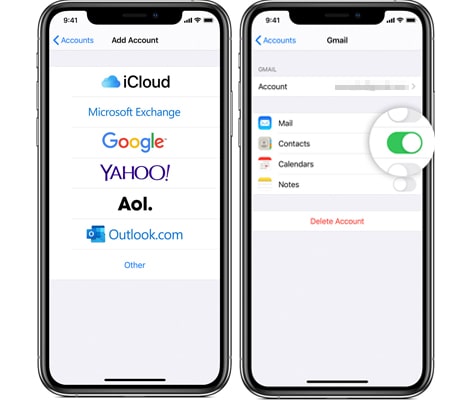
Step 7. Wait a few minutes until your Google contacts appear on your iPhone.
This is the most traditional but very straightforward method: save contacts to the SIM card, then insert it into the iPhone to import them. However, since the SIM card has limited capacity, this method is only suitable for situations where there are fewer contacts.
Here is how to copy contacts from Infinix to iPhone via a SIM card:
Step 1. On your Infinix phone, open the "Contacts" app.
Step 2. Tap "Manage contacts" and choose "Export to SIM card".
Step 3. After exporting, power off the phone and remove the SIM card.
Step 4. Insert the SIM card into your iPhone.
Step 5. On your iPhone, go to "Settings" > "Contacts".
Step 6. Tap "Import SIM Contacts".
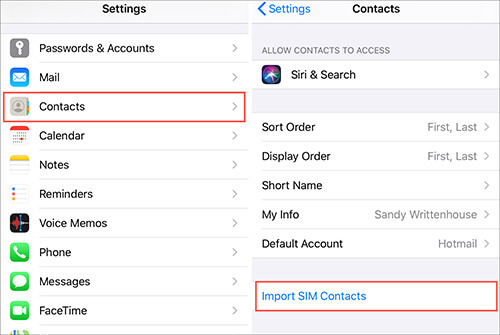
Step 7. After the import finishes, the contacts will be saved to your iPhone's internal memory.
While wireless methods work well, they can sometimes be slow or affected by internet instability. If you prefer a faster, more stable, and more professional solution, using a dedicated phone transfer tool is the best option.
Coolmuster Mobile Transfer supports one-click transfer of contacts from Infinix to iPhone. It offers stable connectivity, unaffected by network quality, and features a user-friendly interface, making it suitable for all users, especially those who want to transfer large amounts of data at once.
Highlights of Coolmuster Mobile Transfer:
Here is how to transfer contacts from Infinix to iPhone using Mobile Transfer:
01Download and install Coolmuster Mobile Transfer on your computer. Connect both your Infinix phone and iPhone to the computer using USB cables.
02Launch the software and ensure the Infinix phone is set as the Source and the iPhone as the Destination. If not, click "Flip" to change.
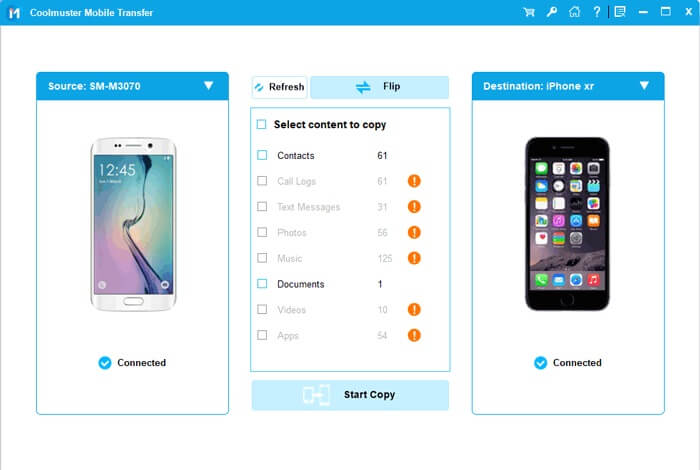
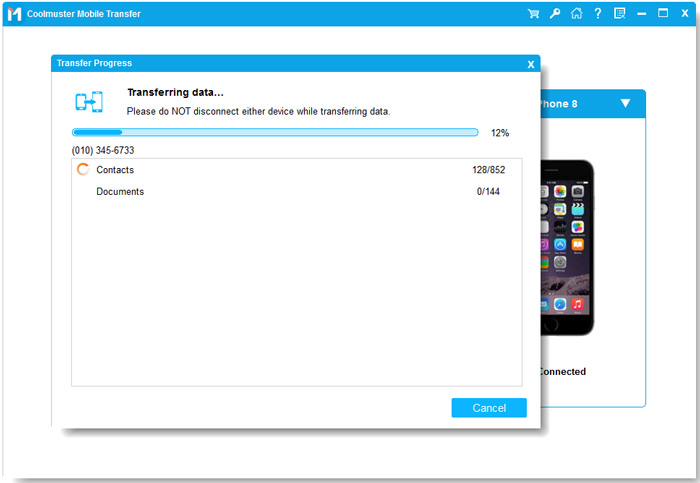
03Select "Contacts" as the data type you want to transfer, and then click "Start Copy" to begin the transfer. Wait for the process to complete. Your iPhone will now contain all contacts from the Infinix phone.
Video guide
There are many ways to transfer contacts from Infinix to iPhone. For example, Move to iOS is ideal for new iPhone users, Google Sync works well for users who have been using Gmail for a long time, and the SIM card method is suitable for quickly migrating a small number of contacts. However, if you're looking for the fastest, most stable, and hassle-free method, I highly recommend using Coolmuster Mobile Transfer. It supports one-click direct transfer of contacts from Infinix to iPhone, ensuring a safe and efficient process, making it perfect for all users.
Related Articles:
How to Transfer Contacts from iPhone to Infinix (4 Easy Ways)
[Full Guide] How to Transfer Text Messages from Infinix to iPhone?
How to Transfer Music from iPhone to Infinix: 5 Easy Methods







 Free Download for PC
  Free Download for Mac


