Many users use "Move to iOS" to transfer their data when switching from an Android phone to an iPhone. However, in reality, many people only discover that their text messages haven't successfully transferred after the setup is complete, or they may have skipped this step at the time. So, the question arises: Can you transfer messages from Android to iPhone after setup?? The answer is: Yes, but the methods are limited, and there are some restrictions. This article will explain several viable methods in detail to help you choose the one that works best for you.
If you prefer an official Apple solution, you might consider using Move to iOS. However, this method requires resetting your iPhone, as it only works during the initial setup phase. So if you're asking how to transfer messages from Android to iPhone after setup for free, this is technically a free method—but it comes with the cost of erasing your device. Before that, it's important to back up your iPhone data before resetting it to avoid losing any important information.
How do I transfer messages from Android to iPhone after setup via Move to iOS?
Step 1. First, back up your iPhone data to iCloud or your computer to ensure you don't lose any existing content.
Step 2. On your iPhone, go to "Settings" > "General" > "Transfer or Reset iPhone" > "Erase All Content and Settings". Confirm the action and wait for your iPhone to reset. (iPhone won't erase?)

Step 3. Once your iPhone resets, it will restart and take you to the initial setup screen. Follow the on-screen prompts until you reach the "Apps & Data" page.
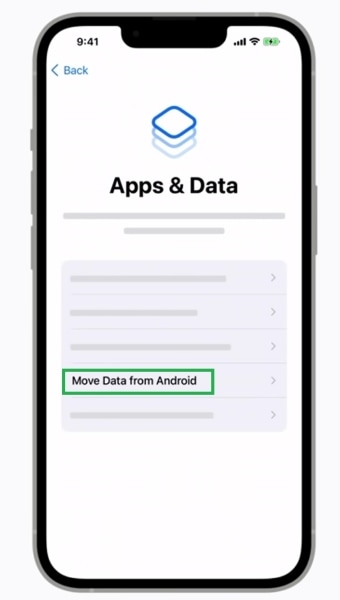
Step 4. On the "Apps & Data" page, select "Move Data from Android".
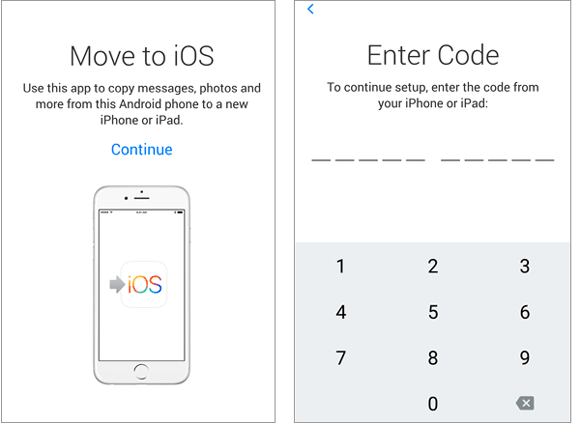
Step 5. On your Android device, download and install the Move to iOS app from the Google Play Store. Launch the app and tap "Continue".
Step 6. Read and agree to the terms and conditions, then tap "Continue" again. On your iPhone, a 6-digit or 10-digit code will appear—enter this code on your Android device.
Step 7. Your Android device will connect to a temporary Wi-Fi network created by your iPhone. On your Android device, select "Messages" (and any other data you want to transfer) and tap "Continue".
Step 8. Wait for the transfer to complete—do not disconnect either device. Once the transfer is done, tap "Done" on your Android device and continue setting up your iPhone.
Step 9. After setup, you can restore your iPhone data from the backup you created earlier, and your Android messages will be available in the Messages app.
If you only need to keep a few important messages, a manual method like screenshots can be a quick and free workaround. While this method doesn't allow you to transfer SMS messages from Android to iPhone after setup into the Messages app, it does help preserve important content for reference.
How do I transfer text messages from Android to iPhone after setup through a screenshot?
Step 1. On your Android device, open the Messages app and navigate to the conversation you want to transfer.
Step 2. Take a screenshot of the conversation: press and hold the "power" button and "volume down" button at the same time (the exact method may vary by Android device). If the conversation is long, take multiple screenshots to capture all messages.
Step 3. Open your email app on your Android device and compose a new email. Enter your own email address as the recipient.
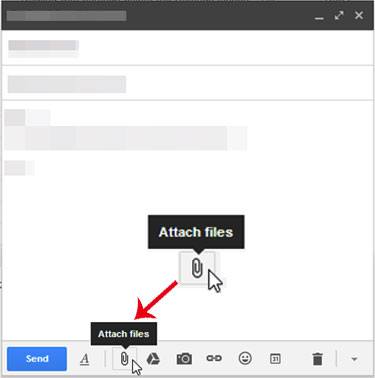
Step 4. Tap the "attachment" icon and select the screenshots you took of the messages. Add a subject line if desired.
Step 5. Send the email to yourself.
Step 6. On your iPhone, open the Mail app and log in to the same email account you used to send the email.
Step 7. Find the email you sent, open it, and tap the attached screenshots to view them. You can save the screenshots to your iPhone's Photos app for easy access.
Step 8. Repeat this process for any other conversations you want to transfer.
Another option to transfer messages from Android to iPhone after setup is to use the SMS Backup & Restore app. This method involves backing up your Android messages to a cloud service or your computer, then restoring them to your iPhone using a compatible app.
Here is how to transfer SMS from Android to iPhone after setup with SMS Backup & Restore:
Step 1. On your Android device, download and install the SMS Backup & Restore app from the Google Play Store.
Step 2. Open the app and tap "Set Up Backup". Select "Messages" and choose your preferred backup location (e.g., Google Drive, Dropbox, or local storage).
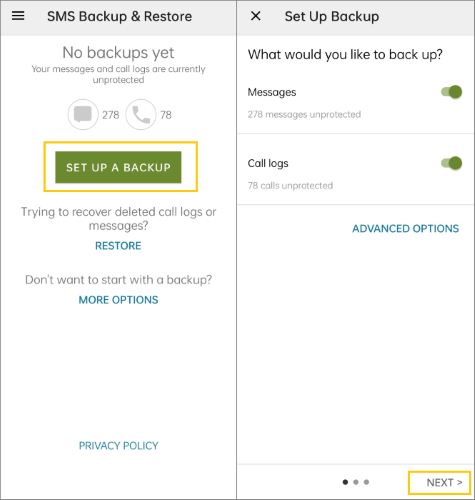
Step 3. Follow the on-screen prompts to complete the backup. Once the backup is done, note the location where the backup file is saved.
Step 4. On your iPhone, download and install a compatible app that can restore SMS backups (e.g., iSMS2droid or SMS Import). Launch the app.
Step 5. If you backed up to Google Drive or Dropbox, log in to your account within the iPhone app and locate the backup file you created on your Android device.
Step 6. Select the backup file and tap "Restore" to transfer the messages to your iPhone. The app will convert the Android backup file to a format compatible with the iPhone's Messages app.
Step 7. Once the restore is complete, open your iPhone's Messages app to confirm that all your Android messages have been transferred.
Besides messages, you may also want to transfer contacts, call logs, photos, or other important data. In this case, using a professional tool can save a lot of time and effort. Coolmuster Mobile Transfer is a reliable solution that allows you to transfer multiple types of data between Android and iPhone, even after setup is complete. It's especially helpful if you want a more complete migration experience beyond just SMS.
The highlights of Coolmuster Mobile Transfer:
Here is how to transfer data from Android to iPhone after setup using Mobile Transfer:
01Download and install the software on your Windows or Mac computer. Once installed, open the program and connect both phones to your computer using USB cables.
02Make sure your Android device is recognized as the source device. If it's not, click the "Flip" button to switch. The available data will be displayed in the center of the interface.
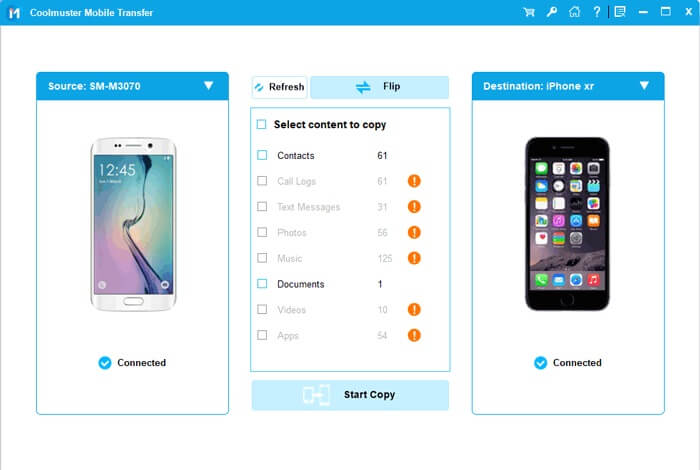
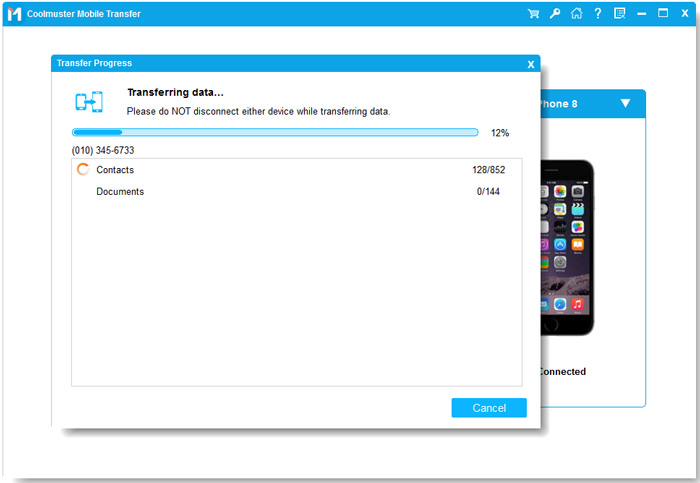
03Select the items you want to transfer by checking the corresponding boxes, then click "Start Copy" to begin the automatic transfer from your Android phone to your iPhone.
Video Tutorial:
When it comes to transferring messages from Android to iPhone after setup, you have several reliable options to choose from, depending on your needs. For users who need to transfer not only messages but also other data (such as contacts) from Android to iPhone, Coolmuster Mobile Transfer is the best choice.
It is fast, reliable, and doesn't require a factory reset or manual steps, making it a hassle-free solution for cross-device transfers. Whether you're a tech novice or an experienced user, it simplifies the process of transferring messages from Android to iPhone after setup, ensuring that no important data is lost when switching devices.
Related Articles:
[Solved] How to Transfer Text Messages from Android to iPhone
How to Fix Text Messages Didn't Transfer from Android to iPhone
How to Transfer Data from Android to iPhone Without Resetting Easily
How to Transfer Messages to New iPhone 17 from Android/iPhone?







 Free Download for PC
  Free Download for Mac


