TL;DR:
WhatsApp crashing on iPhone can happen due to app glitches, outdated software, insufficient storage, or iOS system issues. This guide explains the common causes and provides practical fixes, including restarting your iPhone, updating WhatsApp, reinstalling the app, repairing iOS system problems, and backing up WhatsApp data before troubleshooting.
"I use iphone 13 Pro, and since 2 days whatsapp has been crashing. I open the app, then it closes automatically and sends me back to the home screen. I can't call or msg someone. How do I resolve this ?"
- From Apple Discussions
WhatsApp is one of the most popular messaging apps on iPhone, allowing users to send instant messages, share photos and videos, and make voice or video calls. However, some users may experience unexpected issues where WhatsApp crashes, freezes, or closes automatically when opening the app, accessing chats, or sending media files.
When WhatsApp keeps crashing on your iPhone, it can interrupt daily communication and prevent you from accessing important conversations. This guide will explain why this issue happens and provide effective solutions to help you troubleshoot WhatsApp crashes and get the app working normally again.
Before fixing the problem, it is helpful to understand why WhatsApp crashes on your iPhone. Common causes include:
Using an older WhatsApp version may cause compatibility issues with the current iOS version. Developers regularly release updates to fix bugs and improve app stability.
WhatsApp stores a large amount of data, including photos, videos, voice messages, and documents. When your iPhone storage is almost full, WhatsApp may become unstable or crash unexpectedly.
Damaged chat data, media files, or cache files may prevent WhatsApp from running properly and cause frequent crashes.
Sometimes, WhatsApp crashing is not caused by the app itself but by iOS-related problems, such as failed updates, software conflicts, or system glitches.
Although network problems usually prevent WhatsApp from connecting rather than directly crashing, unstable connections or WhatsApp server issues may still affect the app experience.
If WhatsApp keeps crashing on your iPhone, you can try the following solutions one by one. Start with the simple fixes first, as they can often solve temporary app or system glitches.
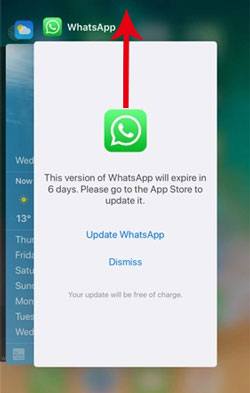
Sometimes WhatsApp may crash because the app process gets stuck or encounters a temporary error. Force closing the app can stop the background process and give WhatsApp a fresh start.
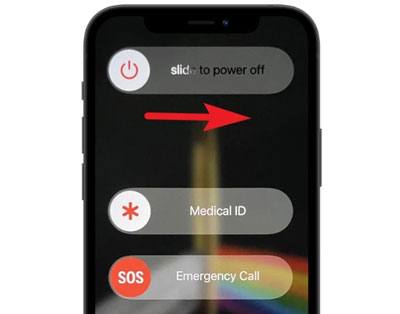
Restarting your iPhone is one of the easiest ways to fix temporary software problems. A simple reboot can refresh system processes and clear minor errors that may affect WhatsApp performance.
Restart Your iPhone:
Force Restart Your iPhone:
If your iPhone is frozen or cannot respond normally:
Although WhatsApp crashes are usually related to the app or device, connection problems or server outages may sometimes affect how WhatsApp works.
You can try the following checks:

If WhatsApp is experiencing a server-side issue, you may need to wait until the service is restored.
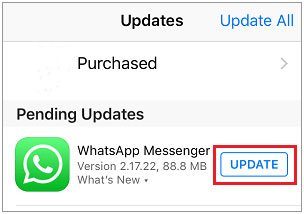
Using an outdated WhatsApp version may cause compatibility problems, especially after updating iOS. Developers regularly release updates to fix bugs and improve app stability.
Steps:
If WhatsApp started crashing after an iOS update or has compatibility problems with your current system version, updating iOS may help.
Steps:
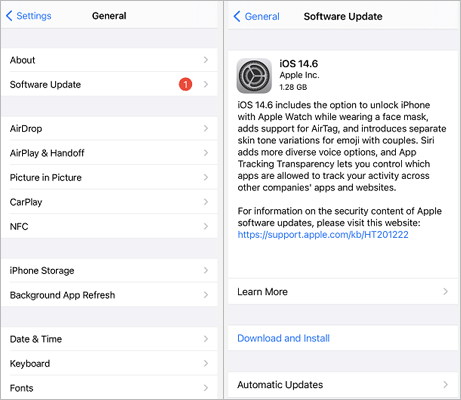
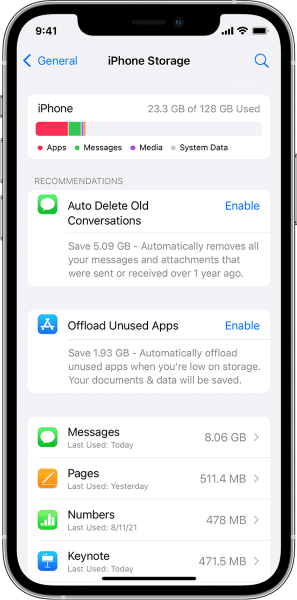
WhatsApp requires enough storage space to save messages, photos, videos, and other attachments. When your iPhone storage is nearly full, apps may become unstable and crash more frequently.
Check iPhone Storage:
Manage WhatsApp Storage:
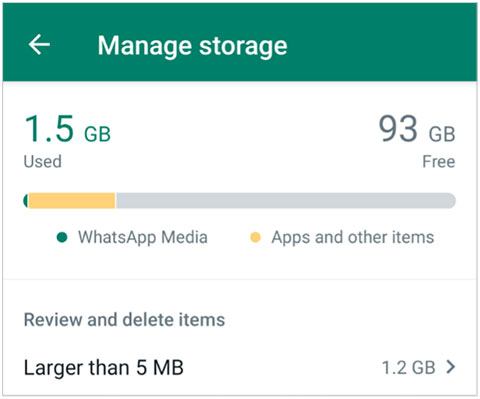
Freeing up storage can improve WhatsApp performance, but make sure to check important files before deleting them. To prevent losing important conversations or media files, consider backing up your WhatsApp data first. See Part 4 for a backup solution with Coolmuster iPhone WhatsApp Recovery.
WhatsApp uses iCloud to back up chat history and media files. In some cases, backup conflicts or synchronization issues may affect app performance. You can temporarily disable WhatsApp iCloud access to check whether it improves the situation.
Steps:
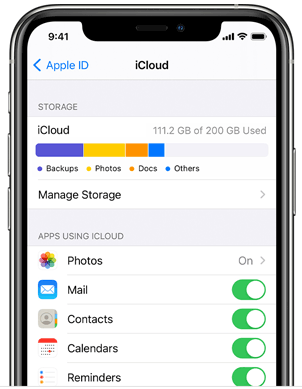
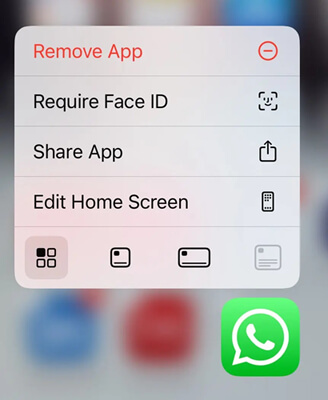
If WhatsApp keeps crashing after trying the previous solutions, reinstalling the app can help remove corrupted app files and restore WhatsApp to a fresh state. However, before deleting the app, make sure to back up your WhatsApp chats to prevent losing important conversations and media files.
Steps:
If WhatsApp still crashes after updating the app, freeing up storage, or reinstalling it, the problem may not come from WhatsApp itself. In some cases, iOS system errors, software conflicts, or failed updates can affect app stability and cause WhatsApp to close unexpectedly.
iOS System Recovery is designed to repair various iOS-related issues that may affect your iPhone performance. It can help fix system problems without requiring complicated troubleshooting steps.
Key Features of iOS System Recovery:
How to fix WhatsApp crashing caused by iOS system problems?
01Install and launch iOS System Recovery on your computer, then connect your iPhone using a USB cable.
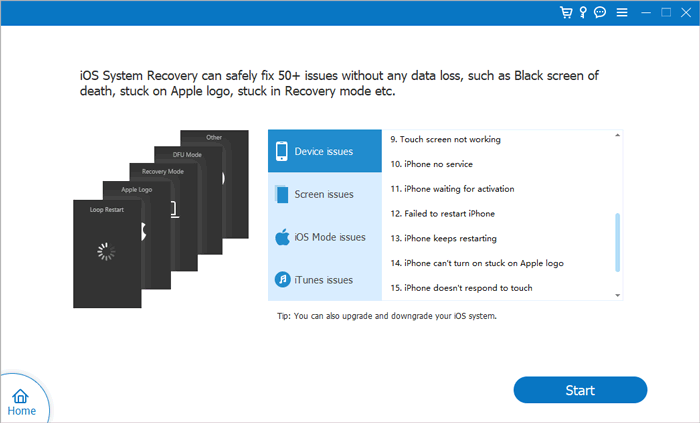
02Select "iOS System Recovery" from the main interface and click "Start" to scan your device and identify iOS system issues that may affect WhatsApp performance.
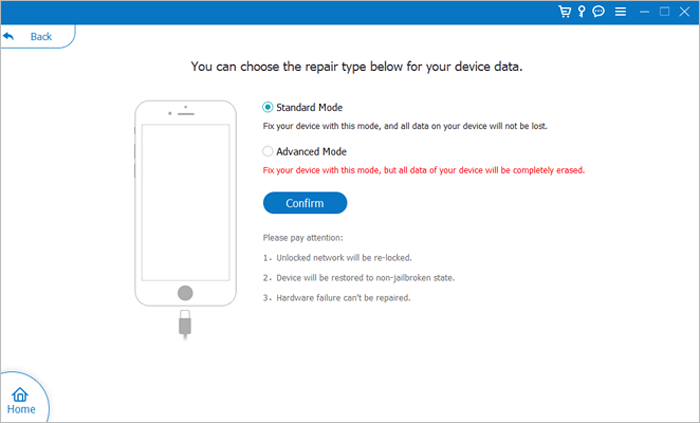
03Select "Standard Mode" to repair iOS system problems without removing your existing data, then click "Confirm" to continue.
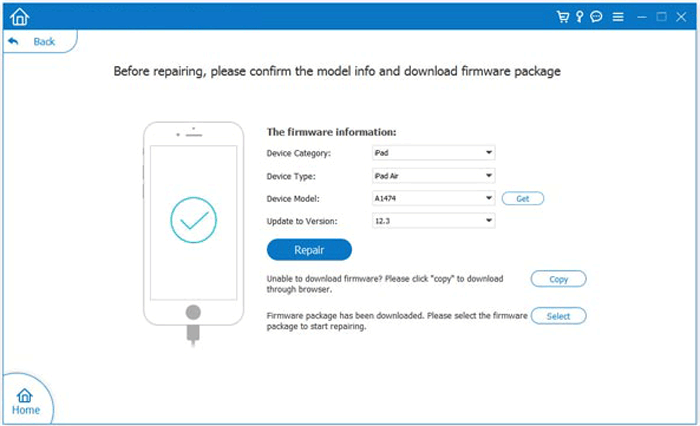
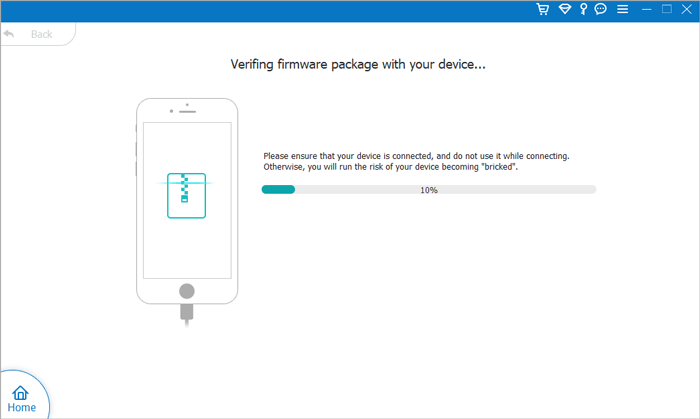
04Check your iPhone information, download the appropriate firmware package, and click "Repair" to start fixing the system issues.
05Wait until the repair process is completed. Your iPhone will restart automatically. After that, open WhatsApp and check whether the crashing issue has been resolved.
Before reinstalling WhatsApp or repairing iOS system problems, creating a backup of your WhatsApp data is highly recommended. A backup can help protect important conversations, photos, videos, and other attachments from unexpected data loss during troubleshooting.
Coolmuster iPhone WhatsApp Recovery allows you to back up WhatsApp chats from your iPhone to a computer without relying on iCloud. It also lets you preview and select specific WhatsApp data before saving it.
Key Features of iPhone WhatsApp Recovery:
How to back up WhatsApp data to your computer with iPhone WhatsApp Recovery?
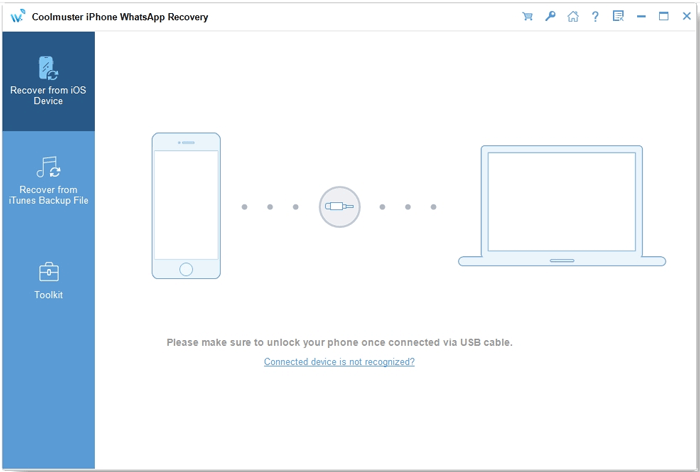
01Download and install iPhone WhatsApp Recovery on your computer. Launch the program and select "Recover from iOS Device". Then connect your iPhone to the computer using a USB cable.
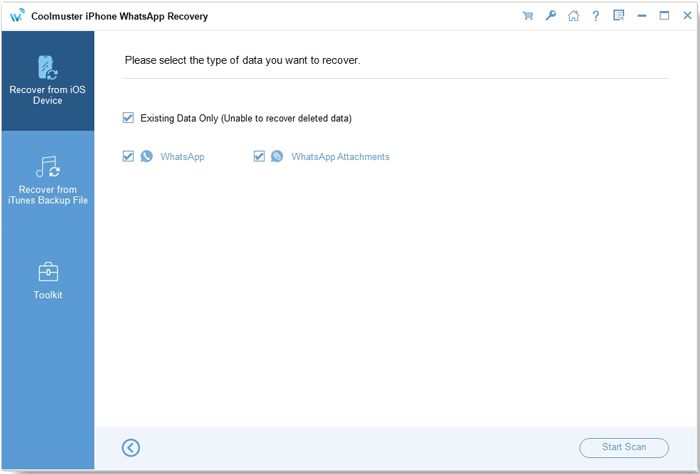
02After your device is detected, choose the WhatsApp data you want to back up and click "Start Scan" to scan your iPhone data.
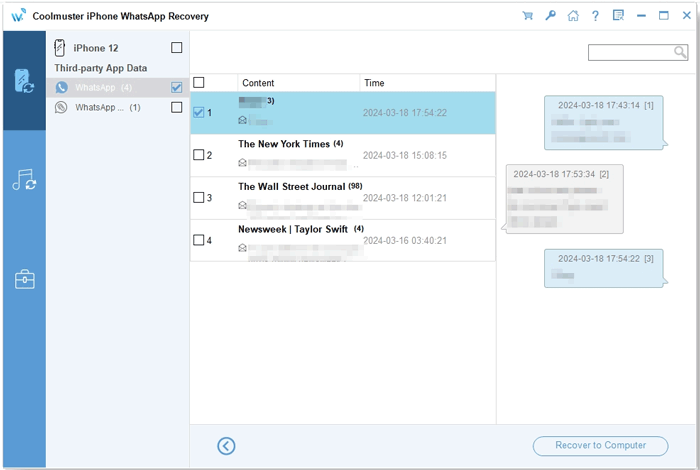
03Once the scanning process is complete, preview the available WhatsApp files and select the conversations or attachments you want to save. Then, click "Recover to Computer" to export and back up your selected WhatsApp data to your computer.
For a more detailed walkthrough, you can also watch the following video tutorial to learn how to back up your iPhone WhatsApp data step by step.
WhatsApp crashing on iPhone can be caused by different factors, from temporary app errors to more complicated iOS system problems. Simple solutions like force-closing WhatsApp, restarting your iPhone, updating the app, checking storage, and reinstalling WhatsApp can help fix many common crashes.
If WhatsApp continues to close unexpectedly after trying these methods, the issue may be related to underlying iOS system errors. In this case, iOS System Recovery can help repair iPhone system issues and improve app stability. Before making major changes, remember to back up your WhatsApp chats and attachments with tools like Coolmuster iPhone WhatsApp Recovery to keep your important data safe.
Related Articles:
Why My iPhone Keeps Freezing? Reasons and Solutions Inside
Want to Complete WhatsApp Backup on iPhone Without iCloud? Solved
How to Use Two WhatsApp Accounts on One iPhone (4 Proven Ways)
Top 6 Ways to Transfer WhatsApp from iPhone to iPhone [Updated]







 Free Download for PC
  Free Download for Mac


