TL;DR: Locked out by the "Security Lockout" message on your iPhone? This guide explains why it happens and shows 4 effective ways to unlock your device, including built-in iPhone options, iTunes/Finder, iCloud, and professional unlock tools. Follow the step-by-step solutions to remove Security Lockout and regain access to your iPhone quickly.
"My iPhone says 'Security Lockout' and won't let me enter a password to get in; how do I open my phone without erasing it?"
- from Apple Community
Seeing the "Security Lockout" message on your iPhone can be frustrating, especially when you can't remember your passcode or access important files, photos, and apps. The Security Lockout iPhone feature is a security mechanism designed by Apple to protect your personal information and prevent unauthorized access after too many incorrect passcode attempts.
So, how can you get your iPhone out of Security Lockout? Can you bypass security lockout on iPhone without erasing data?? In this guide, we'll explain the meaning of Security Lockout, why it happens, and provide several practical unlocking methods to help you quickly restore your iPhone to normal use.
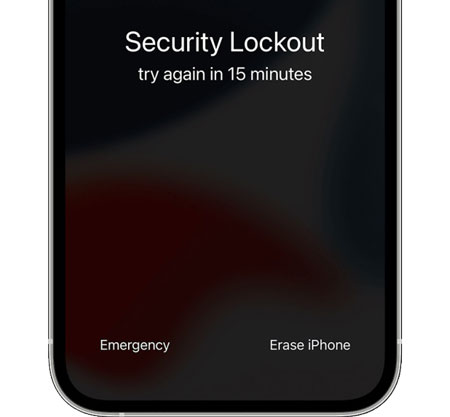
Apple introduced the Security Lockout message in iOS 15.2 as part of its enhanced device protection system. When an incorrect passcode is entered multiple times in a row, the iPhone automatically locks itself to prevent unauthorized access and keep your personal data secure.
How long is the Security Lockout on iPhone? The lockout duration increases with each failed attempt:
Most "Security Lockout" issues on iPhone usually happen when too many incorrect passcode attempts are detected. Common reasons include:
How do I remove the security lock on my iPhone? You can try the following 4 ways to bypass it with ease.
If your iPhone is running iOS 15.2 or later, connected to the internet, and you remember your Apple ID password, you can remove Security Lockout directly from the lock screen.
Step 1. On the Lock Screen, enter the wrong passcode repeatedly until the Security Lockout screen appears. Then, tap "Erase iPhone" at the bottom of the screen.
Step 2. Tap "Erase iPhone" again to confirm. You'll see an "Erase All Content and Settings" message, which allows you to reset the locked iPhone.
Step 3. Enter your Apple ID password when prompted to sign out and disable Activation Lock. Your iPhone will erase all data and settings, restore to factory settings, and remove the Security Lockout screen.
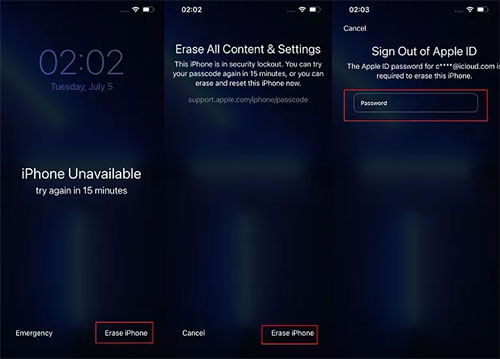
Step 4. After the reset is complete, set up your iPhone again and restore your data from an iCloud or computer backup if available.
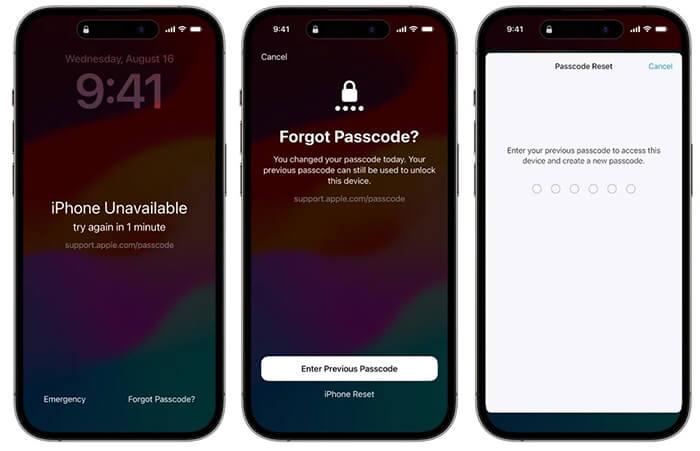
Step 1. When the "Forgot Passcode?" option appears in the bottom-right corner after multiple failed attempts, tap it.
Step 2. Select "Enter Previous Passcode" to continue.
Step 3. Enter your old passcode to verify your identity, then follow the on-screen instructions to create a new passcode.
Step 4. Use the new passcode to unlock your iPhone and remove the Security Lockout screen.
If you forgot your Apple ID password or cannot remove Security Lockout from the lock screen, you can use a professional iPhone unlocking tool, such as iPhone Unlocker. It helps remove the iPhone lock screen passcode and fix issues like Security Lockout and iPhone disabled.
In addition to screen passcodes, it can also effectively manage other security locks, such as Apple ID, MDM, and Screen Time passcodes.
Key features of iPhone Unlocker:
Here's how to use an iPhone Unlocker to bypass Security Lockout on iPhone:
01Launch the iPhone Unlocker and select "Unlock Screen Passcode" mode. Click "Start to Unlock", then connect your iPhone to the computer with a USB cable.
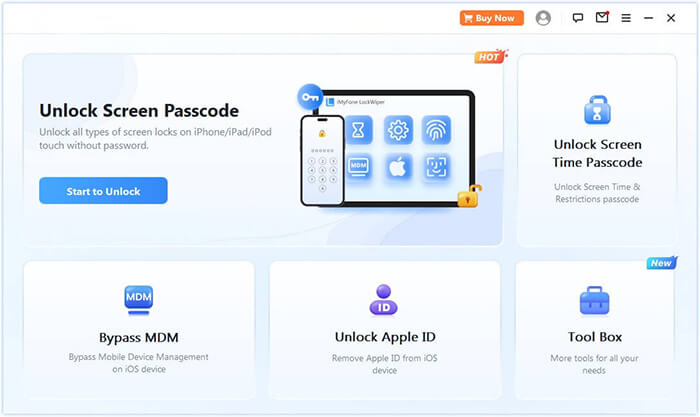
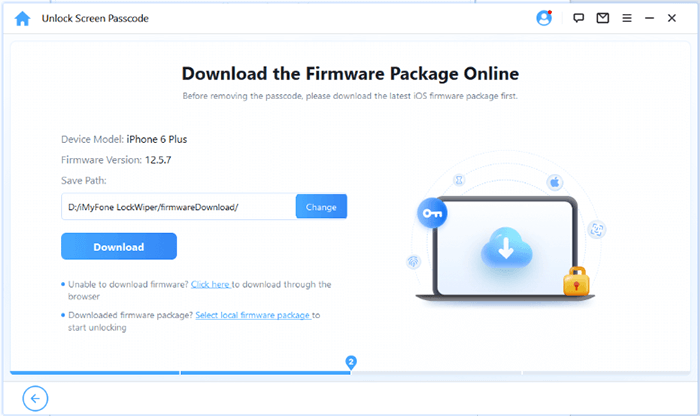
02Put your iPhone into Recovery Mode or DFU Mode. The tool will automatically identify your device model. Choose a firmware save location and click "Download" to get the required firmware package.
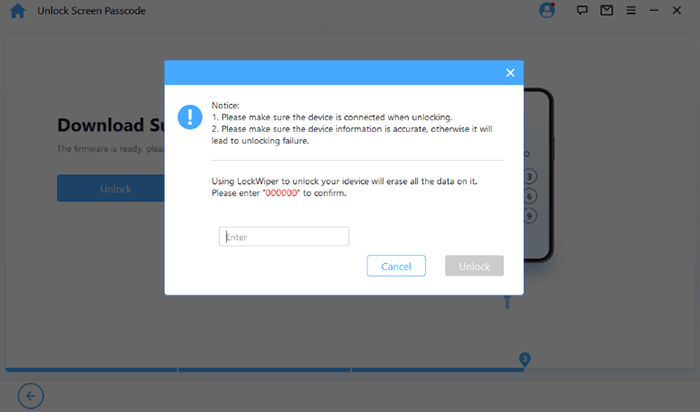
03Click "Unlock" to start the process. Carefully read the warning, enter "000000" to confirm, and click "Unlock" again.
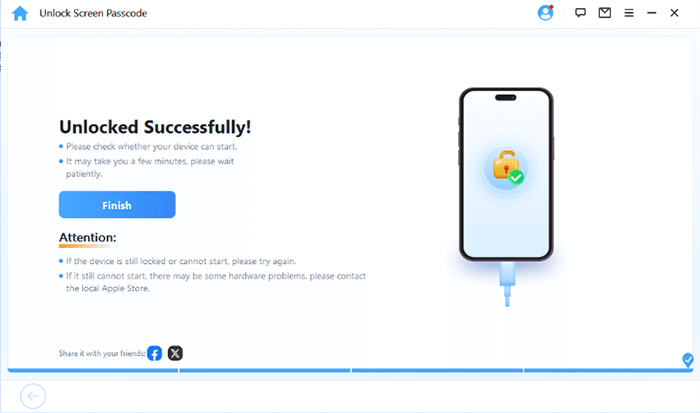
04Wait a few minutes, and your iPhone screen passcode will be successfully removed.
If you don't want to install third-party software, you can try using iTunes or Finder to restore your iPhone. However, since your device is locked and inaccessible, a normal restore may not work. You'll need to put your iPhone into Recovery Mode to remove the Security Lockout.
Here is how to disable Security Lockout on iPhone with iTunes/Finder:
Step 1. Make sure you have the latest version of iTunes or Finder, then connect your iPhone to the computer.
Step 2. Put your iPhone into Recovery Mode using the instructions below:
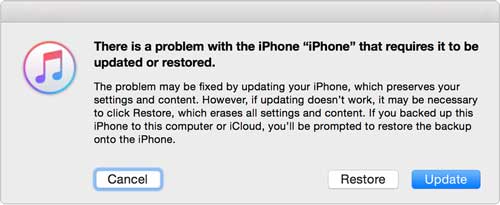
Step 3. Open iTunes or Finder and select your iPhone. When you see the "Update" or "Restore" options, choose "Restore". Your iPhone will be erased and reinstalled with the latest software, which removes the Security Lockout screen.
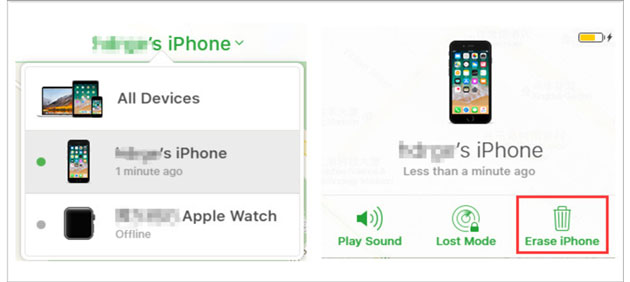
Besides the methods mentioned above, you can also use Find My iPhone to bypass the Security Lockout screen. This method allows you to remotely erase your iPhone without a computer.
However, Find My iPhone must have been enabled before the device was locked, and you need to know the associated Apple ID and password. If these requirements are met, follow the steps below:
Step 1. Open a web browser on your computer and visit iCloud.com.
Step 2. Sign in with your Apple ID and password, then select "Find My iPhone" from the iCloud menu.
Step 3. Click "All Devices" and choose the iPhone that is locked with Security Lockout.
Step 4. Select "Erase iPhone" and confirm the action by clicking "Erase".
Step 5. Once the process is complete, the Security Lockout screen will be removed from your iPhone.
The Security Lockout iPhone message is an important security feature that protects your personal information after too many incorrect passcode attempts. Although it can be frustrating, it does not mean your iPhone is permanently unusable. To remove the security lock on your iPhone, you can try Apple's built-in reset option, restore through iTunes/Finder, erase the device using iCloud, or use professional unlocking software.
For users who want a simpler and more efficient solution, iPhone Unlocker is a recommended choice. It provides an easy way to remove iPhone screen passwords and fix problems such as Security Lockout and disabled devices without complicated technical steps.
Before unlocking your iPhone, always check whether you have a backup available. This helps minimize the risk of losing important photos, contacts, and personal files during the recovery process.
Related Articles:
iPhone Unavailable Lock Screen? Here're 4 Solutions to Fix It!
Fix Unavailable iPhone Without Losing Data: Step-by-Step Tutorial
4 Best Methods to Factory Reset iPhone without Password/Passcode
How to Fix iPhone Unavailable No Erase Option? - 4 Easy Ways




 Free Download for PC
  Free Download for Mac


