Screen recording software has become essential for content creators, educators, gamers, and remote workers. Whether you want to create tutorials, record gameplay, capture online meetings, or make YouTube videos, choosing the right screen recorder can save both time and effort. Among the many options available today, Wondershare DemoCreator is one of the most popular all-in-one screen recording and video editing tools.
But is it actually worth using? What does Wondershare DemoCreator do? Is DemoCreator free? In this Wondershare DemoCreator review, we'll take a deep look at its features, pricing, pros and cons, how to use it, and the best alternative you can try.
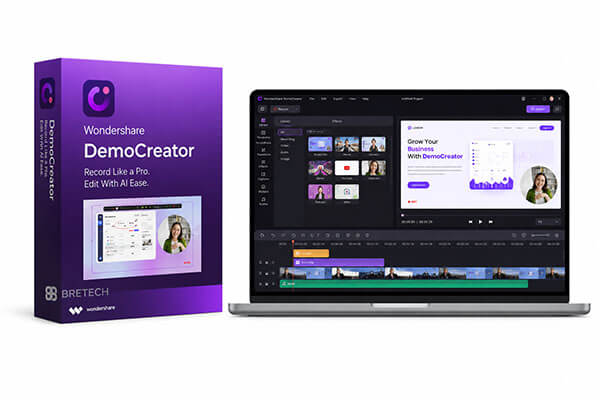
For many users, the most important question when choosing screen recording software is: "What can it do?" Wondershare DemoCreator is an all-in-one screen recording and AI video editing software designed for Windows and macOS users, focusing on simplified content creation for demos, tutorials, gameplay videos, online lectures, and social media clips. It integrates professional screen capture, webcam recording, audio recording, and post-production editing in one platform, eliminating the need for multiple third-party tools.
Main features of Wondershare DemoCreator:
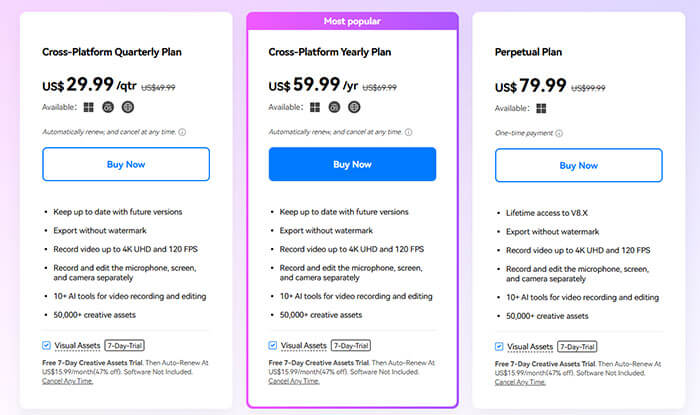
Does DemoCreator cost money? The answer is yes — but it also offers a free version. Wondershare DemoCreator provides several pricing plans depending on your needs. While the free version is available, it comes with limitations such as watermarks and restricted premium features. If you only need basic recording occasionally, the free version may be enough. However, professional users usually need the paid version for watermark-free exports and advanced tools.
Below is the updated 2026 official pricing breakdown for global users, covering monthly, yearly, and perpetual plans for individual users.
No software is perfect, and Wondershare DemoCreator is no exception. While it offers many useful features for beginners, it also has some drawbacks that users should know before purchasing. Understanding the advantages and disadvantages can help you decide whether it fits your workflow.
Advantages:
* Extremely user-friendly, with an intuitive interface and one-click recording—no professional editing skills required.
* Comprehensive feature integration, allowing recording, editing, and exporting in a single workflow to improve efficiency.
* Unique innovative features, such as AI virtual avatar recording, high-frame-rate 8K game capture, and presets tailored for social platforms.
* Lightweight software that runs smoothly, with low system resource usage, making long recording sessions less prone to lag or crashes.
* Transparent and affordable pricing, offering multiple plans to suit different budgets; the free version meets basic daily needs.
Disadvantages:
* Free version exports videos with watermarks, making it unsuitable for commercial use.
* Advanced AI features and premium template resources are limited to paid users, and lifetime licenses can be expensive.
* Built-in editing tools are limited, lacking advanced features like multi-layer composition and color grading.
* Subscription plans auto-renew by default, requiring manual cancellation to avoid automatic charges.
* Some AI features rely on cloud processing, so unstable internet connections may affect performance.
* Uses more system resources than standalone recording tools — running demanding games at high settings may require powerful hardware to record smoothly.
For users trying DemoCreator for the first time, it may be unclear how to start screen recording. In fact, the overall operation is not complicated—just a few steps are enough to quickly record and export a video. Below is a detailed guide on how to use Wondershare DemoCreator to record your screen:
Step 1. Download and install Wondershare DemoCreator on your computer. Launch the software and select the "Video Recorder" feature.
Step 2. On the main interface, multiple core modes are displayed: Screen, Screen & Camera, Camera, Game, Avatar, Meeting/Presentation, etc. Select the mode you need.
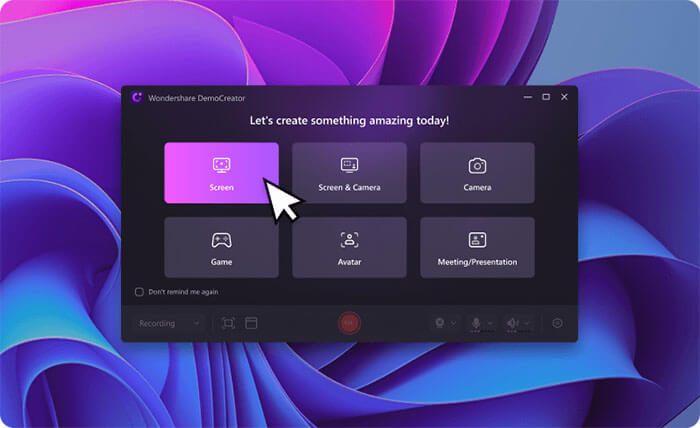
Step 3. Adjust the recording area to capture your preferred screen portion. Click "REC" to start recording (or press F9). When finished, click "Stop" (or press F10) to end the recording.
Step 4. Click the "Export" button to save your video. Once completed, you can watch it on your device.
Although Wondershare DemoCreator offers a combination of screen recording and video editing features, some users still look for alternatives because of its watermark limitations, high system resource usage, or subscription costs. Here, we recommend two options.
If your main goal is to record high-quality videos smoothly without complicated editing tools, then using a lightweight screen recorder may be a better option. One of the best alternatives worth considering is Coolmuster Screen Recorder. This software is designed for users who want a simple, stable, and efficient recording experience. Compared with DemoCreator, it focuses more on smooth screen capture performance while keeping the interface beginner-friendly.
The core features of Coolmuster Screen Recoder:
Steps to record a screen with Coolmuster Screen Recorder:
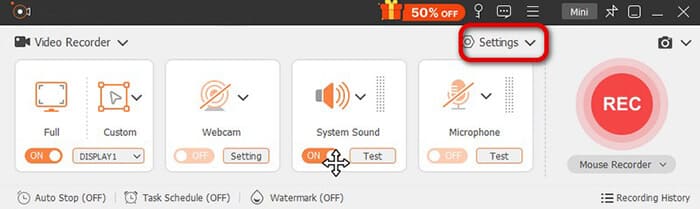
01Launch Coolmuster Screen Recorder and select the recording area, either full screen or custom.
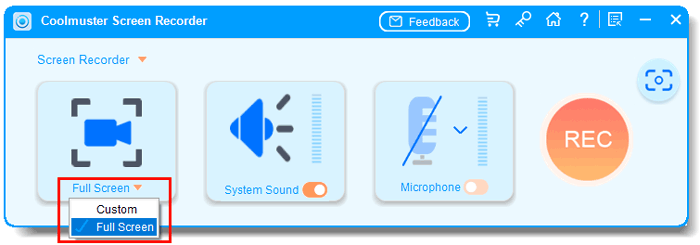
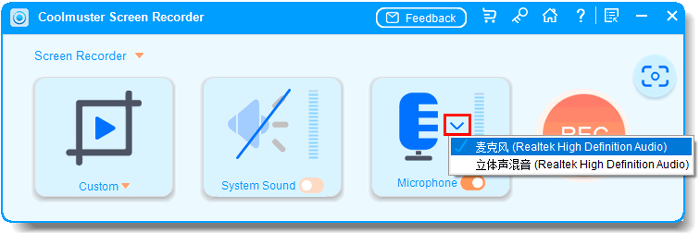
02Choose your audio source by turning "System Sound" or "Microphone" on or off, or disable both for silent recording.
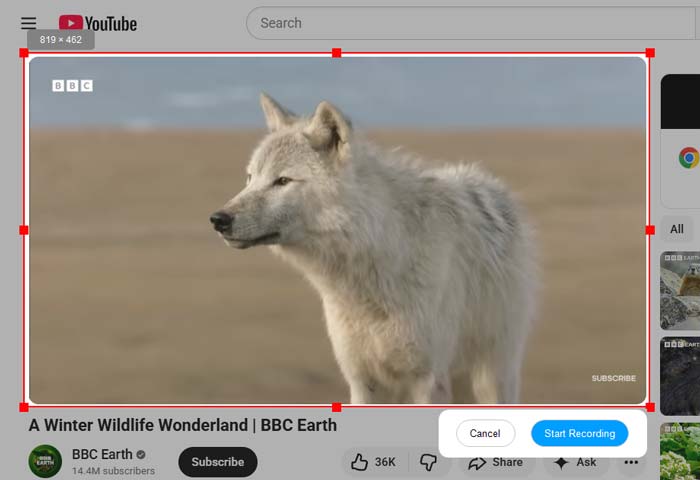
03Click the orange "REC" button and select "Start Recording" when prompted. A short countdown will appear before recording begins.
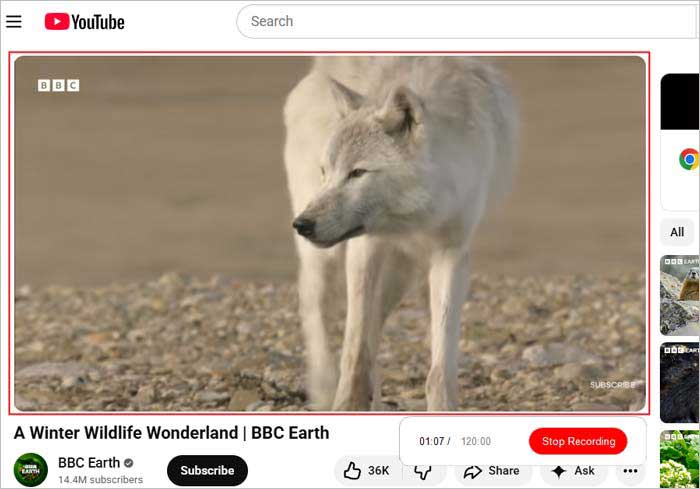
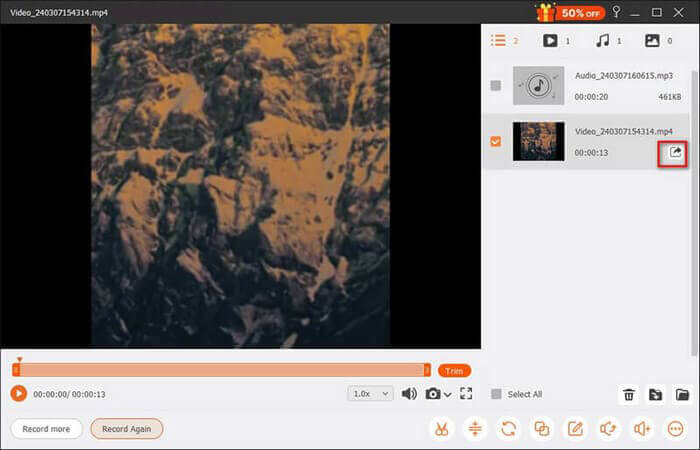
04When finished, click "Stop Recording". The video will be processed locally and saved as an MP4 in your chosen folder. Use the "Copy" button to quickly duplicate the video for easy sharing.
Video Tutorial:
Screen Recorder is another of the best alternatives to Wondershare DemoCreator. Like Wondershare DemoCreator, it offers common recording and editing features, allowing you to capture any screen area and record audio from system sound, microphone, or external speakers.
Beyond basic video and audio recording, it includes specialized modes for game capture, webcam, window, and mobile recording. You can customize video and audio settings before starting. While its editing tools are simpler than DemoCreator's, they are sufficient for most users. Additional AI tools, like microphone enhancement, help improve recording quality. Recorded files can be exported in popular formats, and basic editing options let you polish content before easily sharing it.
The highlights of Screen Recorder:
Here is how to record a screen using Screen Recorder:
01Download and launch the recorder on your PC. Choose the "Video Recorder" mode and select the screen area you want to capture.
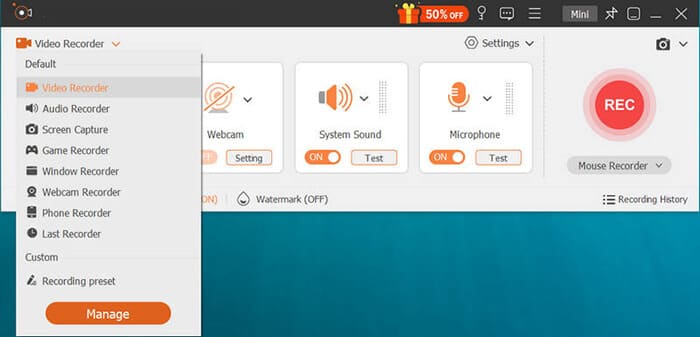
02Adjust your audio settings by turning "System Sound" and "Microphone" on or off as needed. To add a face overlay, enable the webcam. Click "REC" to start recording.
03While recording, you can add text, draw shapes, highlight the cursor, and include other effects. When finished, click "Stop", preview your recording, and save it.
Q1. Does DemoCreator add a watermark?
Yes. The free trial of Wondershare DemoCreator adds a watermark to exported videos. To remove the watermark or export videos without it, you need to upgrade to a paid plan. Some free versions allow exporting a 3-minute video without a watermark, but editing features are not available in these trial versions.
Q2. Is Wondershare DemoCreator safe to use?
Absolutely yes. Wondershare DemoCreator is an official legal software with official certification, no virus, no malware, and no bundled plug-ins in the official installation package. It will not steal user data or monitor computer content, and it is safe for personal and commercial use on Windows and Mac devices.
Q3. Does DemoCreator record audio?
Yes. DemoCreator is a full-featured recording tool that can capture audio from both your system and microphone. It allows simultaneous recording from multiple audio sources and offers advanced settings to customize your audio recordings.
After reading this Wondershare DemoCreator review, you should have a clearer understanding of this tool. Overall, Wondershare DemoCreator is a full-featured screen recording and video editing software, making it ideal for beginners, teachers, and content creators. Its biggest advantage is the all-in-one "record + edit + AI" design, which helps users complete video production quickly.
However, its free version has noticeable limitations and requires a certain level of computer performance. If you prioritize stable recording, smooth performance, and a lightweight experience, Coolmuster Screen Recorder and Screen Recorder are highly recommended alternatives.
Related Articles:
Top 8 OBS Screen Recorder Alternative Tools for Easy Recording
Comprehensive Review: 7 Best Screen Recorders for Android
Ultimate Guide to Screen Recorders for Windows: 8 Best Tools Inside!
A Comprehensive AZ Screen Recorder Review and 4 Best Alternatives






 Free Download for PC
  Free Download for Mac


