TL;DR: AZ Screen Recorder is a popular Android screen recording tool known for its simple operation, no-root requirement, and HD recording support. It also offers features like internal audio recording, facecam overlay, and basic editing tools. However, it may experience lag or crashes during long recordings, and some advanced features require payment.
This article also recommends alternatives such as Screen Recorder, Mobizen, XRecorder, and ADV Screen Recorder. Among them, Screen Recorder stands out as a reliable desktop alternative with more stable performance, flexible recording controls, and support for both Android and iPhone screen recording.
Screen recording tools have become indispensable applications in mobile content creation, game recording, and instructional demonstrations. AZ Screen Recorder, as a well-known Android screen recording software, has gained widespread popularity among users due to its simple operation, no-root requirement, and comprehensive features. However, is it really suitable for all users? Are there better alternatives available?
This article will provide a comprehensive review of AZ Screen Recorder and recommend several worthy AZ Screen Recorder alternatives to help you find the best screen recording tool that fits your needs.
AZ Screen Recorder is a screen recording app designed specifically for Android devices, featuring "no root required, one-tap recording, and high-quality output". It is widely used for:
For beginner users, AZ Screen Recorder has almost no learning curve—just install it and start using it right away.
The key features of AZ Screen Recorder include:
Pros:
* No watermark, no ads.
* Records both internal and external audio simultaneously.
* Records both front camera and screen at the same time.
* Very easy to use with powerful editing features.
* No root required.
* Unlimited recording time.
* Supports multiple resolutions and frame rates.
Cons:
* May occasionally crash.
* Advanced features require in-app purchases.
* Some devices may experience lag during long recordings.
Here is how to use AZ Screen Recorder to record a screen on your Android device:
Step 1. Download the app from the Google Play Store, Apple App Store, or Microsoft Store.
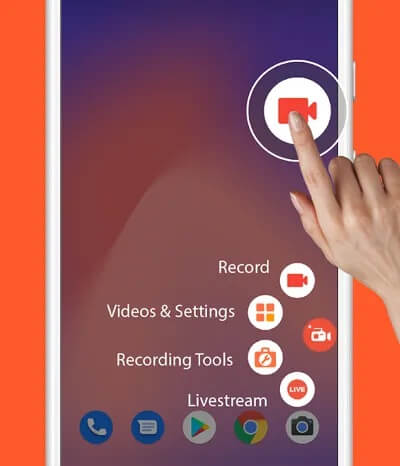
Step 2. When you open the app for the first time, grant permission to "Display over other apps" to activate the floating control bubble. Tap the gear icon to adjust your resolution, frame rate (FPS), and bit rate.
Step 3. Click the red camera icon on the floating menu to start recording. A countdown will begin, and your screen will be captured.
Step 4. To stop recording, pull down the notification shade. Afterward, you can use the built-in editor to trim the video or convert it to a GIF.
If AZ Screen Recorder doesn't meet your needs, here are four great alternatives, from mobile apps to professional desktop software.
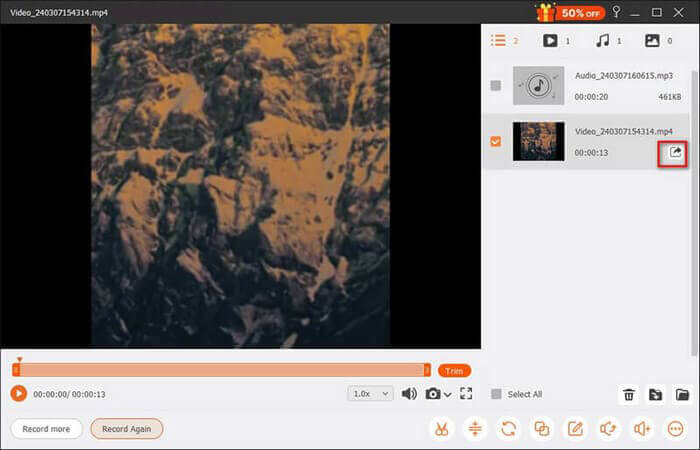
Screen Recorder is a desktop solution compatible with both Windows and Mac. It offers full-screen and custom-area recording, making it perfect for creating tutorials, online courses, and professional presentations. Additionally, it allows you to record phone screens via your computer, supporting both Android and iOS devices.
Key features of Screen Recorder:
* Record your iPhone or Android screen directly to your computer.
* Easily record your screen on both Windows and Mac.
* Capture both video and audio at the same time.
* Select a specific screen area to record.
* Include microphone noise cancellation and audio enhancement features.
* Export recordings in popular formats like MP4, WMV, MOV, AVI, GIF, TS, and others.
* Use a variety of editing tools during and after recording, including adding images, stickers, arrows, text, shapes (rectangles, ellipses), and more.
Here is how to use Screen Recorder to record a screen on your Android device:
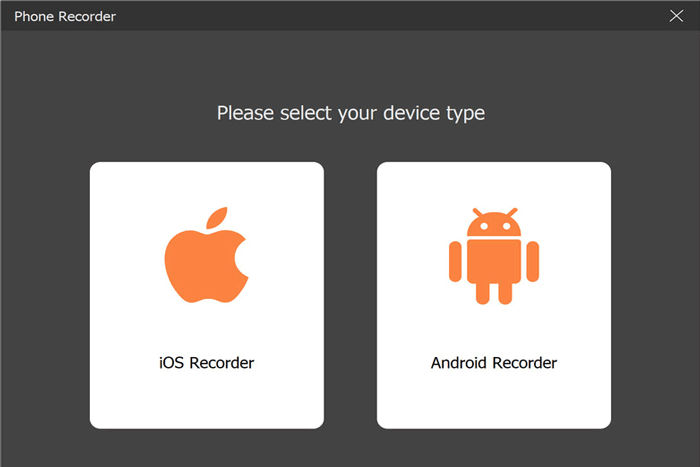
01Launch the Screen Recorder on your computer and select "Phone Recorder" from the main interface. To record your Android phone screen, choose "Android Recorder".
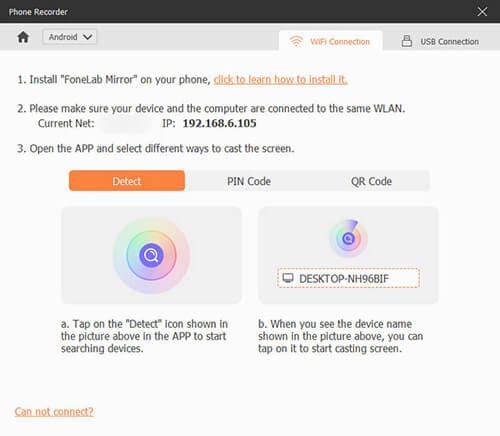
02You can choose to mirror your phone screen via Wi-Fi or USB. For Wi-Fi connection, there are two options available: using a PIN code or a QR code. You can choose either one to connect. Make sure your Android device and computer are on the same network, and follow the prompts to complete the connection.
03Once connected, you can view your phone screen on your computer in real-time and start recording.
04After the recording is complete, you can preview and edit the video. If satisfied, click "Export" to save the recorded content.
Pros:
* Stable recording process, suitable for long-duration use.
* Supports high-quality video and audio synchronization.
* Strong control over output parameters.
* Simple interface with no obvious distractions.
Cons:
* Limited advanced editing tools compared to professional editors.
* The free version allows only 3 minutes of screen recording.
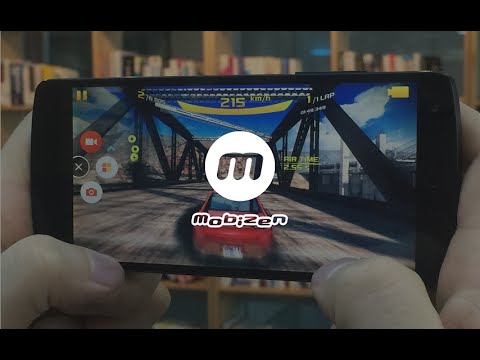
Mobizen Screen Recorder is a popular Android-exclusive tool with over 200 million downloads, recognized as a Google Play "Best of 2016" app. It specializes in mobile screen recording for gameplay, tutorials, and video calls, offering unique features tailored to Android users.
Pros:
* High-resolution recording (up to 1440p QHD) and 60fps frame rate, delivering smooth gameplay footage.
* Free watermark removal via "Clean Mode" and the option to save recordings to an SD card for storage flexibility.
* Unique features like auto-tap/auto-swipe for gameplay automation and customizable floating widgets.
* Facecam support with resizable overlay and drawing tools to highlight key points during recording.
* No sign-up required, use immediately after installation, ensuring privacy as recordings are saved locally.
Cons:
* Android-only, no iOS or desktop support.
* Free version contains ads; premium features (advanced editing, ad removal) require in-app purchases.
* Occasional lag on low-end Android devices during high-resolution recording.
* Internal audio recording is limited to Android 10+ devices.
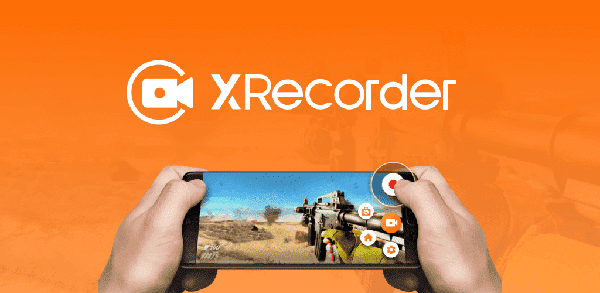
XRecorder is a feature-rich Android screen recording tool. XRecorder makes it easy to capture smooth and clear screen videos or screenshots. With just a tap on the floating button, you can record HD video tutorials, video calls, and content that can't be downloaded. Never miss live game shows or important moments again.
Pros:
* No watermark, record clear videos.
* No root required, easy and quick to use.
* Unlimited recording time, no time limits.
* HD recording, supports up to 1080p, 60FPS, 120FPS.
* Internal audio recording (Android 10+ only).
* No ads, providing a clean screen recording experience.
* Customizable floating ball, adjustable transparency and style.
* Supports video editing tools, such as trimming, adding music, and adjusting speed.
* Supports game streaming to YouTube or RTMP.
* Facecam support, record facial reactions in real time.
* Convenient storage options, choose between internal storage or SD card.
* Video trimming, rotation, and filters, personalize video content.
Cons:
* Some advanced features are available only with a premium upgrade.
* Users have reported occasional recording glitches, such as dropped frames or black screens.
* Recording quality and stability may vary depending on the device's hardware.
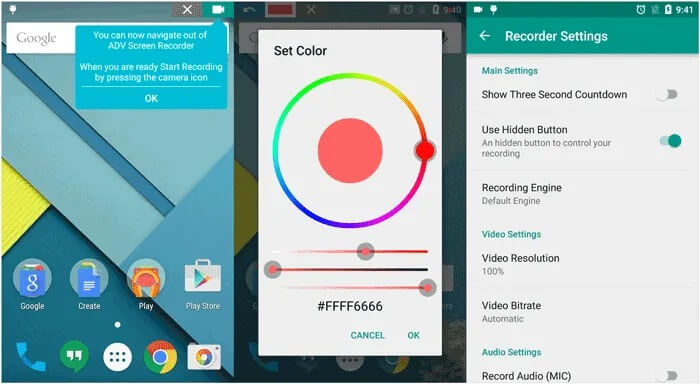
ADV Screen Recorder is a free screen recording app for Android that allows easy recording without the need to root your device. The app comes with no unnecessary restrictions or limitations, although there are in-app purchases available for accessing additional features. It also includes a built-in editor for trimming videos and adding text or banners.
Pros:
* No root required, offering complete freedom for screen recording.
* Provides dual recording engines (default and advanced) for optimized performance on different devices.
* Supports front/back camera overlay, pause/resume recording, and video trimming.
* Supports on-the-fly drawing, customizable colors, text overlays, and banner customization.
* Regular updates with bug fixes and new features.
Cons:
* Certain features are only available through in-app purchases.
* Android-exclusive, with no iOS or desktop support.
AZ Screen Recorder is a solid and user-friendly screen recording app, especially for Android users looking for a free and reliable solution. However, depending on your platform, budget, and feature requirements, there are several practical alternatives worth considering.
If you prefer a more stable desktop solution with cleaner output and more flexible recording controls, Screen Recorder stands out as a strong alternative.
Related Articles:
Best Screen Recorder for Mac: Top 10 Screen Recording Software for macOS
10 Amazing MP4 Screen Recorder Options: Record MP4 Videos Easily
How to Screen Record on Mac Step by Step: Comprehensive Guide
Ultimate Guide to Screen Recorders for Windows: 9 Best Tools Inside!






 Free Download for PC
  Free Download for Mac


