Bluestacks is one of the most popular Android emulators, allowing users to run Android apps and games on Windows and macOS. However, many location-based apps, such as Pokémon GO, food delivery services, or social media platforms, rely on your real-time location to work correctly. In some cases, you may want to change your location on Bluestacks to access region-restricted content, test app features, or simply protect your privacy.
In this guide, we'll show you 3 practical methods to change location on Bluestacks, along with a bonus tip for modifying GPS location on real devices. Whether you're new to emulators or already familiar with them, you'll find a method that fits your needs.
BlueStacks comes with a built-in location tool that allows you to manually set your desired location without installing any third-party apps. This method is simple, fast, and ideal for users who need a quick location change.
Here's how to do it:
Step 1. Launch BlueStacks on your computer and wait until it fully loads to the home screen.
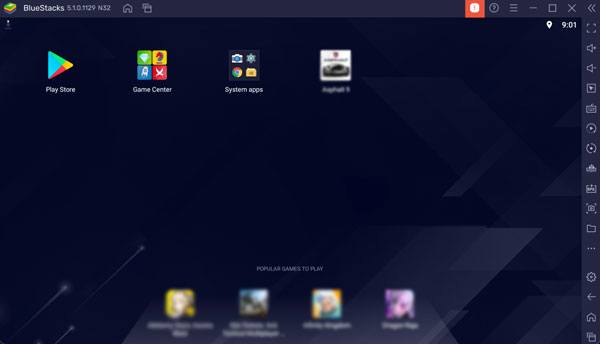
Step 2. Look at the toolbar on the right-hand side and click the location icon (usually looks like a pin). This will open the map interface.
Step 3. In the search bar, enter the city, address, or GPS coordinates you want to use.
Step 4. Select the location from the search results and click "Set Location" to apply the change.
Step 5. Open any app in BlueStacks, and it will now use the newly set location.
Note: The built-in location tool works well for basic location changes, but it may not work with all apps, especially those with strict location detection. Also, the interface may vary slightly depending on your BlueStacks version, but the location icon is usually always available on the side toolbar.
Using a VPN (Virtual Private Network) is another way to change your location on BlueStacks. It works by routing your internet connection through a server in a different region, making apps think you're accessing them from that location. This method is especially useful for unlocking region-restricted content and enhancing online privacy. However, VPN only changes your IP location, not your GPS location, so it may not work for GPS-based apps like Pokémon GO. (VPN not working on iPhone?)
Here's how to use a VPN on BlueStacks:
Step 1. Start by choosing a reliable VPN service that supports Android. Popular options include NordVPN, ExpressVPN, and CyberGhost VPN.
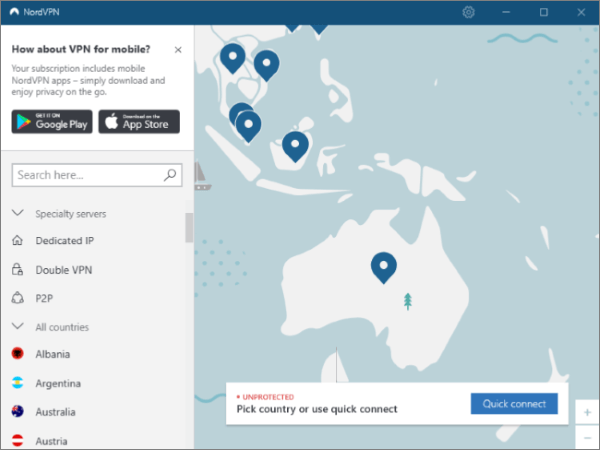
Step 2. Open the Google Play Store inside BlueStacks, search for your selected VPN, and install it.
Step 3. Launch the VPN app and log in with your account credentials (you may need to create an account first).
Step 4. Choose a server location from the list (for example, select a US server if you want a US-based IP address).
Step 5. Tap "Connect" and wait until the VPN shows a connected status.
Step 6. Open your target app in BlueStacks, and it will now reflect the VPN server's region.
If you need more precise control over your location, using a fake GPS app is one of the most effective methods. These apps allow you to set exact coordinates, search locations, and even simulate movement for a more realistic experience.
Here's how to use a fake GPS app on BlueStacks:
Step 1. Enable Developer Options in BlueStacks. Open "Settings" > "About Phone", then tap "Build Number" several times until you see the message indicating Developer Mode is enabled.
Step 2. Go back to "Settings" and enter "Developer Options", then find and tap "Select mock location app".
Step 3. Open the Google Play Store, search for a fake GPS app such as Fake GPS Location or GPS Joystick, and install it.
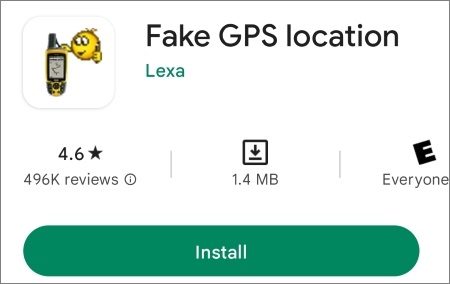
Step 4. Return to Developer Options, tap "Select mock location app", and choose the fake GPS app you just installed.
Step 5. Launch the fake GPS app, search for your desired location or enter coordinates, and select it on the map.
Step 6. Tap "Start" or "Set Location" in the app to activate the fake GPS location.
Step 7. Open any app in BlueStacks, and it will now use the spoofed location.
Some fake GPS apps offer advanced features like route simulation or joystick control, which may require a paid version. Also, certain apps (especially games) may detect mock locations, so it's recommended to use this method carefully. For better results, you can combine it with a VPN to further mask your network location.
If you also want to change your GPS location on a real Android or iOS device instead of just using BlueStacks, you may need a more stable solution that works at the system level.
A practical option is Location Spoofer, a tool designed to modify GPS location on both Android and iOS devices without requiring root or jailbreak. It is widely used for location-based apps and games.
Key features of Location Spoofer:
Follow these steps to use Location Spoofer to change Android or iOS location:
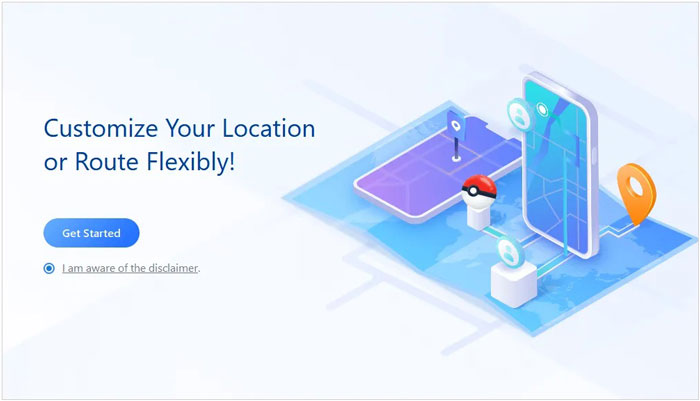
01Download and install Location Spoofer on your computer, then open the program and click "Get Started" to begin.
02Connect your smartphone to the computer using a USB cable. If you are using Android, enable USB debugging. If you are using iPhone, tap "Trust This Computer" when prompted.
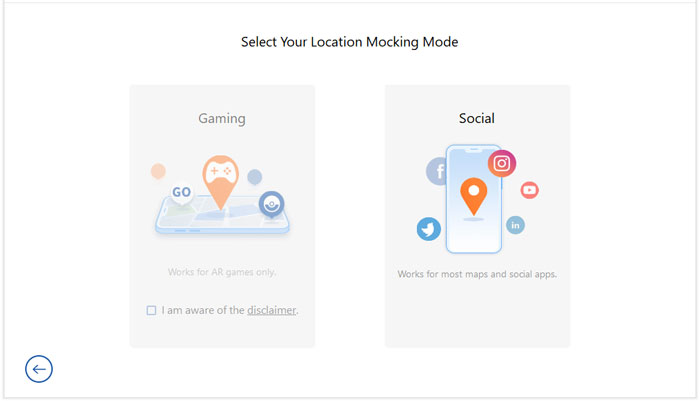
03Once your device is detected, choose a mode based on your needs, such as Gaming Mode or Social Mode.
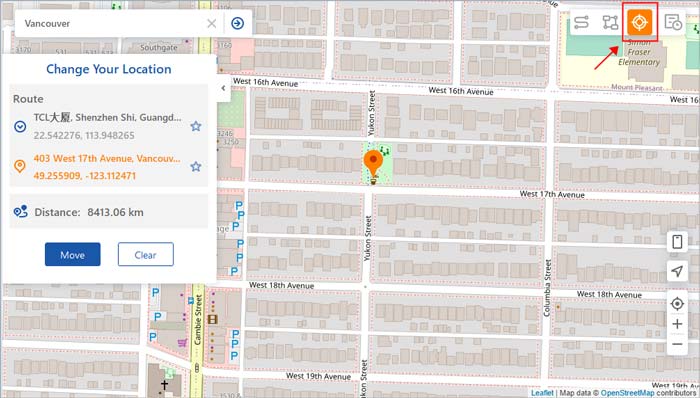
04Enter the location you want in the search bar or navigate the map manually to select your target position. Click "Move" to instantly apply the new GPS location to your device.
After completing these steps, all location-based apps on your phone will recognize the new virtual location.
1. Why is my location not changing on BlueStacks?
If your location does not update on BlueStacks, it is usually because the app is still using cached GPS data or another location method is overriding your settings. In some cases, restarting BlueStacks or reapplying the location setting can help refresh the system.
2. Can apps detect fake GPS on BlueStacks?
Yes, some apps can detect mock locations, especially games and security-sensitive platforms. Apps may use advanced detection methods to identify simulated GPS signals, which can limit or block certain features when spoofing is detected.
3. Is it safe to change location on BlueStacks?
Yes, changing location on BlueStacks is generally safe because it is a software-based modification. However, some apps may restrict accounts or features if they detect GPS spoofing, so it is recommended to use these methods carefully depending on the app you are using.
Changing location on BlueStacks is straightforward once you choose the right method for your needs. The built-in location tool is suitable for quick and simple adjustments, while a VPN works better for accessing region-restricted content and improving online privacy. If you need more accurate GPS control, especially for location-based games, a fake GPS app is usually the most effective option.
For users who prefer changing location on real Android or iOS devices, Location Spoofer provides a more stable and flexible solution. With these methods, you can easily adjust your virtual location for testing apps, unlocking regional features, or simply exploring different in-app experiences.
Related Articles:
Top 12 Best Android Emulators for PC & Mac [Beginner's Guide]
How to Change iPhone Location Without VPN? [Solved with 5 Ways]
[2026] How to Change Work and Home Location on Google Maps
How to Change Country in Google Play Store in 3 Easy Methods




 Free Download for PC
  Free Download for Mac


