TL;DR: You cannot directly back up your iPhone in DFU mode because DFU mode does not load iOS, so your data (photos, messages, contacts, etc.) cannot be accessed or saved during this state. If your iPhone is stuck in DFU mode, the safest approach is to exit it first, either by a force restart or by using a system repair tool to avoid potential data loss. Once the device is back to normal, you can back up your iPhone using iCloud, iTunes, or an iPhone backup tool, depending on whether you prefer wireless, offline, or more flexible data management options.
When your iPhone gets stuck on the Apple logo, fails to update, or cannot turn on normally, entering DFU (Device Firmware Update) mode is often considered a solution for fixing serious iOS problems. However, as is well known, DFU mode will erase all data. So, can you back up iPhone in DFU mode before restoring the device? How to back up iPhone in DFU mode? Continue reading to find the answer.
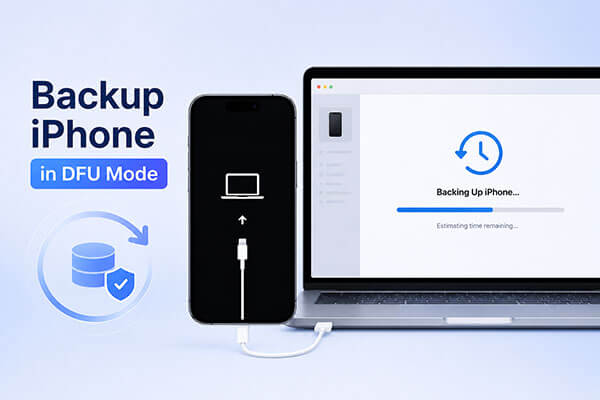
The short answer is no. DFU mode is mainly designed for advanced iPhone recovery, firmware updates, and system repairs. Although your computer may detect the iPhone while it is in DFU mode, the system cannot access your photos, messages, contacts, apps, and other personal information. This means there is no direct way to create a new iPhone backup while the device remains in DFU mode.
Fortunately, you can still protect your important data by safely exiting DFU mode first and then creating a backup.
Here are the two ways to get your iPhone out of DFU mode:
A hard reset is a manual method used to force your iPhone to exit DFU mode. Although it is a common DIY troubleshooting step, it may sometimes lead to file corruption or data loss if the system is interrupted during an ongoing process. Here’s how to perform it:

Using iOS System Recovery is a reliable method to exit DFU Mode on an iPhone/iPad without putting your personal data at risk. This professional iPhone repair tool can fix various iPhone system problems, including iPhone stuck in DFU mode, recovery mode loops, Apple logo issues, black screens, and failed iOS updates, while keeping your data intact.
The highlights of iOS System Recovery:
Here's how to fix an iPhone/iPad stuck in DFU Mode without data loss:
01Download, install, and launch iOS System Recovery on your computer.
02Connect your iPhone to the computer using a working USB cable. On the main interface, select "iOS System Recovery" and click "Start".

03Choose "Standard Mode" to repair the system without data loss, or select "Advanced Mode" for a more in-depth repair. Then click "Confirm" to continue.

04Verify your device information. If needed, download the correct firmware package and click "Repair". Wait for the process to complete. Once finished, your iPhone will restart normally.

Once your iPhone successfully exits DFU mode and returns to normal operation, you can finally create a backup. Here are three ways to back up iPhone in DFU mode; choosing the right backup method depends on your needs.
Coolmuster iOS Assistant is a convenient solution for users who want more control over iPhone backups. Unlike iTunes, which creates a complete backup file that cannot easily be viewed, Coolmuster allows you to preview, select, export, and manage different types of iPhone data.
Key features of iOS Assistant:
Here is how to back up iPhone to a computer using iOS Assistant:
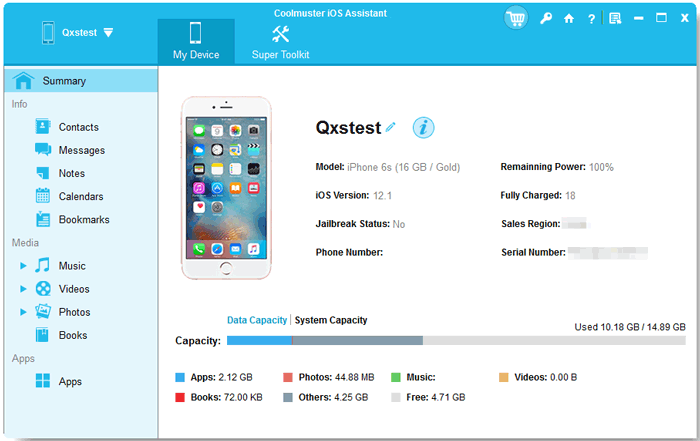
01Launch iOS Assistant on your computer and connect your iPhone using a USB cable. Once the device is detected, go to the "Super Toolkit" section.
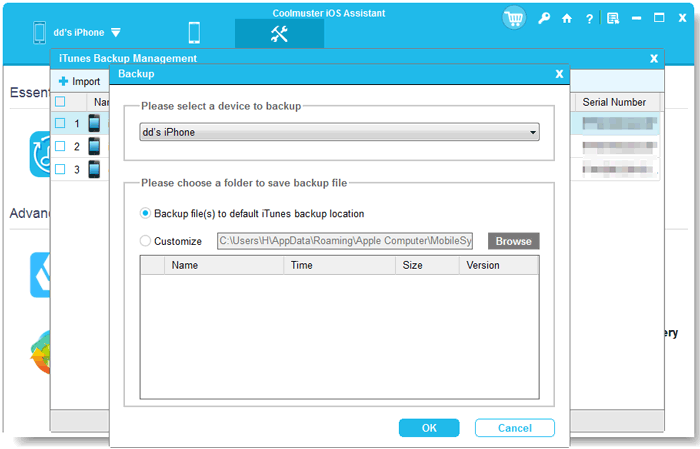
02On the main interface, click "iTunes Backup and Restore", then select the "Backup" option. After that, click the "Browse" button to choose a location for saving your backup files. Finally, click "OK" to start backing up your iOS data.
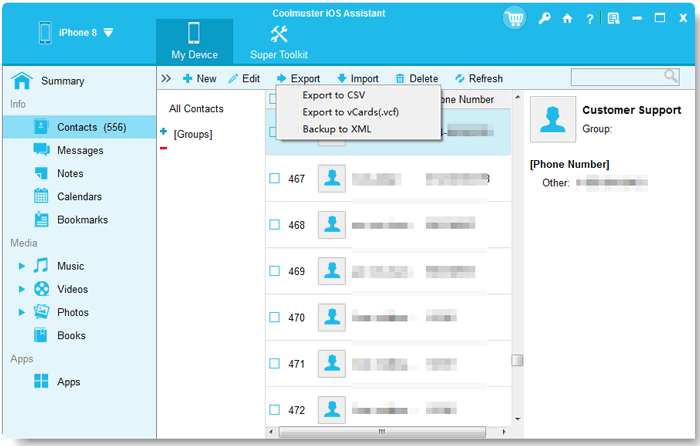
If you only want to back up specific types of data from your iPhone, use the left sidebar to select a data category. Preview and choose the items you need from the scan results, then click "Export" at the top to complete the process.
Video Tutorial:
If you prefer a wireless method, iCloud is the easiest official Apple backup solution. It automatically stores your iPhone information in the cloud and allows you to restore data when setting up a new device. However, iCloud backups require enough cloud storage space and a stable internet connection.
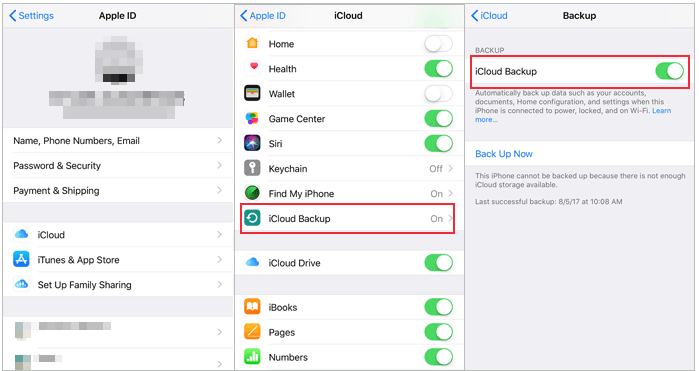
Here is how to back up your iPhone to iCloud:
Step 1. Open the "Settings" app on your iPhone and tap your "Apple ID" profile at the top.
Step 2. Select "iCloud", then find and tap "iCloud Backup".
Step 3. Enable the "iCloud Backup" toggle, then tap "Back Up Now". Make sure your device is connected to a stable Wi-Fi network.
iTunes is another official way to back up an iPhone after leaving DFU mode. It stores the backup locally on your computer, making it useful for users who want offline storage. However, iTunes backups are not easy to browse, and restoring a backup may replace the current data on your device.
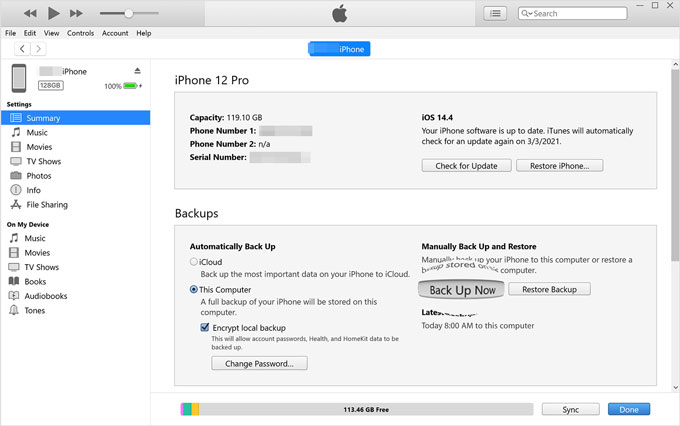
Here is how to back up iPhone to iTunes:
Step 1. Open iTunes on your computer and connect your iPhone using a USB cable, then click the iPhone icon.
Step 2. Under the "Backups" section, select "This Computer" and enable "Encrypt local backup" if you want to save passwords and health data.
Step 3. Click "Back Up Now" and wait until iTunes finishes the backup process.
Q1. Will entering DFU mode delete all my data?
Simply entering DFU mode will not erase your data. However, DFU mode is typically used before performing a factory restore. If you restore your device while in DFU mode without having a backup, all data will be deleted.
Q2. How is DFU mode different from Recovery mode?
Recovery mode uses iBoot to restore or update the device, while DFU mode (Device Firmware Update) bypasses iBoot entirely to enable bigger firmware-level changes. DFU mode is often used for jailbreaking or resolving more serious system issues. (If you want to learn more about DFU Mode vs Recovery Mode, you can read this article.)
If you want to back up an iPhone in DFU mode, it is recommended to first use iOS System Recovery to exit DFU mode while preserving data as much as possible. After the device returns to normal, you can choose a suitable method to back up your iPhone.
If you want more flexible management and export of iPhone data, Coolmuster iOS Assistant is a more convenient option. If you prefer an official solution, you can use iCloud or iTunes to complete the backup.
Related Articles:
How to Recover Data from iPhone in DFU Mode: Step-by-Step Guide
How to Back Up iPhone in Recovery Mode [Easy & Quick Ways]
[3 Ways] How to Back Up A Locked/Disabled iPhone without Passcode?
How to Back Up iPhone without Password with 3 Easy & Safe Ways?







 Free Download for PC
  Free Download for Mac


