TL;DR: DFU Mode vs Recovery Mode are two iPhone/iPad repair options for serious system issues. DFU Mode is the deepest restore method that bypasses iOS and fully reinstalls firmware, but it erases all data and is more complex. Recovery Mode is easier and used for common issues like update failure or the Apple logo being stuck, with a standard restore process.
In short: DFU Mode is for severe problems, Recovery Mode is for basic system recovery.
"My iPod got stuck in the 'Slide to Update' screen when I upgraded to iOS 9. Then it got disabled for 24,000,000 minutes. I would like to know the differences between DFU mode and recovery mode. Which one could help me save my pictures and videos? Will they both automatically reset my iPod, or could I make a backup when in one of the modes?"
- from Apple Community
When an iPhone or iPad experiences system issues such as crashes, freezing, or won't turn on, "DFU Mode" and "Recovery Mode" are two essential troubleshooting methods. Many users tend to confuse them, but in fact, they differ significantly in how they work, when they should be used, and how they are operated. Understanding the difference between the two can help you troubleshoot device problems more effectively.
In this DFU Mode vs Recovery Mode guide, we will take a closer look at the differences between DFU Mode and Recovery Mode, as well as how each one works in detail. Let's get started.
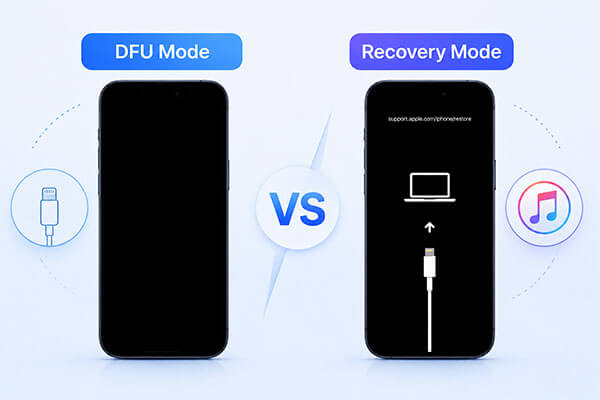
DFU Mode is the most advanced troubleshooting option available for iPhone. It lets the device communicate with iTunes on Windows or Finder on Mac without loading iOS or the bootloader. When a device enters DFU Mode, the screen remains completely black even though the device is powered on. This mode is especially useful for resolving more complex system issues.
* Recovery Mode is not able to restore your device.
* Your iPhone is bricked and completely unresponsive, with no display activity.
* You need to downgrade iOS to a previous version (as long as Apple is still signing it).
* You are removing a jailbreak and want a completely clean system.
* The device has serious firmware corruption that cannot be fixed through standard recovery.
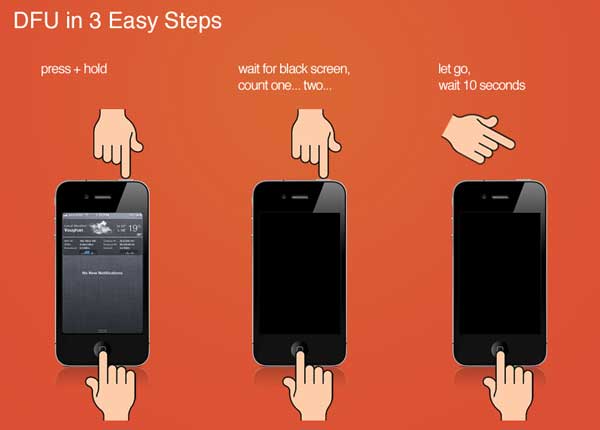
The steps to enter or exit DFU Mode differ depending on the iPhone model.
iPhone 8 and later:
iPhone 7 / 7 Plus:
iPhone 6s / SE (1st gen) and earlier:
Recovery Mode is another troubleshooting option for iPhone that lets you restore the device or update its firmware. When it enters Recovery Mode, you will see the "Connect to iTunes" screen.
Unlike DFU Mode, it does load the iBoot bootloader, which helps ensure the correct firmware is installed during the restore process. This mode is commonly used to resolve a variety of system issues, such as being stuck on the Apple logo, corrupted iOS downloads, or an unresponsive device. After the restore process, your iPhone will be updated to the latest iOS version.
* Your iPhone stays stuck on the Apple logo for more than 10 minutes.
* The device is caught in a boot loop and keeps restarting repeatedly.
* A standard over-the-air (OTA) update has failed, leaving the device unusable or stuck.
* The "connect to computer" screen appears unexpectedly.
* You need to restore the device after a failed software update.
Just like DFU Mode, the exact steps to enter or exit Recovery Mode vary depending on the iPhone model.
iPhone 8 and later:
iPhone 7 / 7 Plus:
iPhone 6s / SE (1st gen) and earlier:

So, what are the differences between DFU Mode and Recovery Mode? After going through the content above, you should now have a clear understanding of both modes, but the key differences may still feel unclear. The chart below highlights the main distinctions between DFU Mode and Recovery Mode.
| Aspect | DFU Mode | Recovery Mode |
|---|---|---|
| Bootloader | Completely bypasses iBoot | Loads iBoot |
| Screen Display | Black screen | Cable + computer icon |
| Firmware Verification | Can bypass firmware signing | Enforces firmware signing |
| Repair Depth | Deep system reinstallation | Standard repair |
| Level | Firmware-level recovery | Software-level recovery |
| Data Loss | Always wipes all data | Update option keeps user data |
| Difficulty Level | More complex | Simple |
| Use Cases | Firmware downgrades, jailbreaking, and repairing bricked devices | Restoring or updating iOS in most standard cases |
If your iOS device is stuck in DFU Mode or Recovery Mode, a professional third-party iOS repair tool may be required if you want to avoid data loss. iOS System Recovery is an effective solution that can fix over 150 types of iOS system issues without risking your data, including devices stuck in Recovery/DFU Mode, the white Apple logo screen, iPad not turning off, iPhone random restarts, and more.
What can iOS System Recovery do for you?
Here is how to fix an iPhone/iPad stuck in Recovery or DFU Mode without data loss:
01Download, install, and launch iOS System Recovery on your computer.
02Connect your iPhone to the computer using a working USB cable. On the main screen, choose "iOS System Recovery" and click "Start".

03Select "Standard Mode" to fix the system without data loss, or choose "Advanced Mode" for a deeper repair. Then click "Confirm" to proceed.

04Check your device details. If required, download the correct firmware package and click "Repair". Wait for the process to finish. Once completed, your iPhone will restart normally.

Q1. Does Recovery Mode erase data on an iPhone?
Not necessarily. Choosing Update in Recovery Mode will reinstall iOS without removing your data. However, selecting Restore will erase everything on the device. It's always a good idea to back up your iPhone before using either option.
Q2. Does DFU Mode delete everything on iPhone?
Yes. DFU Mode typically results in a complete erase of your iPhone. When you use DFU Mode to restore the device, it reloads both the firmware and iOS from scratch, which wipes all data and settings on the device. For this reason, DFU Mode is usually considered a full clean restore option, so you should back up your iPhone beforehand if possible.
Q3. Is DFU Mode better than Recovery Mode?
DFU Mode is not better than Recovery Mode—it's just more advanced. Recovery Mode is enough for most issues, while DFU Mode is used for deeper, more serious system problems when Recovery Mode doesn't work.
That's all about DFU Mode vs Recovery Mode. Knowing the difference between iPhone Recovery Mode and DFU Mode helps you select the right approach when dealing with iOS system issues. Although both are powerful troubleshooting options, they can be complicated and risky for regular users.
iOS System Recovery provides a simpler and safer alternative, allowing you to fix a wide range of iOS problems, including devices stuck in Recovery or DFU Mode, without data loss, making it a convenient solution for easy iPhone system repair.
Related Articles:
iPhone Won't Restore? 11 Effective Fixes for Your iPhone Woes
Does Restoring iPhone Delete Everything? Find the Answer Here!
How to Recover Data from iPhone in DFU Mode: Step-by-Step Guide
Does Recovery Mode Delete Everything on iPhone? Here's the Answer!




 Free Download for PC
  Free Download for Mac


