TL;DR:
Wondering how to make your iPhone sound louder and clearer? This guide introduces the best volume booster apps and practical ways to enhance your audio experience.
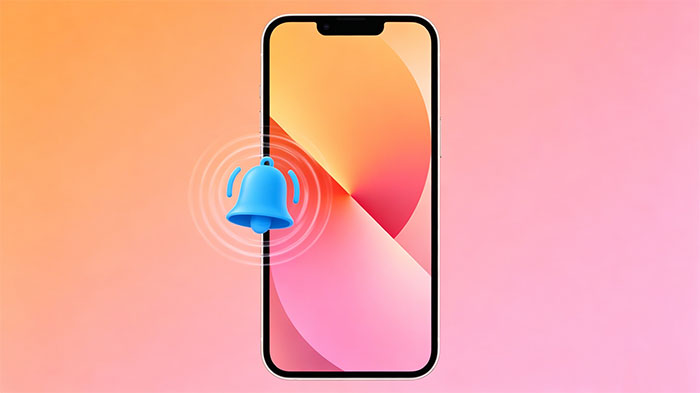
If you feel your iPhone volume is not loud enough when listening to music, watching videos, or using streaming apps, you are not alone. Many users look for volume booster apps to enhance their audio experience. While iOS has built-in sound limits, certain apps can still improve clarity, bass, and overall sound performance through advanced equalizer settings. In this guide, we will introduce the best volume booster apps for iPhone and show you how to use them effectively and safely.
Boom: Bass Booster & Equalizer is one of the most popular volume booster apps for iPhone. It combines a powerful equalizer, bass enhancement, and immersive 3D surround sound technology to deliver a richer listening experience. Whether you're listening to music, podcasts, or streaming audio, Boom helps optimize sound quality and make audio feel louder and clearer. (No Sound on iPhone?)
Key Features:
Pros:
Cons:
Price: Free with in-app purchases
Best For: Users who want an all-in-one audio enhancement app with volume boosting, EQ customization, and immersive sound effects.
Equalizer Fx is a simple yet effective volume booster and audio equalizer app for iPhone. It focuses on improving sound quality through precise equalizer controls and bass enhancement, making it a good choice for users who want more control over their listening experience without overly complex settings.
Key Features:
Pros:
Cons:
Price: Free with in-app purchases.
Best For: Users who want a straightforward equalizer app to boost volume and improve sound quality without complicated settings.
KaiserTone Audio Player is a high-resolution music player designed for audiophiles who want superior sound quality on iPhone. It supports advanced audio processing and ultra-wide frequency playback, making it a strong option for users who prioritize sound clarity and detail over simple volume boosting. (iPhone Text Sound Not Working?)

Key Features:
Pros:
Cons:
Price: Paid app (may vary by region).
Best For: Audiophiles who want a professional-grade music player with advanced audio enhancement rather than a simple volume booster.
Evermusic is a versatile music player and audio streaming app for iPhone that also helps enhance the overall listening experience. While it is not a dedicated "volume booster," it improves sound management and playback quality, making music feel clearer and more balanced.
Key Features:
Pros:
Cons:
Price: Free with in-app purchases.
Best For: Users who want a flexible music player that combines cloud storage access with basic audio enhancement features.
Flacbox is a powerful audio player and file manager for iPhone that supports high-resolution audio playback and advanced sound customization. It is especially popular among users who listen to lossless music formats and want better control over their audio experience.
Key Features:
Pros:
Cons:
Price: Free with in-app purchases.
Best For: Users who want a high-quality audio player with strong file management and lossless music support.
Bass Booster Volume Power Amp is a simple volume booster and bass enhancement app for iPhone that focuses on increasing overall loudness and improving low-frequency sound performance. It is designed for users who want a straightforward audio enhancement tool without complex settings.
Key Features:
Pros:
Cons:
Price: Free with in-app purchases.
Best For: Users who want a basic and fast way to boost volume and bass without complicated audio settings.
The easiest way to remove volume booster apps on an iPhone is by deleting them directly from the device. This method is quick and does not require any additional tools or software. Below is the step-by-step guide to delete apps on iPhone:
After completing these steps, the app will be fully removed from your iPhone, freeing up storage space and stopping any background usage.
If you want a more efficient way to manage and remove volume booster apps, using a professional iOS management tool like Coolmuster iOS Assistant can save you a lot of time. Instead of deleting apps one by one on your iPhone, you can manage everything from a computer in a much clearer and faster way.
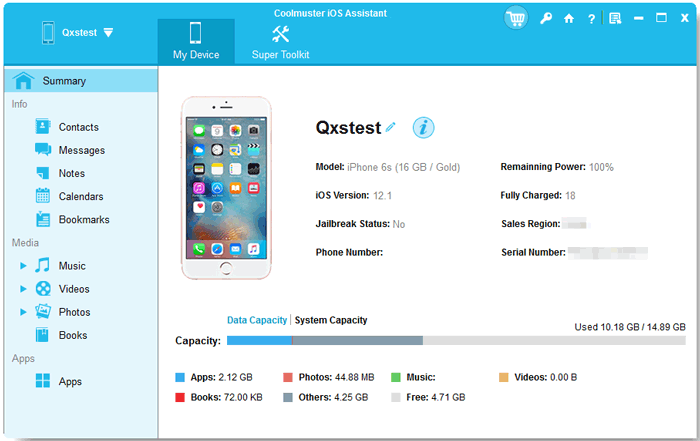
Coolmuster iOS Assistant is a powerful iOS data management tool that helps you manage iPhone apps, media files, contacts, messages, and more directly from your computer. It provides a clear overview of all installed apps, allowing you to organize and remove unwanted volume booster apps with just a few clicks.
Key Features of Coolmuster iOS Assistant:
How to Manage iPhone Apps Using Coolmuster iOS Assistant:
01Download and install iOS Assistant on your computer. Connect your iPhone to the computer using a USB cable. Launch the software and wait for your device to be detected.
02Click Apps from the left panel to view all installed apps. Select the volume booster apps you want to remove.
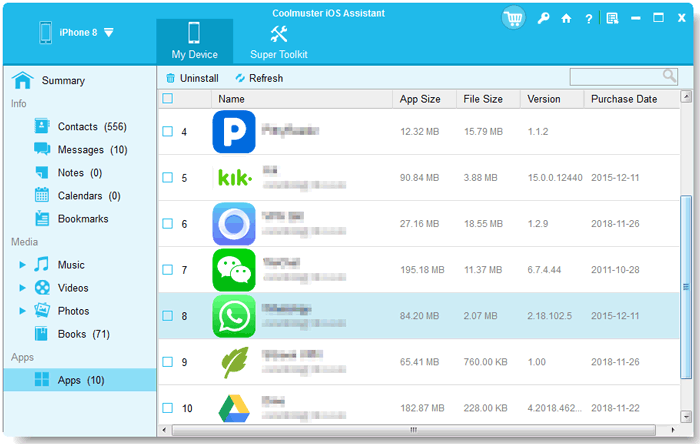
03Navigate to the top menu, click "Uninstall" to delete the selected apps from your iPhone.
Video Guide:
Q1. Do volume booster apps really work on iPhone?
Volume booster apps don't actually "break" or bypass the iPhone's system volume limit. Instead, they work more like sound enhancers. They use EQ and audio tuning to make music sound fuller, louder, and more balanced. So while they won't dramatically increase the max volume, they can definitely improve how loud and clear your audio feels.
Q2. Are volume booster apps safe for iPhone speakers?
In general, yes-they are safe as long as you use them properly. The main thing to watch out for is excessive bass or max volume settings. If you push the sound too high for a long time, it may cause distortion or put unnecessary strain on your speakers or headphones. Keeping things at a reasonable level is totally fine.
Q3. Can volume booster apps increase Apple Music or Spotify volume?
Not directly. Apps like Apple Music or Spotify are controlled by iOS, so third-party apps can't really override their system volume. What they can do is adjust the sound profile using equalizer settings, which may make the music feel louder, richer, or more "alive," even if the actual volume level doesn't change.
Q4. Why is my iPhone volume still low after using a volume booster app?
This usually comes down to a few simple reasons. iOS has built-in volume limits, especially for safety. On top of that, low-quality audio files or Bluetooth device limitations can also affect sound output. In many cases, it's not the app-it's just how the system or audio source is designed. Checking EQ settings or switching to higher-quality audio can often make a noticeable difference.
Volume booster apps for iPhone can significantly improve your listening experience by enhancing sound quality, bass, and audio balance, even though they cannot bypass iOS volume limits. In this article, we reviewed the top 6 apps and explained how they work in real use. We also shared practical ways to manage and remove unwanted apps, helping you keep your device clean, organized, and optimized for better performance and sound experience.
Related Articles:
How to Fix No Sound on iPhone Video 2026? - 12 Solutions
iPhone Screen Recording No Sound? 8 Easy Fixes That Work




 Free Download for PC
  Free Download for Mac


