TL;DR: Frustrated that your iPhone screen recording has no sound? This common issue can be caused by a disabled microphone, Bluetooth interference, low volume, or system glitches. Start by enabling the microphone, disconnecting Bluetooth devices, restarting your iPhone, resetting settings, or updating iOS. For persistent problems, advanced solutions like system recovery tools can fix the issue safely without losing data, ensuring your screen recordings capture both video and audio perfectly.
"Whenever I make a screen recording of my phone and video calls, there's no sound. What could be the reason? I can't hear the sound of my video recordings, but with Snapchat it works fine."
- from Apple Community
The built-in screen recording feature on iPhone makes it easy to capture gameplay, app tutorials, video calls, live streams, and other on-screen activities. However, many users encounter a frustrating issue after recording a video: iPhone screen recording no sound.
Why does my iPhone screen recording not have sound? In this guide, we'll explain the possible causes and show you how to fix iPhone screen recording no sound using 8 effective solutions.
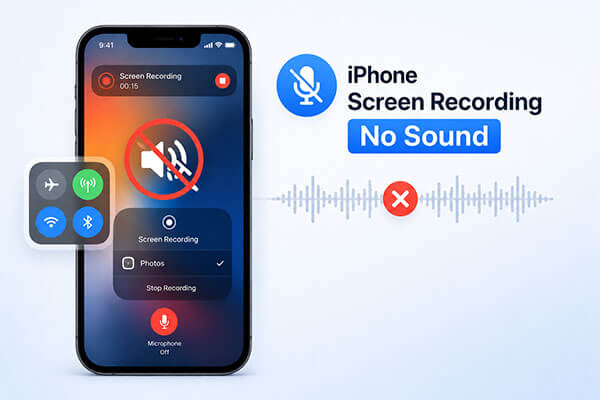
The following are common reasons why an iPhone screen recording may have no sound:
Here are 8 effective solutions to help you fix iPhone screen recording no sound. You can try them one by one. Let's get started.
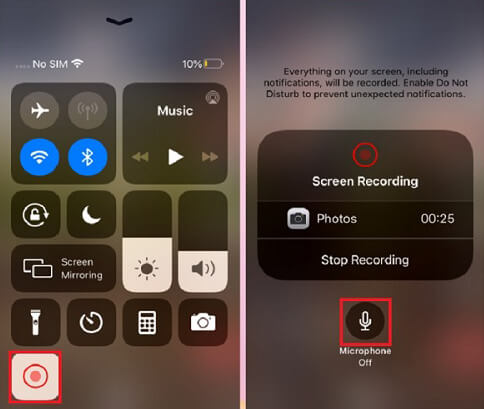
If your screen recording has no sound, first make sure that Microphone Audio is enabled. To turn on the microphone during screen recording, follow the steps below:
Step 1. Open "Control Center" on your iPhone.
Step 2. Press and hold the "Screen Recording" button until additional options appear.
Step 3. Tap the "Microphone" icon to enable audio recording. When the microphone is turned on, the icon will turn red.
Step 4. Start your screen recording again and check whether the sound is being captured properly.
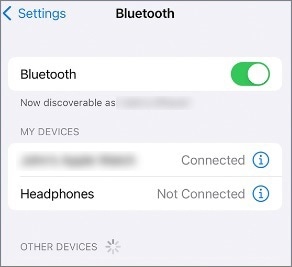
If your iPhone is connected to Bluetooth headphones or speakers, audio may be routed to the connected device instead of being captured in the screen recording. This can result in a screen recording with no sound. To quickly resolve the issue, try the following steps:
Step 1. Open "Settings", go to "Bluetooth", and locate your connected device.
Step 2. Tap the "i" icon next to the device and select "Disconnect".
Alternatively, you can also directly turn off Bluetooth by opening "Settings", selecting "Bluetooth", and switching it off.
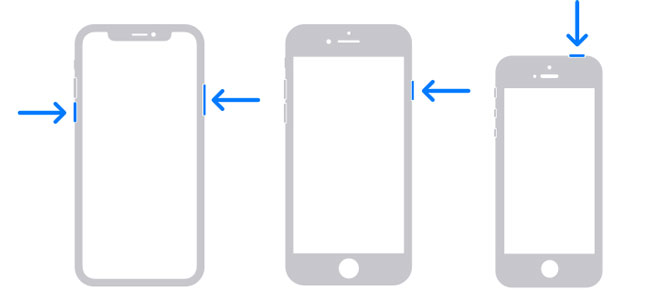
System cache errors or conflicts with background apps can sometimes cause issues with screen recording audio. Restarting your device can refresh system resources and resolve many temporary problems.
Here is how to restart the iPhone:
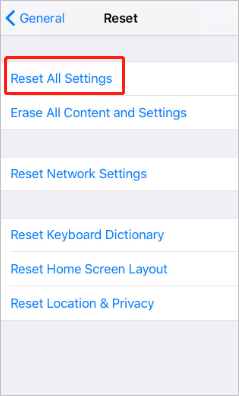
Incorrect or conflicting settings can sometimes cause iPhone screen recordings to have no sound. Resetting all settings may help restore normal audio recording functionality. To reset all settings, follow the steps below:
Step 1. Open "Settings" > "General" > "Transfer or Reset iPhone".
Step 2. Tap "Reset" > "Reset All Settings".
Step 3. Enter your passcode if prompted, then tap Reset All Settings again to confirm.
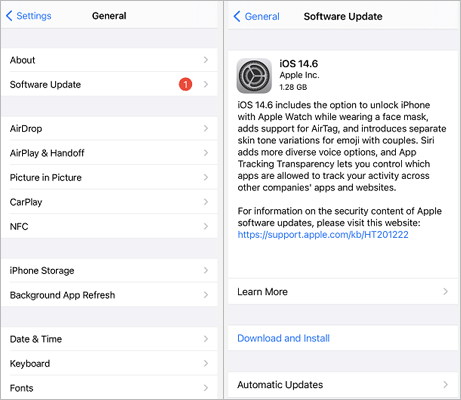
Apple regularly releases iOS updates to fix bugs and improve system stability. If you're running an outdated version of iOS, a known bug may be causing the iPhone screen recording no sound issue. Installing the latest software update can often resolve recording-related problems.
Here is how to update your iPhone:
Step 1. Open "Settings", then go to "General".
Step 2. Tap "Software Update" to view available iOS versions.
Step 3. Select the update and tap "Download and Install", then choose "Install Now". (iPhone won't update?)
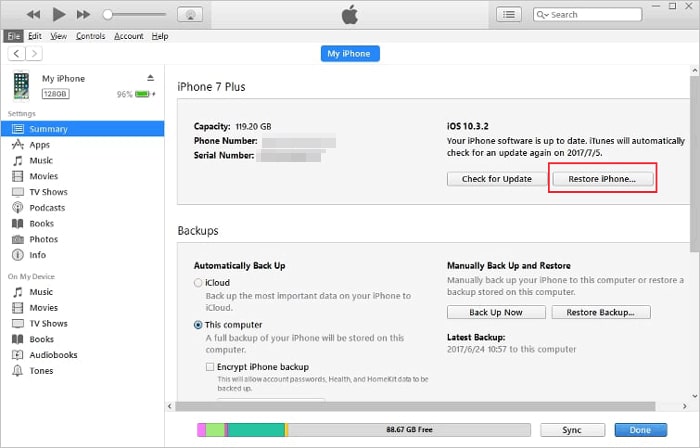
When software corruption is more severe, simple troubleshooting methods may not be enough. Restoring your device through iTunes can reinstall iOS and eliminate system-level issues affecting screen recording. Because this process erases all data on the device, it's important to create a backup beforehand.
Here is how to do it:
Step 1. Install the latest version of iTunes on your computer.
Step 2. Connect your iPhone using a USB cable.
Step 3. Open iTunes and click the device icon.
Step 4. Go to "Summary" → click "Restore iPhone" and follow the on-screen instructions.
If you want to fix iPhone screen recording no sound without losing data, a professional iOS repair tool is often the best option. iOS System Recovery is designed to repair various iOS system issues, including screen recording problems, update failures, boot loops, frozen screens, and more. The biggest advantage is that its Standard Mode can repair the system while keeping your existing data intact.
Key features of iOS System Recovery:
Here is how to fix iPhone screen recording no sound using iOS System Recovery:
01Download and install the program on your computer. It will launch automatically.
02Use a working USB cable, select "iOS System Recovery", and click "Start".

03Choose Standard or Advanced mode, then click "Confirm".

04Verify your device information, click "Repair", and wait for the process to complete. Once finished, your iPhone will function normally again.

If you've tried all the solutions above and your iPhone still records no sound, it's time to contact Apple Support or visit an Apple Store. The issue may stem from a hardware problem that requires professional attention.
When encountering the issue of iPhone screen recording with no sound, you should first check whether the microphone is enabled and disconnect any Bluetooth devices. Then, try restarting your device, resetting settings, or updating the iOS system.
If the problem is caused by a system malfunction, basic methods are often not enough to fully resolve it. Compared with the time-consuming iTunes restore process, which may also lead to data loss, iOS System Recovery offers a safer and more efficient solution. It can fix various iOS system issues without deleting data, making it an ideal choice for resolving the iPhone screen recording no sound problem.
Related Articles:
No Sound on iPhone Video? Fixed in 12 Easy and Quick Ways
13 Best Ways to Fix an iPhone Stuck in Headphone Mode Like a Pro
How to Fix Videos Not Playing on iPhone Apps/Camera Roll/Safari?
How to Fix iPhone Text Message Sound Not Working? [Easy Guide]




 Free Download for PC
  Free Download for Mac


