The iPad Air has become one of the most popular tablets thanks to its balance of performance, design, and price. Whether you are a student, professional, or casual user, it offers powerful features without the high cost of premium models. In this review, we will explore its performance, design, and real-world usage, along with practical tips to help you get the most out of your device.
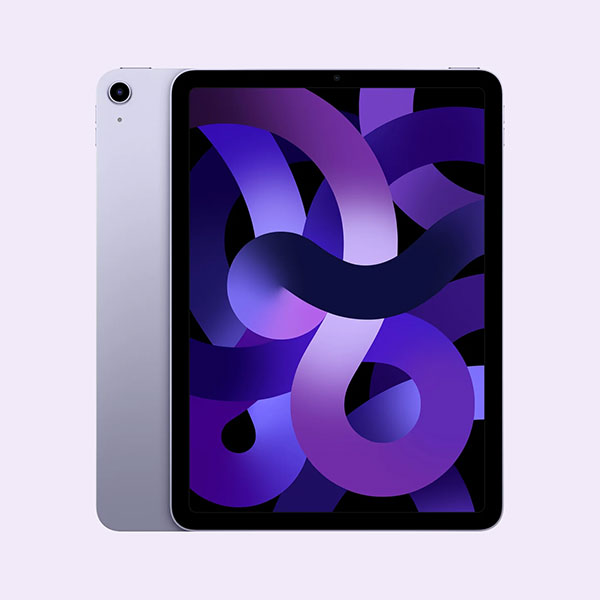
The iPad Air sits right in the middle of Apple's tablet lineup, offering a strong balance between performance, design, and price. It is powerful enough for daily work and creative tasks, yet more affordable than high-end models.
The iPad Air features a slim and lightweight design, making it easy to carry in a backpack or even hold with one hand for long periods. Its flat-edge design gives it a modern look, similar to premium tablets.
The build quality is solid, with an aluminum body that feels both durable and premium. It is available in multiple colors, allowing users to choose a style that fits their personality.
The iPad Air comes with a high-resolution Liquid Retina display. The screen is bright, sharp, and delivers accurate colors, making it great for watching videos, browsing, and light creative work.
Although it does not include advanced display technologies found in higher-end models, it still provides a smooth and enjoyable viewing experience for most users. (iPad Stuck on Apple Logo?)
The iPad Air is powered by a high-performance chip, which allows it to handle multitasking, gaming, and productivity tasks with ease.
Key highlights include:
These specs make it a versatile device for both work and entertainment.
The latest version of the iPad Air brings noticeable upgrades in performance and usability. The newer chip improves speed and efficiency, allowing apps to run faster and more smoothly.
There are also improvements in connectivity and accessory support, making it more useful for productivity tasks. Overall, these upgrades help the iPad Air stay competitive and relevant for modern users.
The iPad Air delivers strong performance in daily use. It is fast, smooth, and powerful enough for most tasks, from study to light creative work.
The iPad Air runs very smoothly in daily tasks. Apps open quickly, and switching between them feels seamless. Multitasking is also efficient. You can use Split View or run multiple apps at once without noticeable lag, especially on newer models with M-series chips.
The iPad Air handles games and demanding apps well. It can run high-performance games and creative tools like video editing or drawing apps without major slowdowns.
Newer versions (like M4 models) offer even better speed and graphics performance, making them suitable for more advanced tasks.
Battery life is reliable. The iPad Air can usually last a full day with normal use, such as studying, streaming, or working. If you play games or use demanding apps for a long time, the battery will drain faster, but overall it remains consistent and dependable.
With Apple Pencil, writing and drawing feel natural and smooth. It is great for note-taking, sketching, and marking documents. When paired with a keyboard, the iPad Air becomes more productive. Typing is comfortable, and it can handle tasks like writing, emailing, and document editing efficiently.
iPad Not Backing Up to iCloud & iTunes? Backing up your iPad Air to a computer is a smart way to keep your data safe and avoid storage limits on iCloud. If you want a simple and flexible solution, Coolmuster iOS Assistant is a great choice. It allows you to back up your device without iTunes, preview files before saving, and restore data easily whenever needed. Even beginners can complete the process quickly.
Key features of Coolmuster iOS Assistant:
Free download Coolmuster iOS Assistant on your computer now:
How to back up iPad on computer without iTunes:
01 Install and open Coolmuster iOS Assistant, then connect your iPad Air to the computer with a USB cable.
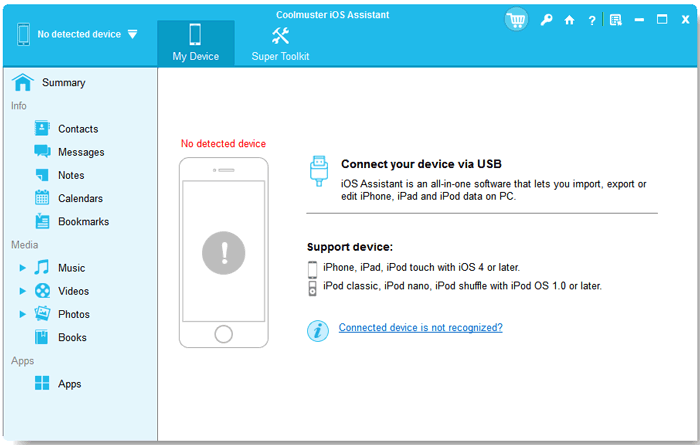
02 Once detected, click "Super Toolkit" > "iTunes Backup & Restore" and choose "Backup."
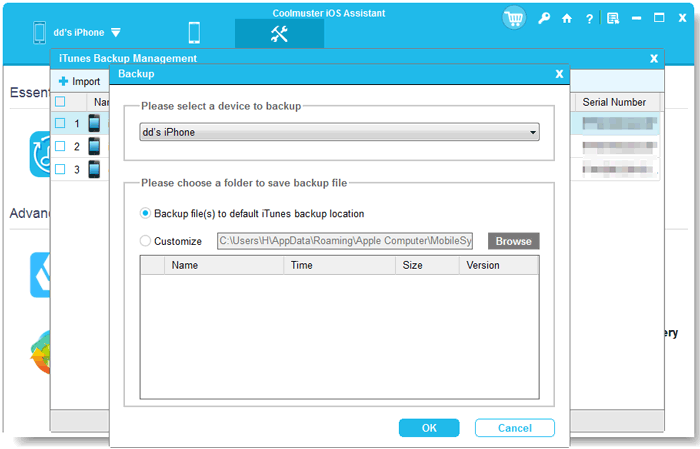
03 Select your iPad Air, set a backup location, and click "OK" to start the backup.
Video Guide:
Accidentally deleting important files on your iPad Air can be frustrating, but you don't need to panic. Coolmuster iPhone Data Recovery is a reliable tool that helps you retrieve lost messages, photos, contacts, notes, and more. It works even if you don't have a backup, and you can preview your data before recovery to ensure you restore only what you need. The process is simple, fast, and safe, making it a perfect solution for both beginners and advanced users.
How to recover deleted data from iPad Air using this powerful iPad Data Recovery:
01 Install and launch Coolmuster iPhone Data Recovery, then connect your iPad Air to the computer via USB and trust the computer on your device.
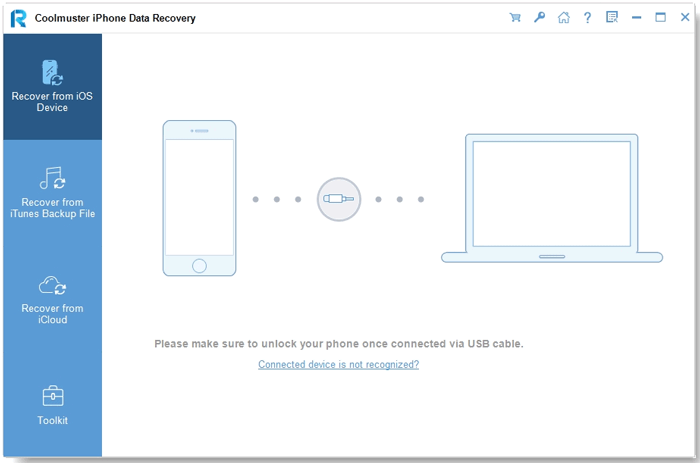
02 Select "Recover from iOS Device", check the types of data you want to recover (like photos, messages, or notes), and click "Start Scan" to let the program analyze your iPad.
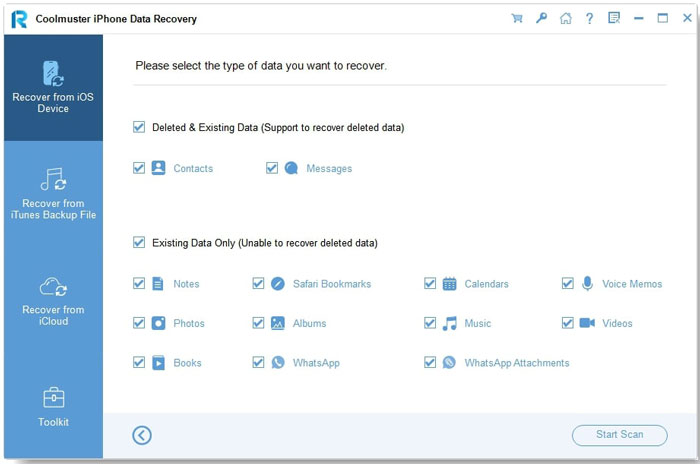
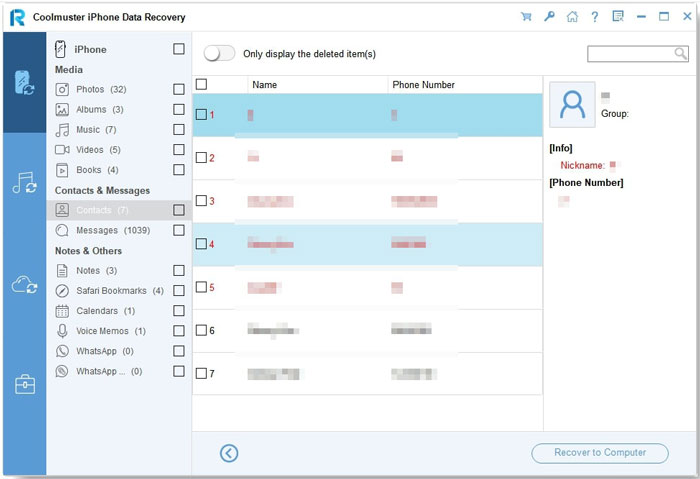
03 After scanning, preview the found files, select the items you want, and click "Recover to Computer" to save them to your chosen folder.
Coolmuster iPhone Data Recovery also allows you to recover data from iTunes backups or iCloud backups, making it flexible if your lost files were backed up previously. This way, you can restore data even if your iPad is damaged, reset, or unavailable.
Video Guide:
If you plan to sell, give away, or recycle your iPad Air, simply deleting files or performing a factory reset is not enough to protect your personal data. Coolmuster iOS Eraser is a professional tool that can permanently erase all data from your iPad, including photos, messages, contacts, apps, and account info, making it unrecoverable. It is fast, easy to use, and compatible with all iPad Air models, ensuring your privacy and security before you hand over your device.
Here is how to use Coolmuster iOS Eraser to erase your iPad Air permanently:
01 Install and launch Coolmuster iOS Eraser, then connect your iPad Air to the computer using a USB cable and trust the computer on your device.
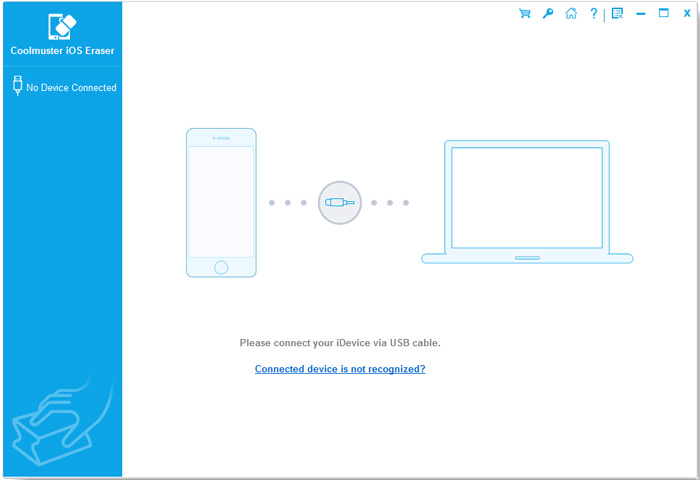
02 Choose the "Erase All Data" option, select a security level (Low, Medium, or High), and click "Start" to begin scanning your iPad.
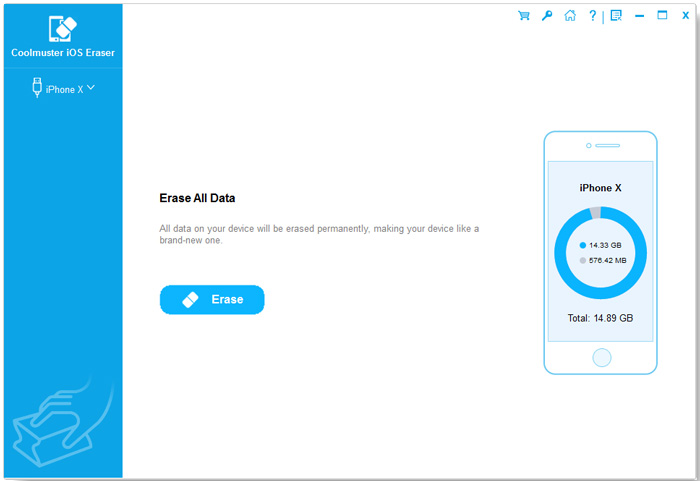
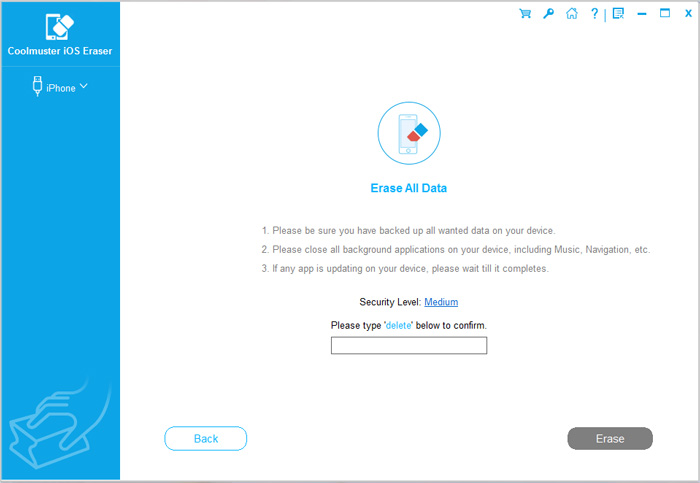
03 Confirm the deletion by typing "delete" when prompted, then click "Erase" to permanently wipe all data from your iPad Air.
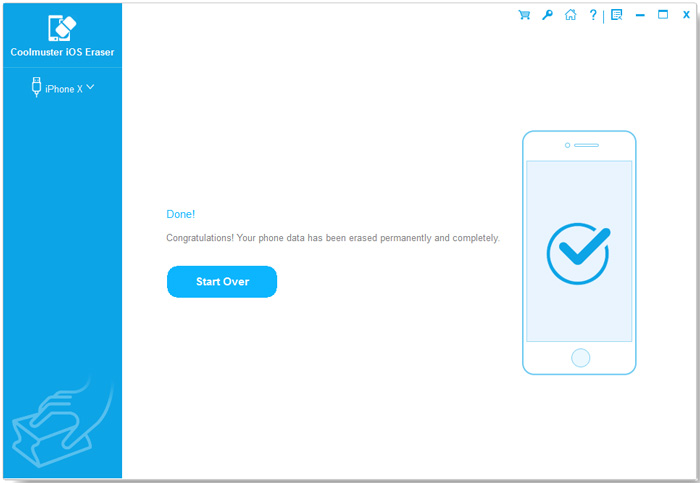
04Once the entire process is completed, your iPad data will be permanently and irreversibly deleted, with no chance of recovery. You can proceed to set up your iDevice immediately.
Video Guide:
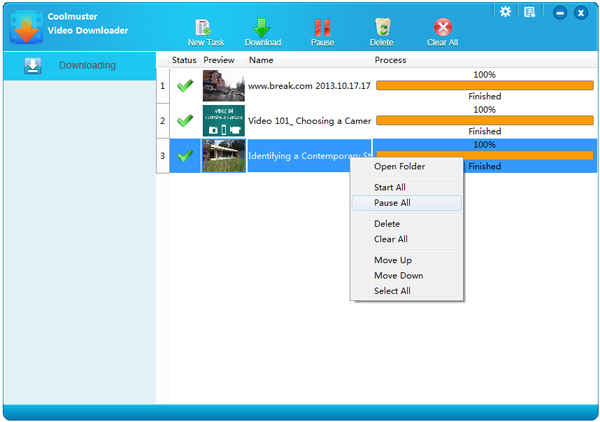
The iPad Air is a perfect portable device for watching movies on the go. Its high-resolution screen and clear, high-definition sound deliver an excellent viewing experience. If you're unsure how to download videos to your iPad Air, Coolmuster Video Downloader can help. It allows you to download videos from popular sites like YouTube, Break, Metacafe, AOL, and more, and save them in formats such as MP4, FLV, WebM, or 3GP.
Here is how to use Coolmuster Video Downloader to download videos for your iPad Air:
01 Launch Coolmuster Video Downloader and click "New Task."
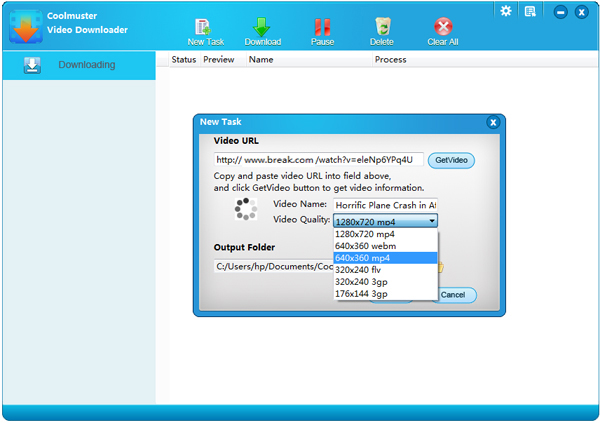
02 Copy and paste the video URL, select MP4 as the video quality, and choose an output folder.
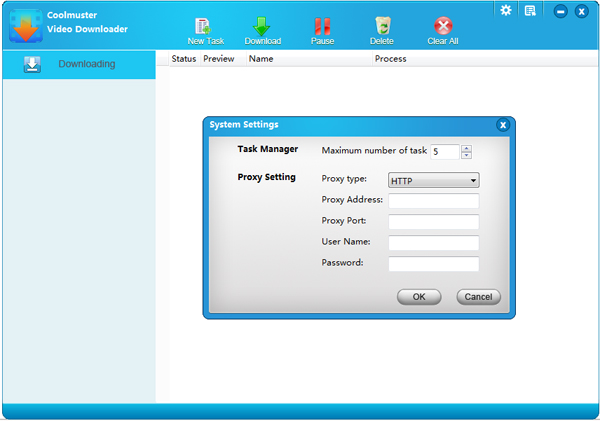
03 Click "Download" to save the video to your computer, then sync it to your iPad Air.
Transferring data between your iPad Air and other devices doesn't have to be complicated. Whether you're moving files to a new iPad, switching from or to Android, Coolmuster Mobile Transfer makes it simple. It supports contacts, messages, photos, videos, music, and more, allowing you to transfer everything in just a few clicks. The software works with both iOS and Android devices, ensuring a smooth and safe data transfer without losing any important files. (Click here to learn How to Transfer Photos from Android to iPad.)
Check the steps to transfer data between iPad Air and other devices easily via Mobile Transfer:
01 Install and launch Coolmuster Mobile Transfer, then connect your iPad Air and the other device to the computer using USB cables.
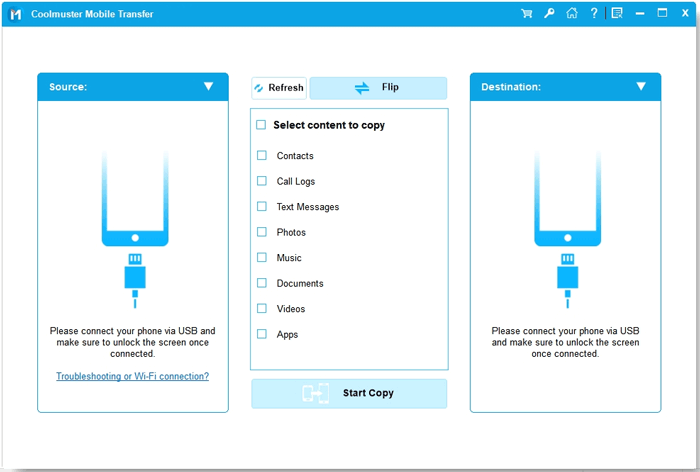
02 Ensure the devices are recognized correctly, with the source device on the left and the target device on the right, then select the types of data you want to transfer.
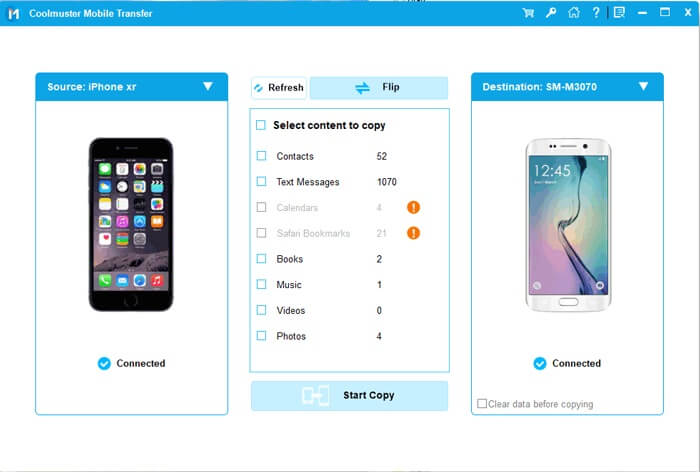
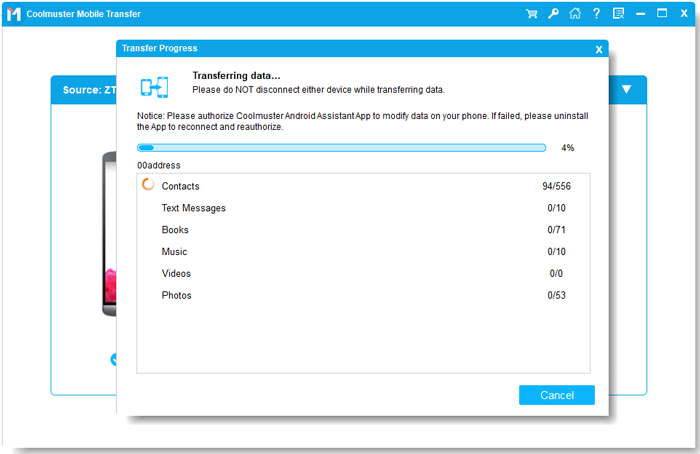
03 Click "Start Copy" to begin transferring the selected data from your iPad Air to the other device.
Video Guide:
The iPad Air is a versatile tablet, but how does it compare to other iPads, and what should users know before buying? This section covers key comparisons and answers common questions.
1. iPad Air vs iPad Pro
2. iPad Air vs Standard iPad
3. Which One Should You Choose?
Q1: Is iPad Air good for students?
Yes. It is lightweight, supports note-taking with Apple Pencil, and handles apps for studying, reading, and multimedia easily.
Q2: Can it replace a laptop?
For light tasks like browsing, emailing, and document editing, yes. Heavy professional work may still require a laptop.
Q3: How long does the battery last?
The iPad Air usually lasts a full day with typical usage like streaming, browsing, and working on apps.
Q4: Is it worth upgrading from an older iPad?
If your current iPad is slow, doesn't support Apple Pencil 2, or lacks compatibility with new apps, upgrading to iPad Air is recommended.
The iPad Air is a versatile tablet that balances performance, design, and portability. It handles daily tasks, multitasking, gaming, and creative apps smoothly, while remaining lightweight and easy to carry. Its sharp display, Apple Pencil support, and keyboard compatibility make it suitable for both work and entertainment.
With tools like Coolmuster iOS Assistant, Mobile Transfer, iOS Eraser, and Video Downloader, backing up, transferring, or managing data is simple and secure. Compared to the standard iPad and iPad Pro, the iPad Air offers excellent value for most users. Whether for studying, working, or enjoying media, it is a reliable and practical choice for anyone seeking a portable, all-around tablet.
Related Articles:
How to Transfer PDF Files to iPad? Solved in 5 Effective Ways
How to Transfer Videos from Mac to iPad? Solved in 4 Easy Ways
10 Effective Ways to Fix iPad Keeps Crashing Without Effort
[2026 Updated] How to Print Calendar from iPad Pro/Air/mini?







 Free Download for PC
  Free Download for Mac


