Upgrading to the latest iOS version can be exciting, but sometimes iOS 26 may not meet your expectations. You might experience unexpected bugs, slower performance, app incompatibilities, or simply prefer the features of your previous iOS. Whatever the reason, uninstalling iOS 26 and reverting to an earlier version is possible if you take the right steps.
This guide will walk you through everything you need to know - from backing up your iPhone safely to several methods for removing iOS 26 without losing important data. By following these steps carefully, you can restore your device to a more stable or familiar environment.
iOS updates usually come with exciting new features and enhancements, but there are several reasons why you might want to uninstall iOS 26:
1. Compatibility Issues
Some older iPhone models may experience performance or compatibility issues with the latest iOS version, leading to slow performance or app crashes.
2. Software Bugs
New iOS releases can sometimes have bugs or glitches that affect the overall user experience. These issues can range from minor annoyances to more severe problems.
3. Battery Drain
Battery life is a critical concern for many iPhone users. An iOS update may lead to increased battery consumption, causing frustration among users.
4. Limited Storage
New features and improvements can consume more storage on your device. If you're running low on storage, uninstalling iOS 26 can free up space.
5. Personal Preference
Some users simply prefer the previous iOS version's look and feel or may not find the new features useful.
Before you uninstall iOS 26, it's essential to back up your iPhone to ensure you don't lose any data. There are two primary methods for doing this.
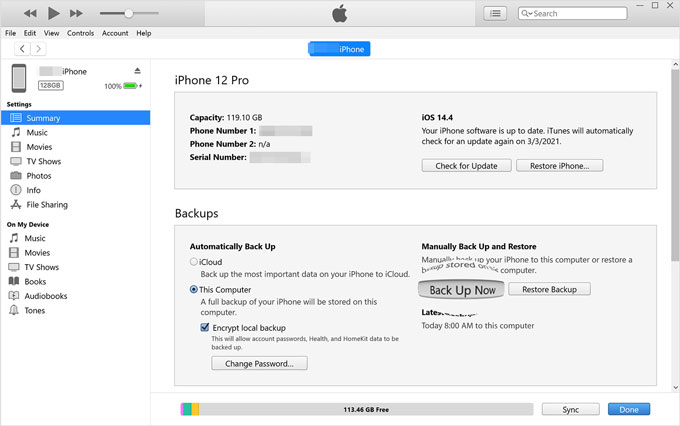
iTunes, the trusted media player and device management tool from Apple, offers a reliable method to create complete backups of your iPhone. You can easily back up your iPhone to a computer using iTunes. Here is how to do it:
Step 1. Connect your iPhone to your computer using a USB cable. Open iTunes if it doesn't open automatically.
Step 2. Click on the iPhone icon in the top-left corner of iTunes.
Step 3. In the Summary section, select This Computer under Backups.
Step 4. Click Back Up Now to start the backup process.
Step 5. Wait for iTunes to complete the backup. The time needed depends on the amount of data.
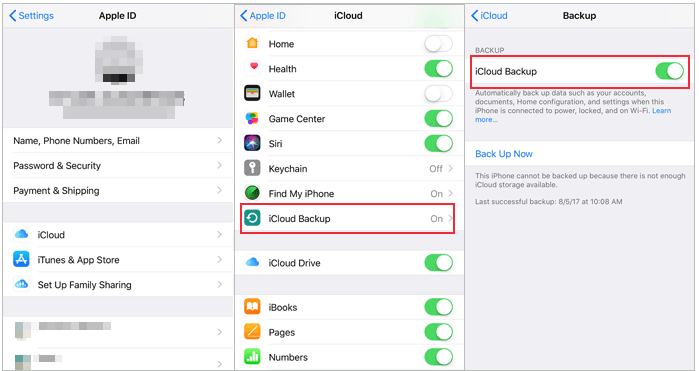
If you want to back up your iPhone without a computer, iCloud is a convenient and automatic way to ensure your data is safe and readily available when you need it. Here's how to back up your iPhone using iCloud:
Step 1. Connect your iPhone to Wi-Fi.
Step 2. Go to Settings on your iPhone. Tap your name at the top of the settings. Then, select iCloud.
Step 3. Scroll down and tap iCloud Backup. Toggle on iCloud Backup if it's not already enabled.
Step 4. Tap Back Up Now to start the backup immediately.
Step 5. Wait for the backup to complete. The time required depends on your data size and internet speed. You can check the backup's status and details under iCloud Backup. (iCloud backup taking forever?)
If you don't want to use these two methods to back up your iPhone, here is one professional software: Coolmuster iOS Assistant. It is the most effective method for iPhone backup on either a Windows PC or Mac. This software empowers you to select individual items for backup or conveniently back up all your iPhone data to your computer in just one click.
Now that you've backed up your iPhone, let's explore how to uninstall iOS 26. You'll find various methods to perform the uninstallation, each tailored to different user needs and scenarios.
The fastest and easiest way to do this is using iOS System Recovery. It is a powerful tool to help you resolve iOS system issues effectively without the risk of data loss. Whether you want to delete iOS 26 or face iPhone stuck black screen, a disabled iPhone, or other issues, this software provides a user-friendly and reliable solution to bring your device back to optimal performance.
Key Features of iOS System Recovery:
Here is how to delete software update iOS 26 using iOS System Recover software:
01Begin by downloading and installing iOS System Recovery on your computer.
02Launch the software and connect your iOS device to the computer using a USB cable. In the software's main interface, choose the iOS System Recovery option.

03Choose the Standard Mode for your device data repair because it won't result in data loss. After making your selection, click Confirm to proceed.

04Verify your device details and press the Repair button to initiate the download of the firmware package and commence the repair process to delete iOS 26.

Can I uninstall iOS 26 via iTunes? Sure. You can use the iTunes recovery mode to uninstall iOS 26 from your iPhone. This approach is particularly useful when your device is experiencing significant issues that prevent standard uninstallation. However, it's important to note that this process erases your device's data. So, it's essential to have a backup.
Here is how to delete software update iOS 26 via iTunes:
Step 1. Connect your iPhone to your computer using a USB cable. Open iTunes on your computer. Ensure you have the latest version installed.
Step 2. Put your iPhone into recovery mode. The steps for this may vary depending on your device:
For iPhone 8 or later:
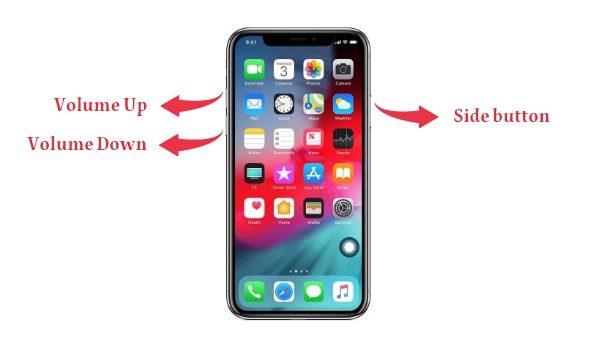
For iPhone 7 and 7 Plus:
For iPhone 6s and earlier:
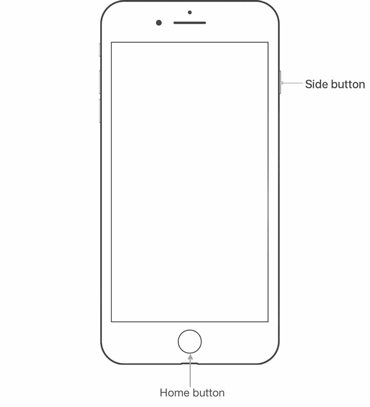
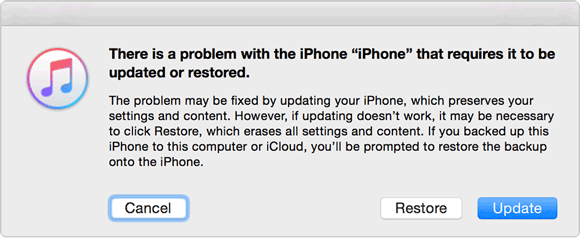
Step 3. Once in recovery mode, iTunes will detect your device and ask if you want to Update or Restore.
Step 4. Choose Restore to remove iOS 26. iTunes will erase iOS 26 and install the previous version.
See More: Is the iPhone stuck in recovery mode after iOS 26/18 update? Don't worry. Click here to learn all the fixes.
While the methods discussed so far involve external tools or your computer, Apple occasionally allows users to uninstall iOS 26 directly through the Settings app. It is user-friendly and accessible to all iPhone users. Here is how to uninstall iOS 26 on iPhone using the built-in settings on your device:
Step 1. Go to Settings on your iPhone.
Step 2. Scroll down and tap General.
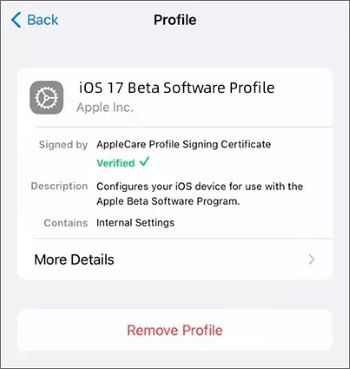
Step 3. Scroll down and select Profiles.
Step 4. On this screen, you'll also locate the option labeled Remove Profile. Simply tap this option, and it will uninstall the iOS 26 profile from your iPhone.
Step 5. Restart your iPhone, and it should prompt you to install the previous iOS version.
For iPhone users who want to remove iOS 26 and revert to an older version, using an IPSW file is also a viable method. Here is how to uninstall iOS 26 on iPhone using IPSW:
Step 1. Visit the https://ipsw.me/ website to find the IPSW file for your device and the iOS version you want.
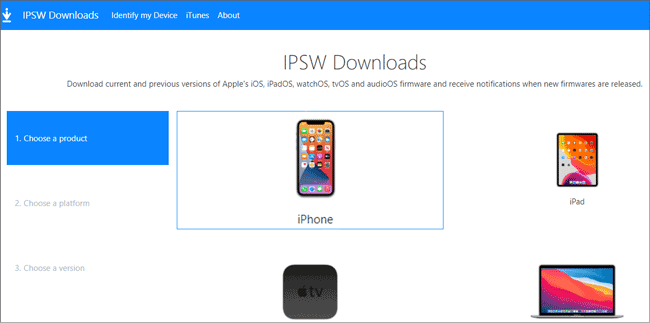
Step 2. Download the IPSW file and connect your iPhone to your computer.
Step 3. Open iTunes and select your device.
Step 4. Hold the Shift key (Windows) or Option key (Mac) and click Restore iPhone.
Step 5. Choose the downloaded IPSW file and follow the on-screen instructions to install it on your iPhone.
Note: Please note that before using IPSW to remove iOS 26 on an iPhone, you must temporarily disable the "Find My iPhone" feature. To do this, navigate to "Settings", select your Apple ID, then choose "Find My" and locate "Find My iPhone" to disable this feature. Turn off the slider next to "Find My iPhone".
In conclusion, uninstalling iOS 26 is a straightforward process if you follow these steps carefully. Remember to back up your iPhone before proceeding, as this will safeguard your data and settings. Alternatively, you can use iOS System Recovery to uninstall iOS 26 without causing data loss.
Related Articles:
How to Solve iOS 18/26 Update Paused? [100% Efficiency]
How to Update iPhone Without Wi-Fi in 2026? [4 Simple Ways]
How Long Does iOS 26 Take to Install and Update? Find Out Here
How to Fix the iOS 26 Not Showing Up Issue? 8 Effective Solutions




 Free Download for PC
  Free Download for Mac


