"I have a photo that someone sent in Messages on my iPhone 16 Pro. I want to save it to Photos. I tapped 'Save' and 'Copy', but I still can't find it. Where does it go?"
- from Apple Community
Photos shared through the iPhone Messages app often contain important memories, useful information, or meaningful moments that you may want to keep permanently. However, many users are unsure how to save these images to the Photos app or transfer them to a computer for backup. If you are wondering how to save photos from iPhone Messages, this guide will walk you through several simple and effective methods to save single or multiple iMessage photos with ease.
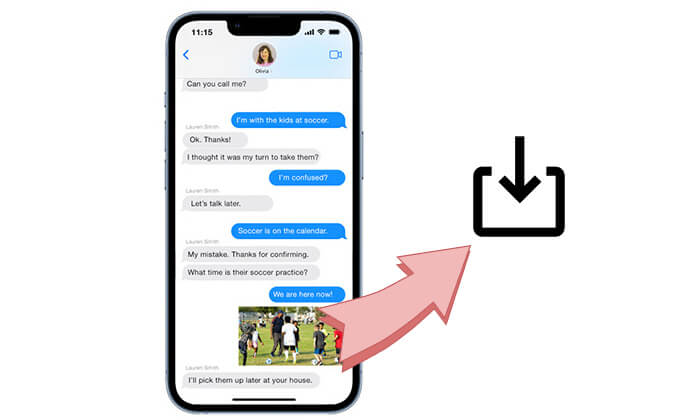
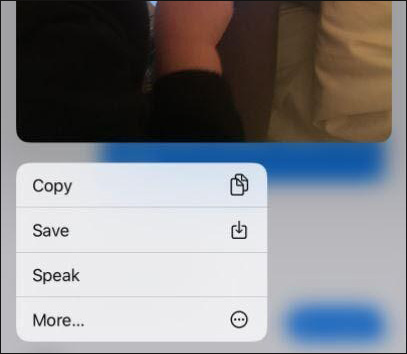
If you only need to save a single photo from an iMessage conversation, you can do it directly in the Messages app without using any extra tools. Apple provides a simple built-in option that lets you save received pictures to your iPhone Photos app in just a few taps.
Follow these steps to save one photo from iPhone Messages:
If you want to find older photos shared in a conversation, you can save them from the conversation details page.
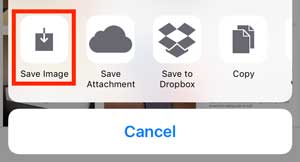
After that, the selected photo will be added to your iPhone Photos library. This method is especially useful when the conversation contains many messages and you don't want to scroll through the chat to find a specific image.
If you have received many photos through iMessage, saving them one by one can be time-consuming. Luckily, the Messages app allows you to select and save multiple photos from a conversation at once.
Follow these steps to save multiple photos from iPhone Messages:
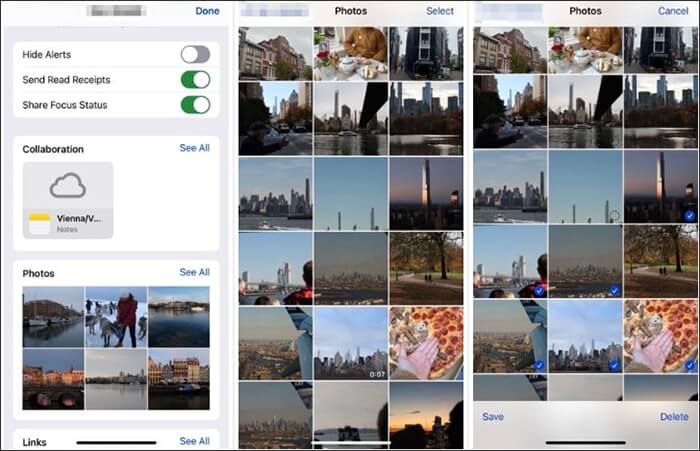
Once completed, all selected images will appear in the Photos app. You can view, edit, or share them just like other pictures on your iPhone. (Does iMessage Compress Photos/Videos?)
We have covered how to save photos from Messages directly on your iPhone. However, if you have a large number of iMessage photos or want to create a backup, saving them to your computer is a better option. In this case, Coolmuster iPhone Data Recovery can help.
As a professional iOS data recovery tool, it allows you to extract iMessage photos and other message attachments from your iPhone or iPhone backup and save them to your computer. With its preview feature, you can check the details of your files and export only the photos you need.
Highlights of Coolmuster iPhone Data Recovery:
How to Save iMessage Photos to Computer with Coolmuster iPhone Data Recovery
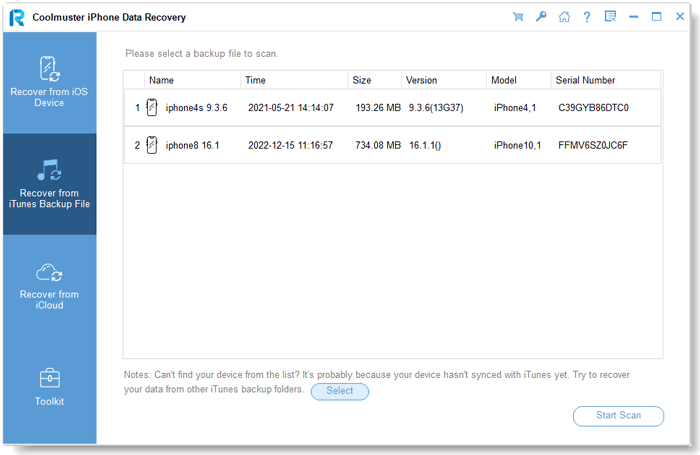
01Download, install, and launch Coolmuster iPhone Data Recovery on your computer. Select the "Recover from iTunes Backup File" mode from the left panel, choose the desired iTunes backup file, and click the "Start Scan" button.
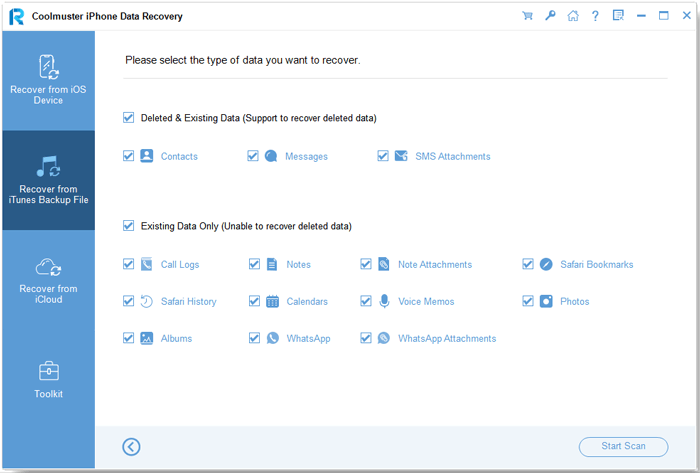
02Select "SMS Attachments" from the data list and click "Start Scan" to scan the message attachments stored in the backup file.
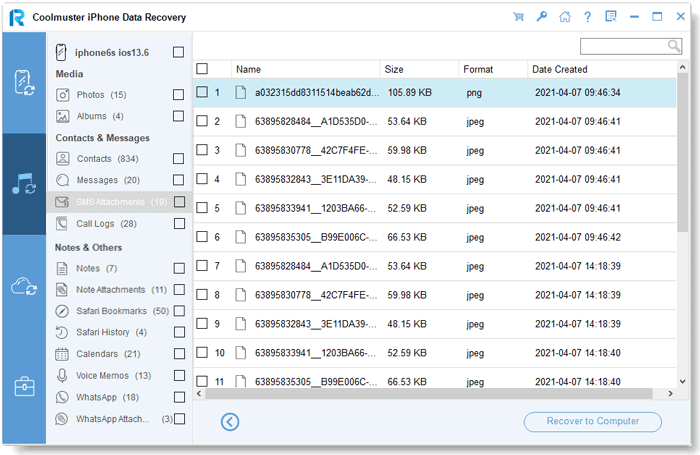
03After scanning, preview all available attachments and select the iMessage photos you want to save. Finally, click the "Recover to Computer" button to export the selected iMessage photos to your computer.
Video Tutorial:
If you often receive photos through iMessage, saving them manually every time can be a little inconvenient. Although the Messages app does not offer a direct option to automatically save every incoming photo to your Photos app, you can use some built-in iPhone features to make managing iMessage photos easier.
With Messages in iCloud enabled, your messages and attachments can stay updated across your Apple devices. This means you can access your iMessage photos on your iPhone, iPad, or Mac without manually transferring them. (How to View Text Messages on iCloud?)
Here is how to turn on Messages in iCloud:
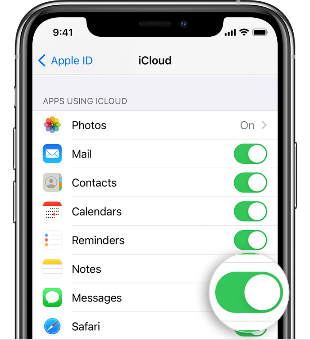
After enabling this feature, your iMessage conversations and attachments will sync with iCloud. However, keep in mind that iCloud syncing does not automatically save every received photo to your Photos app. The photos remain stored as message attachments unless you manually save them.
If you frequently receive photos through Messages from supported apps, the Shared with You feature can help organize shared content and make it easier to find later.
To enable this feature:
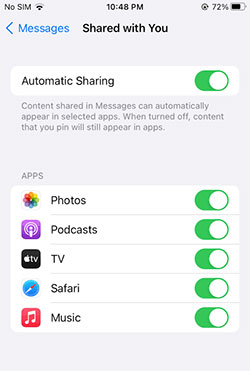
This feature does not download iMessage photos automatically, but it helps you quickly locate photos and other shared content when needed.
For users who want a more automatic way to save received photos, the Shortcuts app may provide a workaround. You can create a personal automation that triggers certain actions when specific conditions are met.
To create an automation:
However, Apple limits some automation actions for privacy and security reasons, so fully automatic saving of all iMessage photos may not always be available.
Things to Know About Automatically Saving iMessage Photos
Q1: Where are saved iMessage photos stored on iPhone?
When you save a photo from the Messages app, it will be stored in the Photos app on your iPhone. You can find it by opening Photos and checking the "Recents" album. If you use iCloud Photos, the saved image may also sync across your other Apple devices connected to the same Apple ID.
Q2: Does saving photos from Messages notify the sender?
No. When you save a photo from an iMessage conversation, the sender will not receive any notification. You can save received photos to your iPhone or computer without the other person knowing.
Q3: Why can't I save photos from iPhone Messages?
If you cannot save photos from iPhone Messages or disappearing photos from iMessage, the issue may be caused by insufficient storage, network problems, or temporary system glitches. You can try the following solutions:
Q4: Can I recover deleted iMessage photos?
Yes, you may be able to recover deleted iMessage photos if they are still available in an iPhone backup. You can restore them from an iTunes/Finder backup or use a professional iOS recovery tool like Coolmuster iPhone Data Recovery to scan backup files and extract deleted message attachments. (How to Retrieve Deleted Text Messages on iPhone?)
Q5: How long do photos stay in iPhone Messages?
The storage time of iMessage photos depends on your Messages settings. If you have enabled automatic deletion, older messages and attachments may be removed after a certain period. To check or change this setting, go to "Settings" > "Messages" > "Keep Messages" and choose "30 Days", "1 Year", or "Forever". For important photos, it is better to save them to the Photos app or back them up to a computer.
Saving photos from iPhone Messages is easier than you might think. Whether you only need to save a single image, select multiple photos from a conversation, or back up iMessage attachments to your computer, you can find a suitable method in this guide. For users who want to export a large number of iMessage photos quickly and safely, Coolmuster iPhone Data Recovery provides a convenient way to preview and transfer message attachments without complicated steps.
Related Articles:
How to Fix iPhone Won't Send Pictures: Step-by-Step Guide
[100% Success] iPhone Save Image Not Working, How to Fix?
How to Back Up Photos from iPhone? 7 Ways You Can't Miss
4 Proven Methods on How to Save Text Messages from iPhone to Computer







 Free Download for PC
  Free Download for Mac


