TL;DR:
Wondering what happens when you restart your iPhone? This guide will walk you through everything you need to know about restarting your device, including:
Restarting an iPhone is a simple yet effective way to refresh the device and fix common issues. Whether your iPhone is running slowly, apps are freezing, or you just want to keep your device running smoothly, a quick restart can often help. But what exactly happens when you restart your iPhone? In this guide, we'll explain what restarting does, how to reboot your iPhone properly, and what to do if your iPhone won't restart.
When you restart your iPhone, the device goes through a quick shutdown and reboot process. During this process, iOS reloads system services, refreshes memory, and closes temporary tasks. Here's what happens when you restart your iPhone:
Now that you know what happens when you restart your iPhone, let's look at what restarting can do. A simple restart can refresh your device, fix minor issues, and improve overall performance. Here are the main benefits:
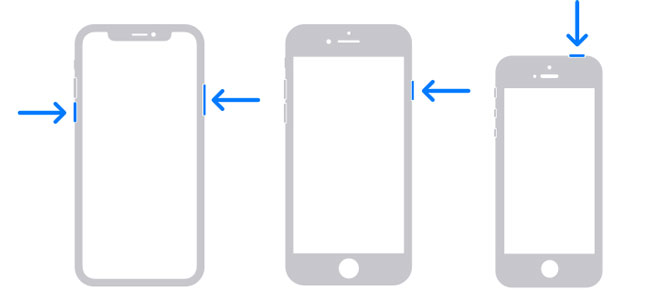
The methods for restarting an iPhone vary slightly depending on the model, but here are two common ways to do it:
For iPhone X, 11, 12, 13, or later:
For iPhone 6, 7, 8, or SE (2nd or 3rd generation):
For iPhone SE (1st generation), 5, or earlier:
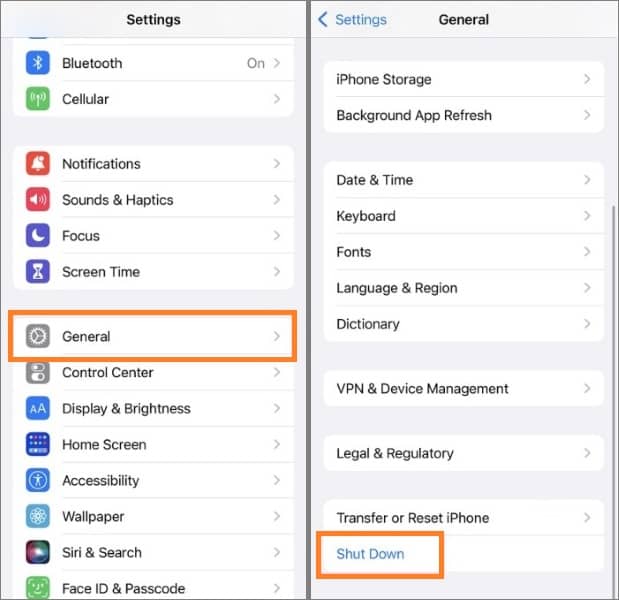
Step 1. Open the "Settings" app, select "General", and then scroll down to tap "Shut Down".
Step 2. The "slide to power off" slider will appear on the screen.
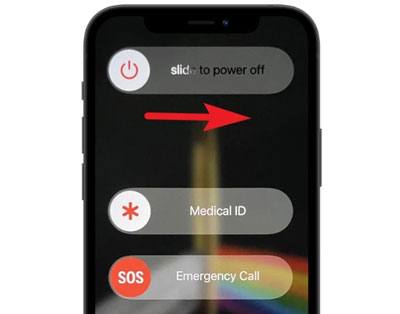
Step 3. Slide it to turn off your iPhone.
Step 4. Wait a few seconds, then press and hold the "side" button again to start the device.
For iPhone 8 and later:
Step 1: Quickly press and release the volume up button.
Step 2: Quickly press and release the volume down button.
Step 3: Press and hold the side button until the Apple logo appears.
For iPhone 7/7 Plus:
Step 1: Press and hold the volume down and side buttons together.
Step 2: Release them when the Apple logo appears.
For iPhone 6s and earlier:
Step 1: Press and hold the Home and top/side buttons together.
Step 2: Release when the Apple logo appears. (iPhone Force Restart Not Working?)
In most cases, a simple restart can fix minor iPhone issues. However, if your iPhone is frozen, stuck, or won't restart properly, you may need a more advanced solution. In this situation, you can try iOS System Recovery, a professional tool designed to repair common iOS system problems without deleting your data.
Highlights of iOS System Recovery:
Follow the steps below to fix your iPhone when it doesn't restart:
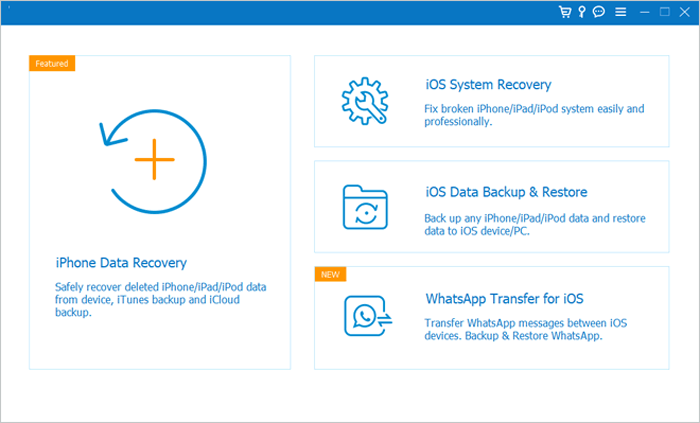
01Download, install, and launch the application on your computer. Connect your iPhone to the computer, then click on "iOS System Recovery".
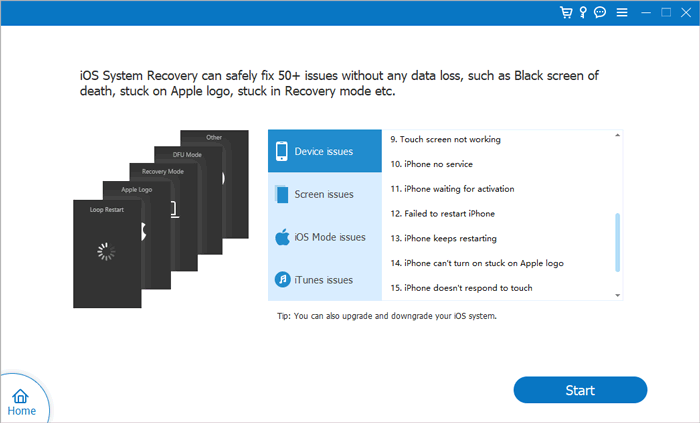
02Let the program automatically detect the issue with your iPhone. Once the problem is displayed on the interface, just click the "Start" button to continue.
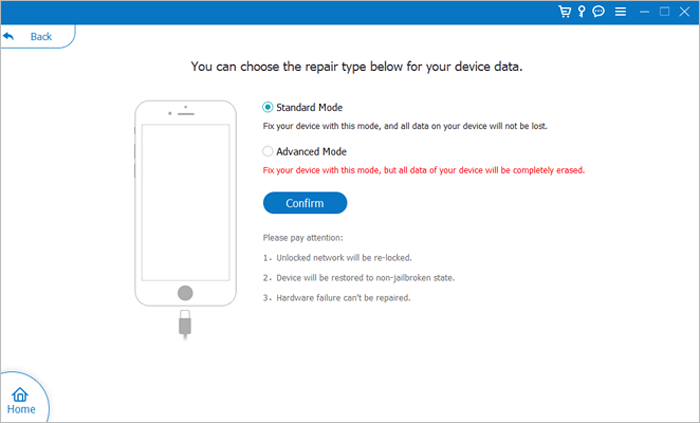
03Choose your preferred repair mode and then click "Confirm" to proceed with your selection.
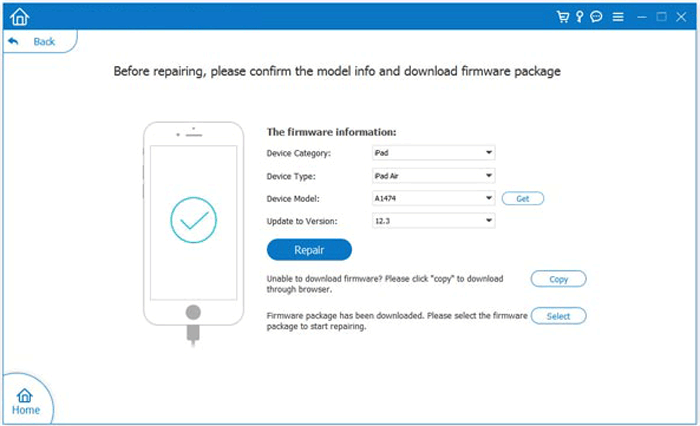
04Check the device information shown on the interface and ensure accuracy by selecting the correct details from the drop-down menus if necessary. Then, click the "Repair" button to start resolving the issue with your iPhone.
Q1. How often should I restart my iPhone?
There is no fixed schedule for restarting an iPhone. However, restarting it once in a while, such as once a week or when you notice performance issues, can help refresh the system and fix minor glitches.
Q2. Will restarting my iPhone delete everything?
No. Restarting your iPhone only turns the device off and back on. It does not remove your photos, apps, files, or personal data.
Q3. Does restarting an iPhone improve battery life?
Restarting your iPhone does not increase battery health or extend battery life directly. However, it can help fix temporary software issues or background processes that may cause unusual battery drain.
Q4. What is the difference between restarting and resetting an iPhone?
Restarting simply powers off and reboots your iPhone without changing any settings or deleting data. Resetting, on the other hand, may restore certain settings or erase content depending on the reset option you choose.
Q5. Is it safe to restart my iPhone every day?
Yes. Restarting your iPhone every day is safe and will not damage the device. However, most users do not need to restart it daily unless they experience performance or system issues.
Q6. What should I do if my iPhone is frozen and won't restart?
If your iPhone does not respond to normal restart steps, try performing a force restart. If the problem continues, you may need to check for iOS system issues or use a professional iOS repair tool.
Restarting your iPhone is a simple yet effective way to refresh the system, fix minor glitches, and keep your device running smoothly. While a regular restart can solve many common issues, it may not work when your iPhone has more serious system problems. If your iPhone won't restart or gets stuck during use, iOS System Recovery can help repair various iOS issues and restore your device to normal without losing your data.
Related Articles:
Does Reset iPhone Delete Everything? Check the Answer Here!
What Happens If I Sign Out of My Apple ID? Find the Answer Here!
What Happens If I Turn Off iCloud Photos? Everything You Should Know
What Happens When I Delete iCloud Backup? Find the Answer Here!




 Free Download for PC
  Free Download for Mac


