TL;DR:
Want to find where your iPhone backups are stored on Mac? This guide will show you how to locate, manage, and back up iPhone data more efficiently.
Backing up your iPhone to a Mac is an effective way to protect important data, but many users may not know where these backup files are stored or how to access them. Knowing the iPhone backup location can help you check backup details, manage old files, and free up valuable storage space on your Mac. So, where exactly are iPhone backups stored on a Mac? In this guide, we will explain the default iPhone backup location, show you how to find and manage backups, and introduce a more flexible way to back up your iPhone without relying on iTunes or Finder.

iPhone backups on Mac are stored in a specific system folder by default. If you back up your iPhone using Finder on macOS Catalina or later, or iTunes on macOS Mojave and earlier, the backup files will be saved in the following location:
Path: ~/Library/Application Support/MobileSync/Backup/
Inside this folder, you will find one or more subfolders containing your iPhone backup data. These folders are usually named with random letters and numbers, so you cannot easily identify which backup belongs to a specific device just by looking at the folder name.
For newer Mac systems (macOS Catalina and later), Apple replaced iTunes with Finder for iPhone backup and management. However, the default backup location remains the same.
After knowing where iPhone backups are stored on Mac, you may want to locate the backup files or check backup details such as the backup date and size. Depending on your needs and macOS version, you can use the following methods to find your iPhone backups on Mac.
The easiest way to manually locate iPhone backup files on Mac is by using Finder's "Go to Folder" feature. Follow the steps below:
Step 1. Open Finder on your Mac.
Step 2. Click "Go" in the top menu bar and select "Go to Folder".
Step 3. Enter the following path:
~/Library/Application Support/MobileSync/Backup/
Step 4. Press "Enter", and your Mac will open the iPhone backup folder where all local backup files are stored.
The backup folders inside this location are usually named with random letters and numbers, so you may not be able to identify the device directly from the folder name.
For Macs running macOS Catalina 10.15 or later, iPhone backups are managed through Finder instead of iTunes. You can view your backup information without manually opening the backup folder.
Step 1. Connect your iPhone to your Mac using a USB cable.
Step 2. Open Finder and select your iPhone under the "Locations" section.
Step 3. Click the "General" tab.
Step 4. Select "Manage Backups" to view all saved iPhone backups, including backup dates and device information.
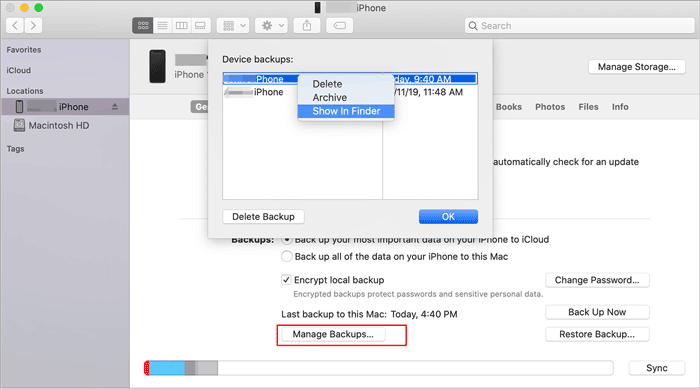
This method is useful when you want to confirm whether a backup exists or check the available backup versions on your Mac.
If you are using macOS Mojave or an earlier version, iTunes is still used to manage iPhone backups. Follow these steps to view your saved backups:
Step 1. Launch iTunes on your Mac.
Step 2. Click "iTunes" in the top menu bar and select "Preferences".
Step 3. Open the "Devices" tab.
Step 4. You can view all stored iPhone backups, including the backup date and device name.
Note: If you want to change your iTunes backup location, you can click here to learn how to do it.
If you back up your iPhone using iCloud, the backup files are not stored locally on your Mac. Instead, they are saved securely in Apple's cloud storage.
To check your iCloud backup information:
Step 1. Open "System Settings" on your Mac (or System Preferences on older macOS versions).
Step 2. Click your Apple ID and select iCloud.
Step 3. Choose "Manage Storage" and check the available iPhone backups.
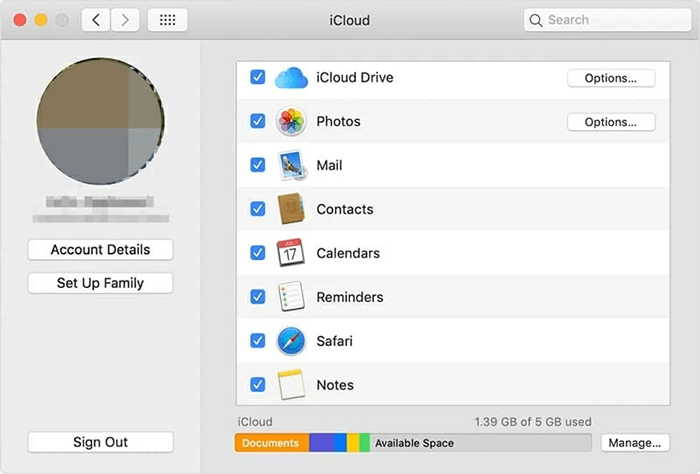
iCloud backups are different from local Mac backups because they cannot be accessed through the Finder backup folder.
Over time, multiple iPhone backups can take up a large amount of storage space on your Mac. Deleting outdated iPhone backups and managing existing backup files regularly can help free up storage and keep your backup data organized.
Step 1. Open Finder on your Mac.
Step 2. Select your iPhone under the "Locations" section.
Step 3. Click the "General" tab and select "Manage Backups".
Step 4. Choose the backup you no longer need and click "Delete Backup".
Step 5. Confirm the deletion, and the selected backup will be removed from your Mac.
Step 1. Open iTunes on your Mac.
Step 2. Click "iTunes" in the menu bar and select "Preferences".
Step 3. Go to the "Devices" tab.
Step 4. Select the unwanted iPhone backup and click "Delete Backup".
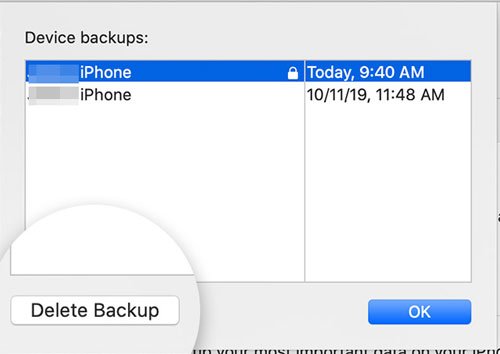
Besides deleting old backups, you can also manage your iPhone backups by:
Although Finder and iTunes provide official ways to back up an iPhone on Mac, they have some limitations. For example, users cannot choose a custom backup location, preview backup content, or selectively back up specific files before creating a backup.
If you want more flexible control over your iPhone backups, Coolmuster iOS Assistant is a practical alternative. It allows you to back up iPhone data to any location on your Mac, selectively transfer files, and manage iOS data directly from your computer.
What Can Coolmuster iOS Assistant Do for You?
How to Back Up iPhone to Mac Using Coolmuster iOS Assistant:
01Install and open Coolmuster iOS Assistant on your Mac, then connect your iPhone to the computer using a USB cable.
02If prompted, tap "Trust" on your iPhone and click "Continue" in the program. Once connected successfully, you will see your iPhone information on the main interface.
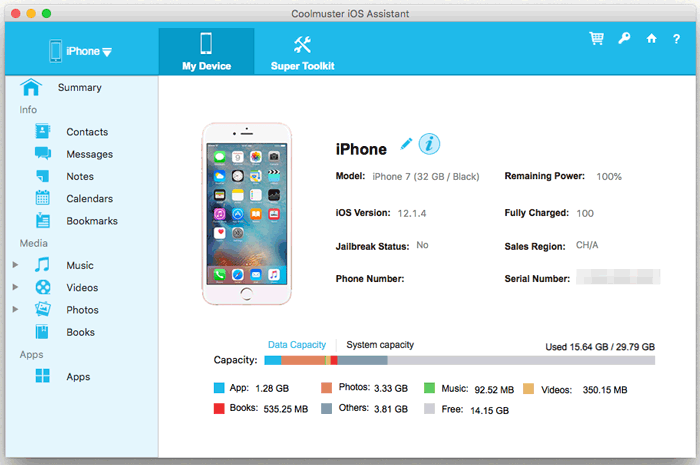
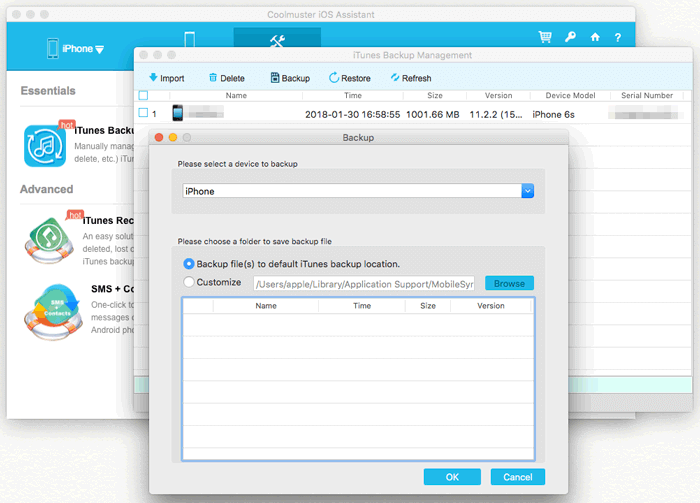
03To create a full iPhone backup, go to "Super Toolkit" > "iTunes Backup & Restore" > "Backup". Select your iPhone from the device list, choose a backup location on your Mac, and click "OK" to start.
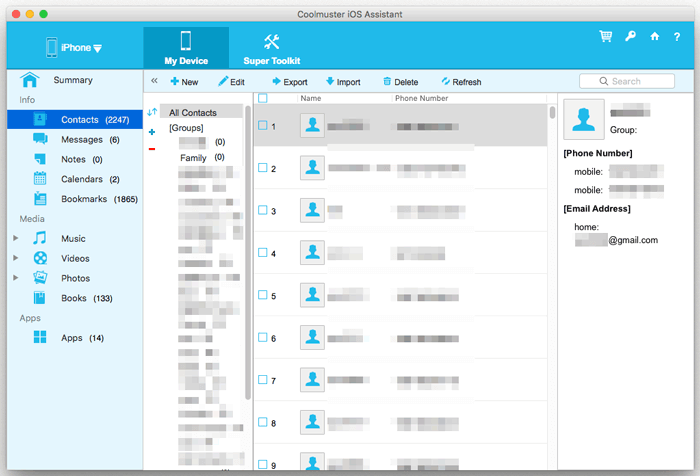
04If you only want to back up specific files, go to the "My Device" section, select the data category you need, and click "Export" to transfer selected files to your Mac.
Video Guide:
Q1. Why can't I find my iPhone backup folder on my Mac?
You may not find the iPhone backup folder because the Library folder is hidden or you have never created a local backup. Check this path:
~/Library/Application Support/MobileSync/Backup/
Make sure you are checking a Finder/iTunes backup, as iCloud backups are not stored on your Mac.
Q2. Are iPhone backups on Mac encrypted by default?
No. iPhone backups created through Finder or iTunes are not encrypted by default. You can enable encryption by selecting "Encrypt local backup" when creating a backup. Keep your encryption password safe, as it cannot be recovered if forgotten.
Q3. Can I move my iPhone backup folder to an external hard drive?
Yes. You can move iPhone backup files to an external drive to save Mac storage space. However, changing the default backup location requires additional steps, such as creating a symbolic link. A third-party backup tool can make this process easier.
Q4. How long are iPhone backups stored on a Mac?
Mac iPhone backups do not expire automatically. They remain stored until you delete them manually. It is recommended to remove old backups regularly to free up storage space.
Finding and managing iPhone backups on a Mac is easier once you know where the backup files are stored and how to access them. While Finder and iTunes provide official ways to back up and manage iPhone data, they offer limited flexibility due to fixed backup locations and fewer management options.
For users who want more control over their backups, Coolmuster iOS Assistant provides a convenient solution by allowing you to choose a custom backup location, selectively back up data, and manage iPhone files directly on your Mac. With greater flexibility and easier backup management, it can be a practical choice for keeping your iPhone data organized and secure.
Related Articles:
How to Check Last Backup on iPhone in 3 Different Ways?
iPhone Shows No Backup on iCloud? Reasons and Solutions Inside!
What Does iTunes Backup Include? [A Comprehensive Guide]
How to View My iTunes Backup Files with or without Restoring Data? (Solved)







 Free Download for Mac
 Free Download for PC


