"My new iPhone 8 has the latest iOS version 11.2.5, and my old 6 had 11.2.2, but I received the error: The backup cannot be restored because the software is too old. I updated the 6 to the same version, took another backup, and same error. I found steps on how to resolve this by Apple-set up as new, update software, wipe, retry restore, but I don't think I should be receiving the error to begin with when the new phone had the latest version."
- from Apple Community
Sometimes, you may find the new iPhone won't restore from iTunes backup and receive the prompt "the backup of iPhone cannot be restored to this iPhone because the software on the iPhone is too old". This error usually occurs when you try to restore the iTunes backup synced from a newer iOS version to an older iOS version. Due to Apple's limitations and security mechanisms, you must update the iPhone to the latest version of iOS before it can be restored from this backup.
If you can't restore the backup to a new iPhone because the software on the iPhone is too old, you can follow this tutorial to fix the problem.
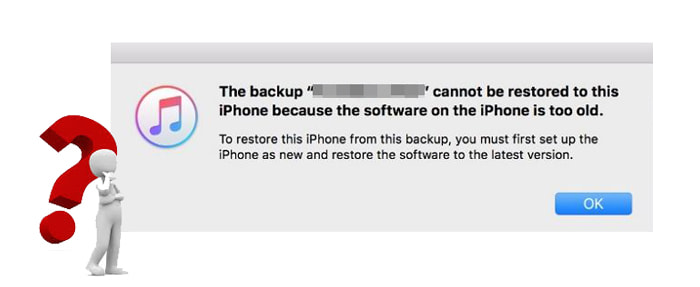
Apple does not allow restoring a backup from an iPhone running a higher iOS version to a device with an earlier iOS version, as some data files differ between iOS versions. If you're attempting to restore an iTunes backup from a newer iOS version to an older one, you may encounter an error stating that the backup cannot be restored because your device's software is outdated. It may prompt you to update your iPhone to the latest iOS version before the backup can be restored.
So, are there any alternative solutions to fix this without updating the iPhone's operating system? Absolutely! Let's dive into some other options below.
Don't panic if you get the message "the backup cannot be restored to this iPhone because the software on the iPhone is too old". Below are the top four troubleshooting methods for your reference.
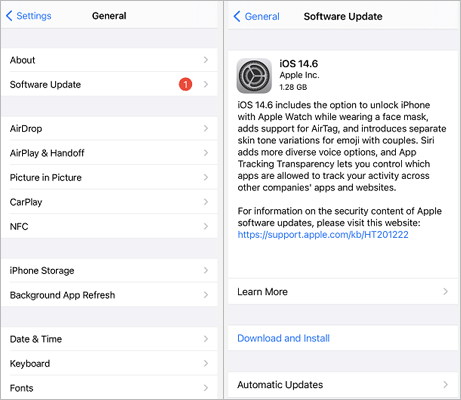
When it reminds you the iPhone software is too old to restore, the first thing you can try is to update the iOS version on your iPhone. To do this, you can follow the steps below:
Step 1. Go to the iPhone's "Settings" > scroll down to select "General" > tap "Software Update". (iPhone won't update?)
Step 2. Wait for it to check and download the latest iOS version. If there is one, install it right now.
Step 3. Plug your iPhone into your computer using a USB cable.
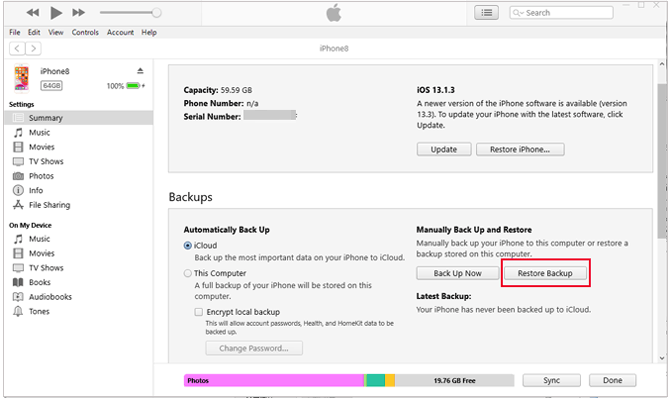
Step 4. Open the iTunes or Finder app, then select your iPhone.
Step 5. Click on "Restore Backup", choose the backup you want, and it will be restored to your iPhone.
If you're restoring an iCloud backup from a newer iOS version, you might be prompted to update your software. You can choose to download and install the update, and your device will update first, then restore the backup.
Here are the steps:
Step 1. When asked to update your software, click "Download and Install".
Step 2. Enter your passcode and start the download.
Step 3. Tap "Install Now" to install the latest iOS version on your iPhone.
Step 4. After the update, your iPhone will begin restoring from the iCloud backup.
You can modify the plist file on your computer to replace the iOS version with a newer one compatible with your iPhone. However, the process requires some tech knowledge and may be rather complicated for non-tech-savvy people. If you are interested in delving into the method, keep on learning the steps below.
Step 1. First of all, download a Plist Editor software on your computer.
Step 2. Later, go to "C:\Users\username\AppData\Roaming\Apple Computer\MobileSync\Backup", and select the backup folder featuring a string of numbers and letters.
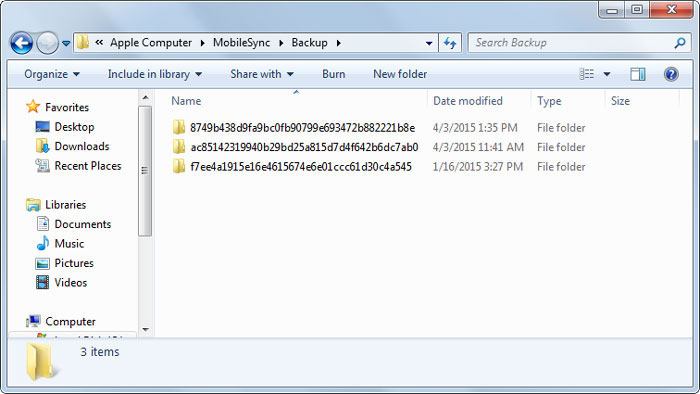
Step 3. After that, open the info.plist file with the Plist Editor, locate the "Product Version" line, and change the value to an iOS version that works with your iPhone.
Step 4. Finally, save the changes and try to restore backups to your iPhone again.
If your computer runs the latest iOS version, you can reset your iPhone to make it ready for the backup restoration. To do that, follow the steps below:
Step 1. Open the iPhone's "Settings" > tap "General" > choose "Reset" > click the "Erase All Content and Settings" option, and confirm it with your Apple ID password. (iPhone won't erase?)
Step 2. After erasing your iPhone, you can reset your iPhone and try to restore the backup.

If the above methods don't work and you're still unable to restore a backup created on a newer iOS version to an iPhone running an older iOS version, using Coolmuster iPhone Data Recovery to restore your iPhone backup to a computer is a good solution.
It allows you to recover data directly from iPhone, iTunes, or iCloud backups, bypassing iOS version compatibility issues, and it won't overwrite existing data on your iPhone. Once the recovery is complete, you can copy the data back to your iPhone from the computer as needed.
Key features of Coolmuster iPhone Data Recovery:
* Restore your iPhone from an iTunes backup without overwriting any existing content.
* Recover deleted or lost data from your iPhone, even without a backup.
* Restore from iCloud backup without reset.
* Support various iPhone items, including contacts, call history, text messages, photos, videos, voice memos, Safari history, calendars, notes, and more.
* Compatible with a wide range of iDevices, including the latest iPhone 17 series (iOS 26 supported).
Here is how to restore an iPhone from an iTunes backup using iPhone Data Recovery:
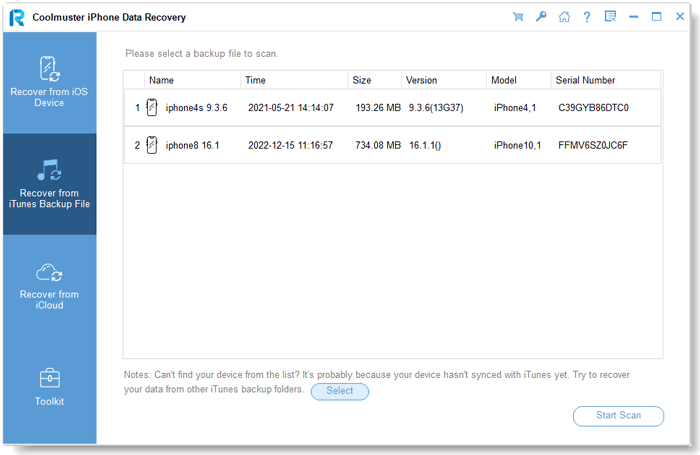
01Once you've installed the program on your computer, open it and select the "Recover from iTunes Backup File" option in the top-left corner. The program will automatically detect the iTunes backup files on your PC. Choose the backup you want from the list and click the "Start Scan" button.
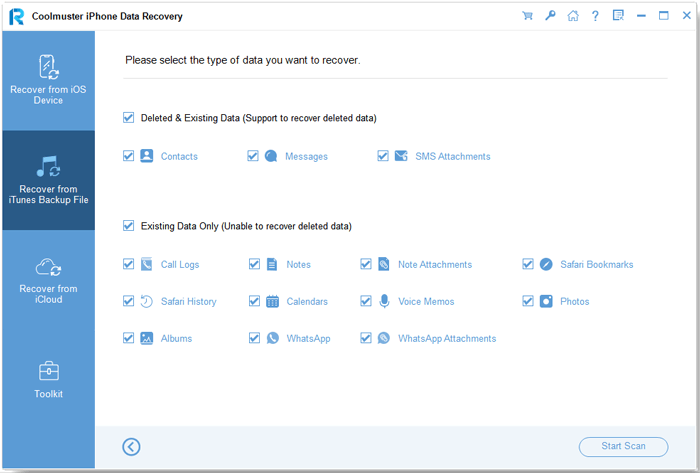
02Choose the data types you want to recover, then click the "Start Scan" button on the right side of the screen.
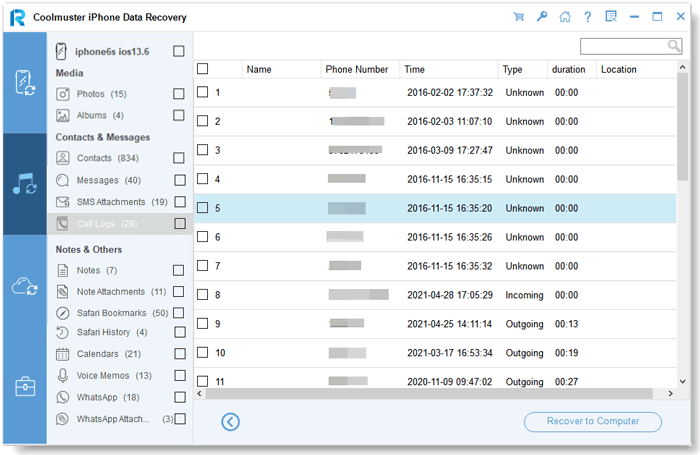
03Select a category, then choose the specific deleted files you want to recover. To restore your files from the iTunes backup, click the "Recover to Computer" button, and your iTunes backup will be restored.
Video Tutorial:
You may easily get mad when you encounter the problem "the backup cannot be restored to this iPhone because the software on the iPhone is too old" on your computer. Nevertheless, we still hope you will manage to fix it with the above solutions. If things aren't going as expected, give Coolmuster iPhone Data Recovery a try. This program offers convenient and user-friendly solutions for iOS data recovery.
If you run into difficulties and need technical support when fixing the issue, please tell us in the comments.
Related Articles:
3 Workable Ways | How to Restore iPhone from Backup After Setup?
The Last Backup Could Not Be Completed [Reasons & Solutions]
How to Fix iPhone Backup Not Enough Space on Computer Issue (Proven Tips)
[8 Solutions] iTunes Could Not Back Up the iPhone Because An Error Occurred







 Free Download for PC
  Free Download for Mac


