TL;DR: If Google Maps is not working on your iPhone or iPad, the issue is usually caused by network problems, disabled location services, incorrect permissions, outdated apps/iOS, or temporary system glitches. In most cases, you can fix it by checking your internet connection, enabling location access, restarting the app or device, updating iOS and Google Maps, and resetting key settings like location, privacy, or network configuration.
If the problem persists, it may be due to deeper iOS system errors, and using a professional iOS system repair tool can help restore normal Google Maps functionality without complicated troubleshooting.
Google Maps is one of the most popular navigation apps for iPhone users, helping people find locations, get real-time directions, check traffic conditions, and explore nearby places. However, many users may encounter issues where Google Maps is not working on iPhone, such as the app not loading, GPS not showing the correct location, navigation failing, or Google Maps suddenly crashing.
Why is Google Maps not working on iPhone? How to fix Google Maps on iPhone? In this guide, we will explain the reasons and provide 13 practical solutions to help you fix Google Maps and get navigation back to normal.
Why has Google Maps suddenly stopped working? The following are some possible reasons:
1. Unstable Internet Connection
Google Maps relies on a stable internet connection to load maps, traffic updates, and routes. Poor Wi-Fi or cellular data may prevent it from working properly.
2. Location Services Disabled
If location services are turned off, Google Maps cannot access your current location, affecting navigation and accuracy.
3. Google Maps App Issues
App glitches, corrupted cache, or temporary bugs can cause Google Maps to freeze, crash, or fail to open.
4. Outdated iOS or Google Maps Version
Using an outdated version of iOS or Google Maps may lead to compatibility issues and performance problems.
5. Insufficient Storage Space
Low storage space can affect app performance, causing Google Maps to run slowly or malfunction.
If your Google Maps is not working on iPhone 17/16/15, below are 13 effective methods that can help you solve Google Maps problems on your iPhone or iPad. You can try them one by one.
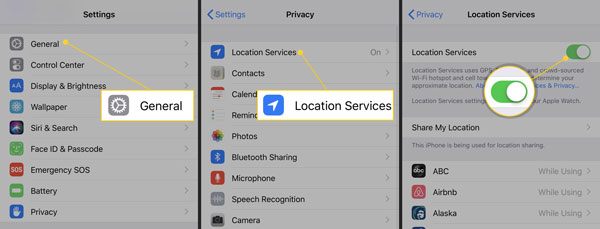
Google Maps requires access to your device's location to provide navigation and real-time positioning. If Location Services are disabled, the app may not function properly. Follow the steps below to enable location services on your iPhone:
Step 1. Open "Settings" and tap "Privacy & Security" > "Location Services".
Step 2. Make sure "Location Services" is turned on.
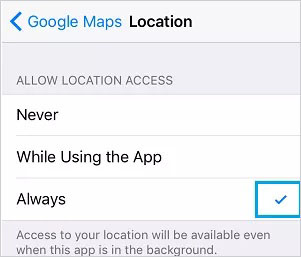
Even if Location Services are enabled, Google Maps cannot determine your current location without the necessary location permission. Follow the steps below to allow Google Maps to access your location:
Step 1. Open "Settings", scroll down, and tap "Google Maps" > "Location".
Step 2. Select "While Using the App" or "Always", then turn on "Precise Location".
Google Maps requires an active internet connection to load maps, search for places, and provide directions. If your network connection is unstable, you may experience issues such as blank maps, failed searches, or navigation errors.
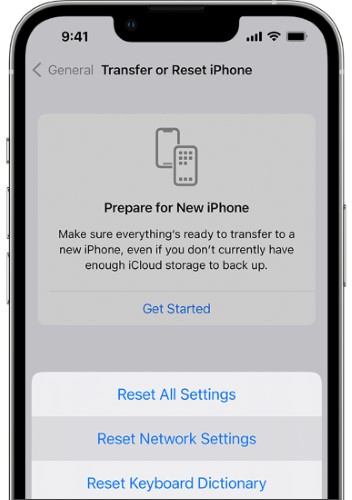
Try switching between Wi-Fi and cellular data to see if the problem is network-related. If Google Maps still isn't working, you can follow the steps below to reset your network settings:
Step 1. Open "Settings" and go to "General" > "Transfer or Reset iPhone" > "Reset".
Step 2. Tap "Reset Network Settings" and follow the on-screen instructions to complete the process.
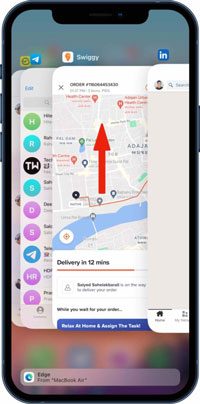
Sometimes Google Maps stops working because of temporary app glitches or background process errors. Completely closing the app and reopening it can refresh the application and fix minor problems. This method is simple but effective, especially when Google Maps freezes or becomes unresponsive.
Here are the steps:
Step 1. Swipe up from the bottom of your iPhone screen to find the Google Maps app preview.
Step 2. Swipe up on Google Maps to close it.
Step 3. Wait a few seconds and then open Google Maps again.
If Google Maps is still not working after restarting the app, the issue may come from the iPhone system. A force restart can refresh system processes and fix temporary software errors. Here is how to do it:

Sometimes the reason Google Maps is not working on iPhone is not related to your device. Google services may experience temporary outages that prevent users from loading maps or using navigation features. Before changing your iPhone settings, it is worth checking the status of Google Maps.
If the indicator is green, the service is operating normally. An orange or red indicator means Google Maps is experiencing a service disruption or outage.
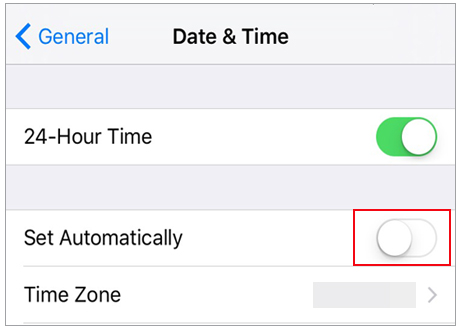
Incorrect date and time settings may interfere with communication between your iPhone and Google servers. When the system time is inaccurate, some apps may fail to connect properly. Setting your iPhone to automatically adjust the time can help prevent these issues.
Here is how to do it:
Step 1. Open "Settings" and go to "General" > "Date & Time".
Step 2. Turn on "Set Automatically".
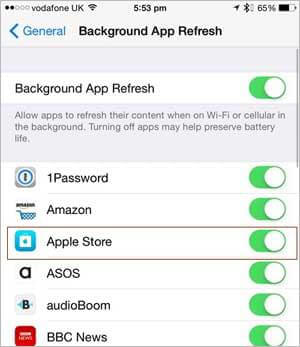
Background App Refresh allows Google Maps to update content and location data while running in the background. If Google Maps is not working on your iPhone, enabling this feature may help resolve the issue. Here are the steps:
Step 1. Open "Settings" and go to "General" > "Background App Refresh".
Step 2. Make sure "Background App Refresh" is enabled, then turn on the toggle for "Google Maps".
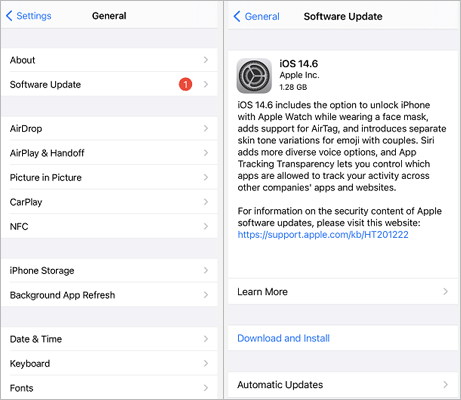
An outdated iOS version may cause compatibility problems between your iPhone system and Google Maps. Apple regularly releases updates to fix bugs and improve system stability. To update your iPhone, follow the steps below:
Step 1. Open "Settings" and go to "General" > "Software Update".
Step 2. If an update is available, tap "Download and Install", then follow the on-screen instructions.
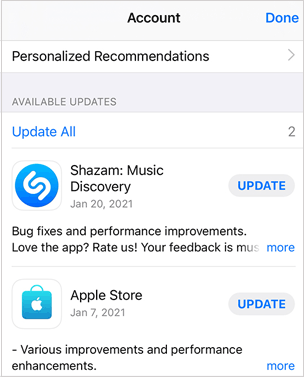
If Google Maps is outdated, it may contain bugs or compatibility issues that prevent it from working correctly. Updating the app can help resolve these problems. Here is how to update Google Maps on your iPhone:
Step 1. Open the App Store and tap your profile icon in the upper-right corner.
Step 2. Scroll to "Available Updates" and tap "Update" next to Google Maps if an update is available.
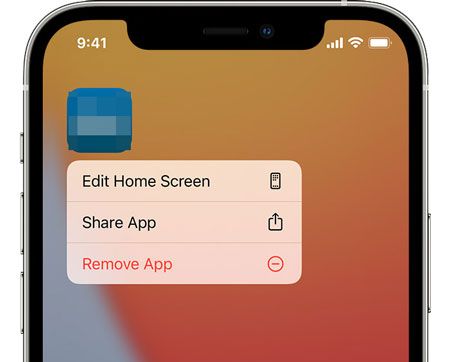
If updating Google Maps doesn't solve the problem, you can try reinstalling the app. Follow the steps below:
Step 1. Press and hold the Google Maps icon, then tap "Remove App" > "Delete App" to uninstall it. (Can't delete app on iPhone?)
Step 2. Open the App Store, search for "Google Maps", and download it again.
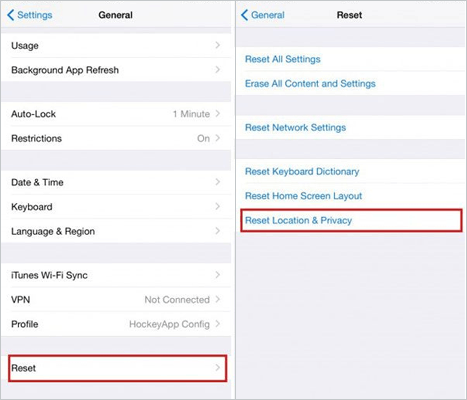
If Google Maps still isn't working, resetting your location and privacy settings may help fix incorrect permissions or configuration issues.
Step 1. Open "Settings" and go to "General" > "Transfer or Reset iPhone" > "Reset".
Step 2. Tap "Reset Location & Privacy", enter your passcode, and confirm the reset. Afterward, reopen Google Maps and grant the required location permissions again.
If you have tried all the above solutions but Google Maps is still not working on iPhone, the issue may be related to deeper iOS system problems. For example, failed updates, corrupted system files, or software conflicts can affect how apps run. In this situation, using a professional iOS repair tool like iOS System Recovery can help fix system-related problems without complicated troubleshooting.
It can help repair various iOS issues, including app crashes, system errors, update failures, and abnormal iPhone behavior. The Standard Mode option is designed to repair iOS problems without deleting existing data.
Main features of iOS System Recovery:
Here is how to fix Google Maps not working on iPhone/iPad using iOS System Recovery:
01Download and install iOS System Recovery on your computer. Launch the program and connect your iPhone via USB. Select "iOS System Recovery" and click "Start".
02Choose "Standard Mode" to repair your device without data loss, then click "Confirm".

03Verify your device information, download the appropriate firmware if prompted, and click "Repair". Wait for the process to complete, and your iPhone will restart normally.

When Google Maps is not working properly on an iPhone or iPad, you can follow the 12 common troubleshooting methods introduced in this article step by step, which usually resolve the issue. If Google Maps still does not work, it is likely due to a system-level problem in iOS. Compared with complicated manual troubleshooting, iOS System Recovery can repair various iOS system issues more quickly and safely, and in Standard Mode it does not cause data loss, making it an ideal solution for fixing Google Maps not working problems.
Related Articles:
[Troubleshooting Guide] How to Fix iPhone GPS Not Working?
[2026] How to Change Work and Home Location on Google Maps
Why Is There No Location Found on iPhone? Fix the Issue in Reliable Ways




 Free Download for PC
  Free Download for Mac


