"Hello, I'm trying to restore my iPhone 5s, but iTunes gives me this error: "The iPhone iPhone could not be restored. The device cannot be found." I have restarted my computer and attempted 3 times now. Any help would be appreciated."
- from Apple Community
For iPhone users, the device is an essential part of their daily lives. Sometimes, they may need to restore their iPhone using iTunes, for instance, if they plan to sell it for a newer model, or if their iPhone is running slowly.
However, some users have reported encountering an error when trying to restore their iPhone with iTunes. The message reads: "The iPhone cannot be restored. The device cannot be found". If you haven't resolved the issue yet, the following guide will be very helpful. Keep reading to learn step by step how to fix the error.
If your iTunes says "The iPhone cannot be restored. The device cannot be found", the following are some possible reasons:
Below are the 8 most effective methods to fix the "iPhone could not be restored. The device cannot be found" error. You can try them one by one until the problem is resolved.
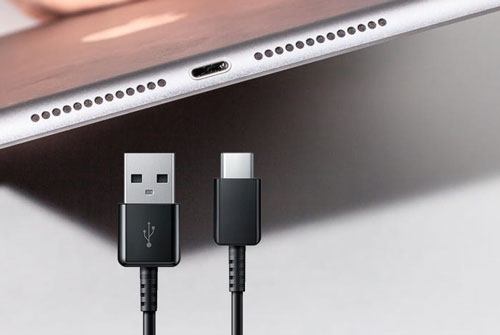
As mentioned earlier, this error occurs when your iPhone and PC have little or no connection. The first step is to check your USB cable—make sure it's Apple-certified. Additionally, try using different USB ports on your computer to rule out a port issue.
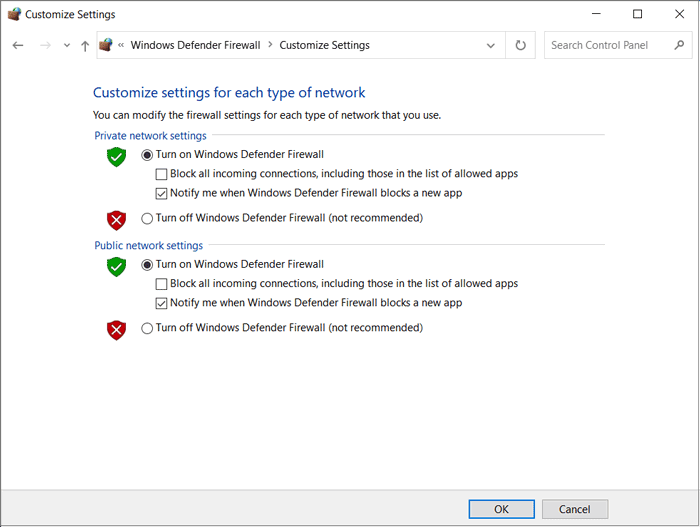
Sometimes, antivirus or firewall software can block the connection between your iPhone and PC, preventing iTunes from recognizing your device. To fix this, temporarily disable or uninstall these programs. Once iTunes detects your iPhone and completes the restore, you can reinstall or re-enable them.
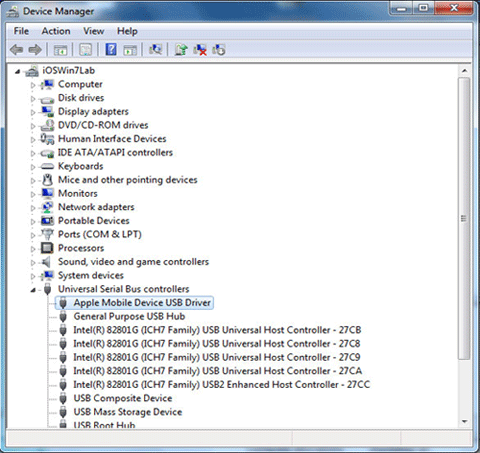
Sometimes, iTunes cannot recognize your iPhone because the Apple Mobile Device USB driver is missing or not installed correctly. You can check this in Device Manager by following these steps:
Step 1. Press "Windows" + "R" on your keyboard to open the "Run" dialog.
Step 2. Type "devmgmt.msc" and click "OK" to open "Device Manager".
Step 3. Expand the "Universal Serial Bus controllers" section.
Step 4. Look for the "Apple Mobile Device USB Driver" to ensure it is installed properly.
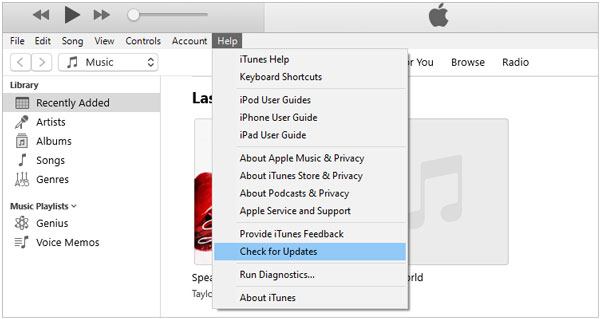
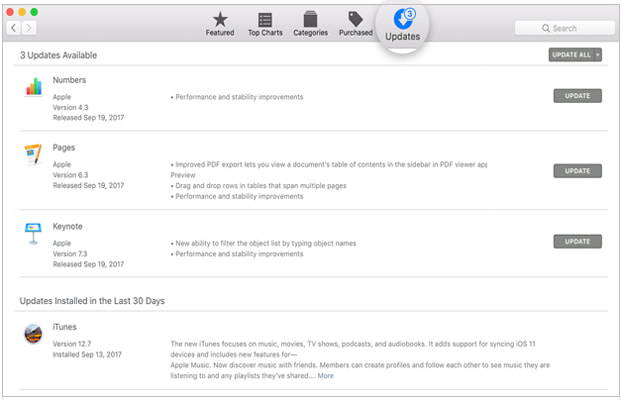
An outdated version of iTunes can also cause the "The iPhone cannot be restored. The device cannot be found" error. To prevent this, make sure your iTunes is updated to the latest version.
For Windows: Open iTunes, go to "Help", and select "Check for Updates".
For Mac: Open the App Store and click on "Updates" to see if a new version of iTunes is available.
If the above steps don't resolve the issue and the "iPhone cannot be restored. The device cannot be found" message still appears, you may need to try force restarting your iPhone. To force restart the iPhone, follow these steps:

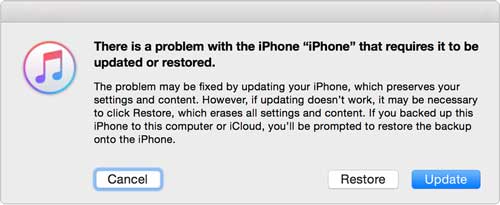
There is one last, but riskier, step you can try on your own, which may result in data loss. If the "iPhone could not be restored. The device cannot be found" error persists, put your iPhone into Recovery Mode and restore it using iTunes.
Here is how to do it:
Step 1. Connect your iPhone to your computer using a USB Lightning cable and open iTunes.
Step 2. Next, perform a force restart on your iPhone according to its model, holding the buttons until the Recovery Mode screen appears.
Step 3. Once in recovery mode, a pop-up window will appear with "Update" and "Restore" options. Select "Restore" and follow the on-screen instructions to complete the process.
For users seeking a safer option, iOS System Recovery can fix the system errors that cause the "iPhone cannot be restored. The device cannot be found" error, without any risk of data loss. The program offers two modes—Standard Mode and Advanced Mode—to tackle most iOS issues, and you don't need to be tech-savvy to use it.
What can iOS System Recovery do for you?
Here is how to fix the "iPhone cannot be restored. The device cannot be found" error without losing data:
01Install the software on your computer; it will launch automatically.
02Use a working USB cable to connect your iPhone, select "iOS System Recovery", and click "Start".

03Choose "Standard" or "Advanced", then click "Confirm".

04Verify your device information and click "Repair". Once complete, your iPhone will be restored to normal.

If you're unable to fix the "iPhone cannot be restored. The device cannot be found" error on your own, you'll need to contact Apple Support for further assistance. The simplest option is to visit your nearest Apple Store to have your iPhone checked and repaired.
In summary, we've covered the causes and 8 solutions for the "iPhone could not be restored. The device cannot be found" error. Using these methods, you'll see that this issue is usually easy to fix—especially with iOS System Recovery, which can resolve the problem without any data loss. With just a few simple steps, your device can be restored to normal.
Related Articles:
How to Fix iPhone Cannot Restore Backup? Solved in 6 Useful Ways
How to Fix iPhone Won't Restore in Recovery Mode? - 7 Effective Ways
5 Effective Ways to Fix iPhone Stuck on support.apple.com/iphone/restore
[Fixed] Cannot Restore Backup to This iPhone Because the Software Is Too Old




 Free Download for PC
  Free Download for Mac


