When you turn on your iPhone, you might suddenly find that the device is unable to access the home screen and instead stops at an unusual screen: a USB cable icon pointing to a computer, with a message reading "support.apple.com/iphone/restore". At this moment, you might feel anxious, unsure of what happened to your device, and not know how to restore it to normal.
Don't worry; this article will explain the true meaning of this screen and provide safe, effective, and free methods for exiting it, helping you easily restore your iPhone to normal use. Keep reading to find the solution that's right for you!
The "support.apple.com/iphone/restore" URL directs you to Apple's official support page for recovery and restoration instructions. When this appears on your screen, it indicates that your iPhone has entered recovery mode. This is a troubleshooting state that enables you to restore or update your device using iTunes or Finder.
Why Does My iPhone Say support.apple.com/iphone/restore? Common reasons for entering this screen include:
If your iPhone is stuck on the "support.apple.com/iphone/restore" screen, you can try the following methods to fix the issue.
When your iPhone displays the "support.apple.com/iphone/restore" message, performing a force restart may help refresh the iOS system. Follow the steps below to force restart your device.
iPhone 8 and later:
iPhone 7/7 Plus: Hold "Volume Down" + "Power" button for about 10 seconds.
iPhone 6s and earlier: Hold "Home" + "Power" button until the Apple logo appears.

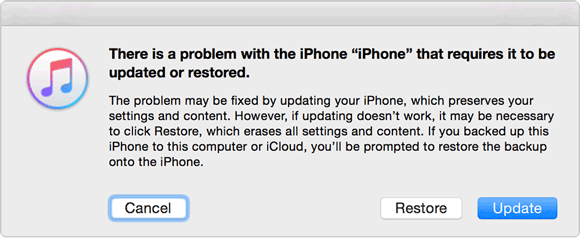
If the "support.apple.com/iphone/restore" screen appears while you're trying to update your iOS, consider updating your system via iTunes instead. Simply connect your iPhone to a computer and make sure it's detected by iTunes. Here's how:
Step 1. With your iPhone in recovery mode (displaying the "support.apple.com/iphone/restore" screen), connect it to your computer and open iTunes.
Step 2. When the prompt appears, select "Update" and confirm to begin the update process through iTunes.
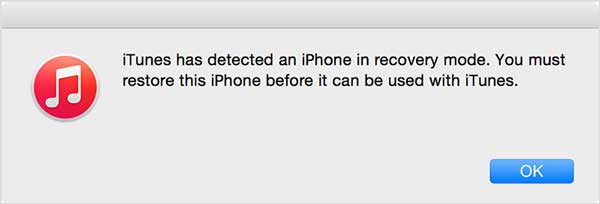
If your iPhone remains stuck on the "support.apple.com/iphone/restore" screen, another solution is to enter DFU (Device Firmware Update) mode. Please note that using DFU mode will erase all data on your iPhone, so proceed with caution.
Here is how to do it:
Step 1. Connect your iPhone to your PC and launch iTunes.
Step 2. Follow the instructions below to enter DFU mode:
Step 3. If your iPhone's screen remains black, it means you've successfully entered DFU mode. Click "OK" in iTunes, and it will proceed to restore your iPhone.
If you don't want to lose your data or if the above solutions have failed, using a professional iOS repair tool is a safer and more efficient option. iOS System Recovery supports fixing over 50 types of iOS system issues, including recovery mode loop, white Apple screen, black screen, and boot loops. More importantly, it offers a "Standard Mode" that allows you to fix system issues without losing any data. This makes it a preferred solution for many users, especially those who are not familiar with DFU mode or iTunes.
The highlights of iOS System Recovery:
Here's how to fix being stuck on support.apple.com/iphone/restore using iOS System Recovery without data loss:
01Run the program on your computer and connect your iPhone via USB cable. The program will automatically detect the connected iPhone. Then, click "More Tools" > "iOS System Recovery" on the interface.

02The software will automatically detect and display the issue with your iPhone (e.g., bricked, stuck on the Apple logo, recovery mode, error 27, etc.). Click "Start" to proceed.

03Verify the iPhone information. If it's correct, click the "Repair" button to begin the repair. If the information is incorrect, select the correct details and then click "Repair" to start the fix.

By now, the steps we've outlined should have resolved the "support.apple.com/iphone/restore" issue on your iPhone. If not, the problem may be related to hardware defects. In that case, we recommend booking an appointment with Apple Support as soon as possible.
To prevent your iPhone from getting stuck on the "support.apple.com/iphone/restore" screen, follow these tips:
* Keep sufficient storage space available (at least 5-10GB). (iPhone storage full?)
* Ensure your battery is fully charged before updating the system.
* Use a stable Wi-Fi connection.
* Avoid jailbreaking or using untrusted third-party plugins.
* Regularly back up your data using iCloud or iTunes.
* Address any freezing or abnormalities as soon as they occur to avoid forced shutdowns.
* Use Apple-certified cables and chargers.
This concludes the causes and solutions for the "support.apple.com/iphone/restore" issue on your iPhone. If you want to restore your iPhone to normal in the shortest time without data loss, iOS System Recovery is the most trustworthy choice. It can also fix other iPhone issues.
Whether you're a beginner or an experienced user, we believe this guide will help you bring your iPhone back to life.
Related Articles:
iPhone Stuck on Restore Screen? 6 Easy Methods Here
iPhone Won't Restore? 11 Effective Fixes for Your iPhone Woes
5 Useful Ways to Fix iPhone Stuck in Recovery Mode After iOS 17 Update
How to Fix iPhone Recovery Mode Not Working? - 5 Reliable Fixes







 Free Download for PC
  Free Download for Mac


