"The proximity sensor should ideally work when we answer phones. When we pick up the phone and talk, the screen would sleep. However, after updating to iOS 11.3, regardless of whether I get a phone or not, the proximity sensor is always ON. When I am using an app, if I just hover my hand over the proximity sensor, the screen blacks out. Anyone facing this issue???"
- from Apple Community
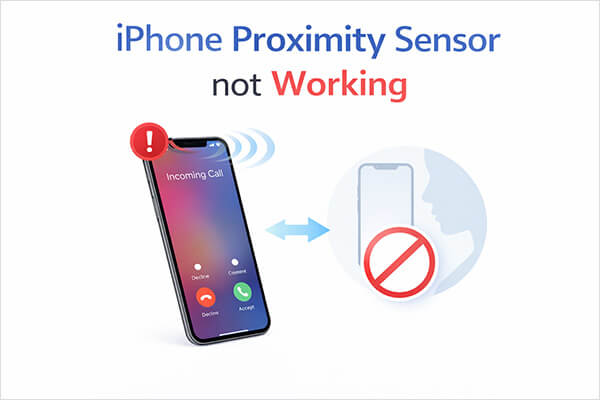
When you make a phone call on an iPhone, the screen usually turns off automatically to prevent accidental touches from your face. This feature mainly relies on the proximity sensor. If the proximity sensor on your iPhone malfunctions, it may cause the screen to stay on during calls, lead to accidental hang-ups, or even prevent certain functions from working properly.
So, what exactly causes the iPhone proximity sensor not working issue, and how can it be fixed? This article will explain the common reasons behind this problem and provide seven effective solutions to help you quickly restore your iPhone to normal use.
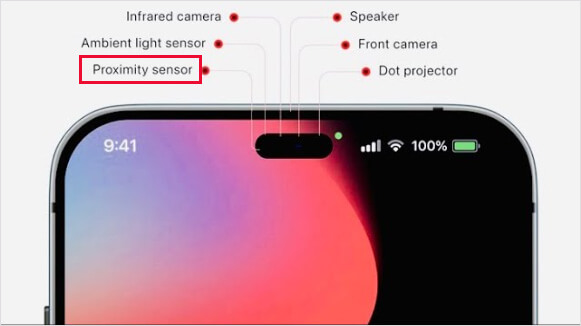
The proximity sensor is a built-in hardware component in the iPhone, usually located near the earpiece at the top of the screen. It detects changes in the distance between the phone and nearby objects.
When you answer a call and bring your iPhone close to your ear, the proximity sensor detects that the distance has decreased and automatically turns off the screen. This helps prevent accidental touches to your face and also saves battery power. When the phone is moved away from your ear, the screen automatically lights up again, allowing the user to continue operating the device.
If you find that the iPhone's proximity sensor is not working, it is usually caused by one of the following reasons:
1. The screen protector or phone case is blocking the sensor.
If the screen protector is too thick or the phone case is poorly designed, it may cover the sensor and cause detection issues.
2. Dust or dirt on the sensor area.
The proximity sensor is usually located near the earpiece, and accumulated dust or oil may affect its detection.
3. iOS system malfunction.
System bugs or update issues may cause the sensor to stop working properly.
4. Conflicts with third-party apps.
Some applications may interfere with system functions.
5. Hardware damage.
If the phone has been dropped, exposed to water, or had its screen repaired, the sensor may already be damaged.
When the iPhone's proximity sensor is not working, there is no need to panic immediately. In many cases, the problem can be solved with simple troubleshooting steps. Below are seven effective fixes that you can try one by one until the issue is resolved.
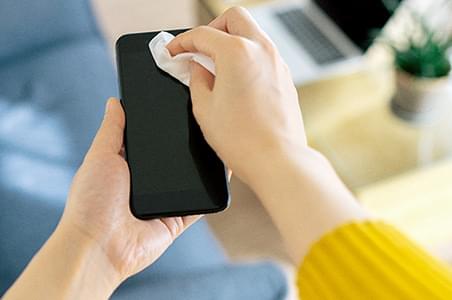
One of the simplest but most overlooked reasons for the iPhone's proximity sensor not working properly is dirt or dust covering the sensor area. Since the sensor is located near the earpiece, it can easily collect oil from your skin, makeup residue, or dust particles. Cleaning the sensor area carefully may immediately restore its functionality.
Turn off your iPhone, then use a soft microfiber cloth to gently wipe the top of the screen. If necessary, lightly dampen the cloth with a small amount of alcohol. Clean around the earpiece and front camera area, wait until the screen is completely dry, then turn on the iPhone and test it during a call.
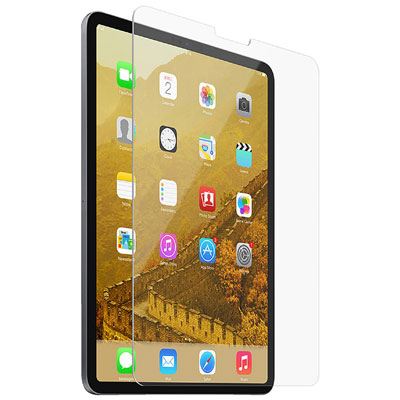
Another common reason for the iPhone 17's proximity sensor not working is an incompatible screen protector or phone case. Some thick tempered glass protectors or poorly designed cases may cover the sensor area and prevent it from detecting proximity correctly.
Removing these accessories temporarily can help determine whether they are causing the problem.
Sometimes, the iPhone proximity sensor not working problem is caused by temporary system glitches. A force restart refreshes the system processes and clears temporary bugs that may interfere with hardware functions. This method is simple and often resolves many unexpected iPhone issues.
To force restart the iPhone, follow these steps:
For iPhone 8, X, 11, 12, 13, 14, 15, and later:
For iPhone 7 and 7 Plus:
For iPhone 6s, 6s Plus, SE (1st generation):

If you are using an older version of the system, there may be bugs causing the iPhone's proximity sensor not to work. Updating the system usually fixes these issues.
Here is how to update your iPhone:
Step 1. Open "Settings" on your iPhone.
Step 2. Tap "General" and then select "Software Update". (iPhone stuck on software update?)
Step 2. If an update is available, tap "Download and Install".

If the above methods still cannot resolve the issue, it is very likely that there is a deeper error in the iOS system or corruption of system files. In such cases, using professional tools to repair the system is often more efficient.
iOS System Recovery is a tool specifically designed to fix iOS system problems. It can repair system malfunctions—including sensor abnormalities, system lag, black screen issues, and more—without causing data loss.
Key features of iOS System Recovery:
How to fix the iPhone proximity sensor not working properly using iOS System Recovery:
01Launch the program on your computer and connect your iPhone via USB. From the main interface, navigate to "More Tools" > "iOS System Recovery".

02The software will automatically detect any issues on your device. Click "Start" to continue.

03Confirm your iPhone information as prompted, then click "Repair" to begin fixing your device.

If the system issue is severe, performing a factory reset can completely remove any abnormal configurations on the device, which may resolve proximity sensor problems. However, note that this method will erase all data on the device, so it is recommended to back up your data beforehand. After the reset, the system will be restored to its original state.
To factory reset your iPhone, follow the steps below:
Step 1. Open the "Settings" app on your iPhone and go to "General".
Step 2. Scroll to the bottom and tap "Transfer or Reset iPhone".
Step 3. On the next screen, choose "Erase All Content and Settings". (Erase All Content and Settings not working?)
Step 4. Tap "Continue", then select "Erase iPhone" to begin the factory reset process.

If you notice that the iPhone's proximity sensor is not working after screen replacement, the issue is often related to hardware installation problems. During a screen replacement, the proximity sensor and front sensor assembly may be misaligned, damaged, or not properly connected to the logic board. As a result, the sensor cannot accurately detect when the phone is close to your ear during calls. In this situation, basic troubleshooting usually won't solve the problem, and the best option is to contact Apple Support or visit an authorized repair center to have the device professionally inspected and repaired.
The iPhone proximity sensor not working issue can be frustrating, especially during phone calls. Fortunately, most cases are caused by simple issues. Start by trying basic fixes. If the issue is related to system errors, using iOS System Recovery can help repair the iOS system without losing data. If none of the methods solve the problem, it is best to contact Apple support for a professional hardware inspection.
By following the steps in this guide, you should be able to restore your iPhone's proximity sensor to normal operation.
Related Articles:
iPhone Force Restart Not Working? - 8 Effective Solutions Inside
iPhone Touch Screen Not Working or Responding? Here's The Fix
How to Fix iPhone Recovery Mode Not Working? - 5 Reliable Fixes
Troubleshooting the Bottom of iPhone Screen Not Working - 2026 Update




 Free Download for PC
  Free Download for Mac


