"I'm facing an issue with slide to answer sometimes. When I get a call, I'm not able to swipe the call; it gets stuck. Please tell me the solution for anyone facing the issue. I have restored the device as well, and I checked the diagnostic test; there is no hardware issue. Is it a software glitch or what? Please, someone, give me a solution?"
- from Apple Community
Is your iPhone slide to answer not working when a call comes in? You're not alone. Many users have reported issues with the iPhone slide to answer not working, even after updates or due to screen-related problems.
The good news is that this issue is usually fixable. In this guide, we will walk you through the most common causes and show you how to fix iPhone slide to answer not working step by step, helping you restore normal answering functionality.
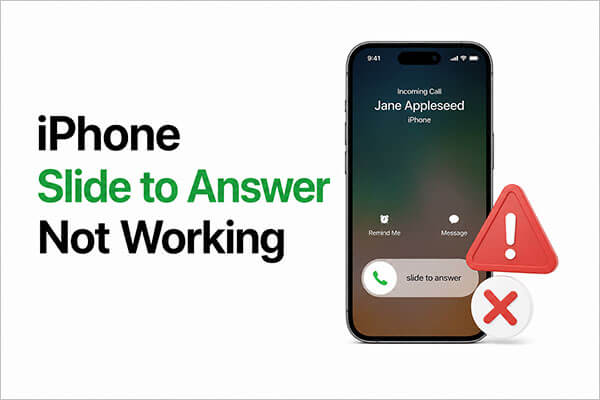
Before we dive into solutions, it's important to first understand the potential causes behind this issue. If your iPhone's slide to answer isn't working, here are some possible reasons:
Now that we've explored the potential causes of this issue, let's move on to the solutions. If your iPhone's slide to answer isn't working, the following steps will guide you through troubleshooting and resolving the problem. Follow each method in order until your iPhone is functioning properly again.
Dirt and dust on your iPhone screen can interfere with the slide-to-answer function. To fix this, it's best to use a clean cloth to wipe away any debris from the screen. Additionally, make sure your fingers are clean before using your phone to avoid any issues with touch responsiveness.
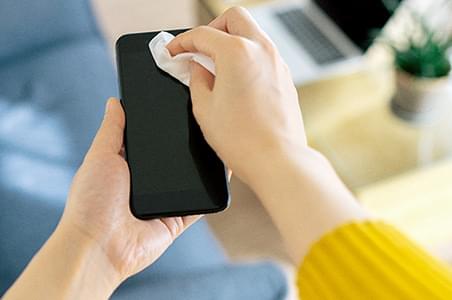
In some cases, a screen protector can reduce the sensitivity of your iPhone's touchscreen, preventing it from responding to your touch. If you're having trouble with iPhone slide to answer not working, try removing the screen protector. Once it's off, clean the screen and attempt to answer the call using the slider again.
Another solution to fix the iPhone slide to answer call not working issue is to force restart your iPhone. Here's how to do it:
For iPhone 8 and later:
For iPhone 7 and iPhone 7 Plus:
For iPhone 6s and earlier:

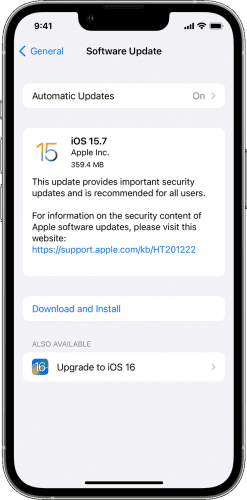
If the issue persists, it's likely related to your current iOS version. Some older versions may have known bugs, which Apple typically addresses in updates. Therefore, updating your system promptly can not only fix the slide-to-answer issue but also improve overall performance.
Here is how to update your iPhone:
Step 1. Open the "Settings" app and go to "General" > "Software Update". (iPhone stuck on software update?)
Step 2. Check for updates, then tap "Download and Install". Wait for the update to finish.
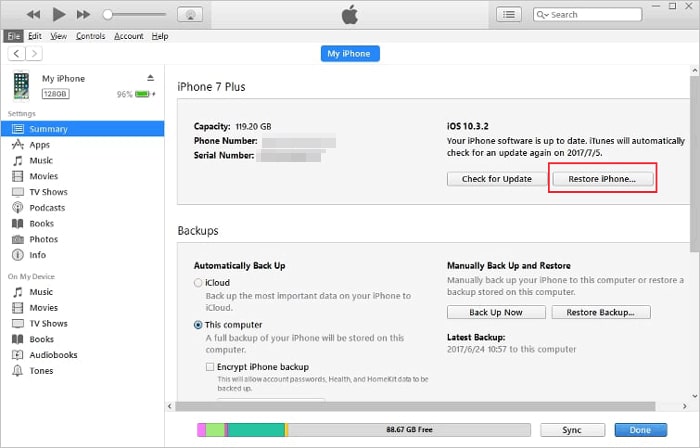
If the usual methods don't solve the issue, you can consider using iTunes to restore your system. This will reinstall iOS and fundamentally fix any system abnormalities.
However, it's important to note that this method typically erases all device data, so it's recommended to back up your data beforehand.
Here is how to do it:
Step 1. Connect your iPhone to the computer using a USB cable and open iTunes.
Step 2. Your iPhone should appear in iTunes. If it doesn't, you may need to put the device into recovery mode.
Step 3. Click on the iPhone icon, then under "Summary", select "Restore iPhone". Follow the on-screen instructions to confirm and complete the process.
If you want to fix the iPhone slide to answer not working without losing data, a professional tool is a better option. iOS System Recovery can repair system issues while keeping your files intact. This is ideal for users who want a safe and efficient solution.
What can iOS System Recovery do for you?
Here's how to fix iPhone slide to answer not working without data loss using iOS System Recovery:
01Download and install the software on your computer. It will automatically launch after installation.
02Connect your iOS device to the computer using a working USB cable. Select "iOS System Recovery" and click "Start" on the next screen.

03Choose either "Standard Mode" or "Advanced Mode", then click "Confirm" to proceed.

04Verify your device information and click "Repair" to start the process. Wait for it to complete, and your device will be restored to normal.

If none of the above methods work, resetting your iPhone can eliminate persistent system issues by returning it to its original state. This is a last-resort solution for stubborn iPhone slide-to-answer call not working problems.
Here are the steps:
Step 1. Open "Settings" on your iPhone.
Step 2. Go to "General" > "Transfer or Reset iPhone".
Step 3. Tap "Erase All Content and Settings", then enter your passcode to confirm. (Erase All Content and Settings not working?)

If you've tried everything and your iPhone's slide-to-answer not working issue still exists, it may be a hardware problem, such as a faulty touchscreen. In that case, it's best to contact Apple Support for professional diagnosis and repair. If your iPhone is still under warranty, it won't cost much.
Dealing with the iPhone slide-to-answer not working can be frustrating, but in most cases, it's easy to fix with the right approach. If you want a quick and reliable fix without data loss, iOS System Recovery is highly recommended. It's a powerful solution for resolving iOS issues without the risks of a full reset.
Follow these steps carefully, and your iPhone should be back to normal in no time.
Related Articles:
[Solved] How to Fix iOS 26 Call Screening Not Working on iPhone?
How to Fix iPhone Won't Back Up to iCloud [Solved in 2026]
iPhone Says Not Enough iCloud Storage But There Is? Find the Fix Here!
[Solved] How to Fix iCloud Photos Not Syncing on iPhone/iPad/Mac?




 Free Download for PC
  Free Download for Mac


