When your iPhone encounters system issues, won't turn on, or fails to update, DFU mode (Device Firmware Update) is often the last "lifeline". However, many users run into a common problem during the process: the iPhone won't go into DFU mode. Don't worry; this situation is actually quite common. This article will walk you through the possible causes and provide detailed solutions to help you successfully enter DFU mode and fix your device.
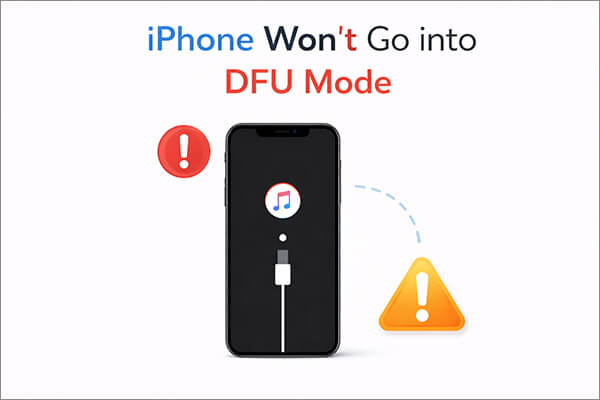
If your iPhone 15/16/17 won't go into DFU mode, it may be caused by the following reasons:
Since the process of putting an iPhone into DFU mode is complex, incorrect steps may be the reason why your iPhone won't enter DFU mode. So, we've outlined the correct steps to put your iPhone into DFU mode. You can follow these instructions according to your specific iPhone model.
For iPhone 8 and later models:
For iPhone 7 and 7 Plus:
For iPhone 6 and former models:
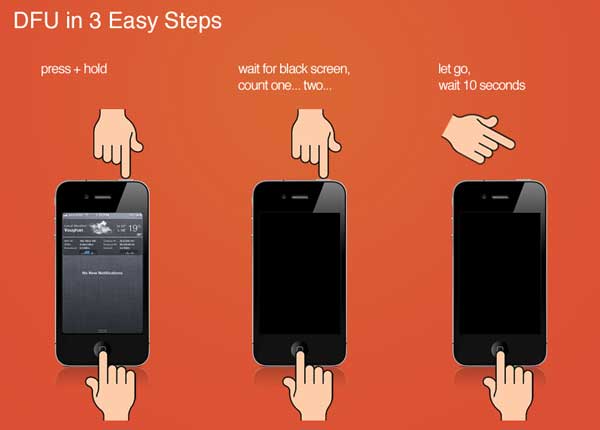
If you've tried the correct steps but your iPhone won't go into DFU mode, don't worry. The following fixes are arranged from simple to advanced, helping you systematically identify and solve the problem.
Among all possible causes, connection issues are the most commonly overlooked but also the most frequent factor. DFU mode relies on the computer recognizing the device, and if the connection is unstable, the process can fail even if the steps are done correctly.
Therefore, before attempting more complex solutions, it's recommended to start troubleshooting with the basic hardware connections.
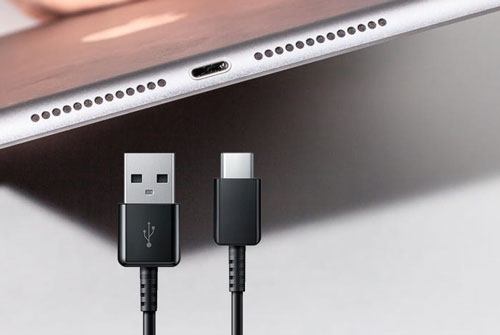
Step 1. Use the original Lightning cable or MFi-certified cable.
Step 2. Connect the cable directly to a USB port on the computer (avoid using a USB hub).
Step 3. Try different USB ports (preferably use a motherboard port).
Step 4. If possible, try connecting to a different computer.
If your iPhone isn't entering DFU mode, you can try a force restart, which can resolve minor iOS glitches and refresh the system.

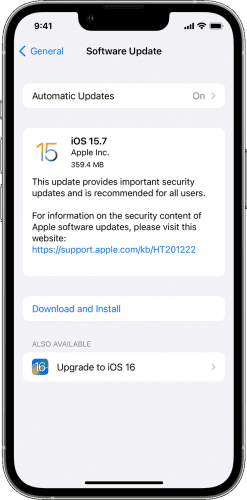
If your device is running an older system version, there may be compatibility issues or system bugs that prevent your iPhone from going into DFU mode. It is recommended to update your iPhone to the latest iOS version and then try entering DFU mode again.
Here is how to do it:
Step 1. Open the "Settings" app and tap on "General".
Step 2. Select "Software Update" to check for any available updates.
Step 3. Tap "Download and Install" to get the latest iOS software. (iPhone won't update?)
Step 4. Once your iPhone restarts, follow the correct instructions to try entering DFU mode again.
If you have tried all the methods above but still can't enter DFU mode, it's likely a hardware issue, such as a damaged button or motherboard malfunction. In this case, continuing to troubleshoot on your own may not be effective, so it's recommended to seek official support.
If you don't want to repeatedly try complex steps or are concerned about data loss, you can directly use a professional tool to fix the issue of the iPhone won't go into DFU mode. iOS System Recovery is a highly effective solution, especially for beginners.
It not only fixes the problem of iPhone not entering DFU mode but also resolves over 150 types of iOS system issues, including problems like iPhone won't turn on, iPhone stuck in recovery mode, etc. It can immediately restore your iPhone to normal, allowing you to easily enter DFU mode in the future.
Key features of iOS System Recovery:
How to fix iPhone won't go into DFU mode without losing data:
01Launch the program on your computer and connect your iPhone via USB. From the main interface, navigate to "More Tools" > "iOS System Recovery".

02The software will automatically detect issues on your device. Click "Start" to proceed.

03Confirm your iPhone's information as prompted, then click "Repair" to begin fixing your device.

When you encounter the issue of the iPhone won't go into DFU mode, there's no need to panic. In most cases, simply adjusting the steps or troubleshooting connection issues will solve the problem. If standard methods don't work, using iOS System Recovery is a more efficient and safe option, especially for users who want to avoid data loss.
We hope this guide helps you resolve the issue and get your iPhone back to normal!
Related Articles:
How to Fix iPhone Won't Restore in Recovery Mode? - 7 Effective Ways
[Full Guide] How to Enter/Exit DFU Mode on iPhone Without Effort?
How to Fix iPhone Recovery Mode Not Working? - 5 Reliable Fixes
How to Enter and Exit Recovery Mode on iPhone/iPad [Complete Guide]




 Free Download for PC
  Free Download for Mac


