TL;DR: If your iPhone shows "unable to activate Touch ID on this iPhone", it is usually caused by software glitches, incorrect settings, dirty sensors, or hardware issues. You can try 10 fixes, including enabling Touch ID in settings, cleaning the Home button, restarting the device, toggling passcode, resetting fingerprints, resetting all settings, updating iOS, restoring via iTunes, or using an iOS system repair tool.
If none of these work, the issue may be hardware-related and require professional repair.
Touch ID is the fingerprint recognition feature on the iPhone that allows users to quickly unlock their device, make payments, and access secure apps. However, some users may encounter the error message "unable to activate Touch ID on this iPhone", which can significantly affect their daily user experience.
Why does this error occur, and how can it be fixed? In this article, we will take an in-depth look at the possible causes and provide 10 proven solutions to help you quickly restore Touch ID functionality.
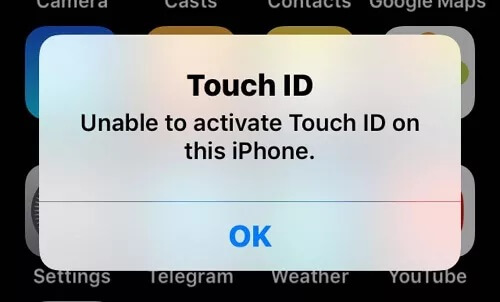
The "unable to activate Touch ID on this iPhone" error is usually caused by one of the following factors:
Now that you know the possible causes of the "unable to activate Touch ID on this iPhone" error, it's time to try some effective solutions. Here are 10 effective solutions you can try one by one.
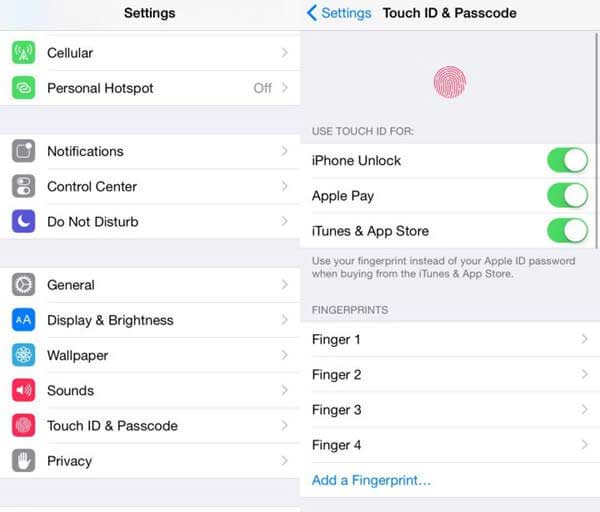
If your iPhone displays the "unable to activate Touch ID on this iPhone" error, the first thing you should do is verify that Touch ID is enabled in your settings. Here is how to do it:
Step 1. Open the "Settings" app on your iPhone and tap "Touch ID & Passcode".
Step 2. Enter your passcode when prompted. If you have not set up a passcode, you can skip this step.
Step 3. Make sure "iPhone Unlock" is enabled, then tap "Add a Fingerprint".
Step 4. Follow the on-screen instructions and place your finger on the Home button repeatedly until the fingerprint registration process is complete.
If you're seeing the "unable to activate Touch ID on this iPhone" error, the fingerprint sensor may be unable to read your fingerprint properly. Moisture, oil, dirt, or debris on either your finger or the Home button can affect Touch ID performance.
To resolve this, make sure your hands are clean and dry. Then carefully clean the Home button with a soft, lint-free cloth and try setting up or using Touch ID again.
Sometimes, a temporary software issue can prevent Touch ID from functioning properly. Performing a force restart refreshes the iPhone's system processes and may resolve minor glitches that are interfering with Touch ID activation.

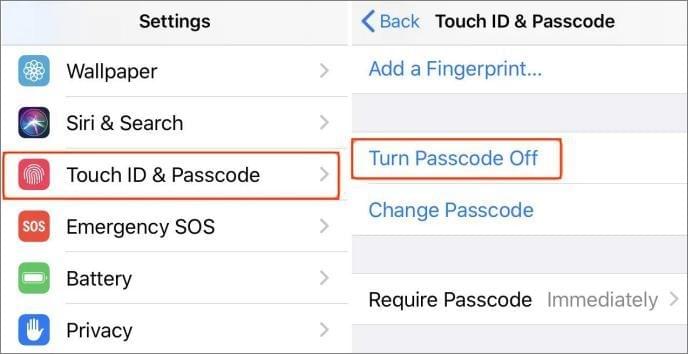
If Touch ID still won't activate on your iPhone, try disabling your passcode temporarily and then enabling it again. This can refresh the security settings and may resolve the issue.
Step 1. Open "Settings" and tap "Touch ID & Passcode".
Step 2. Select "Turn Passcode Off", then enter your current passcode to confirm.
Step 3. Wait a few minutes, then return to the same menu and tap "Turn Passcode On" to set it up again.
Once the passcode has been re-enabled, check whether Touch ID can be activated normally.
Resetting your fingerprints can be an effective way to fix the "unable to activate Touch ID on this iPhone" error. This process involves removing your existing fingerprint data and setting it up again from scratch.
Follow the steps below:
Step 1. Open the "Settings" app and tap "Touch ID & Passcode".
Step 2. Enter your current passcode when prompted.
Step 3. Under the list of registered fingerprints, swipe left on each fingerprint and tap "Delete Fingerprint". You may be asked to enter your passcode again to confirm the action.
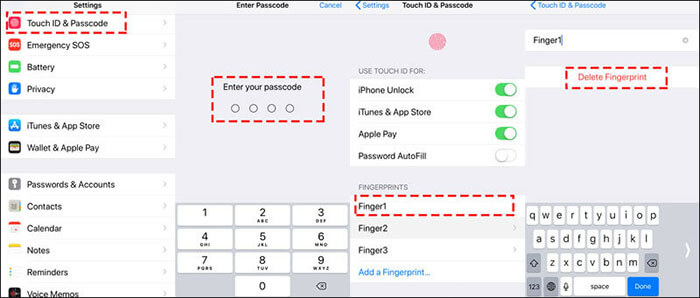
Step 4. Once all fingerprints have been removed, tap "Add a Fingerprint" to set up Touch ID again.
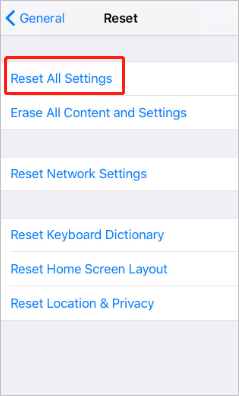
If Touch ID cannot be activated, the issue may be related to changes in your device settings. These settings can sometimes be altered without your awareness, leading to system conflicts. In such cases, resetting all settings may help resolve the problem.
Step 1. Open the "Settings" app and go to "General" > "Transfer or Reset iPhone".
Step 2. Tap "Reset", then select "Reset All Settings" and confirm when prompted.
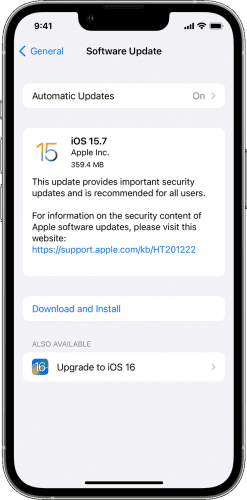
Apple frequently releases updates that fix software bugs and improve system stability. If your iPhone is running an outdated version of iOS, updating it may resolve the Touch ID activation issue.
To update your iPhone, follow the steps below:
Step 1. Open the "Settings" app on your iPhone.
Step 2. Go to "General" > "Software Update". If an update is available, tap "Download and Install", then wait for the process to complete. (iPhone software update failed?)
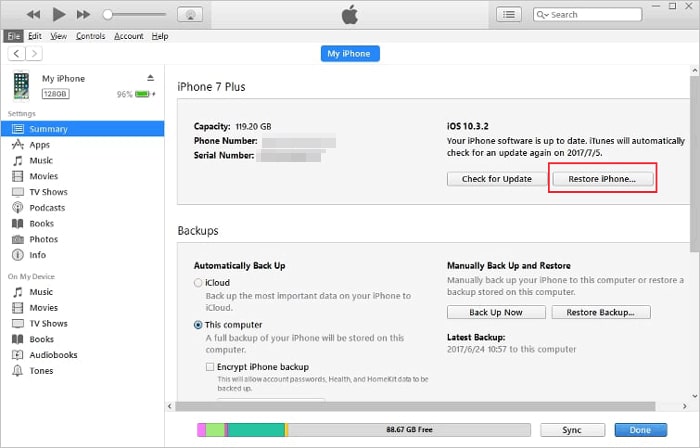
Restoring your iPhone using iTunes or Finder can also help resolve the "unable to activate Touch ID on this iPhone" error. This process erases your current device settings and reinstalls the original system software. (How to back up iPhone?)
To restore your iPhone using iTunes/Finder, make sure you have the latest version installed on your computer, then follow these steps:
Step 1. Connect your iPhone to your computer using a Lightning cable.
Step 2. Select your device when it appears in iTunes or Finder.
Step 3. Go to the "Summary" (or General in Finder) section.
Step 4. Click "Restore iPhone", then follow the on-screen instructions to complete the process.
If you have tried all the above conventional methods but Touch ID still cannot be activated, the issue is likely related to corrupted iOS system files. For example, a failed system update, leftover jailbreak files, abnormal system components, or firmware errors may all cause the Touch ID module to stop working properly. In such cases, using a professional iOS repair tool is often more effective than performing a factory reset.
iOS System Recovery can fix various iOS system issues without deleting data, including problems such as Touch ID not activating, iPhone stuck in recovery mode, black screen, and the white Apple logo. It is a good option for users who do not want to lose their data.
The highlights of iOS System Recovery:
How do I fix "unable to activate Touch ID on this iPhone" without losing data?
01Download and install the program on your computer; it will launch automatically.
02Connect your iPhone with a functional USB cable, select "iOS System Recovery", and click "Start".

03Choose either Standard or Advanced mode, then click "Confirm".

04Check that your device information is correct, click "Repair", and wait for the process to finish. Once complete, your iPhone will return to normal operation.

If none of the methods above resolve the issue, the Home button or Touch ID sensor may be physically damaged. This is especially likely if the iPhone has been dropped, previously repaired, or exposed to water. In such cases, software solutions may not be enough, and professional repair service may be required.
When your iPhone displays "unable to activate Touch ID on this iPhone", there is no need to worry too much. You can try the methods mentioned above to fix the issue. If the standard solutions do not work and you want to avoid a factory reset that may cause data loss, iOS System Recovery is worth trying first. It can repair a wide range of iOS system issues while preserving your important data as much as possible, making it an effective solution for Touch ID activation problems.
However, if all software-based fixes fail, you should have your device checked for possible hardware damage.
Related Articles:
Passcode Expired on Your iPhone & Unlock Passcode Has Expired [5 Ways]
7 Easy Ways to Fix the Must Change iPhone Passcode Issue
[100% Feasible] How to Fix This Apple ID Is Not Active Issue?




 Free Download for PC
  Free Download for Mac


