TL;DR:
Setting up a new iPhone from an old iPhone is easier than you might think. Here are four practical ways to move your important data:
When you purchase a new iPhone, the first thing you usually want to do is transfer the data from your old device to the new one, including contacts, photos, messages, app data, and more. During the process of setting up a new iPhone from an old iPhone, many users worry about data loss or complicated steps. In fact, Apple has already provided several simple migration methods. As long as you follow the correct steps, you can quickly complete the data synchronization between your old and new devices.
In this article, we will introduce four common methods to help you set up a new iPhone from an old iPhone. You can choose the method that best fits your needs.
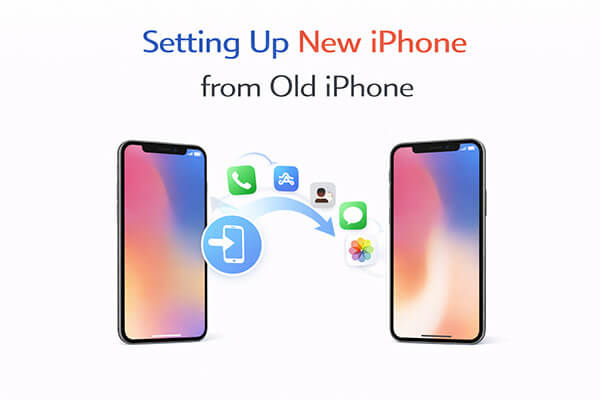
One of the easiest ways to set up a new iPhone from an old iPhone is by using Apple's Quick Start feature. This built-in function allows you to wirelessly transfer your data from your old iPhone to your new one during the setup process. As long as both devices are running a relatively recent iOS version and are placed close to each other, the transfer can begin automatically.
Quick Start is ideal for users who want a simple and direct way to migrate their data without creating backups manually. It allows the new iPhone to copy most of the important content from the old device, including settings, apps, photos, and messages. The process is straightforward and does not require a computer.
Here is how to set up new iPhone from old iPhone via Quick Start:
Step 1. Turn on your new iPhone and place it near your old iPhone. Make sure Bluetooth is turned on for the old device.
Step 2. The Quick Start screen will appear on your old iPhone, asking if you want to use your Apple ID to set up the new iPhone. Tap "Continue".
Step 3. An animation will appear on the new iPhone. Use the old iPhone to scan the animation. If you cannot use the camera, choose "Set Up Manually".
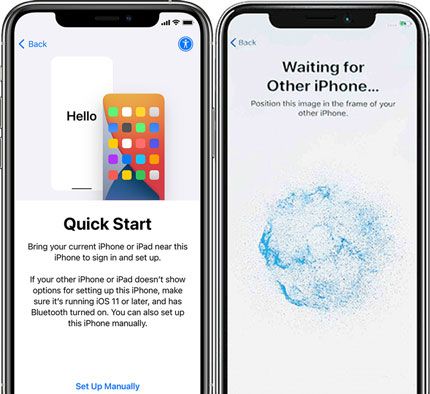
Step 4. Enter the passcode of your old iPhone on the new iPhone when prompted.
Step 5. Follow the instructions to set up Face ID or Touch ID on the new device.
Step 6. When the "Transfer Your Data" screen appears, select "Transfer from iPhone".
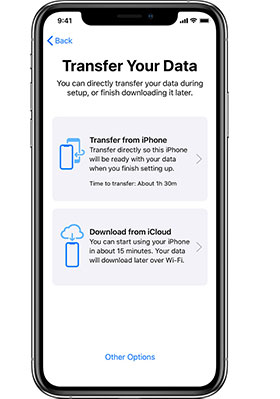
Step 7. Keep both iPhones close together and connected to Wi-Fi and power during the transfer process.
Step 8. Wait for the data transfer to complete. The time required depends on how much data you have.
Step 9. Once the transfer is finished, your new iPhone will restart and complete the setup automatically.
Another common method for setting up new iPhone from old iPhone is restoring data from an iCloud backup. If you regularly back up your old iPhone to iCloud, you can easily restore that backup to your new device during the setup process.
This method is especially helpful when setting up a new iPhone from an old iPhone without Quick Start, such as when your old device is not nearby or cannot be used for direct transfer. After signing in with your Apple ID, your new iPhone will download the backup from iCloud and automatically restore your contacts, photos, apps, and other data.
Because the data is restored from the cloud, it's important to use a stable Wi-Fi connection to ensure the setup process finishes smoothly.
Here is how to set up new iPhone from old iPhone with iCloud:
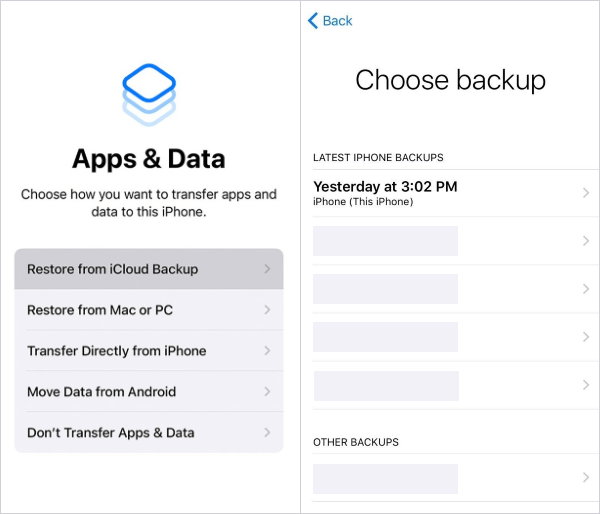
Step 1. Turn on your new iPhone and follow the on-screen setup instructions until you reach the "Apps & Data" screen.
Step 2. Select "Restore from iCloud Backup".
Step 3. Sign in with the same Apple ID that you used on your old iPhone.
Step 4. Choose the most recent iCloud backup from the list of available backups.
Step 5. Connect your new iPhone to a stable Wi-Fi network and keep it plugged into power during the process.
Step 6. Wait while the iPhone downloads the backup and restores your data, including contacts, photos, messages, and settings.
Step 7. After the restore is complete, your iPhone will restart and continue downloading apps and other content in the background.
Step 8. Keep the device connected to Wi-Fi until all your data and apps are fully restored.
If you don't have enough iCloud storage, using a computer backup is another effective option for setting up new iPhone from old iPhone. This method allows you to back up the old device to a computer and then restore that backup to the new iPhone.
For users who want to set up a new iPhone from an old iPhone without iCloud, a local backup provides a reliable alternative. Instead of downloading data from the cloud, the backup is stored directly on your computer and transferred to the new device during the restore process.
Compared to cloud backups, local backups can be faster and do not depend on internet speed, making them ideal for users with large amounts of data.
Here is how to set up new iPhone from old iPhone using a computer backup:
Step 1. Connect your old iPhone to a computer using a USB cable.
Step 2. Open Finder (on macOS Catalina or later) or iTunes (on Windows or older macOS).
Step 3. Select your old iPhone when it appears in the sidebar or device list.
Step 4. Click "Back Up Now" to create a full backup of the old iPhone on the computer. Wait until the backup process finishes.
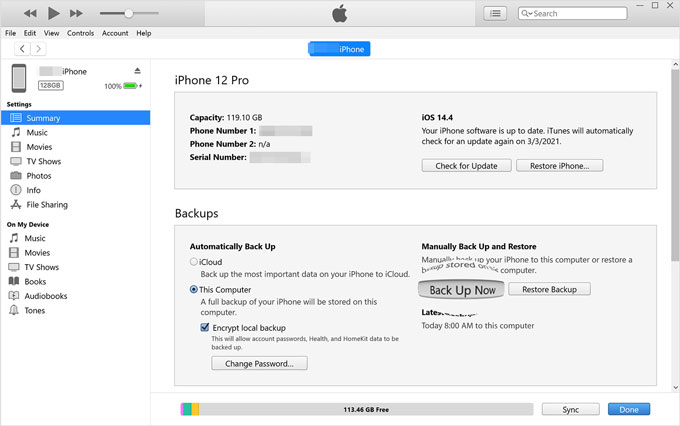
Step 5. Turn on your new iPhone and follow the setup instructions until you reach the "Apps & Data" screen.
Step 6. Choose "Restore from Mac or PC".
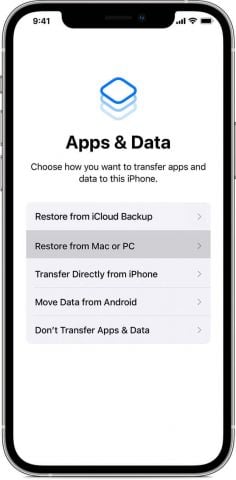
Step 7. Connect the new iPhone to the same computer using a USB cable.
Step 8. Select the most recent backup and click "Restore Backup".
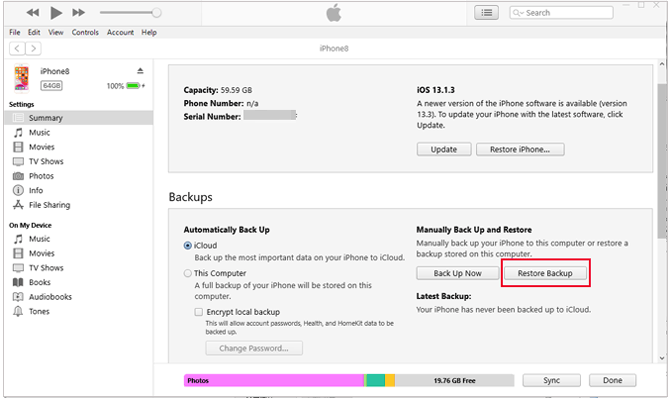
Step 9. Keep the iPhone connected until the restore process finishes and the new device restarts.
In addition to the methods provided by Apple, you can also use professional data transfer tools to complete setting up a new iPhone from an old iPhone. For example, Coolmuster Mobile Transfer is a software program specifically designed for phone data transfer, helping users quickly copy data from one iPhone to another.
Compared with traditional methods, the biggest advantages of this type of tool are simpler operation and more stable data migration. You only need to connect both devices to a computer, select the types of data you want to transfer with one click, and the software will automatically complete the entire transfer process. For users who prefer not to use iCloud or feel that the official methods are too complicated, this can be a very practical solution.
Key features of Mobile Transfer:
Here is how to set up a new iPhone from an old iPhone in 1 click:
01Download, install, and launch the software on your computer. Connect both iPhones using two working USB cables. If prompted on your iPhones, tap "Trust" to allow the computer access.
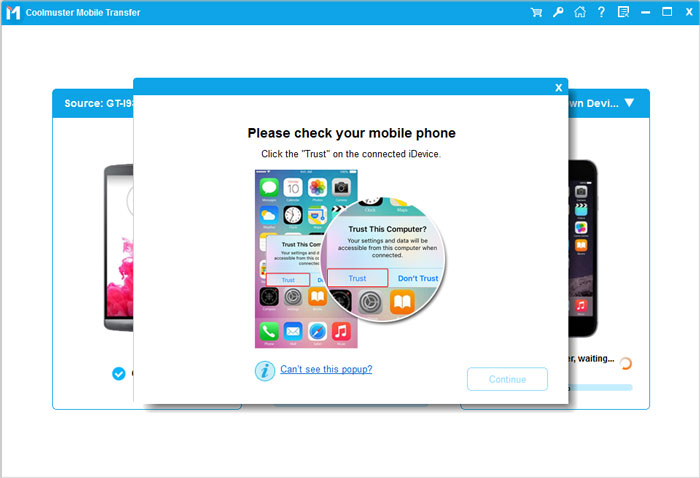
02Once the program detects both devices, it will show "Connected" under their images. Make sure the old iPhone is set as the Source; if needed, click "Flip" to switch their positions.
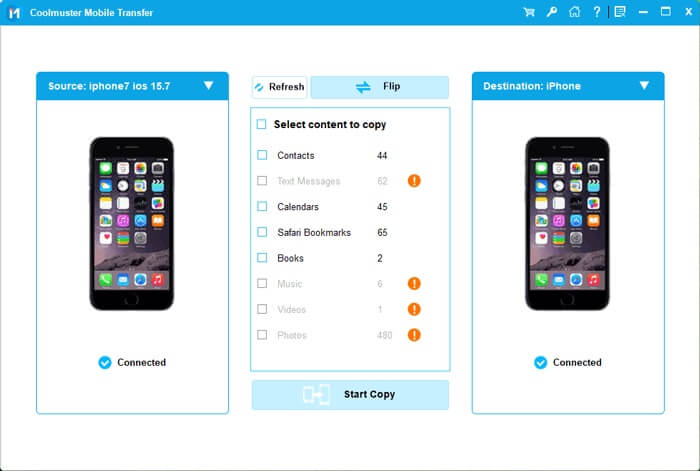
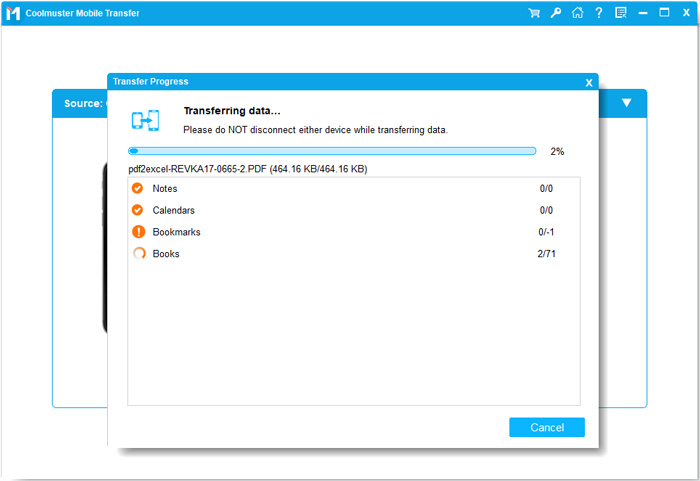
03Next, select the data you want to transfer from the old iPhone to the new one, and click "Start Copy" to begin the syncing process.
Video Tutorial:
There are several ways to set up new iPhone from old iPhone, and the best option depends on your needs. Quick Start is the easiest method during the initial setup, while iCloud backup works well for users who rely on cloud storage. If you prefer local backups, restoring data via a computer is also a reliable solution.
However, if you want a simpler and faster way to transfer data between two devices, using Coolmuster Mobile Transfer is highly recommended. It allows you to move important data from your old iPhone to your new one with just a few clicks, making the entire setup process much quicker and more convenient.
Related Articles:
How to Set Up and Activate New iPhone [iPhone 17 Updated]
[Must-read Tips] What to Do Before Getting a New iPhone 17/17 Pro/Air?
How to Transfer iPhone to iPhone After Setup in 4 Dependable Ways
[Solved] How to Fix iPhone 17 Quick Start Not Working in 2026?







 Free Download for PC
  Free Download for Mac


