TL;DR:
Apeaksoft WhatsApp Transfer is a desktop tool designed to help users transfer, back up, and restore WhatsApp data on iOS devices. This review covers its main features, pricing plans, pros and cons, and a step-by-step usage guide. We also introduce WhatsApp Mover as a powerful alternative for users who need cross-platform WhatsApp transfer between Android and iPhone.
WhatsApp has become one of the most important communication tools for both personal and business use. As users switch between devices, the need to transfer, back up, and restore WhatsApp data has increased significantly. This is where WhatsApp transfer software comes into play.
Among the many available options, Apeaksoft WhatsApp Transfer is a popular solution designed to help users move WhatsApp chats and attachments between devices. But is it really worth your money? In this Apeaksoft WhatsApp Transfer review, we'll examine its features, pricing, advantages, disadvantages, and how it compares to alternative tools.

Apeaksoft WhatsApp Transfer is a desktop application developed to help users manage WhatsApp data on iOS devices. It offers three primary functions:
The software supports various types of WhatsApp content, including:
Key Features of Apeaksoft WhatsApp Transfer
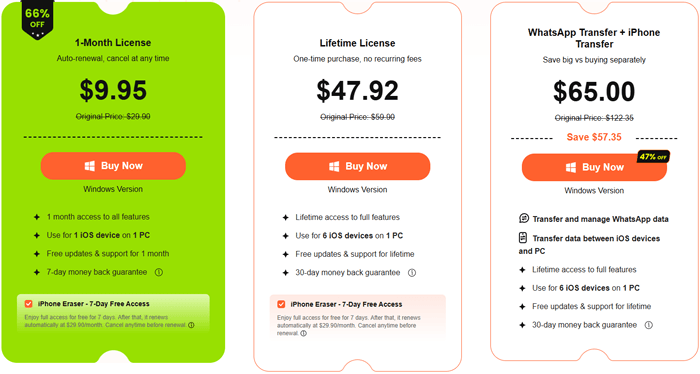
Apeaksoft WhatsApp Transfer provides several licensing options for different usage needs.
The 1-Month License costs $9.95 and can be used on 1 iOS device and 1 PC. This plan is suitable for users who only need the software for a one-time WhatsApp transfer or backup task.
The Lifetime License is priced at $47.92. It includes lifetime access to the software and supports up to 6 iOS devices on 1 PC, making it a more economical choice for long-term use.
For users who need additional iPhone data management features, Apeaksoft also offers a WhatsApp Transfer + iPhone Transfer Bundle for $65.00. This package provides lifetime access to both programs and can be used with up to 6 iOS devices on 1 PC.
A free trial version is available for users who want to test the software before purchasing. However, some features are limited in the trial version, so a paid license is required to unlock the full functionality.
To help users objectively evaluate this tool, we summarize its most prominent advantages and existing limitations based on actual tests and user feedback.
| Pros | Cons |
| Clean and intuitive user interface. | Limited Android device support. |
| Fast WhatsApp backup and restoration process. | Free version offers restricted functionality. |
| Supports most iPhone and iPad models. | No cloud backup integration. |
| Allows previewing backup content before restoring. | Transfer features are less comprehensive than some leading competitors. |
| No technical skills required. | Occasional device recognition issues reported by some users. |
Apeaksoft WhatsApp Transfer offers three main functions: transferring WhatsApp between iPhones, backing up WhatsApp to a computer, and restoring WhatsApp backups. Here's how each feature works.
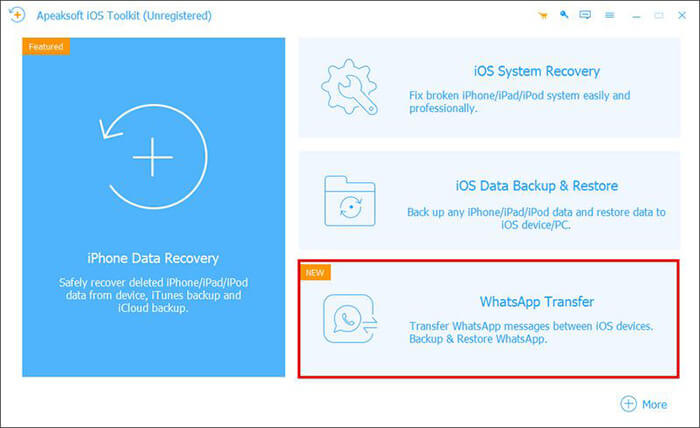
Step 1. Launch the software and select WhatsApp Transfer.
Install and open Apeaksoft WhatsApp Transfer on your computer. From the main interface, click the "WhatsApp Transfer" feature to continue.
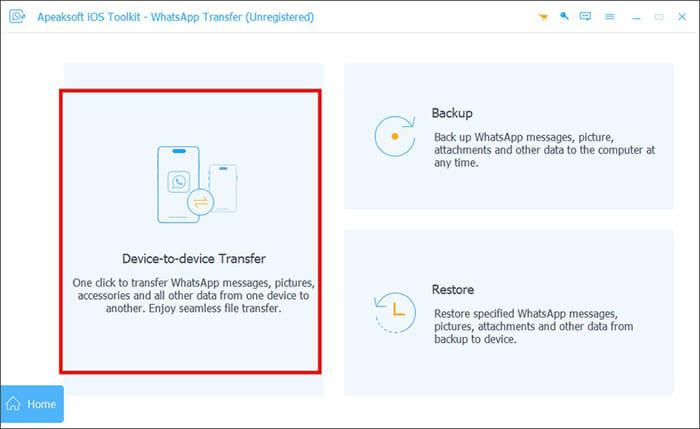
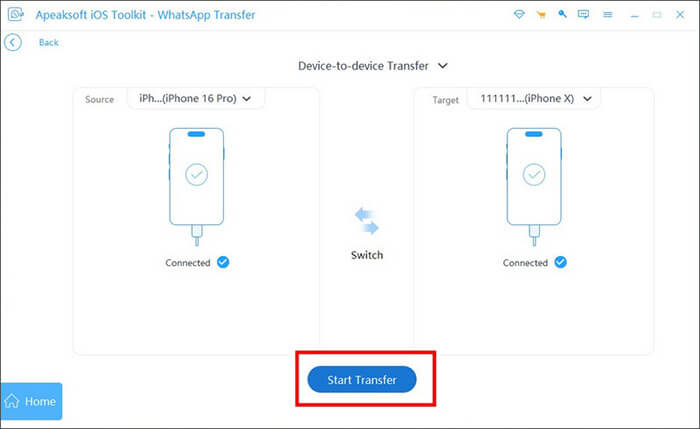
Step 2. Choose Device-to-Device Transfer.
Select the "Device-to-Device Transfer" module to move WhatsApp data from one iPhone to another.
Step 3. Connect both iPhones.
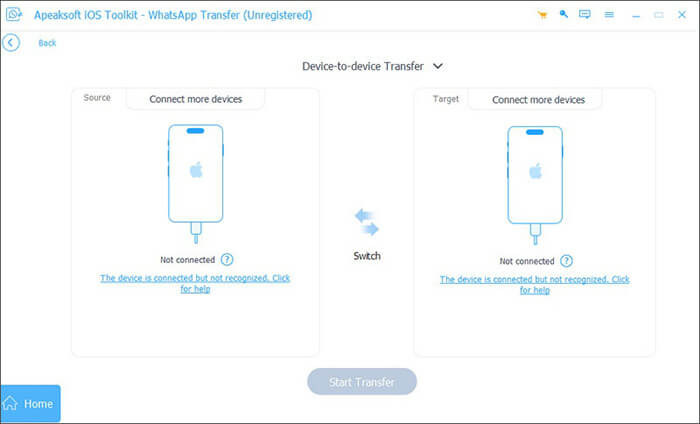
Use USB cables to connect the source iPhone and target iPhone to your computer.
If your devices are running iOS 7 or later, tap "Trust" on each iPhone when prompted. Once the devices are detected, click Next in the program.
Make sure the source device is displayed on the left and the destination device appears on the right. If they are reversed, switch their positions before proceeding.
Step 4. Start transferring WhatsApp data.
Click the "Start Transfer" button. The software will begin transferring WhatsApp messages, photos, videos, voice messages, and other attachments from the source iPhone to the target iPhone.
Wait until the process is completed and keep both devices connected throughout the transfer.
Step 1. Open the WhatsApp Transfer feature.
Launch the software and select "WhatsApp Transfer" from the main interface.
Step 2. Select Backup.
Choose the "Backup" module to save your WhatsApp data to the computer.
Step 3. Connect your iPhone.
Connect the iPhone containing the WhatsApp data using a USB cable and wait for the program to recognize it.
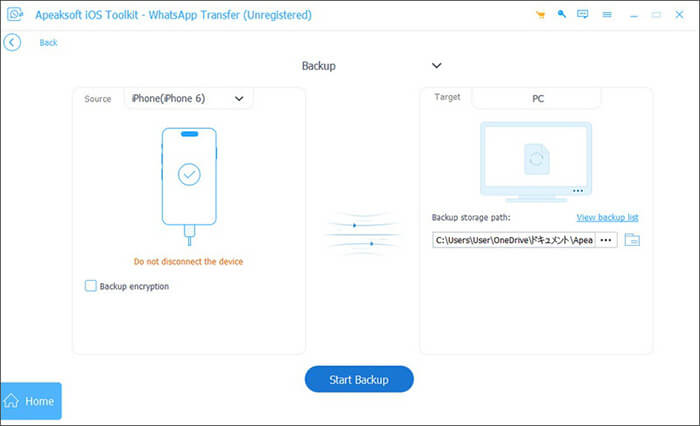
Step 4. Back up WhatsApp data.
Click the three-dot icon to choose a backup location on your computer.
If you want additional security, check the "Backup encryption" option and create a password to protect the backup file.
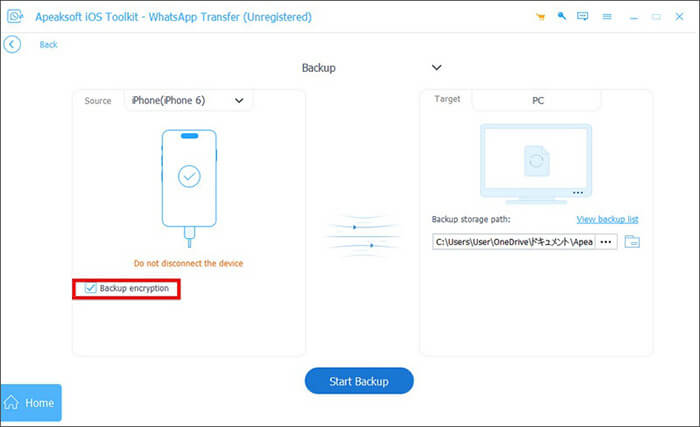
After configuring the settings, click "Start Backup". If encryption is enabled, you'll be asked to enter and confirm your password before the backup begins.
When the backup is finished, the software will display a "Complete" message. You can click "View Backup List" to see your backup records or open the destination folder directly to access the backup file.
Step 1. Launch WhatsApp Transfer.
Open the program and select the "WhatsApp Transfer" feature.
Step 2. Choose Restore.
Select the "Restore" module from the available options.
Step 3. Connect your iPhone.
Connect the target iPhone to the computer using a USB cable.
Step 4. Select a backup file.
Choose the WhatsApp backup you want to restore from the list on the left side of the window.
If the backup file isn't displayed, click "Import local file" to manually add an existing backup from your computer.
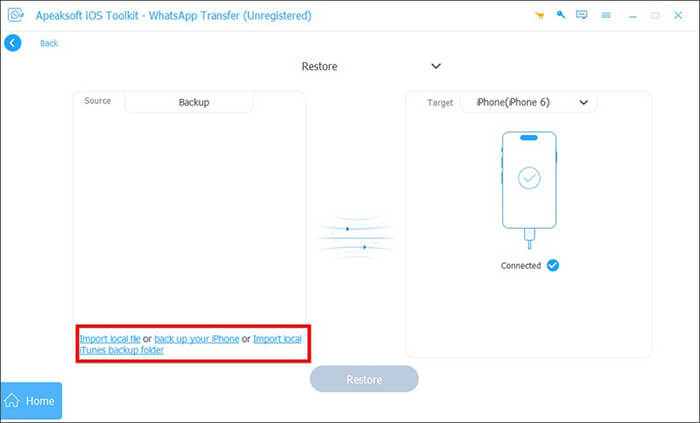
You can preview the backup by clicking the "View" button. If the backup is encrypted, enter the password to access its contents.
Step 5. Restore WhatsApp.
You have 2 options to restore your WhatsApp data:
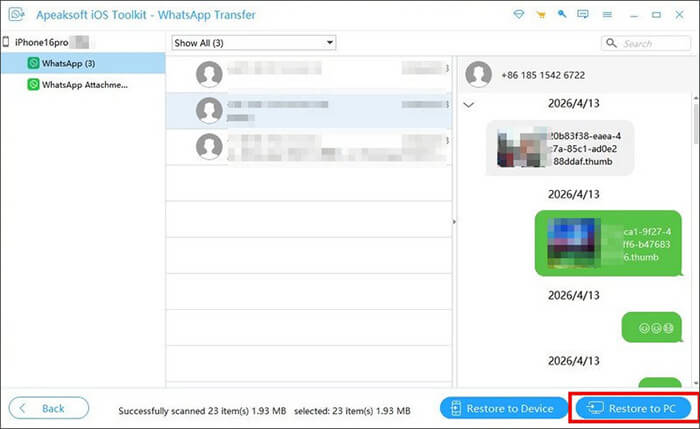
Option 1. Restore WhatsApp to a Computer
Click "Restore to PC", select a destination folder, and then click "Restore". The software will export the WhatsApp data to your computer.
Option 2. Restore WhatsApp to an iPhone
Click "Restore to Device", then select "Start" to begin restoring the backup to your iPhone.
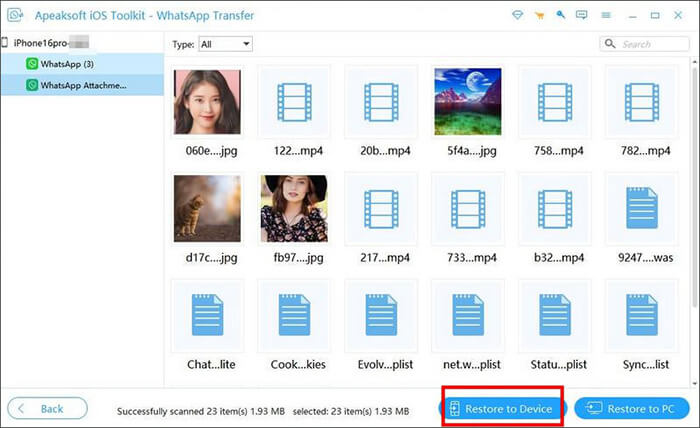
A warning message will appear, informing you that the existing WhatsApp data on the target device will be erased. Click "OK" if you wish to continue.
If the backup is password-protected, enter the correct password and click "OK".
Once the restoration process is complete, a "Finish" message will appear. You can then open WhatsApp on your iPhone and verify that all chats and media have been successfully restored.
While Apeaksoft WhatsApp Transfer works well for iPhone users, its functionality is relatively limited when it comes to cross-platform transfers. If you need to move WhatsApp data between Android and iPhone, back up WhatsApp more flexibly, or manage other messaging apps, WhatsApp Mover is a more comprehensive solution.
Designed for both Android and iOS users, WhatsApp Mover simplifies WhatsApp migration, backup, and restoration while supporting a wider range of devices and data types.
Key Features of WhatsApp Mover
Here, we will show you how to transfer WhatsApp between Android and iPhone with WhatsApp Mover:
01Download the software and connect both devices.
Download and install WhatsApp Mover on your computer. Launch the program and connect both your Android phone and iPhone using USB cables.
If you're using an Android device, enable USB debugging when prompted. For iPhone users, tap "Trust" on the device screen to allow the connection.
02Select the Transfer feature.
After both devices are successfully detected, navigate to the "Transfer" module. Verify that the phone containing your existing WhatsApp data is set as the source device and that the receiving phone is listed as the destination device.
If the device positions are incorrect, click the "Flip" button to switch them.
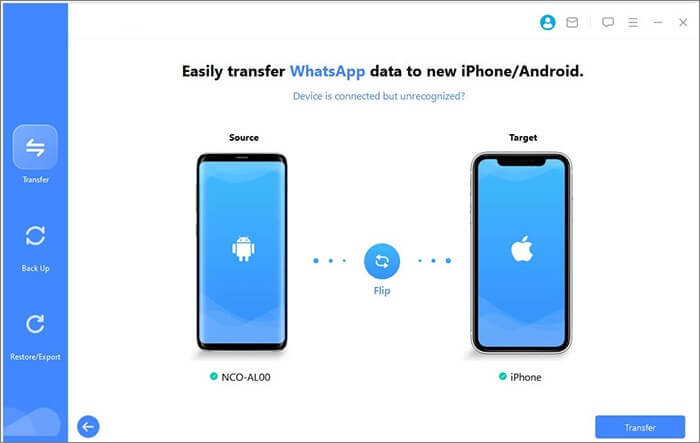
03Start the WhatsApp transfer.
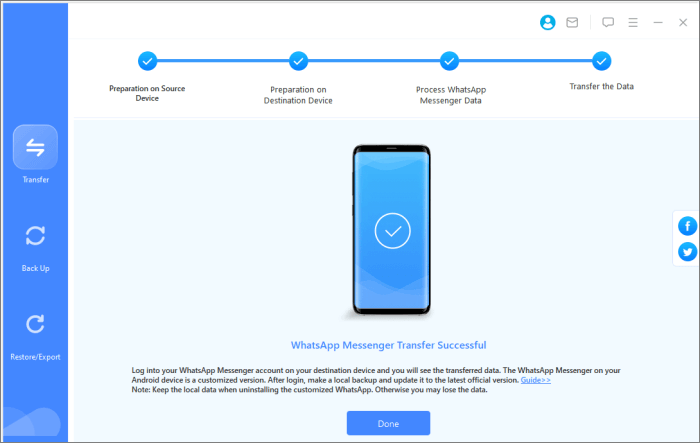
Once everything is configured correctly, click the "Transfer" button to begin moving your WhatsApp chats, photos, videos, documents, and other attachments.
Keep both devices connected during the entire process. When the transfer is complete, you'll be able to access all your WhatsApp data on the target device.
Apeaksoft WhatsApp Transfer is a practical solution for users who mainly work within the Apple ecosystem. It allows iPhone-to-iPhone WhatsApp transfer, secure backups, and easy restoration, making it suitable for beginners who want a simple and stable tool for managing WhatsApp data. However, its biggest limitation is the lack of strong cross-platform support. Users who frequently switch between Android and iPhone may find its features too restricted compared to more advanced tools.
If you only need basic WhatsApp transfer, backup, and restore functions on iOS devices, Apeaksoft WhatsApp Transfer is a reliable option worth considering. But if you want more flexibility, broader device compatibility, and support for Android-to-iPhone migration, WhatsApp Mover is clearly the better long-term choice.
Related Articles:
Apeaksoft MobieTrans Review 2026: Features, Pricing, Guide & Alternative
Apeaksoft Android Data Recovery Review: A Comprehensive Guide
Apeaksoft iOS Data Backup & Restore Review: A Comprehensive Guide
Apeaksoft iOS System Recovery Review: Features, Guide & Best Alternative







 Free Download for PC
  Free Download for Mac


