"My name is Stephen. I cannot restore my WhatsApp from iCloud. I can see the size of the backup, but anytime I try, it says "Couldn't restore chat history." Please, I need your help. Thanks.
- from Apple Community
When changing phones, reinstalling the app, or logging back into an account, restoring WhatsApp chat history is one of the steps many users care about most. However, many encounter the frustrating message: "couldn't restore chat history". You are not alone. In this guide, we'll explain why WhatsApp couldn't restore chat history and walk you through proven solutions step by step.
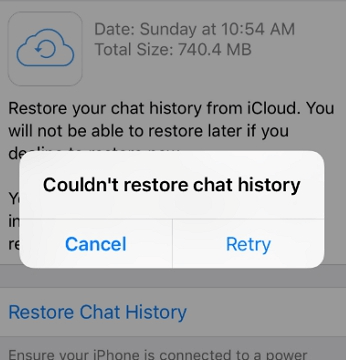
Before jumping into fixes, it's important to understand what may be causing the problem. If your WhatsApp restore from iCloud couldn't restore chat history, the following are the possible reasons:
After you know the reasons, try the following solutions to fix WhatsApp couldn't restore chat history on iPhone.
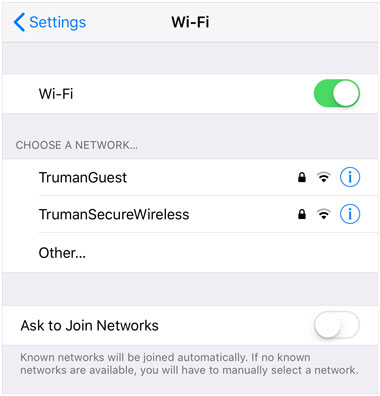
As mentioned earlier, a stable and strong internet connection is essential for restoring WhatsApp chat history from iCloud. If you're using mobile data, confirm that you have a strong signal. You can also switch to a dependable Wi-Fi network for a smoother and more stable data transfer.
WhatsApp chat backups on iPhone are linked to two key pieces of information: your Apple ID (which is used to store the backup in iCloud) and your phone number (which is tied to your WhatsApp account). If you're switching to a new iPhone and seeing "WhatsApp couldn't restore chat history", it's likely because the new device is using a different Apple ID or phone number than the one used to create the backup. Even a small difference (such as a typo in the Apple ID email) can prevent WhatsApp from accessing the backup files. Therefore, make sure both devices use the same Apple ID and phone number.
The "WhatsApp could not restore chat history" error may sometimes be caused by minor system or device glitches. Restarting your phone is one of the simplest and most effective ways to fix these issues. You can restart your device by following the steps below:
For iPhone 8 or later:
For iPhone 7 or iPhone 7 Plus:
For iPhone 6 and earlier:

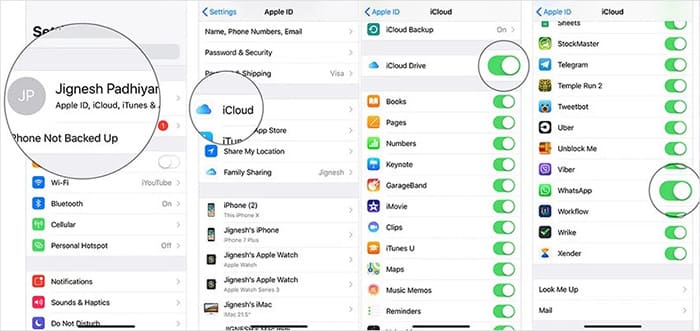
iCloud allows app data, including WhatsApp, to sync across your devices. If the WhatsApp option is turned off in iCloud settings, you may not be able to restore your messages from an iCloud backup. Follow the steps below to enable iCloud and WhatsApp:
Step 1. Open "Settings" on your old iPhone.
Step 2. Tap your "Apple ID" banner at the top, then select "iCloud".
Step 3. Turn on "iCloud Drive", then scroll down and toggle "WhatsApp" on.
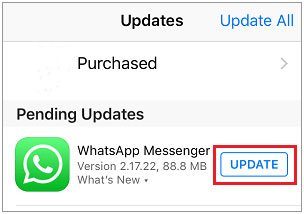
The "WhatsApp couldn't restore chat history" error can sometimes be caused by an outdated iOS version or an older version of WhatsApp, which may introduce unexpected bugs that interfere with the restoration process. If the issue continues after trying the methods mentioned above, updating both your iOS system and WhatsApp to the latest versions is highly recommended.
To update iOS versions: Go to "Settings" > "General" > "Software Update", then tap "Download and Install".

To update WhatsApp: Open the App Store, tap your profile icon, locate "WhatsApp", and tap "Update".
If updating the app doesn't fix the issue, try reinstalling WhatsApp on your device. Reinstalling can resolve problems related to corrupted or incomplete installation files and may help restore normal functionality.
To do this, follow the steps below:
Step 1. Press and hold the "WhatsApp" app icon on your home screen until all app icons start to wiggle. Tap the "X" in the top left corner of the WhatsApp icon.
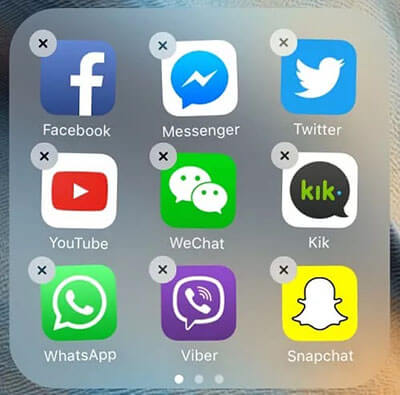
Step 2. A pop-up message will appear, asking if you want to delete WhatsApp. Tap "Delete App" to confirm.
Step 3. Open the App Store on your iPhone and search for "WhatsApp". Tap the "Get" or "Download" button (the cloud icon if you've downloaded WhatsApp before) to reinstall the app.
Step 4. Wait for WhatsApp to download and install. Once installed, open the app and follow the on-screen instructions to set it up. Enter the same phone number as your original WhatsApp account (the one linked to the iCloud backup).
Step 5. After verifying your phone number, WhatsApp will automatically detect the iCloud backup and prompt you to restore it. Tap "Restore Chat History" and wait for the process to complete.
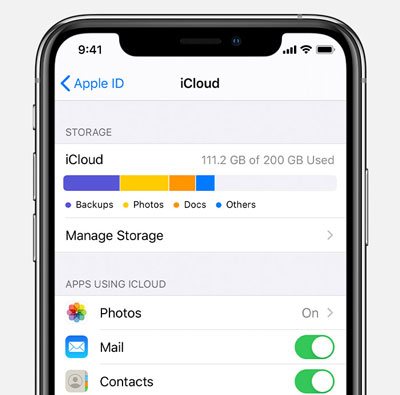
Apple provides only 5GB of free iCloud storage per user. If WhatsApp cannot restore your chat history, it's possible that your iCloud storage is full. You can either purchase additional storage or free up space by following these steps:
Step 1. Open the "Settings" app → tap [your name] banner → "iCloud" → "Manage Storage".
Step 2. Review the storage details and identify the items taking up the most space. Select an item and tap "Disable & Delete" to free up iCloud storage.
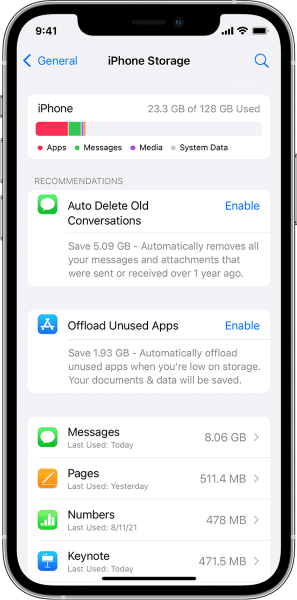
Insufficient storage on your device can also cause WhatsApp to fail when restoring from iCloud. If your iPhone doesn't have enough free space to accommodate the backup, WhatsApp will display the "couldn't restore chat history" error. To fix this:
Step 1. Go to "Settings" > "General" > "iPhone Storage" to check your available space.
Step 2. Delete unnecessary files or apps to free up storage and ensure a smoother restoration process.
If you've tried all the methods above but still see "WhatsApp couldn't restore chat history", or if you accidentally deleted your WhatsApp chat history and don't have a usable backup, don't worry—iPhone WhatsApp Recovery can help. This powerful tool is specifically designed to recover deleted or lost data from iPhone/iTunes/iCloud, including WhatsApp chat history, messages, photos, contacts, and more.
Key features of iPhone WhatsApp Recovery:
Here is how to restore WhatsApp chat history without a backup using iPhone WhatsApp Recovery:
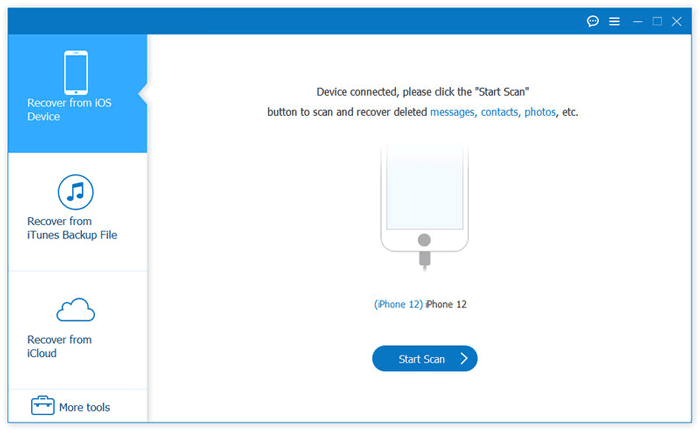
01Open the software and connect your iPhone to your computer using a USB cable. On the left panel, select "Recover from iOS Device".
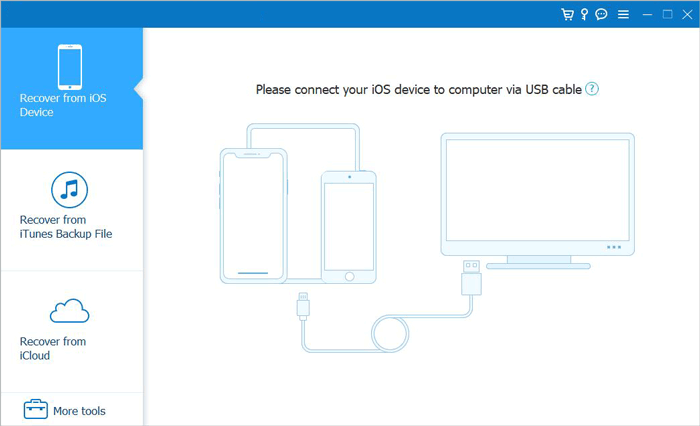
02Once the program detects your iPhone, click "Start Scan" to begin scanning your device's files, following the on-screen instructions to enter scanning mode.
03From the left window, select "WhatsApp" (and "WhatsApp Attachments" if needed), preview the message details, and then click "Recover" at the bottom to start restoring your WhatsApp data.

That's all about how to fix WhatsApp restore from iCloud couldn't restore chat history. I believe you can try the above methods to fix it by yourself. If it still doesn't work, you might want to try iPhone WhatsApp Recovery. This software can easily recover deleted WhatsApp chat history, whether or not you have a backup.
Related Articles:
Fast Repair WhatsApp Restoring Media Stuck on Android and iPhone
How to Restore Deleted WhatsApp Messages of One Contact with/without Backup
How to Restore WhatsApp Backup from iCloud to Android (4 Hassle-Free Ways)
Restore WhatsApp Business Backup: A How-to Guide for Android and iPhone







 Free Download for PC
  Free Download for Mac


