TL;DR: Wondering how to factory reset iPad with buttons without computer? Unfortunately, Apple doesn't allow a full factory reset using only the physical buttons. The buttons can only put your iPad into Recovery Mode, while a computer is still needed to complete the reset. If you don't have a computer, you can try these alternatives depending on your situation:
If your iPad is frozen, locked, unresponsive, or you simply don't have access to a computer, you may be wondering how to factory reset iPad with buttons without computer. Although Apple has introduced various recovery and reset methods over the years, many users still want a quick and effective way to restore their devices using only the physical buttons.
So, can you factory reset an iPad with buttons without a computer? If so, how do you do it? If not, are there any alternative solutions? Keep reading to find the answer.
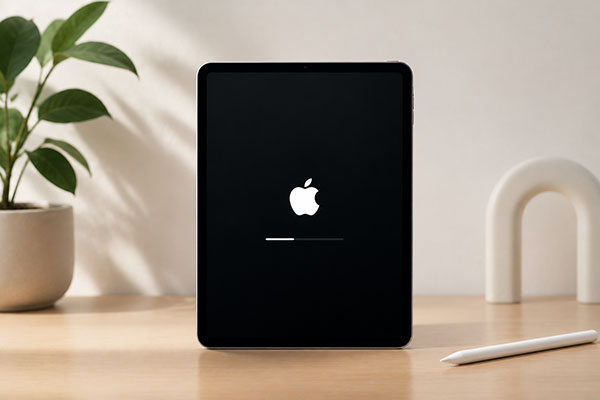
The short answer is no. You cannot completely factory reset an iPad using only the physical buttons without a computer.
The button combinations can only put your iPad into Recovery Mode or DFU Mode, which are the first steps in the reset process. To actually erase the device and reinstall iPadOS, you'll still need to connect the iPad to a Mac or PC using Finder or iTunes.
Apple designed it this way as a security measure to prevent unauthorized factory resets. If anyone could erase an iPad using only its buttons, lost or stolen devices would be much easier to misuse.
In short, while the buttons are essential for entering Recovery Mode, they cannot perform a complete factory reset on their own. If you don't have access to a computer, you'll need to use another method to erase your iPad.
Typically, a computer is required to complete the reset in Recovery Mode. Before manually using the buttons to put the iPad into Recovery Mode, you need to connect it to a Windows PC or Mac using a compatible USB cable. Besides, resetting the iPad will erase all data and content on the device, so it is best to make a backup in advance so that the data can be restored later.
Here is how to perform a factory reset on an iPad with buttons:
Step 1. Connect your iPad to a Windows PC or Mac using a compatible USB cable.
Step 2. Open Finder on a Mac or open iTunes on a Windows PC or older Mac system.
Step 3. Put your iPad into Recovery Mode:
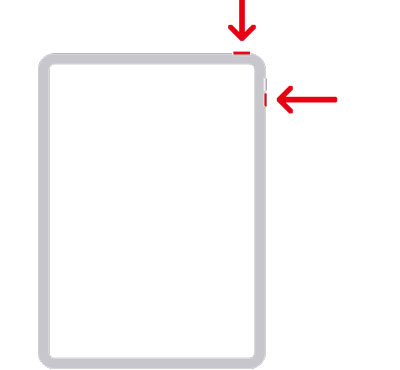
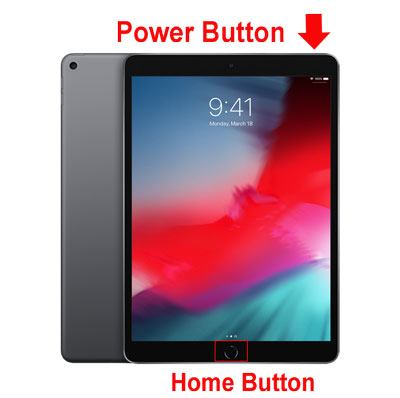
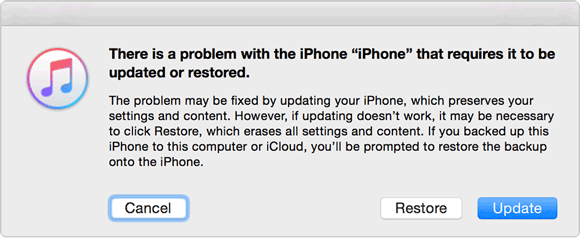
Step 4. When the computer detects the iPad in recovery mode, a message will appear. Select "Restore" on the computer to begin the factory reset and reinstall iPadOS.
Step 5. Wait until the process is complete and do not disconnect the cable during the reset.
Step 6. Set up the iPad as new or restore it from a backup once it restarts.
After learning how to factory reset iPad with buttons without computer, you'll see that resetting an iPad without a passcode in this way is quite difficult, especially without access to a computer. Fortunately, Apple offers alternative methods that allow you to reset an iPad without using a computer.
Starting with iPadOS 15.2, Apple allows you to reset a locked iPad directly from the lock screen without a computer. After several wrong passcode attempts, the device enters Security Lockout or shows "iPad Unavailable".
If the iPad is connected to Wi-Fi or cellular and Find My is enabled, a "Forgot Passcode?" option appears (called "Erase iPad" in iPadOS 15.2–16). You can use your Apple Account password to erase the device and perform a factory reset without a computer or passcode.
Here is how to do it:
Step 1. Continue entering the wrong passcode until the screen shows "iPad Unavailable, try again in 1 minute".
Step 2. Wait for the "Forgot Passcode?" option to appear in the bottom-right corner, then tap it.
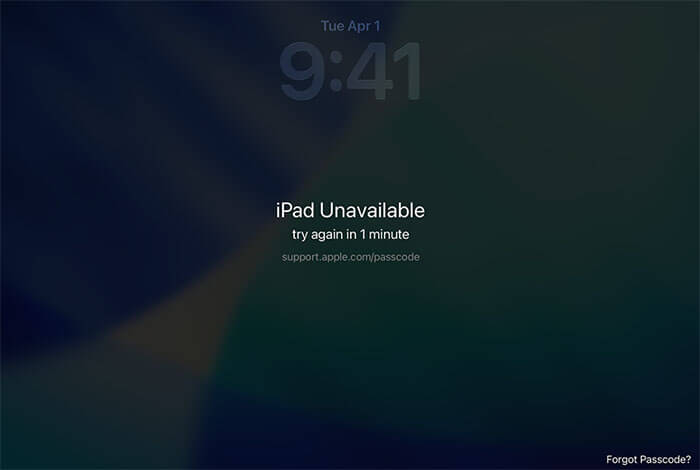
Step 3. Tap "Start iPad Reset" on the Security Lockout or iPad Reset screen.
Step 4. Enter your Apple Account password to sign out of your Apple ID when prompted.
Step 5. Tap "Erase iPad" to begin the factory reset.
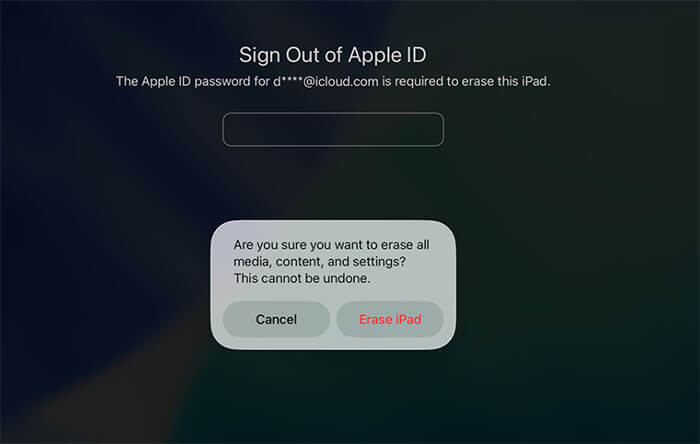
If Find My was previously enabled, and your iPad is connected to the internet, you can also erase it remotely via iCloud.com without needing a computer, even if you don't remember the passcode.
Here is how to erase your iPad remotely:
Step 1. On another phone, tablet, or any internet-connected device, go to icloud.com/find.
Step 2. Sign in with the Apple Account linked to the locked iPad, and complete two-factor authentication if prompted.
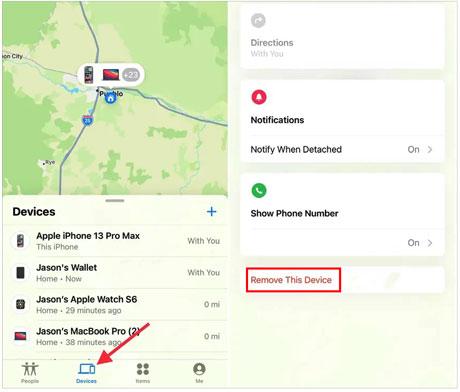
Step 3. Open the "All Devices" list and select the iPad you want to reset.
Step 4. Choose "Erase This Device", then confirm your Apple Account password if required.
Step 5. Tap "Erase" to confirm and begin the reset process.
If the above methods are ineffective—for example, if your iPad buttons are damaged or the "Find My iPad" feature is not enabled—then using a professional iPad unlocking tool on a computer is the best option.
iPhone Unlocker is designed specifically to resolve iPhone or iPad lock issues and can guide users through a firmware-based factory reset process without requiring a screen passcode or entering recovery mode. This tool features a simple interface and clear steps, allowing you to quickly erase all data on your iPad and remove screen locks, including passcodes, Face ID, and Touch ID.
Key features of iPhone Unlocker:
Here is how to erase an iPad without a password using iPhone Unlocker:
01Open iPhone Unlocker and choose "Unlock Screen Passcode". Click "Start to Unlock". Then connect your iPad to the computer using a USB cable.
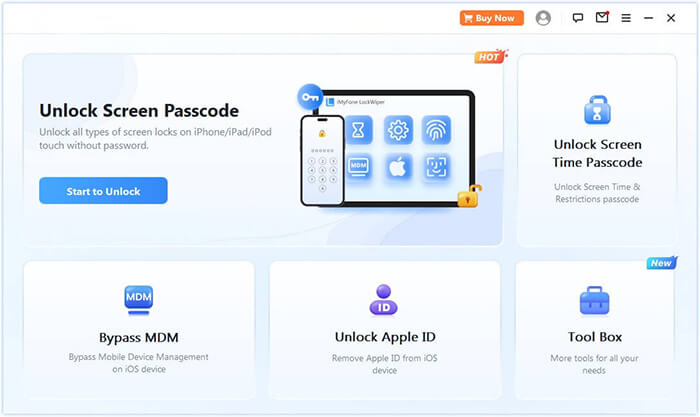
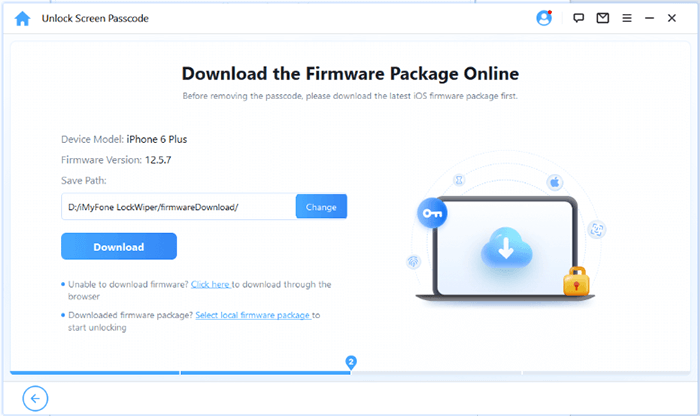
02Follow the on-screen instructions to enter Recovery Mode or DFU Mode. Once the device is detected, select a location to save the firmware package and click "Download".
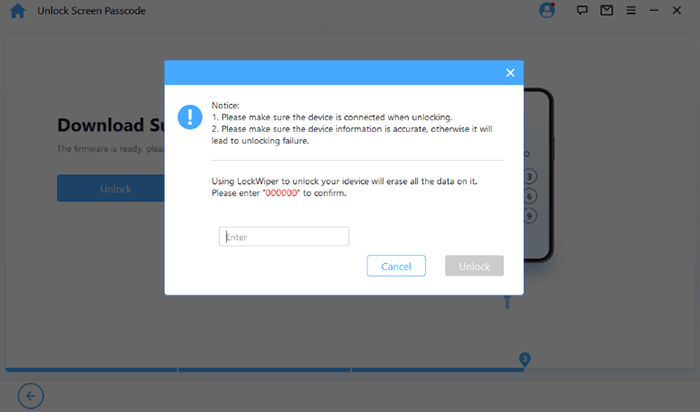
03After the firmware has finished downloading, click "Unlock". Carefully review the warning message, enter "000000" to confirm, and click "Unlock" again to continue.
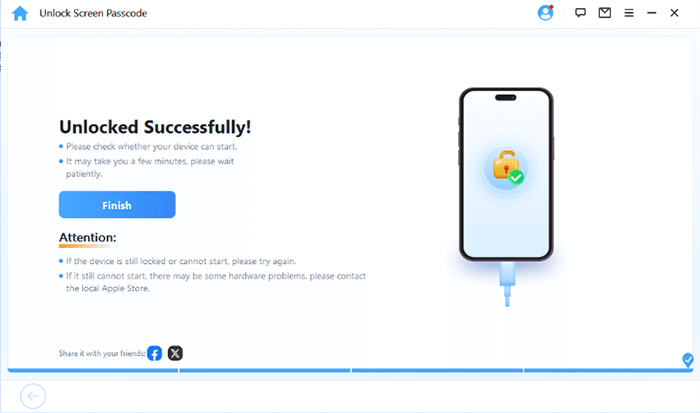
04Wait for the unlocking process to finish. Once completed, your iPad will be erased and restored to its original factory settings.
It is clear that performing a factory reset on an iPad using only the physical buttons without a computer is not possible. The buttons can only be used to enter Recovery Mode, while a computer is still required to complete the reset process.
If no computer is available, the "Forgot Passcode?" option or iCloud may allow you to reset the iPad in certain situations without needing a direct computer connection. Alternatively, using iPhone Unlocker can also serve as a reliable solution.
Related Articles:
How to Restore/Factory Reset iPad Without iTunes? - 5 Effective Ways
[Solved] How to Unlock Disabled iPad without iTunes | Latest Guide
How to Unlock iPad without Passcode? [the new iPad 2026 Supported]
[Full Guide] How to Reboot/Factory Reset iPhone Without iTunes?







 Free Download for PC
  Free Download for Mac


