TL;DR: Learn how to record a Teams meeting on Windows, Mac, iPhone, iPad, and Android with built-in tools or screen recorders. This guide covers Microsoft Teams recording, Coolmuster Screen Recorder, Xbox Game Bar, QuickTime Player, and mobile screen recording methods, helping you save meetings with audio and video easily.
Microsoft Teams has become one of the most popular platforms for online meetings, remote work, virtual training, and team collaboration. Recording a Teams meeting allows you to save important discussions, review key points later, and share valuable information with people who could not attend the meeting.
How do I enable Teams recording? This guide will show you how to record a Teams meeting using different methods. Whether you're the meeting organizer or a regular participant, you'll find a method that works for you.
Microsoft Teams has a built-in recording feature that lets you easily capture online meetings. Once enabled, Teams records the meeting audio, video, screen sharing, and chat. However, recording permissions are required, and only meeting organizers, hosts, or authorized members can start a recording. Note that the free version of Microsoft Teams does not support meeting recording.
Follow these steps to record a Teams meeting with the built-in feature:
Step 1. Open Microsoft Teams and join the meeting you want to record.
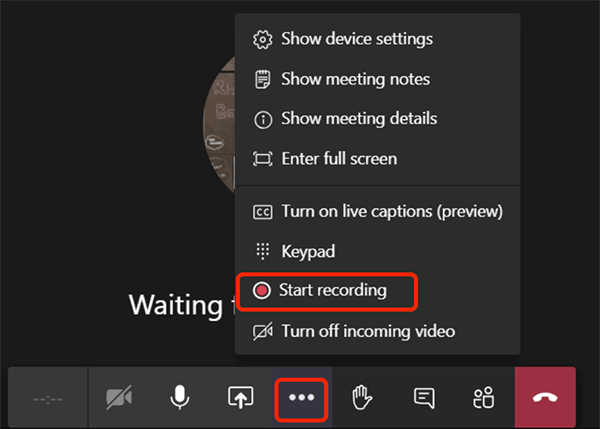
Step 2. Click the "More" button at the top of the meeting window, select "Record and transcribe", and choose "Start recording". Once recording starts, all participants will usually see a recording notification.
Step 3. When the meeting ends, Teams will automatically stop recording. You can also manually stop it by clicking "More" and selecting "Stop recording".
If you don't have Teams recording permission or want more control over your recordings, you can use a professional screen recorder. For example, Coolmuster Screen Recorder allows you to capture your screen, system audio, and microphone sound, making it ideal for saving Teams meetings, online classes, and web presentations.
The highlights of Coolmuster Screen Recorder:
Here is how to record a Teams meeting when not the host:
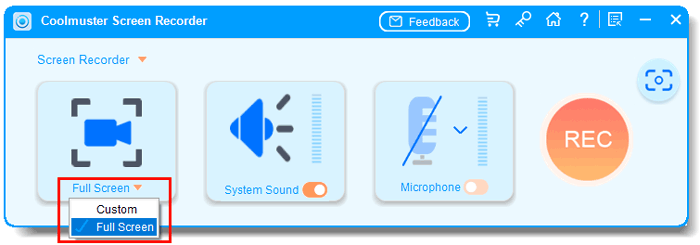
01Open Coolmuster Screen Recorder and choose "Full Screen" or "Custom" mode to capture your Teams meeting.
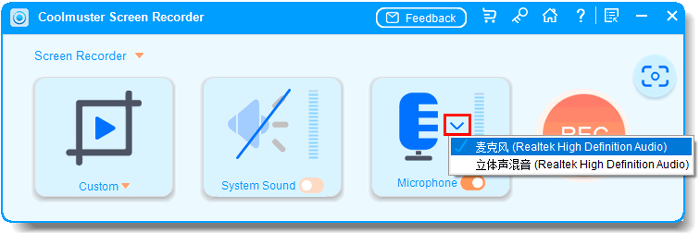
02Select your audio source, including system sound, microphone, both, or no audio.
03Click the orange "REC" button and start recording after the countdown ends.
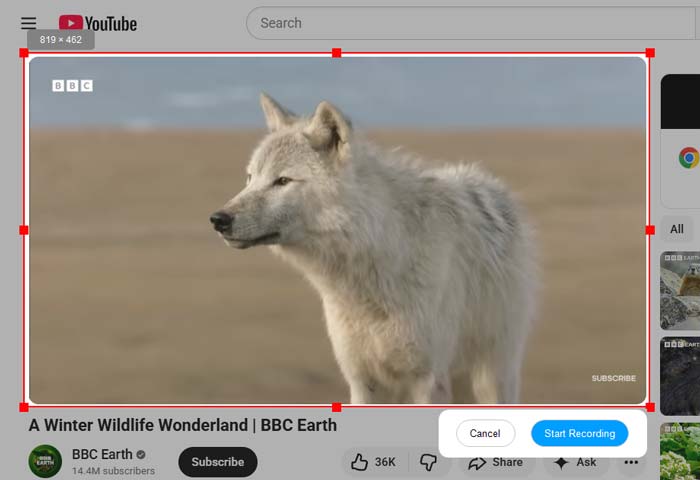
04When the meeting is finished, click "Stop Recording". The video will be saved automatically as an MP4 file in your selected folder.

Video Tutorial:
If you are using a Windows PC and don't want to install extra software, you can use the built-in Xbox Game Bar for screen recording. Although it is mainly designed for recording games, Xbox Game Bar can also capture app windows, including Teams meetings. (Click here to learn more screen recorders for Windows.)
Here is how to record a Teams meeting with audio on Windows via Xbox Game Bar:
Step 1. Open Windows "Settings" > "Gaming" > "Xbox Game Bar" and make sure the recording feature is enabled.
Step 2. Open the Teams meeting window you want to record.
Step 3. Press "Windows" + "G" to launch Xbox Game Bar, then click the "Record" button or press "Windows" + "Alt" + "R" to start recording.
Step 4. Press "Windows" + "Alt" + "R" again to stop recording. The recorded video will be saved automatically in the "Videos" > "Captures" folder.
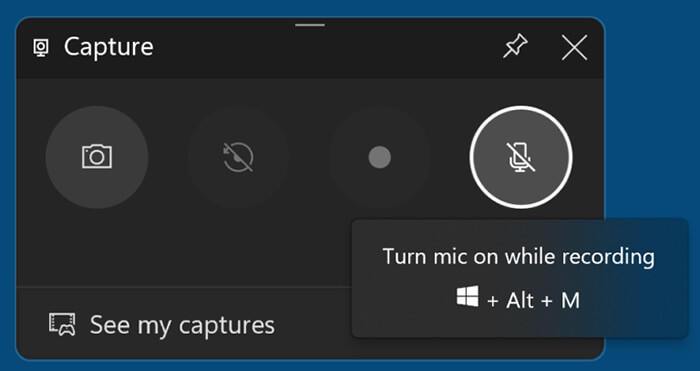
Mac users can use the built-in QuickTime Player to record their screen without installing any third-party software.
Here is how to record a Teams meeting on Mac with audio via QuickTime Player:
Step 1. Open QuickTime Player from the "Applications" folder on your Mac.
Step 2. Click "File" in the top menu, select "New Screen Recording", and choose to record the full screen or a selected area.
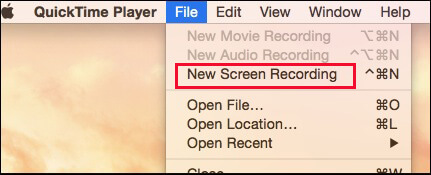
Step 3. Adjust the microphone settings if you want to capture your voice, then open Microsoft Teams and join the meeting.
Step 4. Click the "Record" button in QuickTime Player to start recording your Teams meeting.
Step 5. When the meeting ends, click the "Stop" button in the menu bar and save the recorded video to your Mac.
If you don't want to use the built-in recorder to record your Mac screen, you can read the following article to choose a Mac screen recorder that suits you.
Best Screen Recorder for Mac: Top 10 Screen Recording Software for macOSBesides using a computer, many users also join Teams meetings on their phones. In this case, you can use the built-in screen recording feature on your phone to save Teams meeting recordings. The steps may vary slightly depending on your device model and operating system version.
Step 1. Open Settings on your iPhone, go to "Control Center", and add "Screen Recording" to the included controls.
Step 2. Open Microsoft Teams and join the meeting you want to record.
Step 3. Swipe down from the top-right corner to open "Control Center", press and hold the "Screen Recording" button, and enable the microphone if needed.
Step 4. Tap "Start Recording" and wait for the countdown to begin recording the Teams meeting.
Step 5. To stop recording, tap the red status bar and select "Stop". The recorded video will be saved automatically in the Photos app.
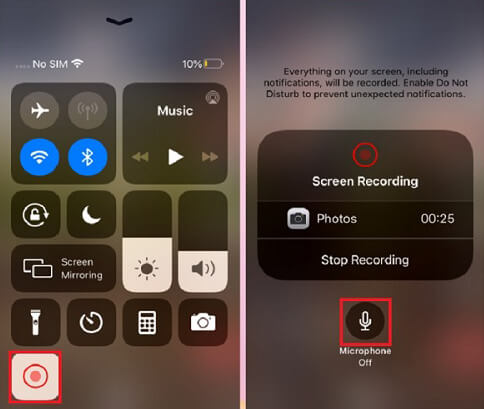
Step 1. Open Microsoft Teams and join the meeting you want to record.
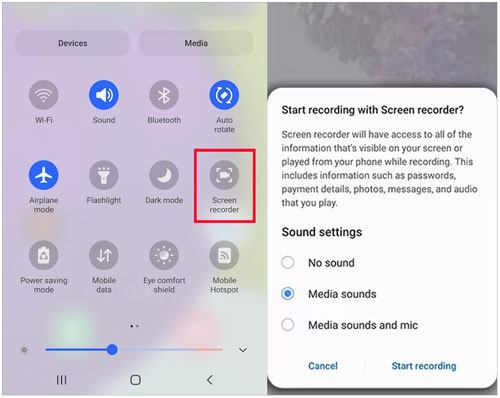
Step 2. Swipe down from the top of your screen to open "Quick Settings", then tap "Screen Recorder".
Step 3. Choose your audio settings, such as device sound, microphone sound, or both.
Step 4. Tap "Start Recording" and return to Teams to continue the meeting.
Step 5. When the meeting ends, tap the "stop" button. The recorded video will be saved in your Gallery or Photos app.
Q1. Why can't I record a Teams meeting?
Teams recording may not be available if you are not the meeting organizer, your admin has disabled the feature, or you are using a free or personal account with limited recording permissions.
You can use a third-party screen recorder to capture Teams meetings without needing special recording permissions or organizer access. These tools provide a simple way to save your meeting recordings.
Q2. Does Teams notify others when recording a meeting?
Yes. When using the built-in Microsoft Teams recording feature, participants in the meeting will usually receive a notification indicating that the meeting is being recorded.
Q3. How long are Teams recordings stored?
By default, Teams recordings are automatically deleted after 120 days. However, administrators can customize the retention period through OneDrive and SharePoint policies. The storage time can be adjusted from 30 to 99,999 days, and recordings will use your OneDrive or SharePoint storage space.
Q4. Where is the recording saved in Teams?
Since early 2021, Microsoft Teams no longer stores meeting recordings in Stream by default. Channel meeting recordings are saved to SharePoint, while non-channel meeting recordings are stored in the OneDrive account of the person who started the recording.
There are several ways to record Microsoft Teams meetings depending on your device and needs. While Teams' built-in recorder is easy to use, it requires recording permissions. For more flexibility, Coolmuster Screen Recorder lets you capture Teams meetings with system audio and microphone sound, while giving you more control over recording settings.
With the right method, you can easily save Teams meetings on Windows, Mac, iPhone, iPad, or Android for future review and sharing.
Related Articles:
How to Record Gameplay on Xbox One: Complete Step-by-Step Guide
[Solved] How to Record Google Meet on Any Device Easily in 2026
3 Effective Methods to Screen Record Instagram Story: Step-by-Step






 Free Download for PC


