SMS Backup & Restore is a popular app used by Android users to back up and restore text messages, call logs, and other data. However, many users encounter issues when the app fails to back up or restore their data. Whether the app crashes, encounters errors, or simply doesn't work as expected, these issues can be frustrating.
In this article, we will explore the common reasons why SMS Backup & Restore not working and provide step-by-step solutions for both backup and restore failures. Additionally, we'll discuss an alternative tool, which may be a better solution for some users.
There are several reasons why SMS Backup & Restore might fail to back up or restore your messages. The most common issues include:
The app requires a stable internet connection to back up data to cloud storage. If your Wi-Fi or mobile data is unstable, the backup or restore process may fail.
If your device or cloud storage is full, there will not be enough room to back up your SMS or restore them from a previous backup.
The app needs permission to access your SMS data and storage. Without these permissions, the backup or restore will not work.
An outdated version of SMS Backup & Restore may have compatibility issues with newer Android versions, causing errors or crashes.
If your Google account is not correctly synced, the backup or restore process may fail, particularly when using Google Drive for storage.
Like any other app, SMS Backup & Restore can sometimes experience bugs or crashes that prevent it from functioning properly.
If you are experiencing backup failures, follow these step-by-step solutions to resolve the issue:
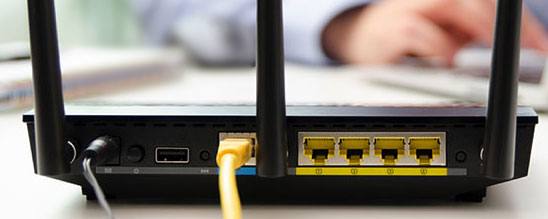
A stable network connection is essential, especially when backing up to cloud services like Google Drive or OneDrive. Here's how to troubleshoot network-related issues:
Insufficient storage can prevent the backup process from completing. Here's how to ensure there is enough space:
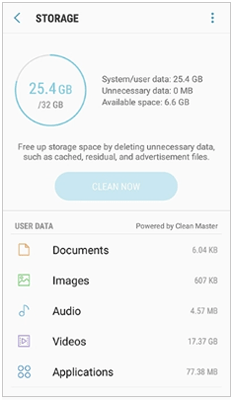
After freeing up space, go to "SMS Backup & Restore" > "Settings" > "Backup Location" and confirm that the backup path is set to a storage location with enough free space. Retry the backup process.
SMS Backup & Restore needs certain permissions to back up your SMS and call logs or save files. Sometimes, Android may revoke permissions after a system update. Here's how to re-grant permissions:
Step 1. Check app permissions
Go to "Settings" > "Apps" > "See All Apps" > "SMS Backup & Restore" > "Permissions". Make sure SMS, Call Logs, and Storage (or Files and Media) are set to Allowed (toggle the switch to blue).
Step 2. Allow background data
Go back to the app's info page, tap "Mobile data & Wi-Fi", and enable Background data and Unrestricted data usage. This prevents the system from cutting off the app's data connection while it's running in the background.
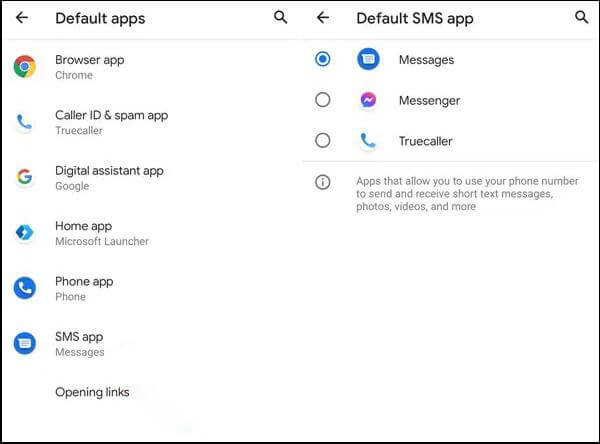
Step 3. Set SMS Backup & Restore as the default SMS app (for Android 10 and above)
Go to "Settings" > "Apps" > "Default Apps" > "SMS App", and set "SMS Backup & Restore" as the default. This will fix any permission restrictions related to accessing SMS data. You can switch it back to your preferred app after the backup is complete.
Outdated app versions and an old Android system can cause compatibility issues. Here's how to update both:
Option 1. Update SMS Backup & Restore
Open the Google Play Store, search for SMS Backup & Restore, and tap "Update" if available. If the app is up to date but still not working, try uninstalling it and reinstalling it to fix any corrupted app files.
Option 2. Update Android system
Go to "Settings" > "System" > "System update" and check for any available updates. Download and install any system updates, and restart your device afterward.
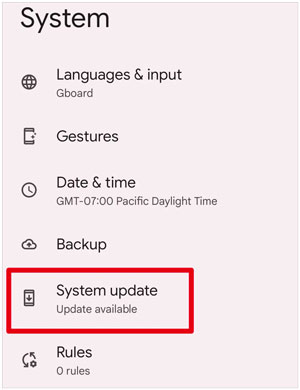
After the updates, reopen the app and try backing up your SMS and call logs again. Most bug-related issues should be resolved after updating.
If you're using Google Drive for backup, verify that the Google account linked to the app is the same one you used to back up your data. If there's an issue with your Google account synchronization, log out and log back in to resolve it.
If you're having trouble restoring your messages, here's how to fix common restore failures:
A corrupted backup file is a major reason for restore failures - SMS Backup & Restore uses XML format for backup files, and any damage to the file will make restoration impossible. Here's how to check:
For local backup: Go to the backup storage path (check in "SMS Backup & Restore" > "Settings" > "Backup Location") on your Android device. Look for the XML backup file (usually named like sms_backup_YYYYMMDD.xml). Try opening the file with a text editor. If you see garbled text or incomplete content, the file is corrupted. You'll need to use a previous, uncorrupted backup file.
For cloud backup: Open Google Drive/OneDrive, go to the SMS Backup & Restore folder, and check the XML file. Ensure the file isn't 0KB in size (0KB files are incomplete or corrupted). If the file is corrupted, delete it and restore a previous backup from the cloud.
Ensure that the Google account used for the backup is the same one you're using for the restore process. If you attempt to restore from a different account, the backup data won't be available.
SMS Backup & Restore may not find local backup files if the storage path is incorrect. This is common after switching SD cards, moving files, or performing a system update.
Step 1. Open SMS Backup & Restore, tap "Restore", then select "Local Backup".
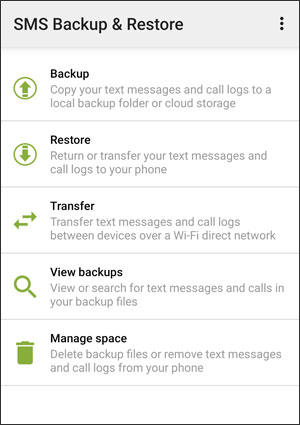
Step 2. If the app shows "No backup files found", tap "Browse" to manually locate the XML backup file. Check your internal storage, SD card (if applicable), and the SMS Backup & Restore folder (the app's default storage location).
Step 3. Once you find the correct XML file, select it and tap "Restore"; the restore process will start immediately.
Note: To avoid this in the future: Go to "Settings" > "Backup Location" in the app and set a fixed path (e.g., internal storage > SMS Backup & Restore). Avoid moving backup files from this folder to prevent path issues.
Just like with the backup process, the app needs permission to access storage and read the backup file during restoration. Ensure the necessary permissions are granted:
Go to "Settings" > "Apps" > "SMS Backup & Restore" > "Permissions" and ensure that SMS, Call Logs, and Storage (or Files and Media) are set to "Allowed".
For Android 10 and above, set SMS Backup & Restore as the Default SMS App (Settings > Apps > Default Apps > SMS App). This helps fix permission restrictions for accessing SMS data. You can revert to your preferred SMS app after the restore is complete.
Temporary glitches in the app or Android system often cause restore failures. A simple restart can fix most of these minor issues:
Option 1. Force stop the app
Go to "Settings" > "Apps" > "SMS Backup & Restore" > "Force Stop". This closes all running processes of the app and clears temporary glitches.
Option 2. Restart your device
Press and hold the "Power" button, then tap "Restart". This resets the system, fixes network/storage sync glitches, and refreshes app permissions.
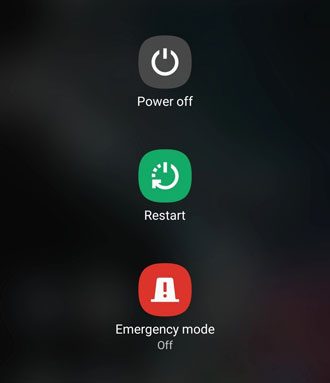
After the restart, open SMS Backup & Restore without opening other apps (to avoid conflicts), select your backup file, and tap "Restore". This quick step resolves many restore failures caused by temporary system or app glitches.
If you've tried all the fixes above and SMS Backup & Restore still won't work, Coolmuster Android Backup Manager is the perfect alternative. It's a professional, stable Android data backup & restore tool with PC/Mac desktop versions, designed to avoid all the permission, sync, and bug issues that plague SMS Backup & Restore. It's trusted by millions of Android users for its one-click operation, high compatibility, and 100% data safety.
Key features of Coolmuster Android Backup Manager:
How to use Android Backup Manager to back up and restore Android data when SMS Backup & Restore is not working?
01Download and install Android Backup Manager on your computer.
02Launch the program and connect your Android phone to the computer via USB or Wi-Fi. Follow the on-screen instructions to enable USB Debugging on your device.
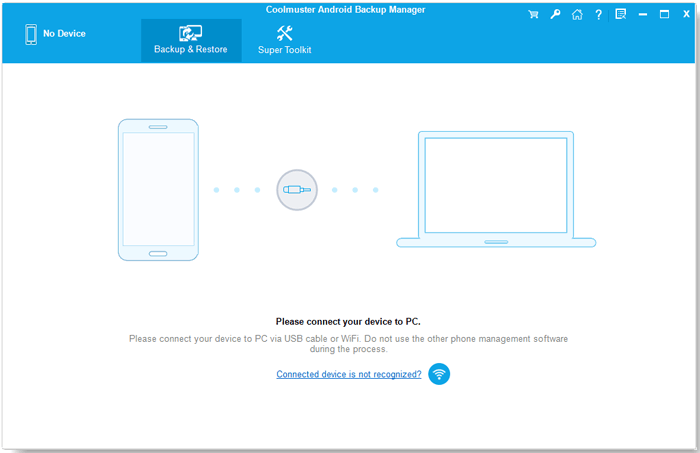
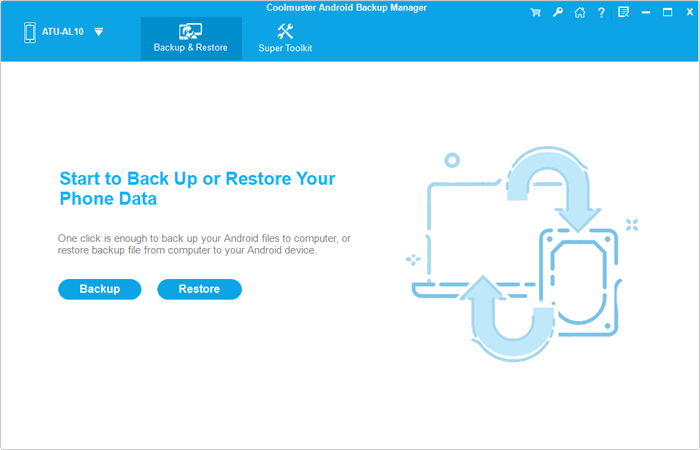
03Once your device is connected, you will see two options: Backup and Restore. Click "Backup" to start the backup process.
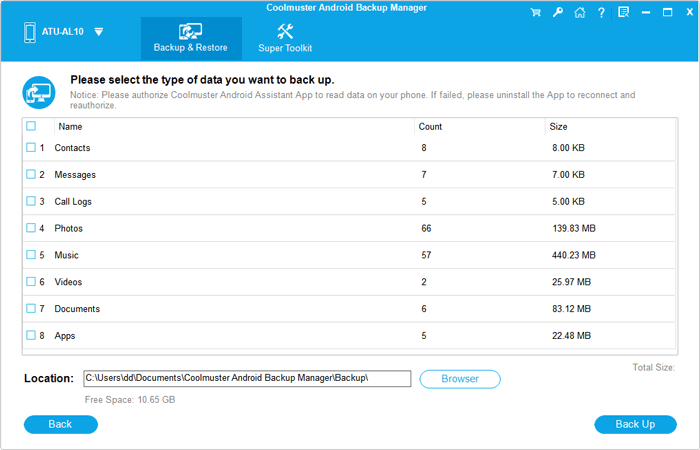
04Select the data you want to back up, such as SMS, contacts, call logs, photos, videos, music, and apps. Choose a location on your computer to save the backup file. Click "Back Up" and wait for the process to complete. The time required will depend on the amount of data.
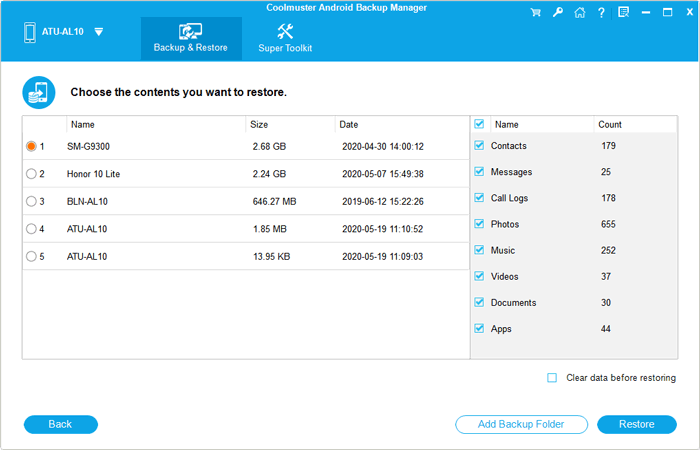
05To restore data, go back to the main interface and click "Restore". Select the backup file you want to restore, choose the specific data types (SMS, contacts, etc.) you wish to recover, and hit "Restore" to begin the restoration process.
After following these steps, you can also check out the video tutorial to guide you through the process visually.
SMS Backup & Restore is a useful app, but it's not immune to issues like backup or restore failures. In this article, we discussed the common reasons why the app may not be working, including network issues, storage problems, and app bugs. We also provided step-by-step solutions to fix backup and restore failures.
If you continue to experience problems, consider using Coolmuster Android Backup Manager as an alternative for more reliable and comprehensive backup and restore functionality.
Related Articles:
SMS Backup & Restore Review: A Handy Tool for Android SMS Backup?
Restore SMS from Google Drive: Expert Tips for Message Recovery
How to Recover Deleted Texts Without Root? 4 Effective Ways
How to Retrieve Text Messages from Old Phone Number with/without Backup [Android & iPhone]





 Free Download for PC
  Free Download for Mac


