TL;DR: This 4Easysoft iOS System Recovery review covers its features, pricing, pros, cons, and repair performance for fixing iPhone issues like black screens, recovery mode loops, and Apple logo stuck problems without data loss.
Overall, it's a practical option for fixing iPhone and iPad system issues. For an alternative professional option, you can also consider iOS System Recovery.
When an iPhone encounters issues such as a black screen, being stuck on the Apple logo, recovery mode loops, update failures, or endless restarting, many users immediately turn to professional iOS system repair tools for help. Compared with restoring the device to factory settings, these tools can usually fix iOS system problems without causing data loss, which is why they have become increasingly popular among iPhone users.
Among the many iOS repair programs available, 4Easysoft iOS System Recovery has gained considerable attention in recent years. But is 4Easysoft iOS System Recovery actually good? Can it safely repair iPhone system issues? Is it expensive? This detailed 4Easysoft iOS System Recovery review will provide a comprehensive analysis of its features, pricing, pros, and cons to help you decide whether it is the right choice for you.
4Easysoft iOS System Recovery is a professional and user-friendly iOS system repair software designed to fix various iOS system glitches without complex operations. As a top-rated iOS repair tool in the market, it focuses on resolving all kinds of system-level errors on iPhone, iPad, and iPod touch, covering minor daily bugs and serious system failures.
When choosing an iOS repair tool, one of the biggest concerns for most users is: What problems can it actually fix? Is it really practical? Below, we'll take a closer look at the main capabilities of 4Easysoft iOS System Recovery.
* Resolve 50+ iOS system issues, including frozen devices, disabled iPhones, black screens, and more.
* Offer both Standard and Advanced modes for quick fixes or deep system recovery.
* Easily reset your iPhone, iPad, or iPod without requiring a password, iTunes, or iCloud.
* Upgrade or downgrade iOS versions without using iTunes or Finder.
* Fully compatible with all iOS devices and versions, including iPhone 17 and iOS 18/26.
Besides features, pricing is also one of the biggest concerns for many users. After all, most iOS repair tools on the market are not completely free. 4Easysoft iOS System Recovery offers a free trial version, but the trial usually only allows users to detect device issues. To actually perform system repairs, users need to purchase a license.
The currently available licensing plans include:

Every software has its strengths and weaknesses, and 4Easysoft iOS System Recovery is no exception. Before deciding whether to use it, it is important to understand its actual pros and cons.
Pros
* Clean interface and easy operation, suitable even for beginners.
* Standard Mode supports lossless repair and preserves user data.
* Compatible with all iPhone/iPad/iPod models and the latest iOS versions.
* Fast repair speed, usually completed within 10–20 minutes.
* Provide free technical support and regular updates.
Cons
* The repair process depends on downloading firmware via the internet.
* The free version has many limitations, and most core repair features require payment.
* Advanced Mode will erase all device data.
* The repair success rate is not 100%; hardware issues or severe system damage may not be fixable.
* Some users report that firmware package downloads can be slow.
Many users want to fix iPhone system issues, but worry that the process might be complicated. In fact, 4Easysoft iOS System Recovery is quite easy to use — you only need to follow the on-screen instructions. Below are the detailed steps.
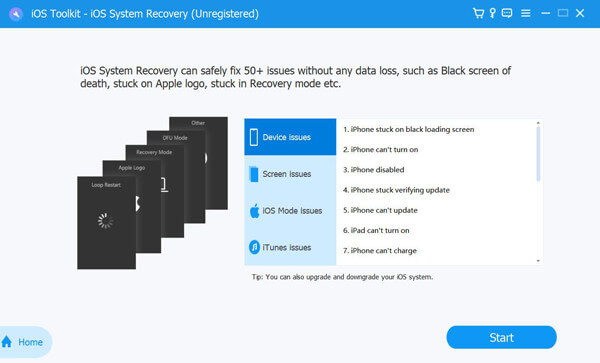
Step 1. Launch 4Easysoft iPhone Data Recovery and click "iOS System Recovery" on the main interface. Connect your iPhone to the computer with a USB cable, then click "Start" to let the program detect your device automatically.
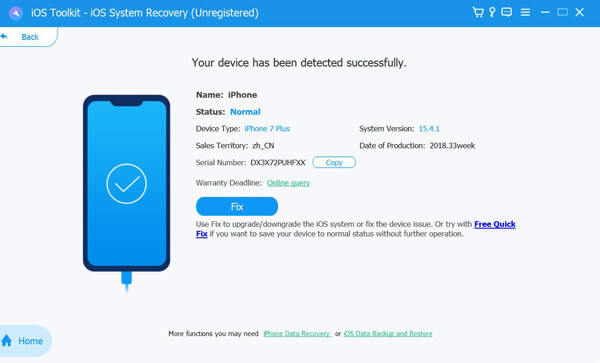
Step 2. Check the detected device information. You can click "Free Quick Fix" to repair simple issues like a frozen screen or system crash. For deeper repairs, click "Fix" to continue.
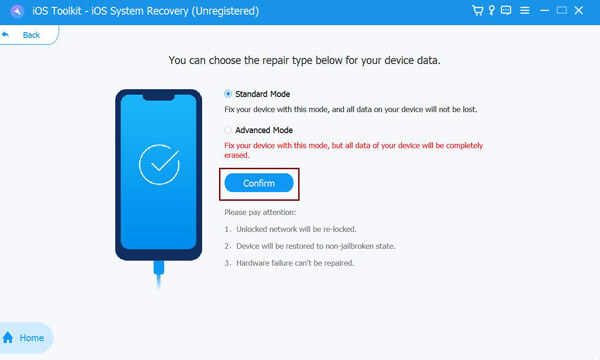
Step 3. Choose the repair mode according to your needs. Standard Mode fixes common iOS system issues without deleting data, while Advanced Mode repairs more serious problems but erases all data and offers a higher success rate. Carefully choose the mode you need, then click the "Confirm" button to continue.
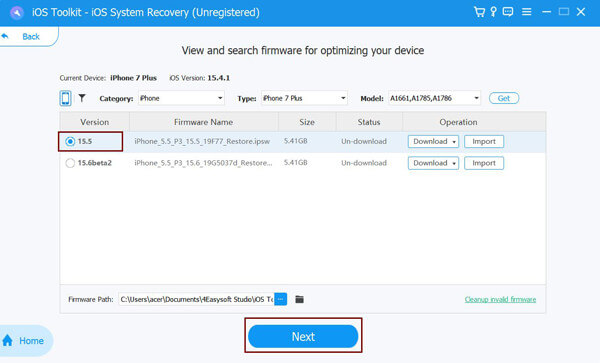
Step 4. Select the correct device category, type, and model. Then choose the firmware package you want and click "Download." You can also upgrade or downgrade the iOS version during this process. Then, click "Next" to begin repairing your iOS system.
Although 4Easysoft iOS System Recovery offers decent repair features, some users may still encounter limitations such as repair failures or slow firmware downloads. If you are looking for a more stable and professional iPhone repair tool, iOS System Recovery is currently one of the best choices. Compared with many newer repair tools, iOS System Recovery has a stronger reputation in the iOS recovery industry and supports a wider range of iPhone system issues.
Key features of iOS System Recovery:
Here is how to use iOS System Recovery to fix iOS issues without data loss:
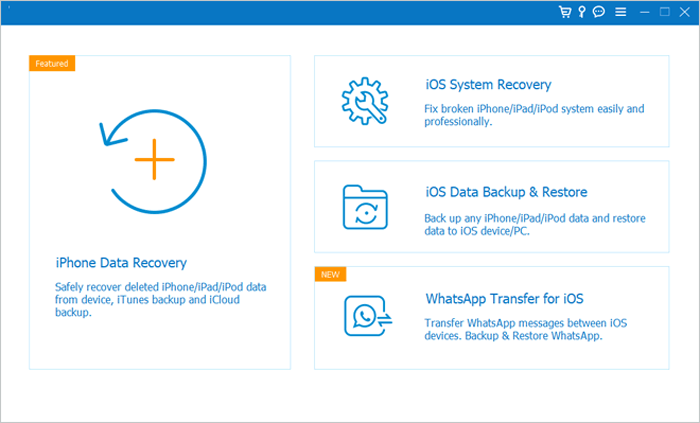
01Install and launch iOS System Recovery on your Windows or Mac computer. Connect your iPhone with a USB cable and select "iOS System Recovery".
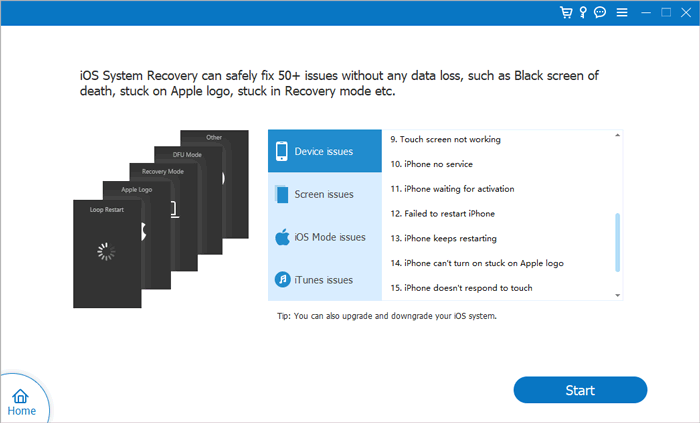
02Click "Start" to let the software detect system problems on your iPhone, then choose your preferred repair mode and click "Confirm".
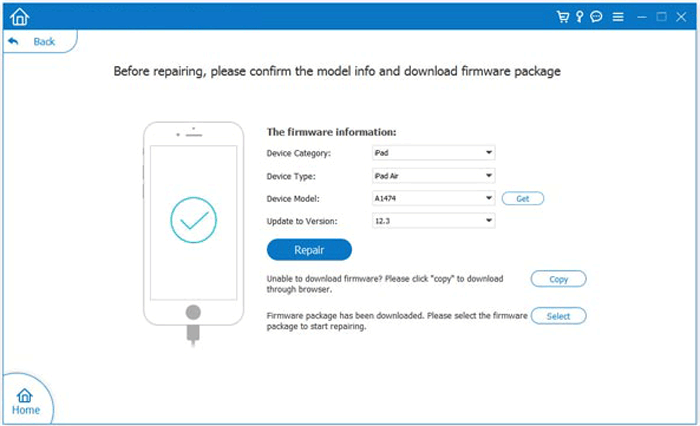
03Select your iPhone model and click "Repair". The program will automatically download the matching firmware package and begin repairing your device. Once the process is finished, your iPhone will return to normal.
Q1. Is 4Easysoft iOS System Recovery free?
The software offers a free trial, but full repair functionality requires purchasing a license.
Q2. Is 4Easysoft iOS System Recovery safe to use?
Yes. It is a safe and reliable tool without viruses or malicious plug-ins. Your personal data will not be leaked or modified during the repair process, and Standard Mode will not affect your device data.
Q3. Will I lose data when fixing iOS system issues?
No. Standard Mode can repair common iOS system problems without deleting your data. Only Advanced Mode will erase device data.
Q4. Why does the firmware download fail?
This is usually caused by an unstable network connection, server congestion, or incorrect device information. Try switching networks, restarting the software, or reselecting your device information.
Overall, this 4Easysoft iOS System Recovery review shows that the software is a practical solution for fixing common iPhone and iPad system problems, including devices stuck on the Apple logo, recovery mode loops, black screens, frozen screens, and iOS update failures. It offers a user-friendly interface, supports multiple repair modes, and allows many users to repair iOS issues without data loss. While the free version has some limitations, it can still be a helpful tool for everyday iOS troubleshooting. If you want another professional option for repairing iPhone system issues, you can also consider iOS System Recovery as an alternative.
Related Articles:
4Easysoft iPhone Data Recovery Review: Features, Guide & Best Alternative
4Easysoft iOS Data Backup and Restore Review: A Comprehensive Guide for 2026
4Easysoft iPhone Transfer Review: A Comprehensive Guide for 2026




 Free Download for PC
  Free Download for Mac


