If you're searching for a reliable iOS data management tool, you've probably come across 4Easysoft iPhone Transfer. In this 4Easysoft iPhone Transfer review, we'll take a deep dive into what this software offers, how it performs, and whether it's worth your money.
Many iPhone users struggle with transferring photos, backing up contacts, or moving files between devices without relying on iTunes. While iTunes works, it's often slow and restrictive. That's why third-party tools like 4Easysoft iPhone Transfer have become popular alternatives.
So, is it the right tool for you? Let's break it down step by step.
4Easysoft iPhone Transfer is a data transfer and management tool designed specifically for iOS devices, allowing users to freely transfer data between iPhone, iPad, and computers. Compared to traditional iTunes, it offers a more intuitive interface and more flexible operation. The software is compatible with both Windows and macOS systems and supports the transfer of various types of data, including photos, videos, music, contacts, and messages, making it ideal for users who want to efficiently manage their iPhone data.
A key part of any 4Easysoft iPhone Transfer review is evaluating its real-world functionality. This tool is designed to handle multiple data management tasks beyond simple file transfers. Here's what it can do for you:
Before choosing a tool, one of the most common concerns for users is the price. 4Easysoft iPhone Transfer offers a free trial version, but it comes with certain limitations, so users can experience its basic functions before purchasing. For example, users can only transfer a limited number of files (such as up to 20 photos), and some advanced features are locked.
To unlock all functions—such as unlimited data transfer, music information editing, one-click data transfer, ringtone creation, and contact backup and restoration—a paid license is required.
The software offers three main pricing plans:
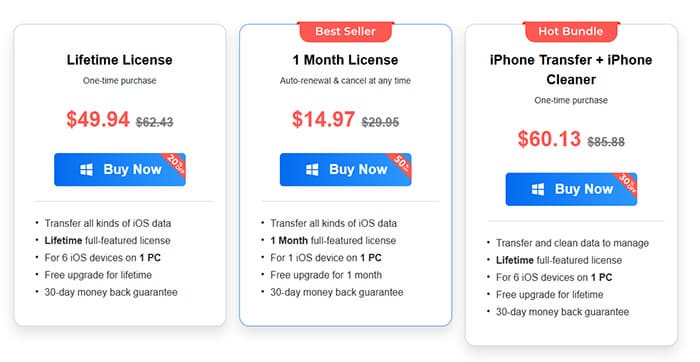
All paid plans come with a 30-day money-back guarantee and 24/7 free technical support, providing users with a risk-free purchasing experience.
No 4Easysoft iPhone Transfer review would be complete without a balanced look at its strengths and weaknesses.
Pros:
* Intuitive interface and easy operation, suitable for beginners.
* Supports a wide range of data types and devices, with strong compatibility (including iOS → Android transfer).
* Fast and stable transfer speed; small files can be transferred instantly, and large files (such as 4K videos) are transferred without quality loss.
* Rich features (HEIC conversion, ringtone creation, contact management, etc.).
* Safe and reliable, with no adware or malware, ensuring data security.
* No complex synchronization process required, offering greater flexibility.
Cons:
* The trial version has limitations on transfer quantity and features; full functionality requires a paid license.
* The lifetime plan is relatively expensive.
* Some advanced features have a learning curve for beginners.
* Does not support direct operation on mobile devices; requires a PC or Mac.
* Lower market recognition compared to some well-established tools.
After understanding the features, the actual user experience is equally important. A good software tool is not only feature-rich but also requires clear workflows and simple logic. The overall operation of 4Easysoft iPhone Transfer is quite intuitive—connecting your device and completing data transfer can be done in just a few steps, making it suitable for users without a technical background.
Here are the detailed steps for transferring files using 4Easysoft iPhone Transfer (taking photos as an example):
Step 1. Install and launch the program on your computer, then connect your iPhone using a USB cable. After a few seconds, once the connection is established, your iPhone's name, capacity, type, used space, and other device details will appear on the main interface.
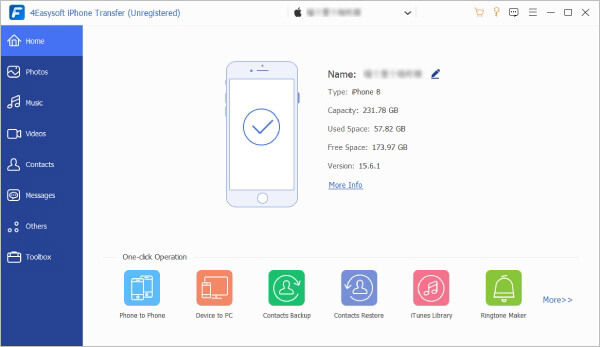
Step 2. On the left sidebar, click the "Photos" button to display all the pictures on your iPhone, organized by category.
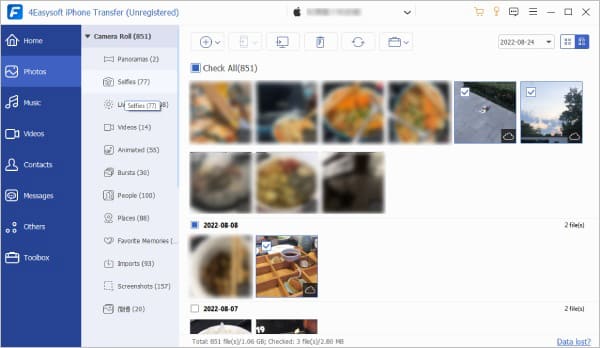
Step 3. To transfer photos to your computer, select the ones you want and click the "Export to PC" button at the top. Then choose an existing folder or create a new one to save the photos. Once selected, click "Select Folder" to start the transfer, and your pictures will be saved to that location.
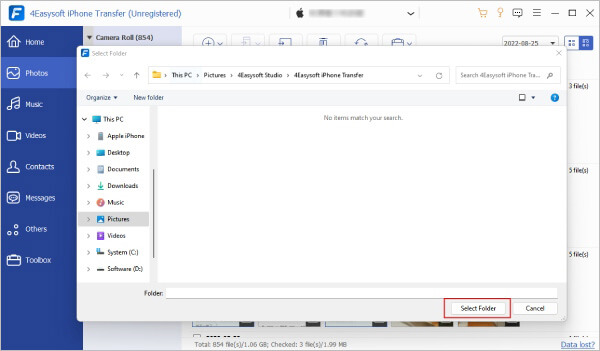
Step 4. To add photos from your computer to the iPhone, click the "Add" button. In the pop-up window, select the photos you want and click "Open" to confirm.
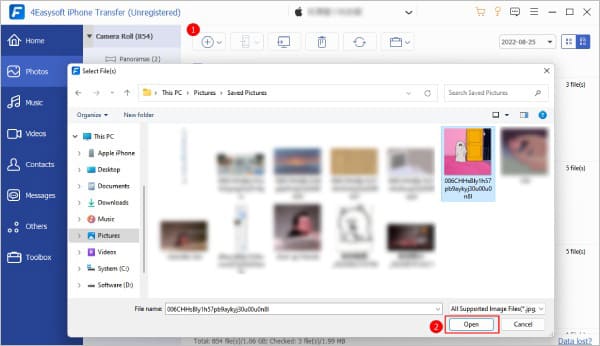
The same steps apply for transferring photos between two iPhones or from an iPhone to an Android device—simply connect the other device to your computer as well, and follow the same process.
While 4Easysoft iPhone Transfer is a reliable tool, some users may find its pricing high or its trial limitations too strict. This 4Easysoft iPhone Transfer review recommends Coolmuster iOS Assistant as the best alternative—it is a powerful and cost-effective iOS data management tool that offers similar or even more comprehensive features, with a more user-friendly experience and competitive pricing.
Why choose Coolmuster iOS Assistant?
Follow these steps to transfer files from your iPhone to a computer using iOS Assistant:
01Download and install iOS Assistant on your PC, then launch the program.
02Connect your iPhone to the computer using a USB cable, and tap "Trust" on your device if prompted. Once the connection is established, the software will detect your iPhone and display its basic information on the screen.
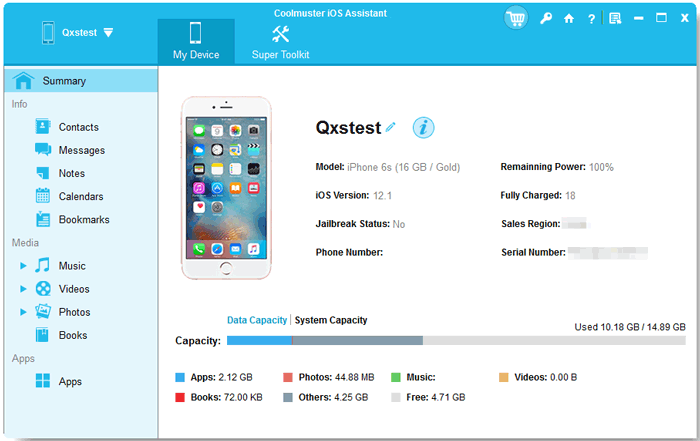
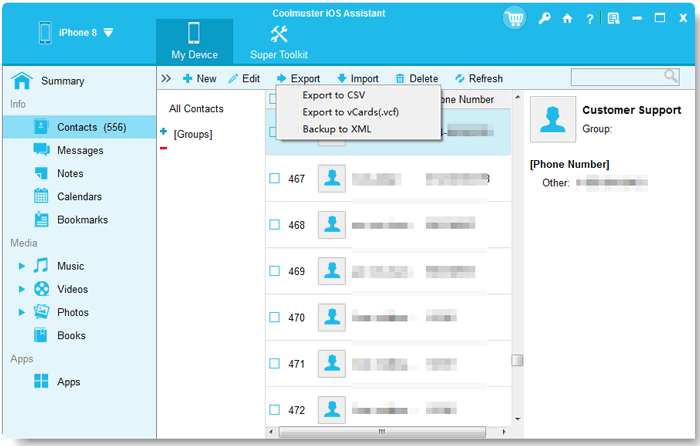
03From the left panel, select the category of files you want to transfer. Preview and choose the specific files on the right side. Then click the "Export" button in the top menu, choose a folder on your PC to save the files, and start the transfer.
Video Tutorial:
Q1. Why is my device connected but not detected?
For iOS devices, if your device is connected but not recognized, try reconnecting it and make sure to tap "Trust" on your iPhone or iPad so the program can access it. Also, check that your USB cable is functioning properly and not damaged.
For Android devices, ensure the USB cable is correct and that your phone's connection mode is set to Transfer instead of Charge. Then reconnect it to your computer.
Q2. Why can't I transfer music from my iPhone to my PC?
Typically, you can transfer music easily with iPhone Transfer. However, if your music is from Apple Music or contains files that aren't standard audio formats like MP3 or MP4, this can cause issues. Some songs may appear in the window but are copy-protected, meaning you won't be able to transfer them to your computer.
Q3. How long does it take to transfer data from one iPhone to another?
The transfer process is usually quick for smaller data, like contacts, messages, and similar files. However, larger media files such as high-quality videos and music can take longer to transfer. The exact time required depends on the devices and the actual size of the files being transferred.
Q4. Can I transfer my iPhone files to an Android device using iPhone Transfer?
Yes, you can. Even though the program is called iPhone Transfer, it also supports transferring files from iOS devices to Android devices. All you need is a USB cable that connects both your iPhone and Android to the computer. Then, by clicking the Export to Device button in the program, you can easily transfer your iPhone files to your Android device.
To sum up this 4Easysoft iPhone Transfer review, it is a reliable and feature-rich iOS data transfer and management tool, suitable for users who need to transfer various types of data between iOS devices, computers, and iTunes, especially those who value ease of use and data security. Its intuitive interface, fast transfer speed, and rich additional features make it stand out among similar tools, though its strict trial limitations and relatively high lifetime license price may be drawbacks for some users.
If you are looking for a more cost-effective alternative with a more flexible free trial and no need to install iTunes, Coolmuster iOS Assistant is an excellent choice—it offers similar core functions, better pricing, and a more user-friendly experience, making it a strong competitor to 4Easysoft iPhone Transfer.
Related Articles:
Apeaksoft iPhone Transfer Review 2026: Full Features, Pricing, Pros & Cons
Top 8 iPhone File Transfer Apps to Transfer Files from iPhone to PC/Mac
8 Best iPhone Transfer Software for Windows 11/10 and Mac
FonePaw iOS Transfer Review: Features, Price & Best Alternative







 Free Download for PC
  Free Download for Mac


