"My wife and I both found that the images (gif search) were missing from our messages. Everything else still seems to be there. I have attempted searching for it as a keyboard and checking more options under the text add-ins without success. We have also tried rebooting our phones as well. As per some other suggestions, we have checked, and it is not under stickers either. I have also made sure to update my phone to the most recent OS on 17.4. Has anyone else experienced this/have you found a workaround? I need IOS to give back those sweet sweet gifs, we live and die by the gif over here."
- from Apple Community
GIFs were originally one of the most fun features in iPhone chats and social media, but many users have encountered issues such as GIFs not playing on iPhone, only showing as static images, or failing to load altogether. Whether in the Messages app, WhatsApp, LINE, or Safari browser, GIF malfunctions can significantly impact the user experience.
If you're struggling with the issue of "GIFs not working on iPhone", don't worry. This article will systematically analyze the common reasons behind GIFs not functioning on iPhone and provide several practical solutions to help you restore the normal display and playback of GIFs step by step.
Before diving into fixing the issue, understanding the root cause can help you find the right solution more quickly. If your GIFs are not working on iPhone messages/iMessage/Safari/WhatsApp, the following are the possible reasons:
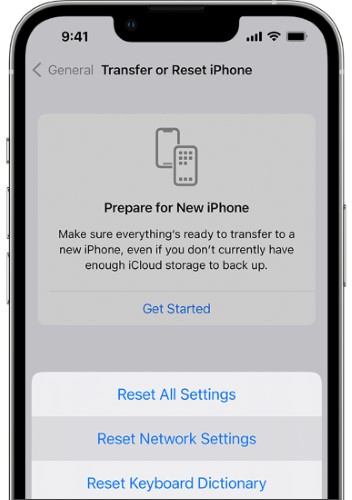
After you know the reasons, you can try the following 8 effective ways to fix GIFs not working on iPhone.
When GIFs are not working on iPhone iMessage, it's often not a problem with the phone itself, but rather with the network connection. You can try the following methods to fix network-related issues:
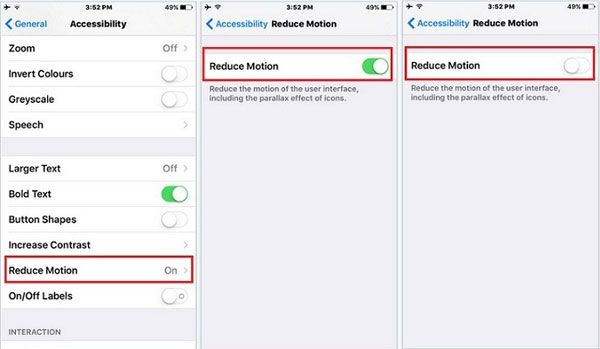
iOS's "Reduce Motion" feature limits animation effects, which is one of the common reasons why GIFs may not play. To fix GIFs not working on iPhone Safari, follow the steps below to disable it:
Step 1. Go to "Settings" > "Accessibility" > Tap "Motion".
Step 2. Turn off the "Reduce Motion" toggle.
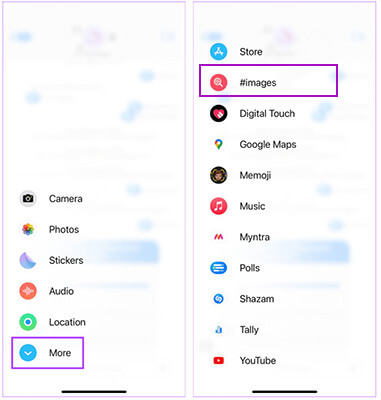
In the iPhone Messages app, the GIF feature primarily relies on #images. If this feature is turned off, not loaded, or encounters an error, GIF search and sending will be affected.
Here is how to fix GIFs not working on iPhone messages:
Step 1. Open the Messages app and enter any conversation.
Step 2. Tap the "+" or "App" icon next to the text input field.
Step 3. Look for "#images". If you don't see it, scroll to the bottom and tap "More", then manually enable "#images".
The Messages app may malfunction or encounter cache errors, causing GIFs not to work on iPhone. Force-quitting the app is a simple yet effective solution.
Here are the steps:
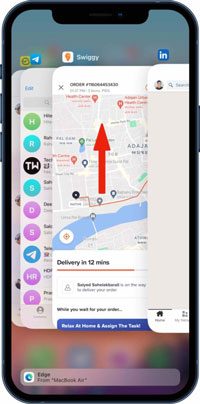
Step 1. Swipe up from the bottom of the screen and pause (or double-click the "Home" button).
Step 2. Find the Messages app.
Step 3. Swipe it up to completely close it.
Step 4. Reopen the Messages app and test the GIF feature.
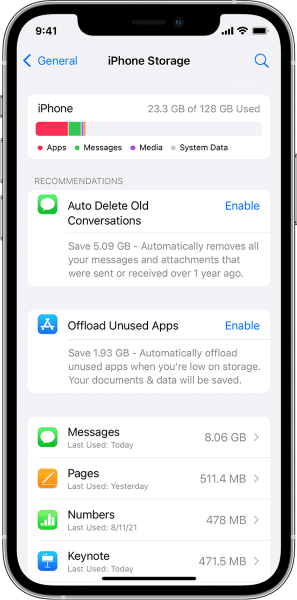
When iPhone storage is low, the system prioritizes limiting the loading of multimedia content like images, videos, and GIFs. This is a common reason why GIFs may not display.
To free up iPhone space, follow the steps below:
Step 1. Go to "Settings" > "General" > "iPhone Storage".
Step 2. Check the available storage space.
Step 3. Delete unnecessary apps, photos, or videos.
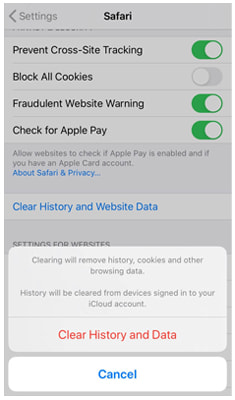
If GIFs are not working on iPhone Safari, you can directly clear the Safari cache. To do so, follow these steps:
Step 1. Open "Settings" and scroll down to "Safari".
Step 2. Scroll down and tap on "Clear History and Website Data".
Step 3. Confirm by tapping "Clear History and Data".
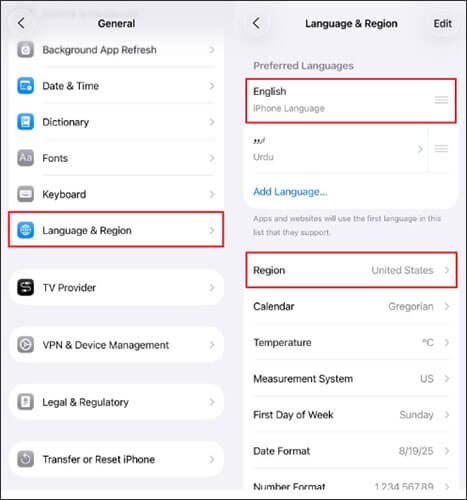
According to Apple, the #images feature is only available in certain countries. If your GIFs are not working on iPhone, it could be due to this regional limitation. To resolve this, you can change the region and language settings on your iPhone. Here's how:
Step 1. Open the "Settings" app and go to "General".
Step 2. Tap on "Language & Region", then select "Region".
Step 3. Search for and select the desired region from the list.
Older iOS versions may have bugs or software glitches, which is why Apple regularly releases updates to fix them. If an update is available, try updating your iPhone and then check if GIFs work.
Step 1. Go to "Settings" > "General" > "Software Update". (iPhone software update failed?)
Step 2. Your iPhone will start checking for updates.
Step 3. If an update is available, tap "Download and Install".

If none of the above methods work, another solution to fix the "GIFs not working on iPhone" issue is to restore your iPhone to its factory settings. Note that this will erase all your data, so make sure to back up your device beforehand.
Here is how to do it:
Step 1. Open "Settings" and tap on "General".
Step 2. Tap on "Transfer or Reset iPhone" and select "Erase All Content and Settings". This will restore your phone to its original factory state.

If you prefer not to repeatedly adjust system settings or risk data loss by restoring your device to factory settings, using a professional iOS repair tool would be a more efficient option. iOS System Recovery is specifically designed to resolve iOS system issues, such as GIF playback failures, messaging errors, and system freezes, without erasing your data.
Key features of iOS System Recovery:
Here is how to fix GIFs not working on iPhone using iOS System Recovery:
01Install and launch the tool on your computer. Connect your iPhone to the computer via USB, then select "More Tools" > "iOS System Recovery" to continue.

02The program will begin detecting the issue with your iPhone and display it on the screen. Once detected, click the "Start" button to proceed.

03Verify the device information displayed on the interface. If needed, select the correct details from the drop-down lists. Then, click the "Repair" button to immediately fix the issue.

When you encounter the "GIFs not working on iPhone" issue, it can usually be resolved by checking the network, adjusting system settings, or updating iOS. However, if the problem persists or seems to be caused by a system malfunction, manual troubleshooting can be time-consuming and risky. Considering factors like security, success rate, and ease of use, iOS System Recovery is undoubtedly a more efficient and hassle-free solution, especially for users looking to fix the issue once and for all.
Related Articles:
How to Recover GIF Photos from iPhone in 4 Reliable Ways?
How to Transfer GIF Pictures from iPhone to Mac in 5 Useful Ways




 Free Download for PC
  Free Download for Mac


