TL;DR: Is your iPhone microphone not working during calls, FaceTime, Messages, or apps? This guide covers the most common causes and 10 proven fixes to restore your iPhone microphone, including checking permissions, disconnecting Bluetooth, updating iOS, resetting settings, and using iOS System Recovery. Get your iPhone audio working again quickly with simple troubleshooting steps.
If you are experiencing iPhone microphone not working, you may find that others cannot hear you during calls, your voice messages have no sound, or apps like FaceTime, Messenger, and recording tools fail to capture audio. This issue can be very frustrating. However, don't worry. In this guide, we will explain why your iPhone microphone is not working and provide 10 effective solutions to help you quickly restore your iPhone microphone functionality.
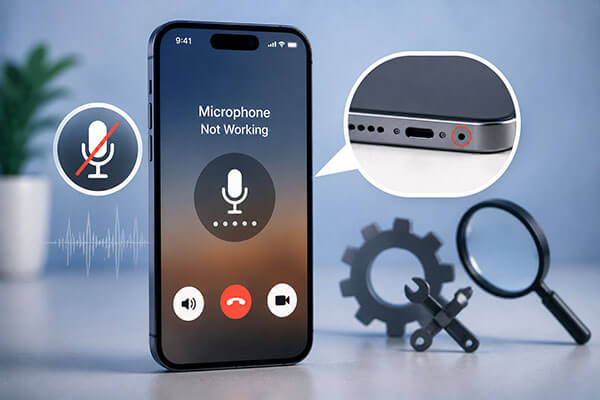
Before fixing iPhone microphone not working on calls, it is important to understand the possible causes. Common reasons include:
If your iPhone microphone is not working properly, you can follow the methods below to troubleshoot and fix the issue step by step.
Your iPhone microphone may stop working due to dust, dirt, or debris blocking the microphone openings and preventing it from capturing your voice. Gently clean the microphone openings with a soft, dry cloth or a clean, soft-bristled brush to remove any buildup and improve audio input.
A recently installed screen protector, phone case, or cover may accidentally block the microphone openings and affect audio input. Remove any third-party accessories from your iPhone and check whether the microphone works properly afterward. If the issue is resolved, the case or screen protector may have been interfering with the microphone.

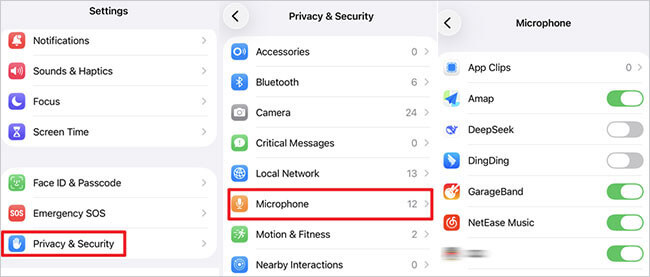
If your iPhone microphone is not working in apps, such as iPhone microphone not working in Messages, iPhone microphone not working on FaceTime, iPhone microphone not working on Messenger, or iPhone microphone not working on WhatsApp, the apps may not have permission to access your microphone. Check your iPhone microphone settings and make sure the required apps are allowed to use the microphone.
Here is how to do it:
Step 1. Open "Settings" on your iPhone, then go to "Privacy & Security" > "Microphone".
Step 2. Turn on microphone access for the apps you want to use, allowing them to record audio and send voice messages.
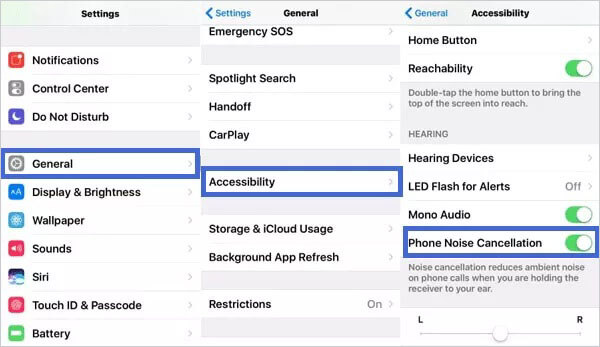
iPhone has a phone noise cancellation feature that reduces background noise during calls. However, it may sometimes affect microphone input. If your iPhone microphone is not working during calls, try turning off this feature to see if the issue improves.
Here are the steps:
Step 1. Open "Settings" on your iPhone and go to "Accessibility" > "Audio/Visual".
Step 2. Turn off "Phone Noise Cancellation" if it is enabled.
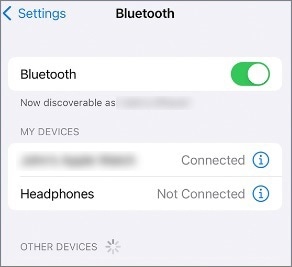
In many cases, the iPhone microphone not working issue occurs because your device is using a connected audio accessory instead of the built-in microphone. When AirPods, Bluetooth headphones, speakers, or car audio systems are connected, your iPhone may automatically route audio input through those devices. Disconnecting Bluetooth accessories can help restore normal microphone function.
To disable Bluetooth on your iPhone, follow the steps below:
Step 1. Open "Settings" on your iPhone and tap "Bluetooth".
Step 2. Turn off "Bluetooth" to disconnect connected audio devices.
Temporary system glitches are a common cause of the iPhone microphone not working after an update. Restarting your iPhone can refresh system services and fix minor software issues quickly.
Here is how to restart your iPhone:
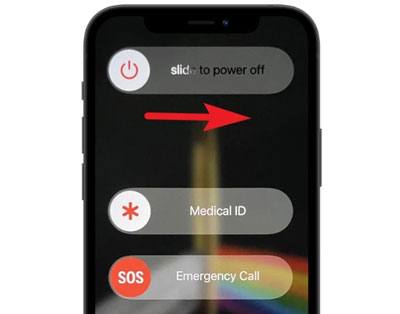
Step 1. Press and hold the "Side" button and either "Volume" button until the power-off slider appears.
Step 2. Drag the slider to turn off your iPhone, wait a few seconds, then press and hold the "Side" button to turn it back on.
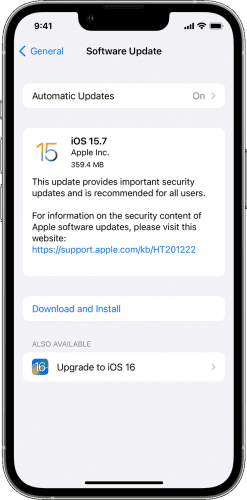
An outdated iOS version or system bugs may cause iPhone microphone not working issues. Updating to the latest iOS version can fix known software problems. It is recommended to back up your data before updating to avoid potential data loss.
To update your iPhone, follow the steps below:
Step 1. Open "Settings" on your iPhone and go to "General" > "Software Update".
Step 2. Tap "Update Now" to download and install the latest iOS version if an update is available.
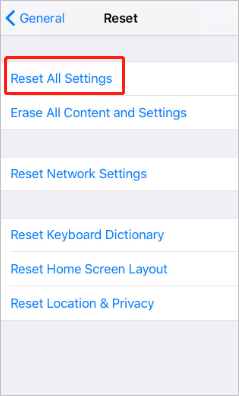
If the previous methods do not fix the issue, some system settings may be causing conflicts. Reset All Settings restores the iPhone's default configuration without deleting photos, videos, apps, or personal files, making it a safe troubleshooting option.
Here is how to do it:
Step 1. Open "Settings" on your iPhone, then go to "General" > "Transfer or Reset iPhone" > "Reset" > "Reset All Settings".
Step 2. Enter your passcode and tap "Reset All Settings" again to confirm.
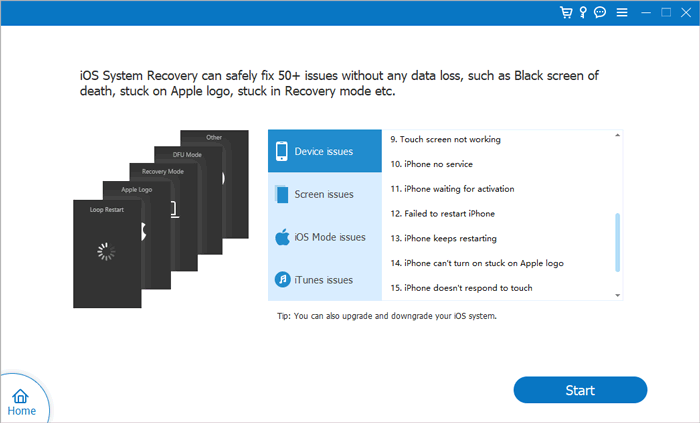
If the previous methods do not work, the microphone issue may be caused by deeper iOS system problems, such as corrupted system files, failed updates, or software errors. In this case, normal settings adjustments may not fix the problem. iOS System Recovery is a professional iOS repair tool designed to fix various iPhone system issues, including microphone problems, frozen iPhones, black screens, and update failures. It can repair iOS issues without data loss in Standard Mode.
Key features of iOS System Recovery:
Here is how to fix iPhone microphone not working on speaker via iOS System Recovery:
01Install and launch iOS System Recovery on your computer, then connect your iPhone using a USB cable.
02Select "iOS System Recovery" from the main interface and click "Start" to scan for iOS system issues that may cause the iPhone microphone not working problem.
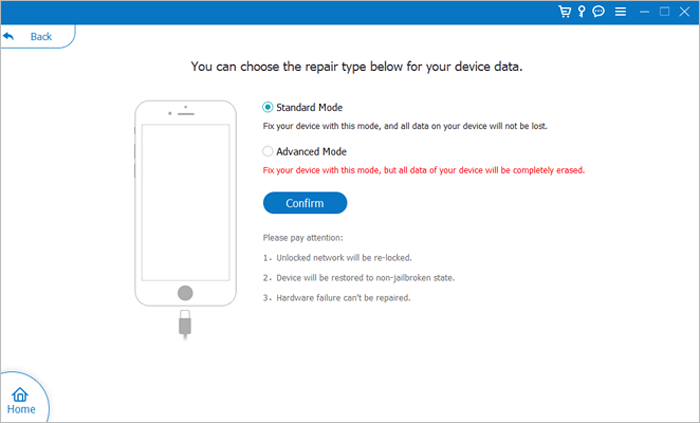
03Choose "Standard Mode" to repair iOS system errors without deleting your personal data, then click "Confirm" to continue.
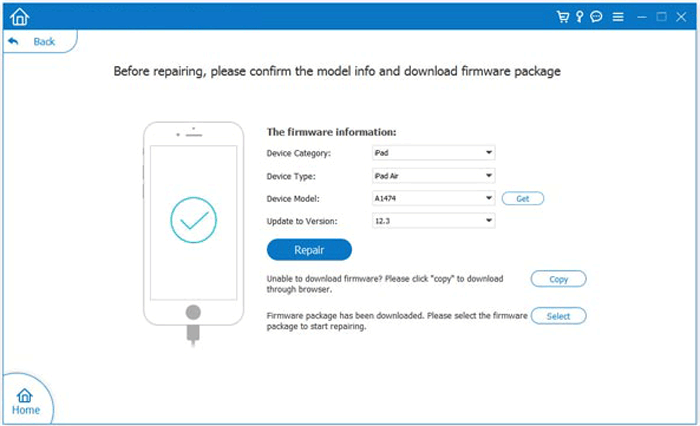
04Check your iPhone information, download the appropriate firmware package, and click "Repair" to fix the system issues affecting your microphone.
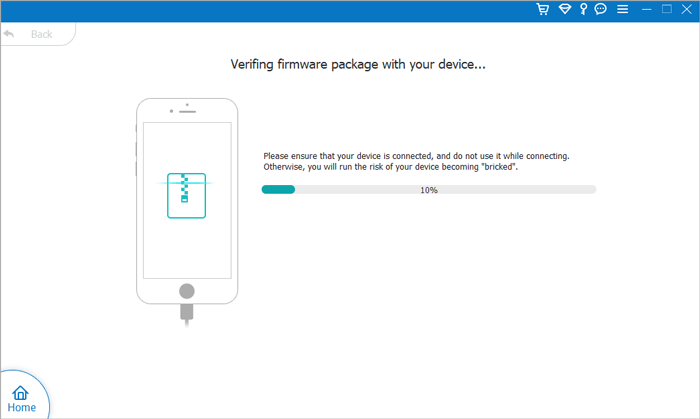
05Wait for the repair process to complete. Your iPhone will restart automatically. Then, test the microphone to check whether the iPhone microphone not working issue has been resolved.
If your iPhone microphone is not working after getting wet, it may be caused by hardware damage. In this case, it is recommended to contact Apple Support or visit an Apple Store for device inspection.
That's all about how to fix an iPhone microphone not working. Among all methods, iOS System Recovery provides a simple and effective way to restore your iPhone's performance and help get your microphone functionality back to normal. With an intuitive interface and powerful iOS repair capabilities, it makes solving iPhone system issues easier for users of all experience levels. Try iOS System Recovery to bring your iPhone back to optimal performance.
Related Articles:
[Solved] How to Fix iPhone Screen Recording No Sound Quickly?
No Sound on iPhone Video? Fixed in 12 Easy and Quick Ways
How to Fix Siri Not Working on iPhone 17/16? 12 Reliable Fixes




 Free Download for PC
  Free Download for Mac


