"My iPhone is getting stuck on the 'Connect to iTunes' screen, as this device seems to be unable to connect to iTunes, which prevents it from being activated. I believe this issue can occur due to various reasons, such as software updates, physical damage, or complications with hard resets. I'm hopeful that the forum community can assist me with their expertise and advice."
- from Apple Community
When you're using your iPhone normally but suddenly find the device stuck on the "Connect to iTunes" screen, it usually shows a cable pointing to a computer or the iTunes icon, and no matter what you do, you can't enter the system. This situation can confuse and stress many users, making them worry about whether the device is damaged or if data might be lost. In fact, iPhone stuck on Connect to iTunes screen is not uncommon, and it's often related to system updates, failed restores, or software issues. This article will systematically introduce various effective solutions to help you safely exit the "Connect to iTunes" screen.
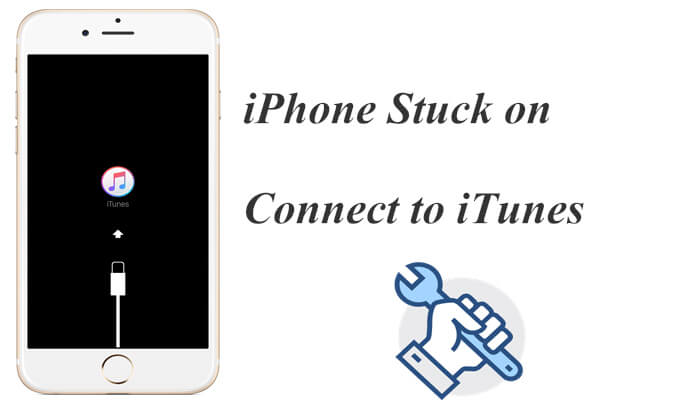
Before starting the repair, it's important to understand the cause of the issue. When an iPhone is stuck on the Connect to iTunes screen, it is usually related to the following situations:
Below are 6 common and effective repair methods. You can try them one by one based on your situation.
A force restart is the simplest way to resolve temporary system glitches. If your iPhone is stuck on "Connect to iTunes" due to a minor crash, this method may immediately fix the problem without affecting your data.
Steps to force restart iPhone:
iPhone 8 and later:
iPhone 7 / 7 Plus: Press and hold "Power" + "Volume Down" until the Apple logo appears.
iPhone 6s and earlier: Press and hold "Power" + "Home" until the Apple logo appears.

If the iPhone restarts normally, the issue is resolved. If not, proceed to the next solution.
If a force restart doesn't work, the next step is to reinstall iOS. This is one of the repair methods recommended by Apple, which allows you to reinstall iOS without deleting your data.
Here is how to fix the iPhone stuck on Connect to iTunes screen and won't restore:
Step 1. Ensure that you have the latest version of iTunes installed on your computer, then open it.
Step 2. Connect your iPhone to the computer using the USB cable that came with your device.
Step 3. iTunes will detect your iPhone in recovery mode and offer two options: "Restore" or "Update".
Step 4. Select "Update" to reinstall iOS on your iPhone without erasing your data.
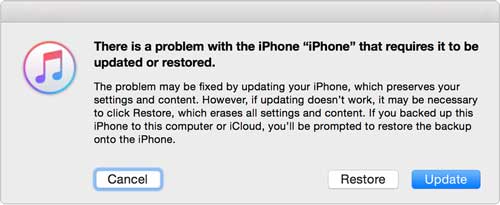
To fix an old iPhone stuck on the "Connect to iTunes" screen, you can also perform a full restore using iTunes to resolve any iOS issues. However, this will erase all content and data on your iPhone, so be sure to back up your data before attempting a restore.
Here is how to do it:
Step 1. Open iTunes and connect your iPhone.
Step 2. When the recovery prompt appears, select "Restore".
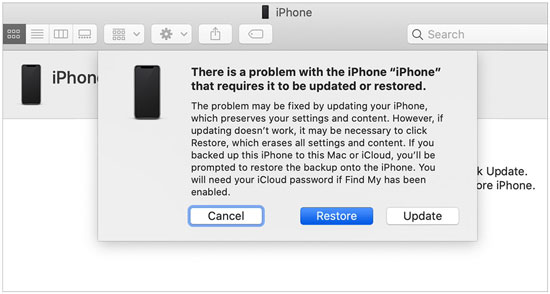
Step 3. iTunes will download the firmware and reinstall iOS.
Step 4. After completion, set up your iPhone.
Step 5. Restore data from iCloud or iTunes backup if available.
If the iPhone is still stuck on "Connect to iTunes", DFU (Device Firmware Update) mode can help. This mode bypasses iOS entirely and allows deeper system repair. DFU Mode is effective but more complex and will erase data.
Here are the steps:
Step 1. Open iTunes and connect your iPhone to your PC.
Step 2. Depending on your iPhone model, follow the instructions below to enter DFU mode:
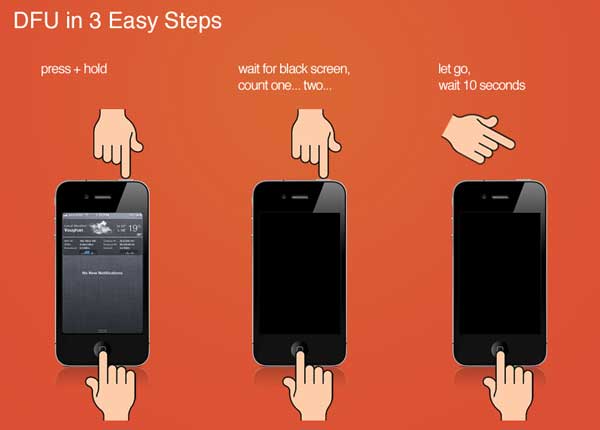
Step 3. Once in DFU mode, click on "Restore iPhone". This will erase your iPhone and begin a fresh installation of iOS. Your iPhone will restart once the restoration process is complete.
If you want a simpler and safer solution, especially if you wish to fix an iPhone stuck on "Connect to iTunes" without data loss, a professional iPhone repair tool is highly recommended. iOS System Recovery is designed to fix various iOS system issues, including recovery mode loops, boot failures, and system crashes.
Main features of iOS System Recovery:
Here is how to fix an iPhone stuck on "Connect to iTunes" using iOS System Recovery:
01Launch the program on your computer and connect your iPhone using a USB cable. On the program interface, click on "More tools" and then select the "iOS System Recovery" option.

02Click the "Start" button at the bottom, and the program will automatically detect and display potential issues with your iPhone, such as the red screen of death, unresponsive screen, iTunes Error 21, iPhone Error 2009, and more.

03Confirm your iPhone's details. If everything is correct, click the "Repair" button. If not, select the correct model and then click "Repair" to begin fixing the iPhone.

If none of the above solutions resolve the issue, a hardware problem might be causing your iPhone to be stuck on the "Connect to iTunes" screen. In this case, we recommend scheduling an appointment with Apple to have the hardware checked at an Apple Store.
To prevent encountering an iPhone stuck on "Connect to iTunes" in the future, follow these best practices:
* Ensure sufficient battery before updating the system.
* Use a stable network for iOS updates.
* Use original or certified cables.
* Avoid forcibly interrupting updates or restores midway.
* Regularly back up iPhone data.
* Be cautious when jailbreaking or modifying the system.
While the iPhone stuck on Connect to iTunes issue is common, it's not difficult to resolve. From force restarting to iTunes recovery, to DFU mode and professional tools, each method addresses different levels of system problems. If you want a higher success rate, easier operation, and want to minimize data loss, iOS System Recovery is a highly recommended solution.
Related Articles:
iPhone in Recovery Mode Not Recognized by iTunes? - 8 Quick Fixes
How to Fix iTunes Could Not Connect to This iPhone? (8 Effective Solutions)
How to Fix iTunes/iPhone Stuck on Preparing iPhone for Restore?
How to Fix the iTunes Not Recognizing iPhone Problem? [2026 Update]







 Free Download for PC
  Free Download for Mac


