"I had PDF documents in folders in the files app, and some have been removed from the folders and placed in the recently deleted or downloads folder, and it won't let me move them or open them. How can I recover PDF files from the recently deleted folder?"
- from Apple Community
During everyday use of an iPhone or iPad, we often save various PDF files, such as study materials, work documents, e-books, or contracts. However, it is also very common to accidentally delete a PDF file. Many users only realize the file was important after deleting it, and then start looking for ways to recover it.
So, how to recover deleted PDF files on an iPhone or iPad? In fact, as long as the file has not been completely overwritten, there is still a chance to retrieve it. This article will introduce several practical methods in detail to help you recover deleted PDF files on your iPhone or iPad.
Before trying any complicated solutions, the first place you should check is the Recently Deleted folder in the Files app. When you delete a PDF file from your iPhone or iPad, iOS usually moves it to this folder instead of permanently removing it right away.
The files stored in the Recently Deleted folder are typically kept for up to 30 days. During this period, you can easily restore them without using backups or third-party software. If you recently removed a document and want to know how to recover deleted PDF files on iPhone/iPad, this is the quickest and easiest method to try.
Here is how to recover deleted PDF files on iPhone/iPad from the Recently Deleted folder:
Step 1. Open the "Files" app on your iPhone or iPad.
Step 2. Tap "Browse" at the bottom of the screen.
Step 3. Locate and open the "Recently Deleted" folder.
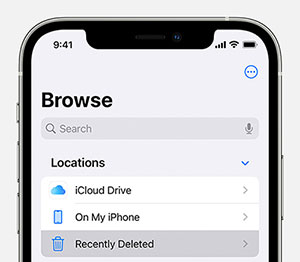
Step 4. Browse the list and find the deleted PDF file you want to restore.
Step 5. Tap and hold the PDF file, and then select "Recover" from the menu.
Once restored, the PDF file will return to its original location, and you can open or edit it as usual.
If your PDF documents were stored in iCloud Drive, you may still be able to recover them even after they disappear from your device. iCloud Drive keeps deleted files in a Recently Deleted section for a certain period of time, allowing users to restore them easily.
This method is especially useful if you use iCloud to sync files across multiple Apple devices. Even if the file is deleted on your iPhone or iPad, it may still be recoverable through the iCloud website. If you're looking for how to recover deleted PDF files on iPhone or iPad without restoring your whole device, this option is worth trying.
Here is how to restore deleted PDF files on iPhone or iPad from iCloud Drive:
Step 1. Open a web browser and go to the iCloud website, then sign in with your Apple ID.
Step 2. Click "iCloud Drive" from the main interface.
Step 3. Open the "Recently Deleted" folder.
Step 4. Find and select the PDF file you want to restore.
Step 5. Click "Recover" to restore the file.
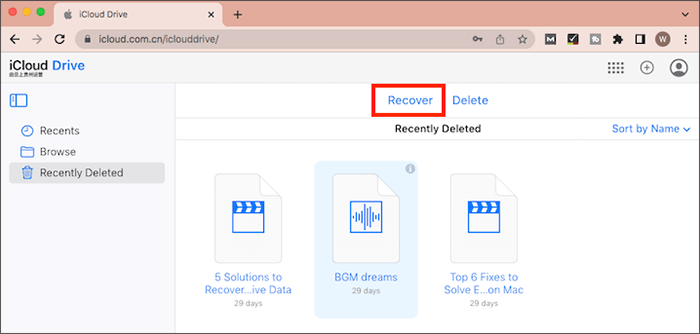
After the recovery process, the PDF file will return to your iCloud Drive and automatically sync back to your iPhone or iPad.
If the PDF file is no longer in Recently Deleted or iCloud Drive, but you previously enabled iCloud automatic backup, you may still be able to recover it by restoring an iCloud backup. iCloud backups store most of the data on your device, including app data and documents.
However, it is important to note that restoring data from an iCloud backup usually requires erasing your current device first and then restoring it from the backup. Therefore, before performing this action, it is recommended to confirm that the backup actually contains the PDF file you want to recover.
Here is how to retrieve deleted PDF files on iPhone or iPad from iCloud backup:
Step 1. Open "Settings", tap "General", then select "Transfer or Reset iPhone/iPad" and choose "Erase All Content and Settings".

Step 2. Wait for the device to restart and begin the setup process.
Step 3. Follow the on-screen instructions until you reach the "Apps & Data" screen.
Step 4. Select "Restore from iCloud Backup" and sign in with your Apple ID.
Step 5. Choose a backup that likely contains the deleted PDF files and wait for the restoration to complete.
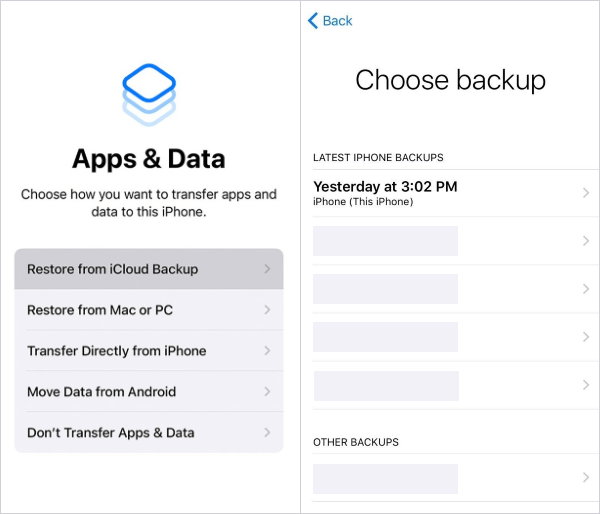
Once the restoration is complete, your device will return to the state it was in when the backup was created, and the deleted PDF files may reappear.
In addition to iCloud backups, many users also create local backups of their iPhone or iPad on a computer using iTunes (or Finder). If your device has been backed up on a computer before, those backup files may also contain the lost PDF files.
By restoring an iTunes backup, you can return your device to the state it was in when the backup was created, which may allow you to recover the deleted files. However, it is important to note that this method will overwrite the current data on your device. Therefore, it is recommended to back up any important data before performing the restore.
Here is how to get deleted PDF files back:
Step 1. Open iTunes (or Finder on macOS Catalina and later) and connect your iPhone or iPad to the computer with a USB cable.
Step 2. When the device appears, click the device icon.
Step 3. Go to the "Summary" tab and select "Restore Backup".
Step 4. Choose a backup that may contain the deleted PDF files.
Step 5. Click "Restore" and wait for the process to finish.
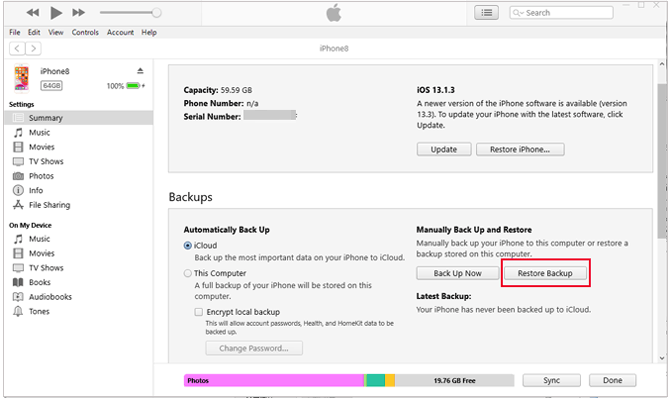
After the process finishes, your device will restart and restore all data from the selected backup, including potentially deleted PDF files.
If you don't have any backups or prefer not to overwrite the current data on your device by restoring a backup, using a professional data recovery tool may be a better option. Coolmuster iPhone Data Recovery is a data recovery program designed specifically for iOS devices, which can help users scan their device or backup files to retrieve deleted data.
Unlike traditional backup restoration, this type of tool usually supports previewing and selective recovery, meaning you can restore only the files you need without affecting other data currently on your device. This is especially convenient for users who only want to recover a specific file.
The main features of Coolmuster iPhone Data Recovery:
Here is how to recover deleted files from an iPhone without a backup using iPhone Data Recovery:
01Download and install the program on your computer. Then connect your iPhone or iPad to the computer using a Lightning cable and tap "Trust" on your device if prompted.
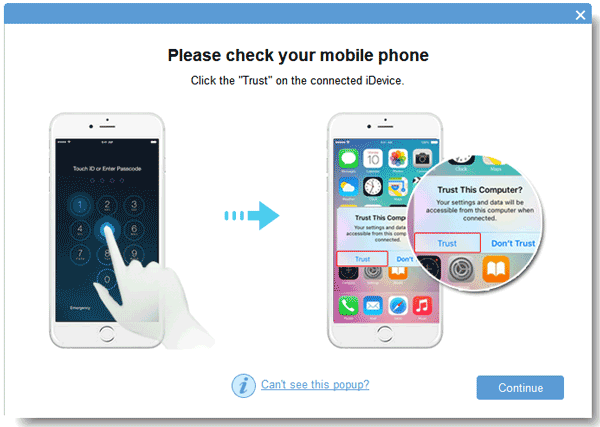
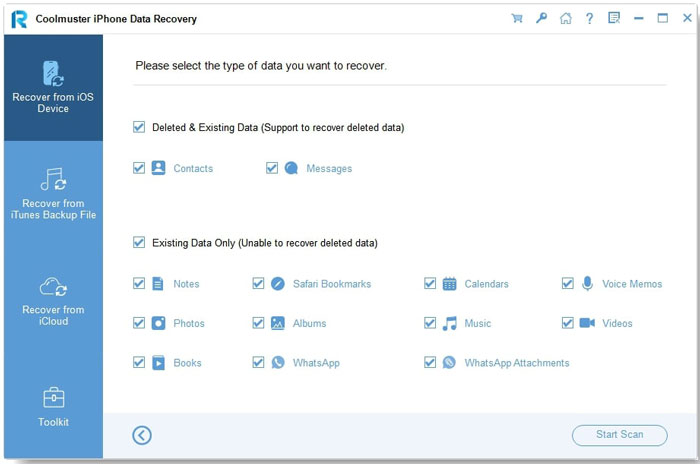
02Once the device is recognized, all available data categories will appear on the screen. Select the types of data you want to recover and click "Start Scan" to begin scanning.
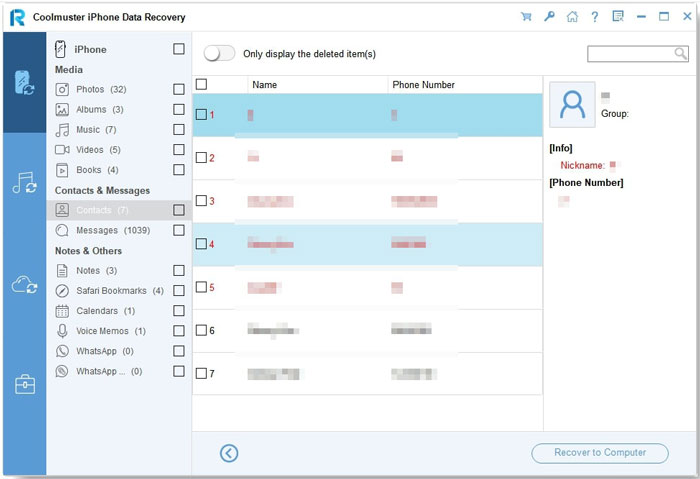
03After the scan is complete, you can preview both existing and deleted files. Choose a category from the left panel to view its details on the right. Finally, select the files you want and click "Recover to Computer" to save the recovered files to your computer.
Video Tutorial:
If you are wondering how to recover deleted PDF files on iPhone or iPad, there are several practical solutions you can try depending on your situation. You can first check the Recently Deleted folder in the Files app for recently removed documents, or restore them from iCloud Drive if the files were synced to the cloud. If you created backups before the files were deleted, you may also recover them through iCloud backup or iTunes backup.
For users without backups or those who prefer a more flexible solution, Coolmuster iPhone Data Recovery is a reliable option that allows you to scan your device, preview lost files, and selectively recover deleted files without overwriting existing data.
Related Articles:
[Solved] How to Recover Deleted Photos from iPad with/without Backup?
A Comprehensive Guide on How to Recover Deleted Files from WhatsApp
Recover Deleted PDF Files from WhatsApp (With or Without Backup)
How to Recover Deleted PDF Files on Android Phone and Tablet? (SOLVED)







 Free Download for PC
  Free Download for Mac


