If you've switched from OnePlus to iPhone, or need to share videos between these two devices, you may be confused about how to send video from OnePlus to iPhone smoothly. Since OnePlus runs on Android and iPhone use iOS—two different operating systems—direct video transfer can be tricky without the right tools or methods. Fortunately, there are simple, reliable ways to transfer videos.
In this guide, we'll walk you through 5 practical methods to send video from OnePlus to iPhone, so you can choose the best option for your needs.
Phone Transfer is one of the most efficient and user-friendly tools to send videos from OnePlus to iPhone, especially if you need to transfer multiple videos, large files, or maintain original video quality. This professional data transfer software supports seamless file sync between Android (including OnePlus) and iOS devices.
Unlike other methods, it doesn't require an internet connection, avoids file size limits, and lets you preview videos before transfer—making it ideal for anyone who values speed and convenience. It also supports transferring other files like photos, contacts, and music, making it an all-in-one solution for device syncing.
Main features of Phone Transfer:
How do I transfer videos from OnePlus to iPhone in 1 click?
01Download and install Phone Transfer on your computer, then launch the program. Connect both your OnePlus and iPhone to the computer using USB cables.
02The software will automatically detect the devices and show their details on the screen. Ensure the source device is displayed at the top center. If not, use the drop-down menu to select the correct source phone.
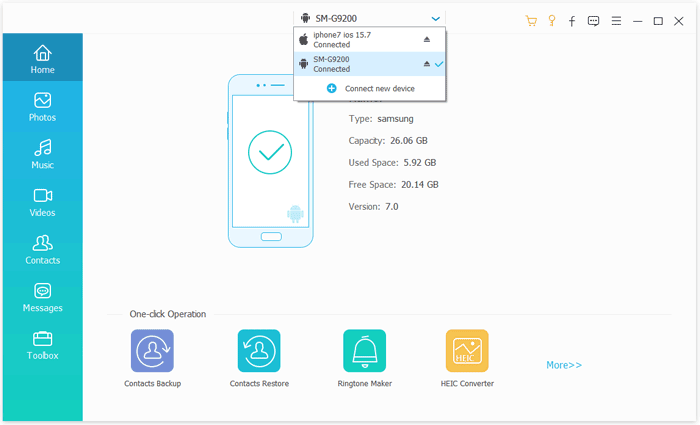
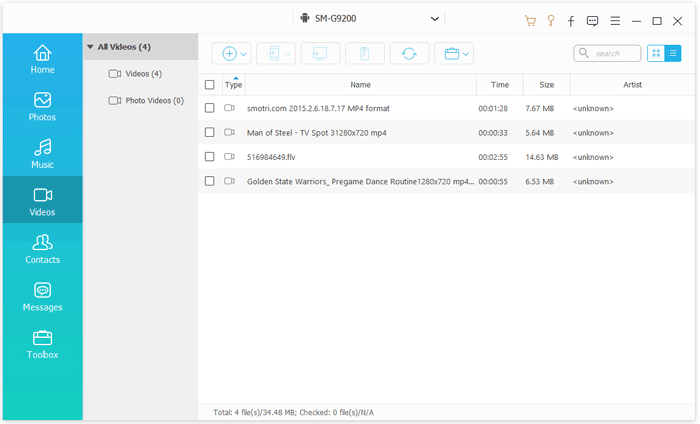
03Next, click "Videos" on the left, choose the videos you want to transfer, and hit "Export to Device". The selected videos will be swiftly transferred from your OnePlus to your iPhone.
Google Drive is a free cloud storage service that allows you to transfer videos from OnePlus to iPhone wirelessly, making it a great option if you don't have a computer handy. It works by uploading videos from your OnePlus to Google Drive first, then downloading them to your iPhone—no cables required.
While Google Drive offers 15GB of free storage (which is enough for most short videos), you may need to upgrade to a paid plan if you're transferring large video files or multiple videos. What's more, the process may be slower depending on your internet speed.
Here is how to sync videos from OnePlus to iPhone with Google Drive:
Step 1. Open the Google Drive app on your OnePlus phone and log in with your Google account.
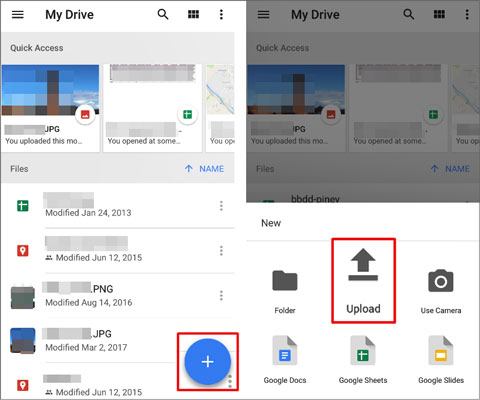
Step 2. Tap the "+" button and select "Upload", then choose the video you want to upload.
Step 3. Install and open the Google Drive app on your iPhone.
Step 4. Log in with the same Google account used on your OnePlus device.
Step 5. Locate the uploaded video and tap on it to download it to your iPhone.
Move to iOS is an official app developed by Apple to help users switch from Android devices to iPhone. It's designed for new iPhone setups, but you can also use it to move videos to an already set up iPhone (though you may need to reset your iPhone if you've already completed the initial setup). This method is free, wireless, and transfers videos along with other data like contacts, photos, and messages—making it perfect if you're setting up a new iPhone and want to move all your OnePlus videos at once.
Note that both devices need to be connected to the same Wi-Fi network, and the iPhone must have enough storage space for the videos.
Here is how to move videos from OnePlus to iPhone via Move to iOS:
Step 1. 1. If you're setting up a new iPhone, follow the on-screen instructions until you reach the "Apps & Data" screen. Select "Move Data from Android" and tap "Continue".
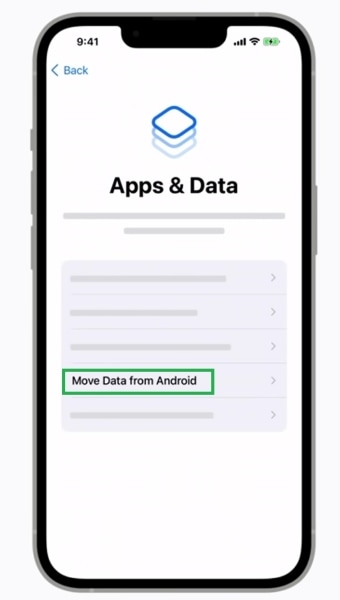
Step 2. If your iPhone is already set up, you'll need to reset it by going to "Settings" > "General" > "Transfer or Reset iPhone" > "Erase All Content and Settings" and restarting the setup process until you reach the "Apps & Data" screen. (Note: This will erase all data on your iPhone, so back up your iPhone first.)

Step 3. On your OnePlus device, download and install the "Move to iOS" app from the Google Play Store. Launch the app and tap "Continue".
Step 4. Read the terms and conditions, tap "Agree", then tap "Next" at the top right corner.
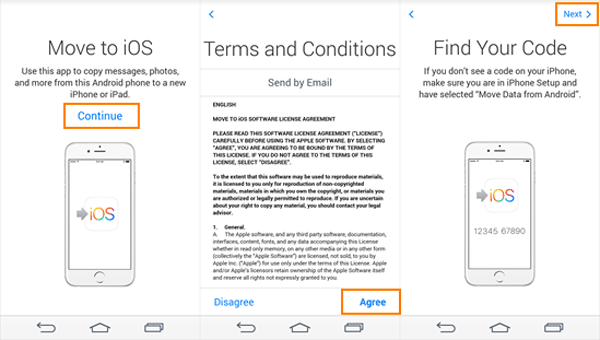
Step 5. On your iPhone, you'll see a 6-digit or 10-digit code. Enter this code on your OnePlus device to connect the two devices via a temporary Wi-Fi network. (Move to iOS code not showing up?)
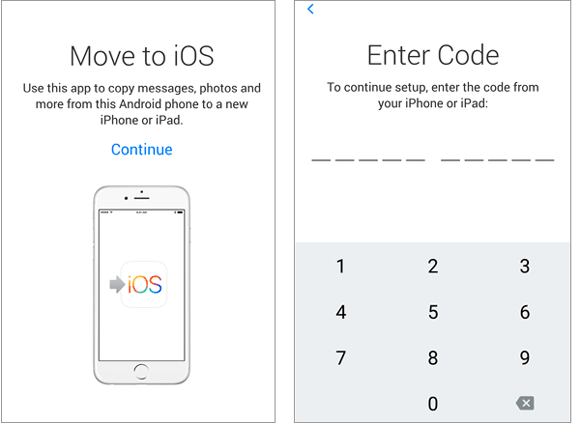
Step 6. On your OnePlus, select the data you want to transfer—make sure to check the "Videos" option. Tap "Continue" to start the transfer.
Step 7. Keep both devices close to each other and plugged in to avoid interruptions. The transfer time depends on the size of the videos and your Wi-Fi speed.
Step 8. Once the transfer is complete, tap "Done" on your OnePlus and "Continue" on your iPhone to finish setting up your device. Your videos will be in the Photos app on your iPhone.
If you prefer a wired transfer, which is faster and more stable than wireless methods, and don't want to use third-party software, you can copy videos from OnePlus to iPhone using a USB cable and a computer. This method involves transferring videos from your OnePlus to your computer first, then from the computer to your iPhone.
This method is ideal for large video files, as it avoids internet speed limits and cloud storage restrictions, and ensures no loss of video quality.
Here is how to copy videos from OnePlus to iPhone using a USB:
Step 1. Connect your OnePlus device to your computer using a USB-C cable. On your OnePlus, when prompted, select "File Transfer" (or "MTP") as the connection mode. This will allow your computer to access the files on your OnePlus.
Step 2. Open your computer's file explorer (Windows) or Finder (Mac). Find your OnePlus device under "This PC" (Windows) or "Locations" (Mac). Double-click to open it.
Step 3. Navigate to the folder where your videos are stored on your OnePlus—usually in "Internal Storage" > "DCIM" > "Camera" or "Internal Storage" > Movies".
Step 4. Select the videos you want to transfer, then copy and paste them into a folder on your computer.
Step 5. Disconnect your OnePlus from the computer, then connect your iPhone to the computer using its USB cable. Trust the computer on your iPhone when prompted.
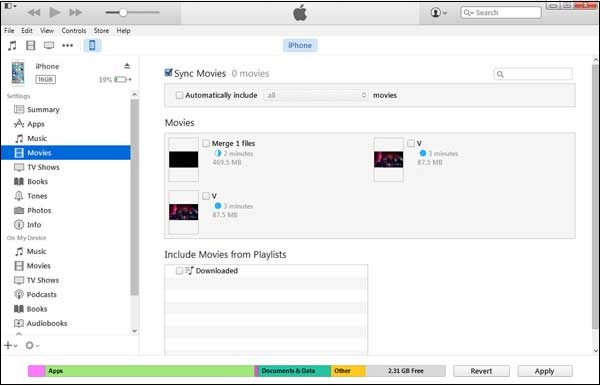
Step 6. For Windows users: Open iTunes (or Finder if you're using macOS Catalina or later). Select your iPhone icon at the top left corner.
Step 7. Go to the "Movies" or "Videos" section, depending on your iTunes version. Drag and drop the videos from your computer into iTunes, and sync them to your iPhone.
Sending videos from OnePlus to iPhone via email is a simple, no-frills method that works if you're transferring small video files (usually under 25MB, as most email providers have file size limits). This method doesn't require any apps or cables—just a working email account on both devices. Additionally, email attachments may compress the video slightly, which could reduce quality.
Here is how to send video from OnePlus to iPhone via email:
Step 1. On your OnePlus device, open the "Gallery" app and find the video you want to send. Tap and hold the video to select it, then tap the "Share" icon (usually a paper plane or three dots connected by lines).
Step 2. From the share menu, select your email app (e.g., Gmail, Outlook). A new email draft will open with the video attached.
Step 3. Enter your own email address or the email address associated with your iPhone in the "To" field. Add a subject and a message if needed, then tap "Send".
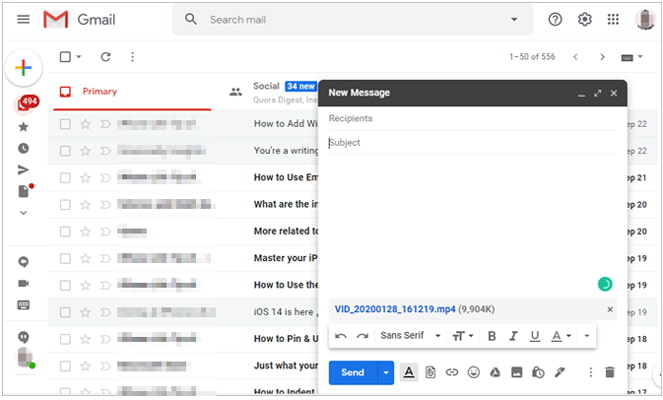
Step 4. Pick up your iPhone and open the Mail app. Log in to the same email account you used to send the email or the account you sent it to.
Step 5. Find the email you sent, open it, and tap the video attachment. Tap the "Download" icon (usually a downward arrow) to save the video to your iPhone.
Step 6. Once the download is complete, tap the video to open it, then tap the "Share" icon and select "Save to Photos" to store it in your iPhone's Photos app. Repeat this for all videos you want to transfer.
Q1. Can I AirDrop from OnePlus to iPhone?
No, you cannot AirDrop from OnePlus to an iPhone. AirDrop is an Apple-exclusive feature that only works between Apple devices (e.g., iPhone, iPad, Mac). Since OnePlus runs on Android, it doesn't support AirDrop. However, you can use AirDrop alternatives for Android to transfer videos between an OnePlus and iPhone.
Q2. How long does it take to transfer videos from OnePlus to an iPhone?
The transfer time depends on the method you use. Wireless methods (like Move to iOS or Google Drive) may take longer, especially for large files, while USB transfers are typically faster.
Q3. Will transferring videos from OnePlus to iPhone lose quality?
It depends on the method you use. Methods like Phone Transfer, USB transfer, and Move to iOS transfer videos in their original quality with no compression. However, methods like email or some cloud services (if you enable compression) may slightly reduce video quality to save space. If preserving video quality is important, stick to wired methods or Phone Transfer.
Now you know how to send video from OnePlus to iPhone using various methods. Each method has its pros and cons, depending on your needs. If you're looking for a fast and simple solution, Phone Transfer is highly recommended for its reliability and speed.
Choose the method that works best for you and enjoy seamless video transfer between your OnePlus and iPhone!
Related Articles:
How to Send High-Quality Videos from Android to iPhone [Data Transfer Tips]
How to Transfer Data from Android to iPhone After Setup in 7 Proven Methods
How to Transfer Music from OnePlus to iPhone (2026 Guide)
Step-by-Step Guide: How to Send Video from iPhone to OnePlus







 Free Download for PC
  Free Download for Mac


