TL;DR:
Looking for a better way to organize your contacts? This Contacts+ review covers everything you need to know, including its features, pricing, pros and cons, and user experience. We will also introduce an alternative for managing contacts directly on your computer.
Our contacts are often scattered across multiple platforms such as Gmail, Outlook, and local mobile devices. Problems such as accumulated duplicate contacts, outdated information, and inconvenient cross-device access occur frequently, seriously affecting communication efficiency.
As a contact tool focusing on unified cloud management, Contacts+ claims to solve these pain points through cross-platform synchronization, intelligent optimization, and other functions. This Contacts+ review will conduct a comprehensive review from multiple dimensions, including functions, pricing, and user feedback, providing objective selection references for users with different needs.
Contacts+ is an all-in-one cloud-based contact management application designed to provide efficient contact management solutions for individuals, professionals, and teams. It breaks down the contact barriers between multiple platforms and accounts, realizes the unified integration, optimization, and synchronization of contacts through intelligent technology, allowing users to conveniently manage and use contact resources anytime and anywhere. Up to now, the application has more than 10 million users worldwide, covering multiple usage scenarios such as iOS, Android, the web version, and the Chrome browser.

Below are key features of Contacts+:
* Cross-Account Synchronization
Sync contacts across Gmail, Outlook, iCloud, and mobile devices to keep everything consistent.
* Stay Up-to-Date
Automatically update contact details such as photos, job titles, and social profiles.
* Remove Duplicates
Detect and merge duplicate contacts to keep your address book clean.
* Fill Contact Forms
Use AI to scan business cards and automatically create contacts.
* Stay Connected
Use Contacts+ Composer to create AI-generated messages and stay connected.
* Access Contacts Anywhere
Access your contacts on the web, iOS, Android, and Chrome anytime.
* Scan and Save Business Cards
Scan business cards and save both contact data and images.
* Data Protection
Protect contacts from accidental deletion or data loss.
* Secure Storage and Backup
Back up and restore contacts securely in the cloud.
* Notes and Tags
Organize contacts with notes and tags.
* Granular Search
Find contacts quickly using advanced filters.
* Birthday Reminders
Get weekly reminders of upcoming birthdays.
* Call Blocking & Caller ID
Identify callers and block spam on iOS.
* Email Signature Extraction - Premium
Convert email signatures into contact entries automatically.
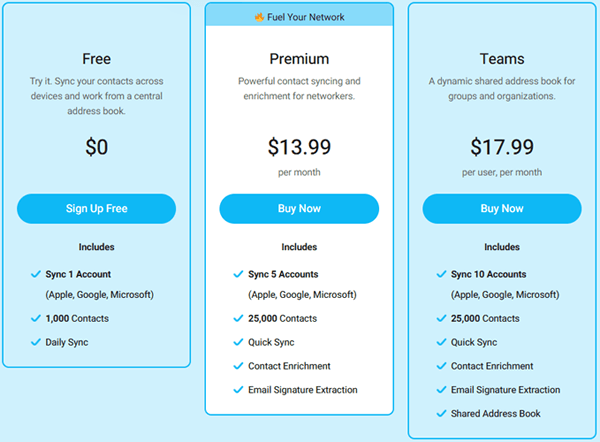
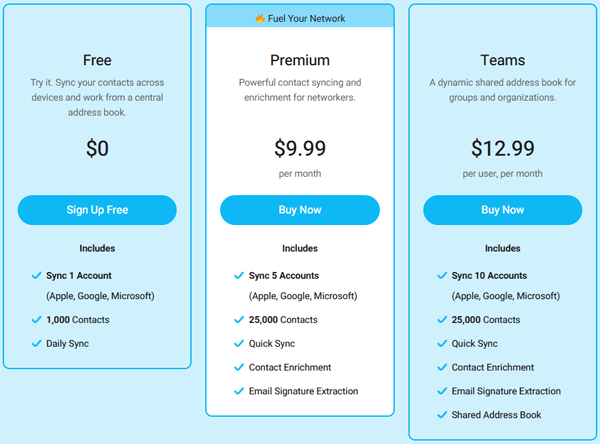
Contacts+ offers three pricing plans: Basic (Free), Premium, and Team, to meet the needs of different user groups. The core rights and pricing details of each version are as follows:
* Basic Plan
Can sync 1 account (supports Apple, Google, Microsoft), store up to 1000 contacts, sync contact information once a day, and provide basic contact management functions.
* Premium Plan
Can sync 5 accounts (supports Apple, Google, Microsoft), store up to 25,000 contacts, support fast synchronization, and provide advanced functions such as contact enrichment and email signature extraction. Priced at $13.99 per month, or $9.99 per month when paid annually.
* Team Plan
Can sync 10 accounts (supports Apple, Google, Microsoft), store up to 25,000 contacts, support fast synchronization, include contact enrichment and email signature extraction functions, and additionally provide a shared address book function. Priced at $17.99 per user per month, or $12.99 per user per month when paid annually.
After testing Contacts+ in real-world use across multiple devices and accounts, its strengths and limitations become quite clear.
* Pros
* Cons
The actual use value of a product is often hidden in real user feedback. Here are some real user reviews of this product from across the web, which may help you make a more informed decision.
"I've been using this app for many years, but with this recent update, it has become useless. It no longer allows you to dial a phone number with a keypad, and it no longer shows you the recent calls list. Did they remove these features so you are forced to pay for the premium plan?? $120 a year, so you can simply see your recent calls, SMS, or keypad to dial? After many years, I will be changing to a new app."
"We have used this since before it was called Contacts+ (previously FullContacts). I am happy with the product overall. The fact that it can sync/connect to numerous applications at the same time has been a time saver for everyone working here."
"Overall its been easy to use, but the repeated deletions of more than 1/2 my contacts with no explanation."
1. How does contact sync work?
Basic users have their contacts synced once per day between Contacts+ and connected accounts like Google, iCloud, and Office 365. Premium and Team users get real-time syncing, so changes appear instantly across all linked platforms.
2. What are contact updates?
Contacts+ looks for publicly available information, such as photos, job titles, locations, and social profiles, and adds them to your contacts. Free users get these updates monthly, while Premium users receive them daily.
3. What happens if I exceed my contact limit?
Once you go beyond your allowed number of contacts, syncing will stop, and you may no longer be able to add or import new contacts until you upgrade your plan.
While Contacts+ is great for cloud-based contact syncing, it may not be ideal for users who want full control over their Android contacts on a computer. This is where Coolmuster Android Assistant becomes a strong alternative.
Unlike Contacts+, which focuses on cloud synchronization, Coolmuster Android Assistant allows you to connect your Android phone to a PC and manage contacts locally. You can view, edit, export, import, and back up contacts in one place without worrying about sync limits or subscriptions.
Key features of Android Assistant:
How to manage Android contacts with Android Assistant
01First, install Android Assistant on your computer and open the program. Then, use a USB cable to connect your Android phone to the PC.
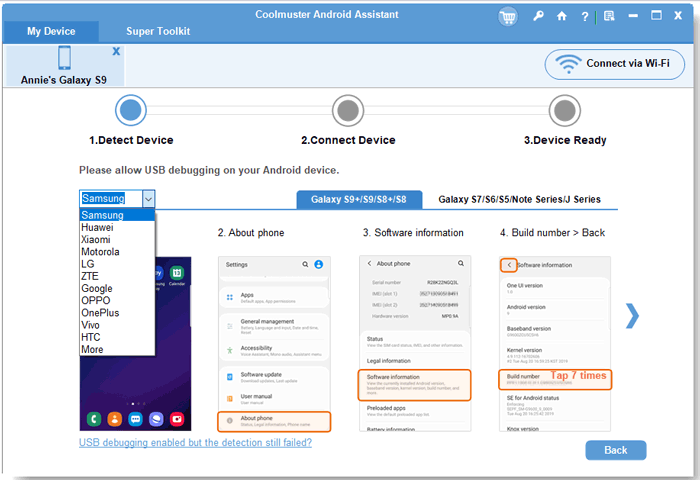
02If you are connecting your device for the first time, the software will guide you to turn on USB debugging. Just follow the instructions on your phone to complete the setup.
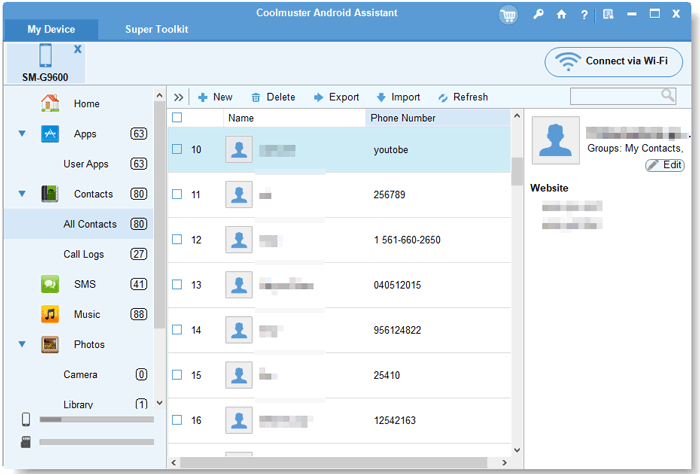
03After the connection is established, your Android device information will appear on the screen, such as the device model, Android version, and storage status. On the left side of the interface, you will see different data categories. Click "Contacts" to access all the contacts stored on your phone.
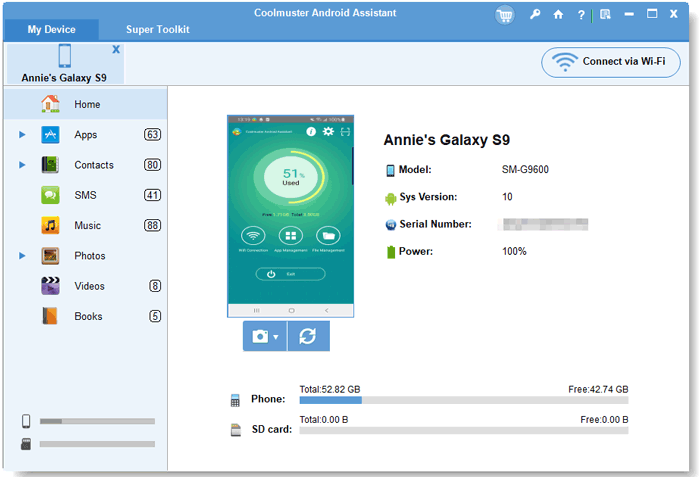
04From here, you can easily manage your Android contacts on your computer. You are able to edit existing entries, create new contacts, remove duplicates or unwanted records, and back up your contacts to the PC in different formats. You can also import contacts from your computer back to your phone whenever needed. With the refresh option, you can always load the latest contact list from your device.
You can watch the video guide to learn more:
If you are an iOS user, you can use Coolmuster iOS Assistant to manage contacts on your iOS devices. This tool supports editing, adding, and deleting iOS contacts directly on the computer, and can export contacts to various formats such as CSV and VCF for backup. It is compatible with the latest iOS system and iPhone models, making it an excellent choice for iOS device users to manage contacts locally.
To sum up, Contacts+ is a solid choice for users who rely on multiple email accounts and need their contacts to stay synchronized in the cloud. Its AI-powered features and automatic updates make contact management more efficient. However, if you are an Android user who prefers to manage, back up, and organize contacts directly on a computer without being tied to subscriptions or sync limits, Coolmuster Android Assistant offers a more flexible and practical alternative. Similarly, for iOS users seeking local contact management on computers, Coolmuster iOS Assistant is an excellent option.
Related Articles:
Where Are Contacts Stored on Android Devices? Easily Find and Back Up Contacts
6 Best Contact Apps for Android: Manage & Sync Contacts Easily
How to Import and Export Android Contacts [4 Feasible Ways]
7 Ways on How to Transfer Contacts to New Phone [Simple & Fast]





 Free Download for PC
  Free Download for Mac


