Voice Memos is one of the most commonly used practical tools in the Apple ecosystem. Whether it's recording meeting points, class notes, or capturing snippets of inspiration, it can handle it all with ease. However, many users are puzzled: where are Voice Memos stored on iPhone? The storage locations and access methods vary significantly across different devices and sync methods.
This article will comprehensively analyze the storage locations of Voice Memos from four perspectives: iPhone, Mac, iTunes (Finder), and iCloud, and provide detailed instructions on how to locate them.
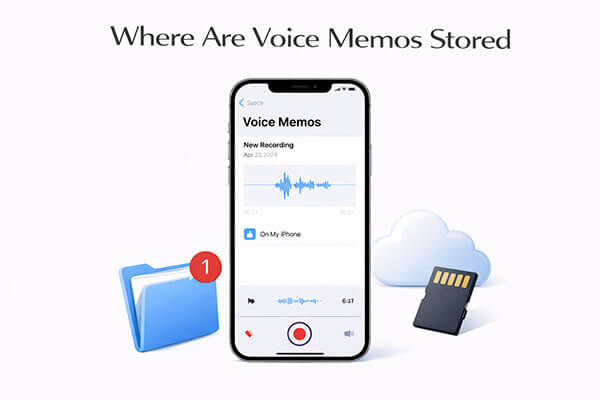
If you're wondering where iPhone Voice Memos are stored or where to find Voice Memos on iPhone, you're not alone. Voice Memos on iPhone can be located in different places depending on the situation. Here is how to find Voice Memos on iPhone:
This is the easiest way to find your Voice Memos. Open the Voice Memos app (usually located in the Utilities folder on your home screen). All your voice memos are listed here, sorted by date (newest first).
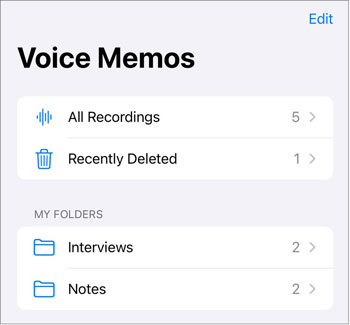
If you saved your Voice Memos to "On My iPhone", go to the "Files" app, then tap "On My iPhone" to locate your Voice Memos files. If you remember the file name, you can use the search bar to find it quickly.
If your Voice Memos were saved to iCloud Drive, open the "Files" app, then select "iCloud Drive" to locate them. You can also search by the file name to find them quickly.
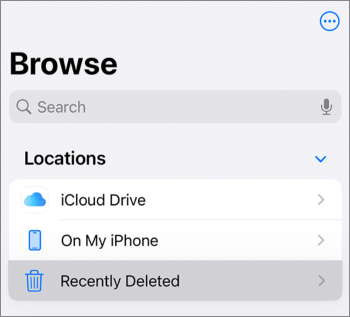
Note: When iCloud sync is not enabled, recordings are only stored in the "On My iPhone" folder and can only be accessed on the device. Once sync is enabled, the files will also be uploaded to "iCloud Drive", allowing access from other devices.
For Mac users, the storage location depends on whether you've enabled iCloud Voice Memos sync or not. By default, voice memos recorded on your Mac are stored locally, but they can also sync with your iPhone, iPad, and other Apple devices if you use iCloud Voice Memos. This ensures your recordings are accessible across all your devices, but it's important to know where to find them on your Mac's hard drive if you need to access the raw files or back them up manually.
Here is how to find Voice Memos on Mac:
Open the Voice Memos app on your Mac (found in the Applications folder or via Spotlight). All your synced or locally recorded voice memos will be listed here. If you have iCloud Voice Memos enabled, memos from your iPhone will appear automatically. You can play, edit, or export memos directly from this app.
The path is: ~/Library/Application Support/com.apple.voice-memos/Recordings
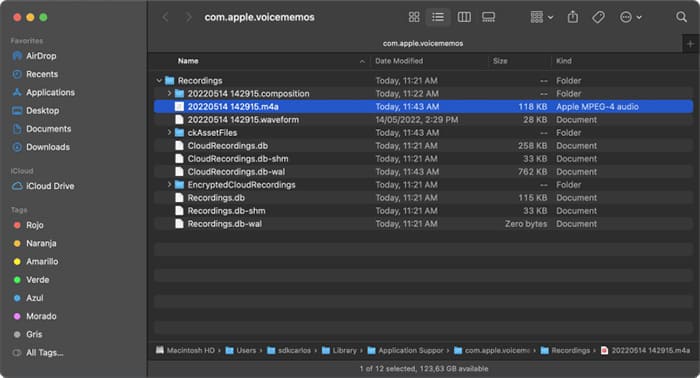
How to find it: Open Finder → Click "Go" at the top → Hold the "Option" key and click "Library" → Navigate to "Application Support" → "com.apple.voice-memos" → "Recordings". You'll find all the local recording files there.
The path is: ~/Music/iTunes/iTunes Media/Voice Memos/
Similarly, use Finder to navigate to this path to find the synced or locally recorded Voice Memos files.
Are voice memos saved in iCloud? The answer is YES. When you enable iCloud Voice Memos, your recordings are stored in iCloud and synced across all your Apple devices (iPhone, Mac, iPad) signed in with the same Apple ID. To access voice memos on iCloud, you first need to manually back up the voice memos to iCloud Drive.
Step 1. Open the Voice Memos app on your iPhone.
Step 2. Find or record your desired voice memo, then tap on it.
Step 3. Tap the "..." (three dots) button, then select "Save to Files" > "iCloud Drive".
Step 4. Choose the location within iCloud Drive where you'd like to save the file.
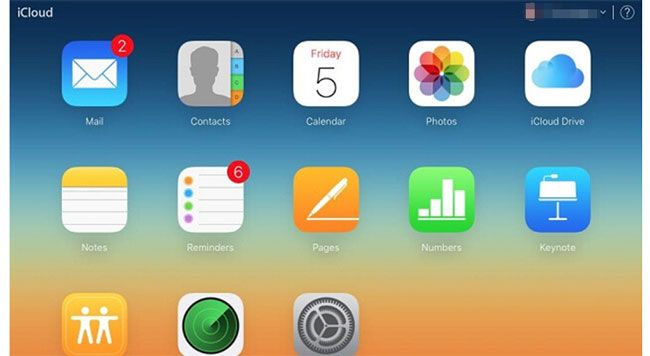
Step 5. On your computer, go to iCloud.com and log in using the same Apple ID as your iPhone.
Step 6. Select "iCloud Drive", locate your voice memo file, and you can now access it.
Step 1. Download and install iCloud for Windows from Apple's official website.
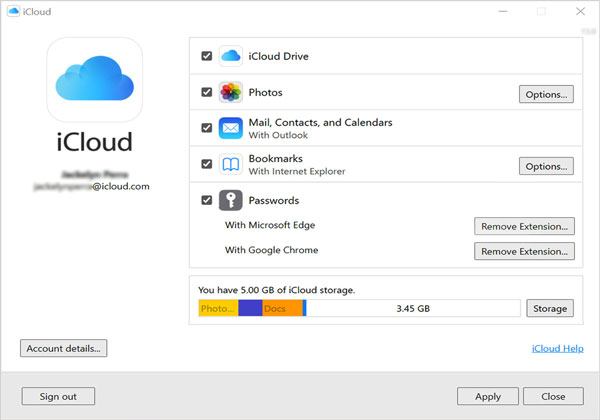
Step 2. Open iCloud for Windows and sign in with your Apple ID.
Step 3. Check the "iCloud Drive" box , then click "Apply".
Step 3. Open File Explorer on your Windows PC.
Step 5. Click on "iCloud Drive" in the left sidebar.
Step 6. Locate and open the "Voice Memos" folder to access your recordings. You can play, copy, or delete them directly from here.
iTunes, as Apple's earlier device syncing tool, can be used to copy iPhone Voice Memos to PC. The storage location is divided into two cases: "synchronized file storage" and "device backup storage".
When syncing Voice Memos from iPhone to a computer via iTunes, the recordings are saved as separate .m4a files. The specific paths are as follows: C:\Users\ (your username)\Music\iTunes\iTunes Media\Voice Memos\
You can follow these steps to find your Voice Memos in iTunes:
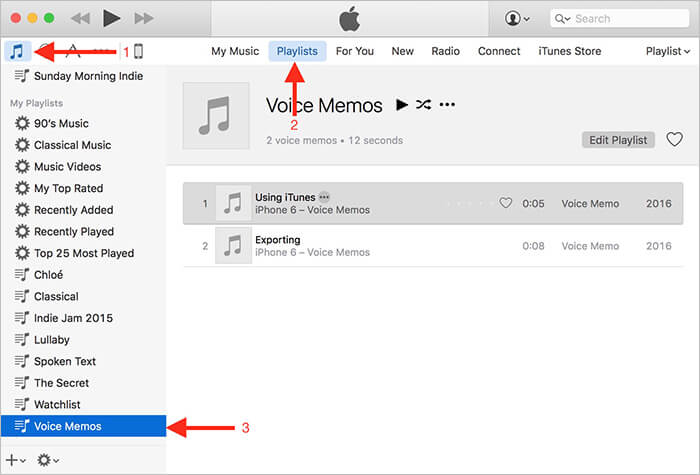
Step 1. Open iTunes and click the "Music" icon in the top-right corner.
Step 2. Select "Playlists" near the middle top of the screen.
Step 3. Choose "Voice Memos" from the list at the bottom-right.
Step 4. You'll then see all your Voice Memos listed.
If you perform a full backup of your iPhone using iTunes, Voice Memos will be stored as part of the device data within the backup file, rather than as separate audio files:
Backup path (Windows): C:\Users\ (your username)\AppData\Roaming\Apple Computer\MobileSync\Backup\
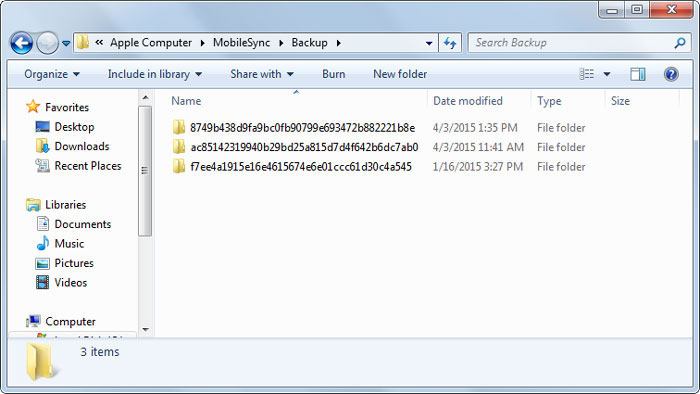
Backup path (Mac): ~/Library/Application Support/MobileSync/Backup/
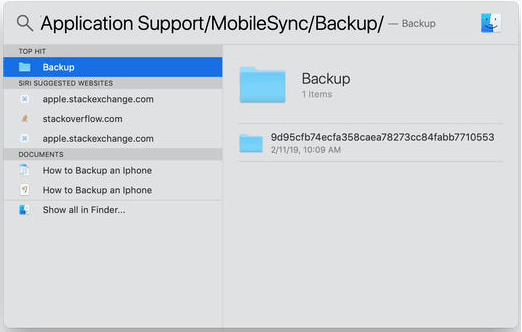
Note: With this backup method, you cannot directly view or extract individual Voice Memos. You will need to restore the backup to your device via iTunes to access the recordings in the Voice Memos app.
Losing voice memos can be frustrating, but if you've backed up your iPhone to iCloud, you can recover them with the right tool. iPhone Data Recovery is one of the most reliable solutions. This tool allows you to extract voice memos from iCloud backups without restoring your entire iPhone, so you can recover only the lost memos without losing current data. It's compatible with all iPhone models and works on both Windows and Mac, making it a versatile choice for anyone needing to recover lost voice memos.
The highlights of iPhone Data Recovery:
Here is how to recover Voice Memos from iCloud selectively using iPhone Data Recovery:
01Download and launch the software, then select "Recover from iCloud". Log in to your iCloud account. If two-factor authentication is enabled, tap "Trust" on your iPhone. Apple will send a verification code to your device, which you need to enter into the software.
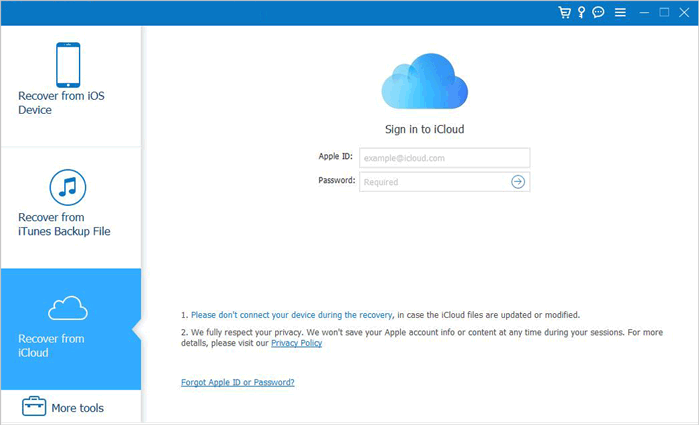
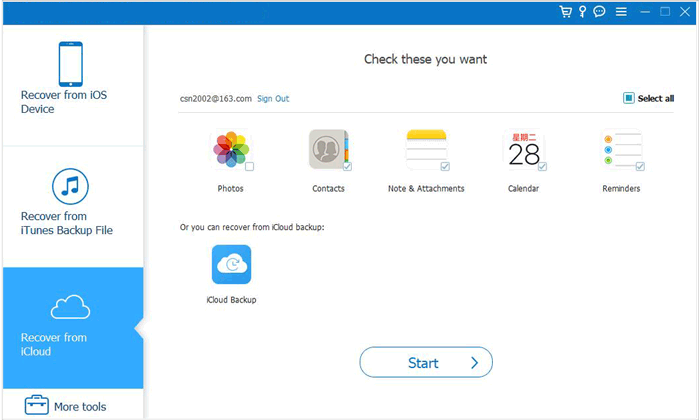
02After logging in, choose "iCloud backup" and click "Start" to begin scanning.
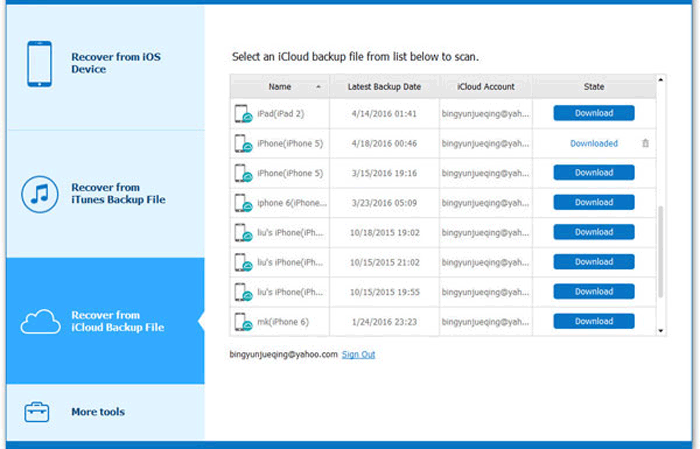
03All backup files linked to your iCloud account will be displayed. You can select a backup based on the device name and backup date, then click "Download" to proceed.
04A pop-up window will show the various data types in the iCloud backup. Select "Voice Memos" and then click "Next" to start scanning the backup file.
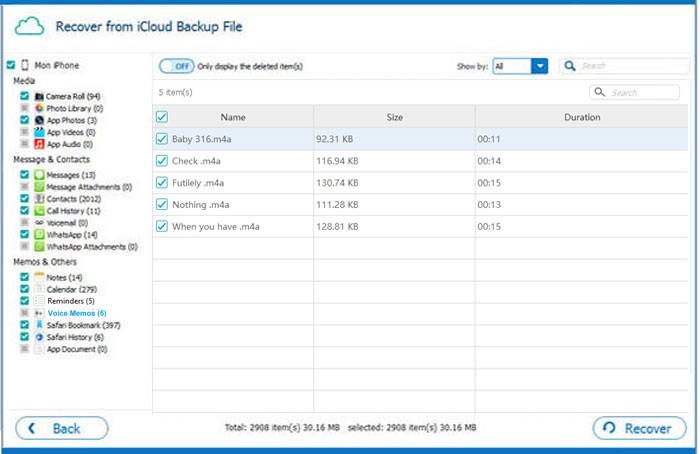
05Once the scan is complete, you can view the details on the right side. Select the deleted files you wish to restore, then click the "Recover" button to export the deleted data from the iCloud backup to your computer.
Where are Voice Memos stored on iPhone/Mac/iCloud/iTunes? The answer is already very clear. Understanding where Voice Memos are stored is essential for effectively managing your audio recordings. This guide covers all the key storage locations and detailed steps.
When it comes to recovering lost voice memos, iPhone Data Recovery is the best tool. It offers a simple, step-by-step process to recover lost or deleted voice memos from iCloud backup, iTunes backup, or directly from your iPhone, with a high recovery success rate.
Related Articles:
Where Do Saved Voice Messages Go on iPhone? Check the Answer Here!
How to Recover Deleted Voice Memos on iPhone with or Without Backup?
[Stepwise Guide] How to Recover Voice Memos from iTunes Backup?
How to Transfer Voice Memos from iPhone to Mac in 5 Quick Ways?







 Free Download for PC
  Free Download for Mac


