TL;DR: If your iPhone is stuck on "Indexing in Progress" on iOS 27, it is usually because iOS is rebuilding the search database after an update. The process may take hours or days depending on your data size. To fix iOS 27 indexing taking too long, keep your iPhone connected to Wi-Fi, charge it overnight, disable Low Power Mode, free up storage, restart your device, update iOS, or use iOS System Recovery to repair possible system issues without data loss.
After updating to iOS 27, many users notice a message on their screen saying "Indexing in Progress". If you're worried that something might be wrong with your iPhone, don't be. In most cases, this is completely normal. However, if "Indexing in Progress" lasts for an unusually long time, it can affect your daily user experience.
So, how long does the iOS 27 indexing process usually take? Why does your iPhone remain stuck on indexing after the update? And how can you fix the "iOS 27 indexing taking so long" issue? In this article, we'll explain the reasons behind the problem and introduce 7 effective solutions to help you resolve it.
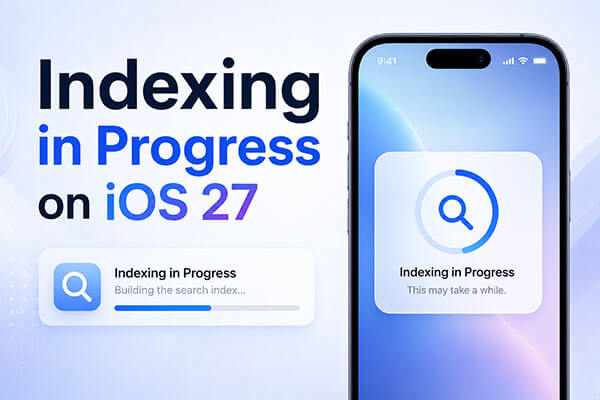
"Indexing in Progress" indicates that iOS is rebuilding and updating its search index in the background. During this process, the system analyzes data from Photos, Messages, Mail, Files, Notes, and installed apps to enhance Spotlight Search, Siri suggestions, and Apple Intelligence features.
There is no set timeframe for iOS 27 indexing to finish, as the duration largely depends on how much data is stored on your iPhone. For most users, the process runs automatically in the background and completes within a few hours to a couple of days after the update. Devices with large photo libraries, extensive message histories, or significant amounts of iCloud-synced data may require more time to complete indexing.
If the "Indexing in Progress" on iOS 27 takes too long, the following are possible reasons:
If your iPhone is stuck on indexing after the iOS 27 update, you can try the following fixes one by one to fix it by yourself.
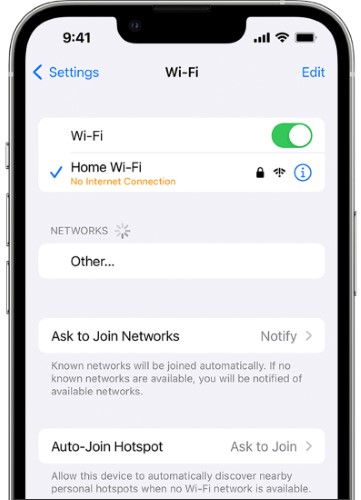
iOS 27 indexing relies on several background activities, including iCloud Photos synchronization, Messages syncing, and search index rebuilding. If your Wi-Fi connection is weak or frequently disconnects, these processes may be delayed, causing indexing to take longer than expected.
To ensure uninterrupted indexing, follow these steps:
Step 1. Open "Settings" and tap "Wi-Fi".
Step 2. Connect your iPhone to a reliable and stable Wi-Fi network.
Step 3. Avoid switching between different Wi-Fi networks while indexing is in progress.
Step 4. Stay within range of your router to maintain a strong signal.
Step 5. Keep Wi-Fi enabled until the "Indexing in Progress" message no longer appears.
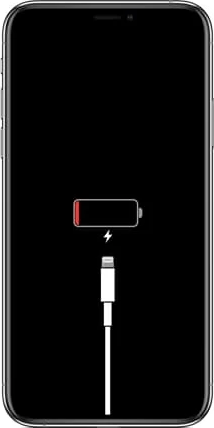
Charging your iPhone can help speed up the iOS 27 indexing process. When connected to power, iOS is able to run resource-intensive background tasks, such as indexing photos, messages, files, and search content, more efficiently. (iPhone overheating when charging?)
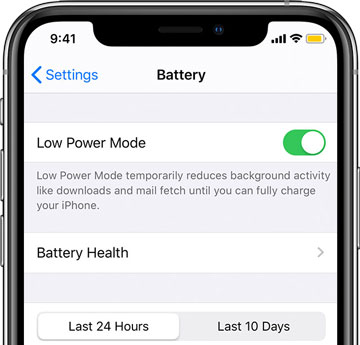
If your iPhone is stuck on "Indexing in Progress", check whether Low Power Mode is enabled. This feature reduces background activity to extend battery life, which can slow down indexing. Turning it off allows iOS to dedicate more resources to completing the indexing process.
Go to "Settings" > "Battery", switch "Low Power Mode" off, and keep your iPhone connected to Wi-Fi while indexing finishes in the background.
If your iPhone is running low on storage, iOS 27 may have difficulty completing indexing and other background processes. Creating additional free space can improve system performance and help indexing finish faster.
To free up iPhone space, follow the steps below:
Step 1. Open "Settings" > "General" > "iPhone Storage". Review which apps, photos, videos, and files are using the most space.
Step 2. Delete unused apps, large media files, or unnecessary downloads, or remove duplicate photos, screenshots, and other content you no longer need.
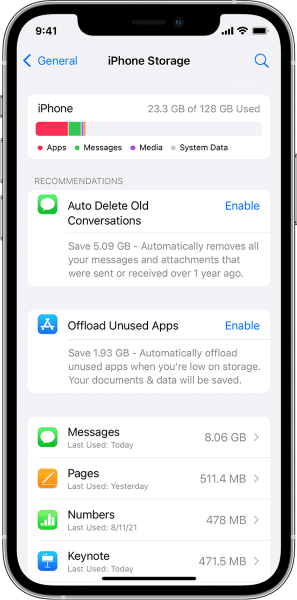
Try to maintain several gigabytes of available storage to ensure iOS can perform background tasks smoothly.
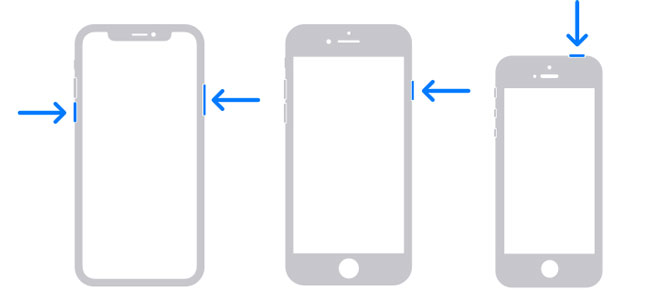
If indexing is stuck because of a temporary software issue, a simple restart can refresh system processes and get indexing back on track. To restart the iPhone, follow the steps below:
For iPhone X, 11, 12, 13, and later:
For iPhone 6, 7, 8, and iPhone SE (2nd/3rd generation):
For iPhone SE (1st generation), iPhone 5, and earlier:
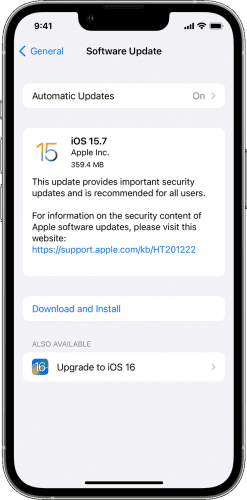
If your iPhone remains stuck on "Indexing in Progress" after updating to iOS 27, a system bug could be the cause. Apple often releases follow-up updates to address indexing, performance, and stability issues. Checking for and installing the latest iOS 27 update may help fix the problem and speed up the indexing process.
To update your iPhone, follow the steps below:
Step 1. Open "Settings" > "General" > "Software Update".
Step 2. Wait for your iPhone to check for updates, then tap "Download and Install".
If the "Indexing in Progress" message persists for several days and none of the common fixes have worked, an underlying iOS system issue may be preventing the indexing process from completing. In such cases, a dedicated iOS repair tool like iOS System Recovery can help fix system-related problems and restore normal functionality without erasing your photos, messages, apps, or other personal data.
The highlights of iOS System Recovery:
Here is how to fix an iPhone stuck on "Indexing in Progress" on iOS 27 using iOS System Recovery:
01Download and install iOS System Recovery on your computer. Open the program, connect your iPhone using a USB cable, select "iOS System Recovery", and click "Start".
02Choose "Standard Mode" to repair iOS system issues without erasing your data, then click "Confirm".

03Check that your device information is correct. If required, download the recommended firmware package and click "Repair". Once the repair process is complete, your iPhone will automatically restart and return to normal operation.

Q1. Can I Stop "Indexing in Progress" on My iPhone?
You can't manually stop the indexing process, as it is a system task managed by iOS. If indexing is taking longer than expected, the best approach is to keep your iPhone connected to a stable Wi-Fi network and a power source, then allow iOS to complete the process in the background. In most cases, indexing will finish automatically once all data has been processed.
Q2. Does iOS 27 Indexing Cause Battery Drain and Overheating?
Yes. iOS 27 indexing can temporarily increase battery usage and cause your iPhone to run warmer than usual. This is expected behavior and should resolve automatically once the indexing process is complete.
Q3. Why doesn't Settings Search work while indexing?
If Settings Search is not working after updating to iOS 27, indexing is often the reason. While iOS rebuilds its search database, queries may return no results because the index is not yet complete. Once indexing finishes, search functionality should return to normal automatically. If not, try restarting your iPhone to refresh the system and clear any temporary glitches.
Seeing "Indexing in Progress" on iOS 27 is usually a normal part of the post-update process, especially if your iPhone contains a large amount of data. However, if indexing takes unusually long and causes issues such as excessive battery drain, overheating, or search functions not working properly, you can try solutions like connecting to a stable Wi-Fi network, charging your iPhone, freeing up storage space, or updating to the latest iOS version.
If the problem persists, it may indicate an underlying iOS system issue. In that case, iOS System Recovery provides a more convenient solution. It can repair various iOS system problems without data loss, helping your iPhone return to normal operation and complete the indexing process successfully.
Related Articles:
iOS 26/27 Update Problems: Quick Fixes for Common Issues During & After Update
How to Fix iPhone Stuck on Update Requested? (iOS 26/27 Supported)
[Solved] How to Fix iPhone Taking Forever to Update iOS 27/26?
iPhone Stuck on Preparing Update iOS 26/27? 9 Fixes That Work Fast




 Free Download for PC
  Free Download for Mac


