"iOS 26 update causing app crashes and freezes on iPhone. After installing today, Messages locked up. Mail then locked up. Now, General, Settings, Apps is locking up. Apps themselves are beginning to fail to work."
- from Apple Community
After upgrading to the latest iOS 26, many iPhone users have reported a frustrating issue: apps keep crashing unexpectedly. Whether it's social media apps, games, or productivity tools, iOS 26 app crashing can happen when opening an app, switching between tasks, or even during normal use. This problem not only affects daily productivity but may also lead to data loss or interrupted workflows.
In this guide, we'll explain why the iOS 26 app is crashing and walk you through 8 proven solutions to help you quickly restore the normal operation of your apps.
Why are some apps not working on iOS 26? Here are the common causes of the iOS 26 app crashing:
Below, we will introduce common and effective solutions in order from simple to advanced.
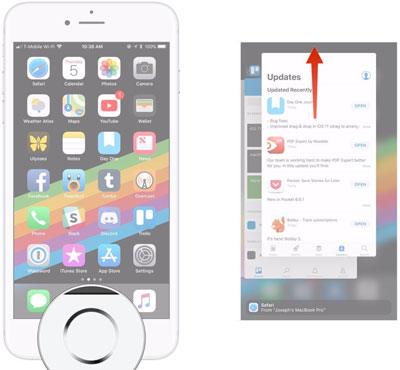
Sometimes, iOS 26 app crashing is caused by a temporary app glitch or a stuck background process. Completely closing and reopening the app can refresh its state and restore normal operation. This is the most basic and quickest method to resolve iOS 26 App Crashing, suitable for occasional crashes.
To do it, follow the steps below:
Step 1. Swipe up from the bottom of the screen and pause (or double-click the "Home" button).
Step 2. Find the crashing app and swipe it up to close it.
Step 3. Wait a few seconds, then reopen the app.
If multiple apps keep crashing on iOS 26, the issue may be related to system memory or temporary system errors. A force restart clears cached data and refreshes system processes.
Here is how to force restart the iPhone:
For iPhone 8 and later:
For iPhone 7 and iPhone 7 Plus:
For iPhone 6s and earlier:

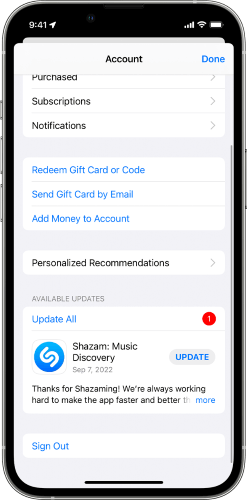
If the app has not been fully optimized for iOS 26, crashes are likely to occur. Developers typically fix system compatibility issues through updates.
To update the app on your iPhone, follow these steps:
Step 1. Open the App Store.
Step 2. Tap your profile icon in the top-right corner.
Step 3. Scroll to see available updates.
Step 4. Tap "Update" next to the problematic app.
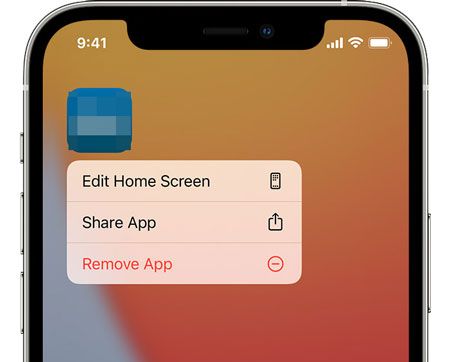
If the app is already up to date but still crashes on iOS 26, it indicates that the app's files or configuration may be corrupted. Reinstalling the app is an effective solution.
Here is how to do it:
Step 1. Press and hold the app icon on the Home Screen.
Step 2. Tap "Remove App" > "Delete App". (Can't delete app on iPhone?)
Step 3. Restart your iPhone (recommended).
Step 4. Reinstall the app from the App Store.
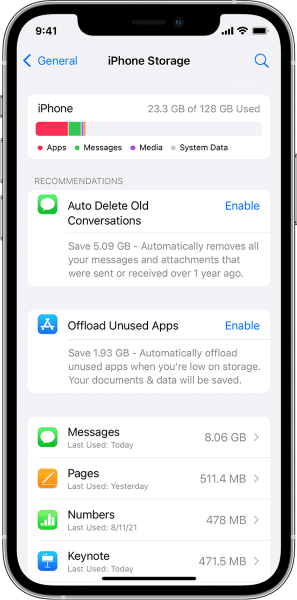
Low storage is a common but overlooked reason for apps crashing on iOS 26. When storage is nearly full, apps may fail to load resources properly.
To free up iPhone space, follow the steps below:
Step 1. Go to "Settings" > "General" > "iPhone Storage".
Step 2. Check which apps or files take up the most space.
Step 3. Delete unused apps, photos, or videos to keep at least 5–10 GB of free space.
System setting conflicts can also cause the iOS 26 app to crash, especially for apps that rely on network or privacy permissions. Resetting all settings can resolve setting conflicts all at once.
Here are the steps:
Step 1. Go to "Settings" > "General" > "Transfer or Reset iPhone".
Step 2. Tap "Reset" and select "Reset All Settings".
Step 3. Enter your passcode to confirm.
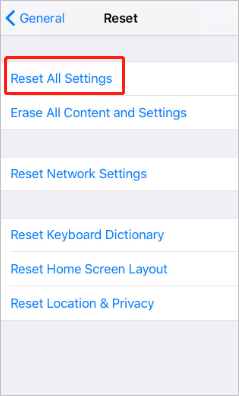
This will not erase data, but it will reset Wi-Fi, privacy, and system preferences.
In some cases, iOS 26 app crashing is caused by system-level bugs that only Apple can fix. These issues are usually addressed in later updates.
Here is how to do it:
Step 1. Go to "Settings" > "General" > "Software Update". (iPhone software update failed?)
Step 2. Install the latest iOS 26 patch when available.
Step 3. Make sure your iPhone is charged and connected to Wi-Fi during the update.

If the above methods don't resolve the issue, it's likely that the iOS 26 system files are corrupted or there is a deep-rooted bug. In this case, using a professional iPhone system repair tool can efficiently fix the problem. iOS System Recovery is one such tool. It is specifically designed to repair iOS system errors, including iOS 26 app crashing, without any data loss.
Why choose iOS System Recovery:
* Fix iOS 26 app crashing without losing data.
* Fix a wide range of iOS system issues, such as iPhone being stuck in recovery mode, stuck on the Apple logo, boot loops, headphone mode, the Hello screen, or unable to restore, and more.
* Upgrade or downgrade iOS versions easily and for free.
* Guaranteed 100% success rate with no data loss.
* Support the latest iPhone 17 series and iOS 18/26.
Here is how to fix apps crashing on iOS 26 using iOS System Recovery:
01Download and install the tool on your computer. Once installed, open the program and select "iOS System Recovery".
02Connect your iPhone to the computer and trust the connection. Then, click "Start" and follow the on-screen prompts to enter recovery mode.

03Choose "Standard Mode" and click "Confirm" to proceed. The tool will begin downloading the required iOS firmware.

04Once the firmware is downloaded, click "Repair" to initiate the repair process. The tool will fix your device and resolve issues, such as apps crashing on iOS 26.

To sum up, iOS 26 app crashing can be caused by app incompatibility, insufficient storage, incorrect settings, or system bugs. Minor issues can often be fixed by restarting the app or updating it, but persistent crashes usually indicate deeper system problems.
If you want a reliable, data-safe solution, iOS System Recovery is highly recommended. It can fix iOS 26 system errors at the root level and restore your iPhone to stable performance without risking data loss.
Related Articles:
How to Clean iPhone App Crash Logs: Simple & Effective Guide
How to Solve It When iPhone Keeps Crashing? 9 Easy Tricks
10 Practical Ways to Fix iPhone Keeps Turning Off and On Randomly







 Free Download for PC
  Free Download for Mac


