Many iPhone users enable iCloud to automatically back up their photos and videos. This way, even if the device is lost, damaged, or data is accidentally deleted, important files can still be recovered from the cloud. However, when videos suddenly disappear, many people don't know how to retrieve them from iCloud. So, how to retrieve videos from iCloud? This article will introduce three common and effective methods to help you quickly restore videos from iCloud.
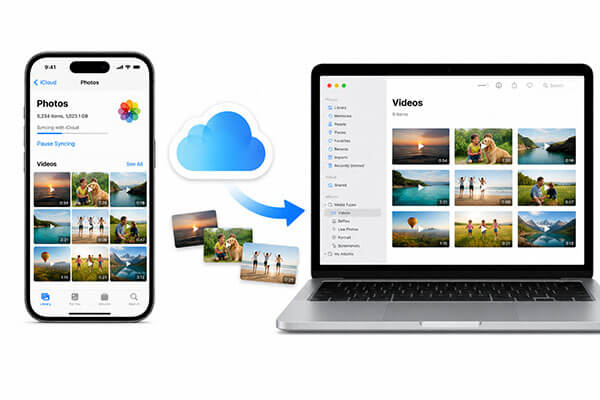
If you only want to recover certain videos without wiping your iPhone or overwriting your current data, using a professional iPhone data recovery tool is a safer and more efficient choice. Compared with Apple's official full-device restore method, professional tools can directly access iCloud backups and allow you to selectively recover specific video files. We recommend using Coolmuster iPhone Data Recovery. This software supports direct access to iCloud backups and lets you preview video content before restoring, making it ideal for situations such as accidentally deleted videos, transferring data to a new device, or extracting data from iCloud.
Key features of Coolmuster iPhone Data Recovery:
Here is how to retrieve permanently deleted videos from iCloud using iPhone Data Recovery:
01Download the software on your Windows PC or Mac. After installation, launch the program and choose the "Recover from iCloud" mode.
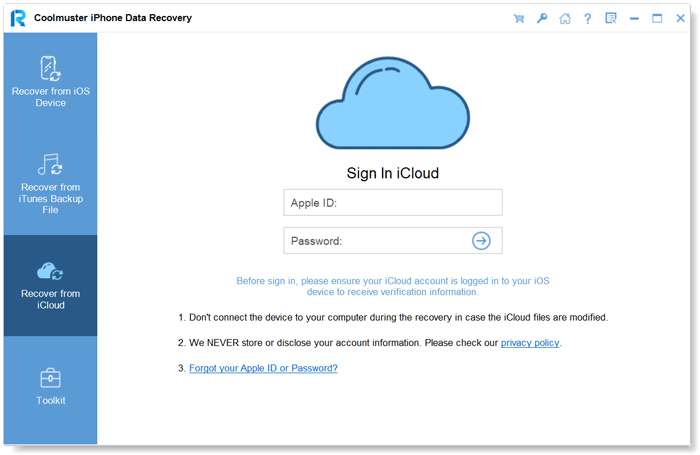
02Enter your Apple ID and password to log in to iCloud securely. If two-factor authentication is enabled, Apple will send a verification code to your trusted device. Enter the code to continue.
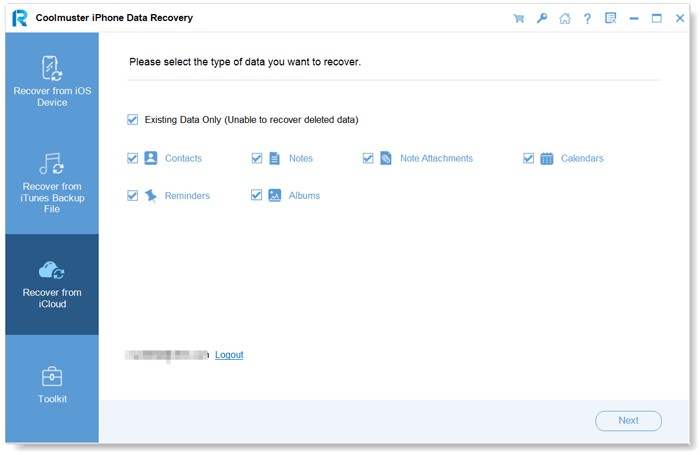
03Select the file types you want to restore, then click the "Next" icon to start a quick scan. You can then preview the detailed contents of your iCloud backup.
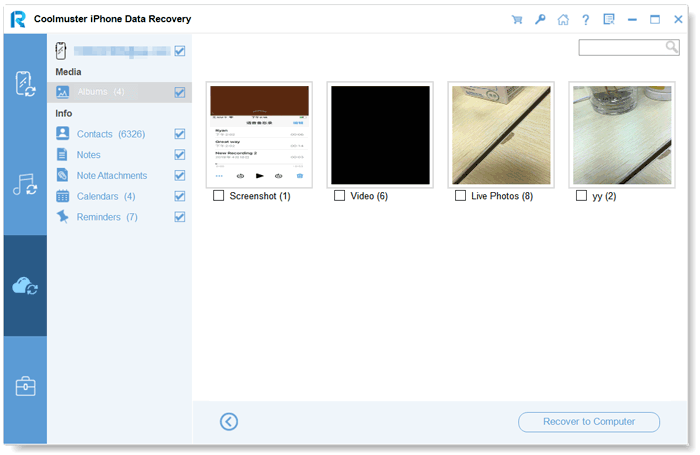
03From the left panel, choose "Albums", preview and select the videos you wish to recover, and click "Recover to Computer" to save them.
Video Tutorial:
If your deleted videos are included in a previous iCloud backup, you can restore the entire backup to your iPhone. This is Apple's official recovery method and works well when setting up a new iPhone or restoring an erased device. However, this process will completely erase your current iPhone data before restoring the backup. Therefore, it is recommended to back up your current data before proceeding.
Here is how to retrieve old deleted videos from iCloud backup:
Step 1. Open "Settings" > "General" > "Transfer or Reset iPhone" > "Erase All Content and Settings". Then follow the prompts to enter your passcode and confirm the erase.

Step 2. After the device restarts, it will enter the initial setup screen. Follow the on-screen instructions to select your language, region, and connect to a Wi-Fi network.
Step 3. When you reach the "Apps & Data" screen, choose "Restore from iCloud Backup".
Step 4. Sign in to your iCloud account by entering your Apple ID and password.
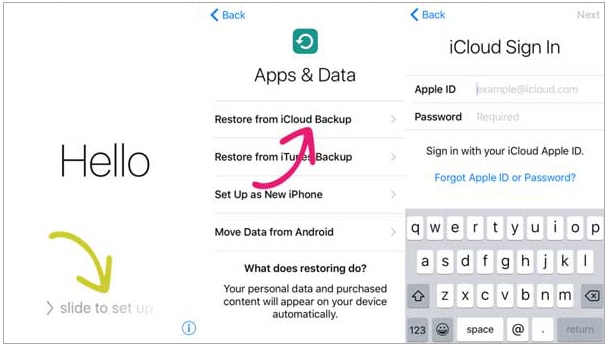
Step 5. The system will display all available iCloud backups. Select a backup that contains the videos you want to restore. It's recommended to choose a backup closest to the time the videos were lost.
Step 6. Wait for the restoration to complete. Once finished, the videos will reappear in the Photos app.
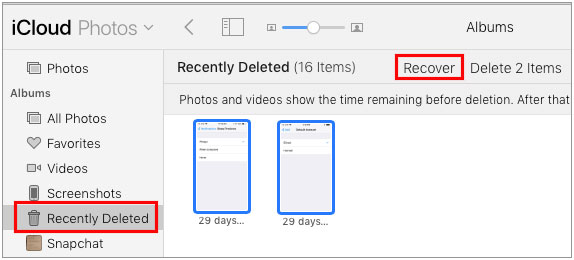
If iCloud Photos is enabled on your device, your videos may still be stored in the cloud even if they disappeared from your iPhone. In this case, you can directly access and recover them through iCloud.com without restoring a backup. If the videos were deleted recently, they may still be available in the "Recently Deleted" folder for up to 30 days.
Here is how to retrieve old photos and videos from iCloud.com:
Step 1. Open iCloud.com and sign in with your Apple ID, then click "Photos".
Step 2. In the left-hand menu, find and click the "Recently Deleted" folder.
Step 3. Browse the list, select the photos or videos you want to recover, or click "Select All".
Step 4. Click "Recover" in the top-right corner, and the selected items will be restored to your main photo library.
These are the three effective methods for how to retrieve videos from iCloud. If you want to recover videos without resetting your iPhone, while also being able to preview and selectively choose files, Coolmuster iPhone Data Recovery is highly recommended. It's easy to use, offers flexible recovery options, and won't overwrite your existing data—making it ideal for most users.
Related Articles:
How to Download Videos from iCloud? Solve in 4 Effective Ways
How to Recover Permanently Deleted Files from iCloud? [2 Proven Methods]
How to Recover Permanently Deleted Videos on iPhone with/without Backup?
How to Recover Deleted Videos from iPhone with/without Backup?







 Free Download for PC
  Free Download for Mac


