"Not sure if it is because of a recent IOS update, but suddenly found my old voice memos had been wiped out. Is Apple gonna do something in the next update, or do I have to find a way to get it back myself?"
- from Apple Community
Voice Memos is a built-in iOS app that many iPhone users rely on for recording meetings, lectures, interviews, and personal notes. However, it can be alarming to open the app and suddenly realize that your recordings are missing or the entire list is empty.
If you're facing the issue of voice memos disappearing on iPhone, you're not alone. In this guide, we'll explain why voice memos disappeared and walk you through proven methods to recover them step by step.
If your voice memos disappeared after the update to iOS 26/18/17, the following are some possible reasons:
Now that we understand the causes, let's move on to how to fix the voice memos disappeared problem.
After you know the reasons for voice memos disappearing on iPhone, how can I recover my disappeared voice memos? Here are four effective ways to get the disappeared voice memos back.
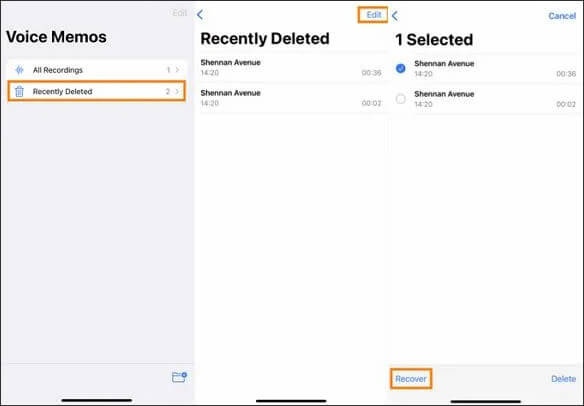
If your voice memos have recently disappeared, they may still be stored in the "Recently Deleted" folder. This folder keeps deleted items for 30 days before permanently deleting them. To get recently lost voice memos back, follow the steps below:
Step 1. Open the Voice Memos app on your iPhone.
Step 2. Tap the "<" in the top left corner to return to the main list.
Step 3. Find and enter "Recently Deleted".
Step 4. In the folder, tap "Edit" in the top right corner. Select the voice memos you want to recover and tap "Recover", and the recording will be restored to its original folder.
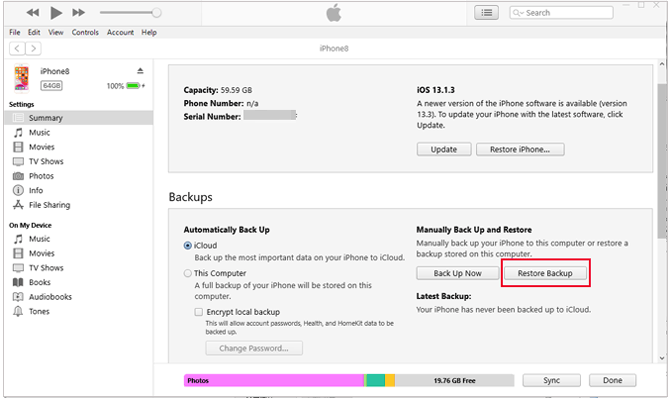
If your voice memos have disappeared and no longer appear in the "Recently Deleted" folder, but you previously backed up your iPhone using iTunes, you can quickly recover the deleted voice memos by restoring from that backup. However, please note that this method will overwrite all existing data on your iPhone.
If you don't mind, follow the steps below to recover disappeared voice memos from the iTunes backup:
Step 1. Connect your iPhone to the computer using a USB cable.
Step 2. Open iTunes (or Finder if you're using macOS Catalina or later).
Step 3. Select your iPhone in iTunes by clicking the device icon, or in Finder by selecting it under "Locations".
Step 4. Click "Restore Backup".
Sep 5. Choose the backup that contains your voice memos (based on the backup date).
Step 6. Click "Restore" to begin the process. Wait for the backup to restore to your iPhone.
Step 7. After the restore is complete, open the Voice Memos app on your iPhone to check if your missing recordings have returned.
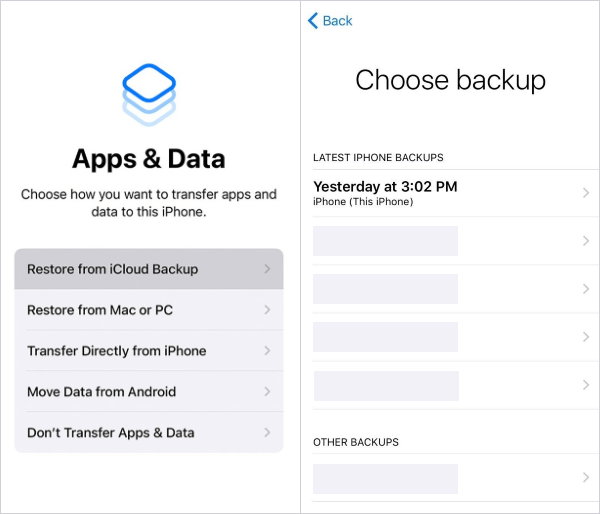
If you have enabled iCloud backup, you can also restore your voice memos from iCloud. However, restoring from iCloud requires you to erase your iPhone first.
Here is how to restore lost voice memos from iCloud backup:
Step 1. Go to "Settings" > "General" > "Reset" on your iPhone.
Step 2. Tap "Erase All Content and Settings" and confirm to erase everything on your device.

Step 3. After your iPhone restarts, follow the on-screen instructions to set it up again.
Step 4. When prompted, select "Restore from iCloud Backup" and sign in with your Apple ID.
Step 5. Choose the most recent backup (or the one that contains your lost voice memos).
Step 6. Wait for the restoration process to complete.
Step 7. Once done, open the Voice Memos app to check if your lost recordings are back.
Many users don't want to restore an entire backup and overwrite all existing data, especially when they only need to recover a few voice memos. Fortunately, with Coolmuster iPhone Data Recovery, a professional iPhone data recovery software, you can preview and extract the required content from iTunes and iCloud backups. With just one click, you can easily recover deleted voice memos without affecting any of the current data on your iPhone.
Key features of Coolmuster iPhone Data Recovery:
Here is how to retrieve voice memos from iTunes backups selectively:
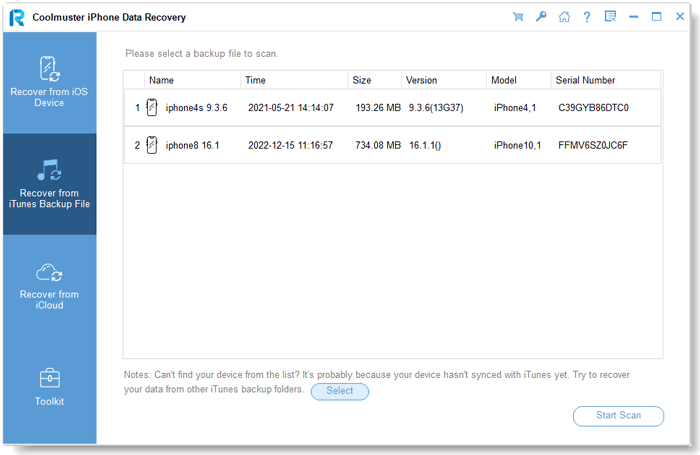
01Download and launch iPhone Data Recovery, then select the "Recover from iTunes Backup File" option on the left. The program will automatically scan your computer's default iTunes backup location. Choose a backup file from the list shown and click the "Start Scan" button.
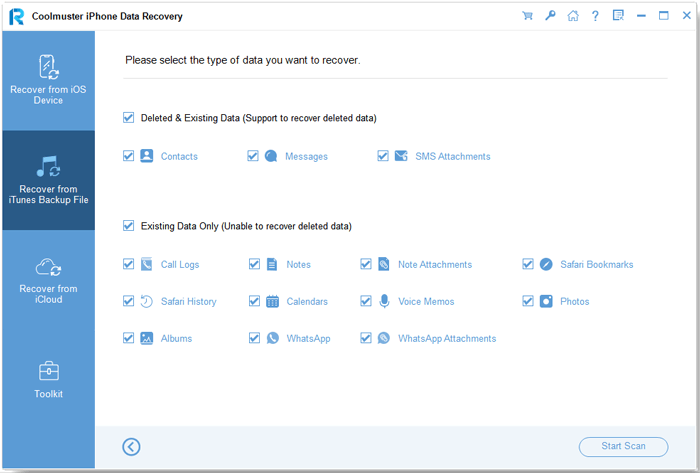
02Next, check the box for "Voice Memos" and click the "Start Scan" icon in the bottom right corner.
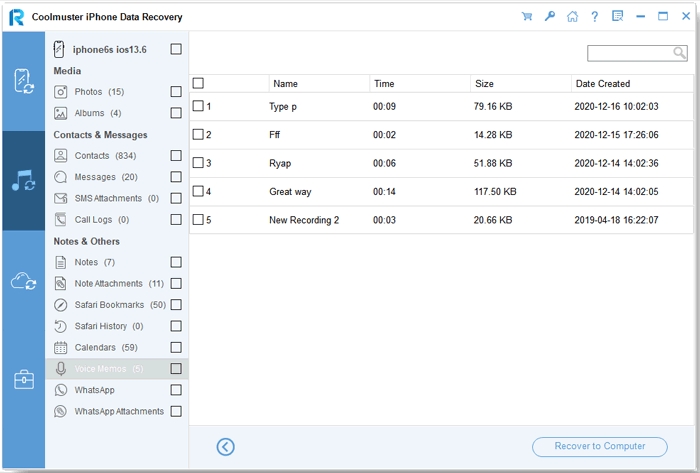
03Once the scan is complete, select the specific voice memos you wish to recover. Finally, click the "Recover to Computer" button to restore the files from the iTunes backup.
Video Tutorial:
Q1. Can voice memos disappear after sending via iMessage?
Yes, if you send a voice memo via iMessage, it can disappear after two minutes if the recipient doesn't save it. To prevent this, go to "Settings" > "Messages" > "Audio Messages" > "Expire", and select "Never".
Q2. Why don't my voice memos appear in iCloud?
This may happen if iCloud sync is disabled, if your storage is full, or if the backup was created before the recording was made.
Q3. How can I prevent my voice memos from disappearing again?
Regularly backing up and exporting important recordings to your computer or cloud storage can help prevent future data loss.
When you encounter the "voice memos disappeared" issue, don't panic. Start by checking the "Recently Deleted" folder, then choose an appropriate recovery method based on your backup situation. If you want to recover only the voice memos without overwriting current data and need more flexible options, Coolmuster iPhone Data Recovery is a highly recommended solution.
Additionally, developing a habit of regularly backing up and exporting important recordings will help avoid similar issues from happening again.
Related Articles:
How to Recover Deleted Voice Memos on iPhone with or Without Backup?
How to Recover Trimmed Voice Memos on iPhone with or without Backup?
iPhone Notes Disappeared? 7 Methods to Recover Lost Notes on iPhone
[Simple Guide] How to Recover Deleted Voice Memos from iPad?







 Free Download for PC
  Free Download for Mac


