"AirDrop is not working when I select the contacts only option. I've encountered a similar problem on my iPad as well. Did someone else also encounter a similar issue? If yes, then is there a solution or should we just wait till Apple notices it and fixes it."
- from Apple Community
AirDrop makes it easy to share photos, videos, contacts, and other files between Apple devices. However, many users may encounter the issue of AirDrop Contacts Only not working, where their devices fail to recognize contacts or cannot find nearby users. This problem can be caused by incorrect AirDrop settings, contact sync issues, network problems, or software glitches.
In this article, we will explain the common reasons behind this issue and provide practical solutions to fix AirDrop Contacts Only not working. We will also introduce reliable AirDrop alternatives to help you transfer data smoothly.
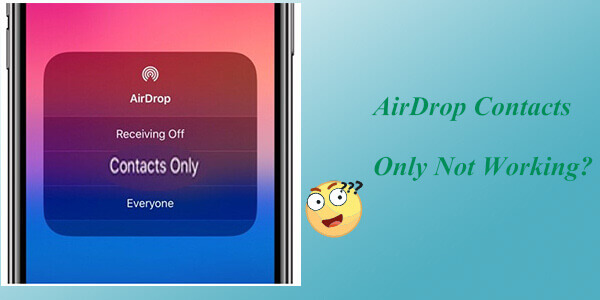
AirDrop allows direct file transfers between nearby iOS and Mac devices using Wi-Fi and Bluetooth technology. When set to "Contacts Only", only people in your contacts list can see your device and initiate transfers. If your AirDrop Contacts Only feature is not working, the following are some possible reasons:
If you want to know where AirDrop files are stored, you can easily find them by reading this article.
[Answered] Where Do AirDrop Files/Photos/Videos Go on iPhone/Mac?If your AirDrop is set to "Contacts Only" but still not working properly, you can try the following troubleshooting methods.
When AirDrop is set to "Contacts Only", your device can only receive files from people saved in your Contacts app. If AirDrop cannot detect a contact, check whether the contact information and AirDrop settings are correct.
Follow these steps:
Make sure both users are in each other's Contacts
Check the Apple ID information
Turn AirDrop off and on again
Ensure both devices are signed in to iCloud
After checking these settings, try sending the file again. If AirDrop still does not recognize the contact, continue with the following fixes.
AirDrop relies on the support of Wi-Fi and Bluetooth. If either of them is unstable, AirDrop may not function properly. Restarting Wi-Fi and Bluetooth can refresh their connection status and resolve temporary issues.
Follow the steps:
On the iPhone, swipe up from the bottom of the screen to open the Control Center, then turn off Wi-Fi and Bluetooth. Wait for about 5 seconds, then turn Wi-Fi and Bluetooth back on.
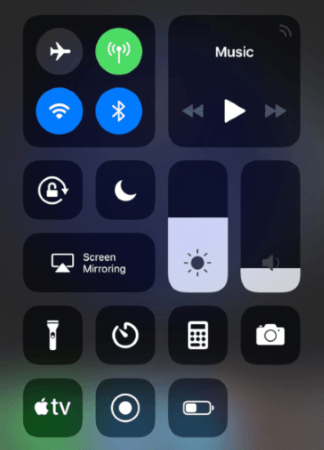
On Mac, click on the Wi-Fi and Bluetooth icons located at the top-right corner of the screen to ensure they are turned on and connected to the same network.
AirDrop's transfer range is typically within 9 meters (about 30 feet). If the devices are too far apart or there are obstacles in between, the signal may be interfered with, causing connection failure and the "AirDrop not finding contacts" issue.
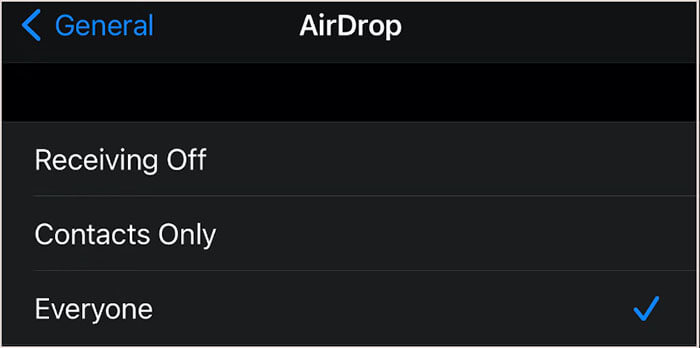
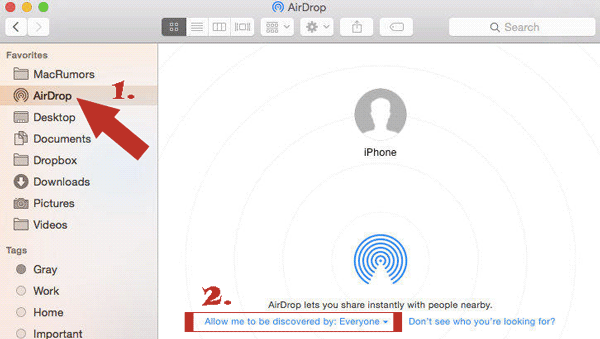
If your AirDrop can't find contacts, you can try changing the AirDrop settings to receive from "Everyone". Here are the steps:
For iPhone, navigate to "Settings" > "General" > "AirDrop", then select "Everyone".
For Mac, open "Finder", go to "AirDrop", and set "Allow me to be discovered by" to "Everyone".
If Personal Hotspot is enabled on your iPhone, it may interfere with AirDrop connections. Since both features rely on wireless communication, turning off the hotspot can help AirDrop detect nearby devices properly. (iPhone Hotspot Not Working?)
Follow these steps to disable Personal Hotspot:
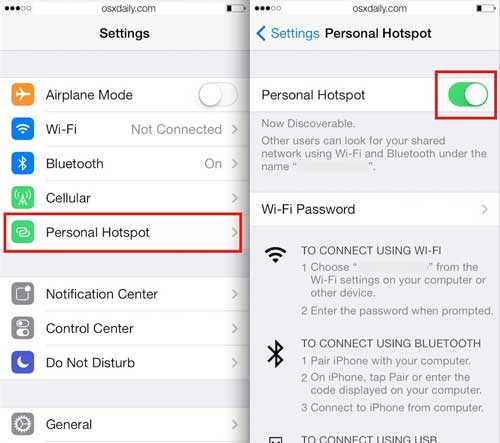
You can also disable Personal Hotspot from Control Center:
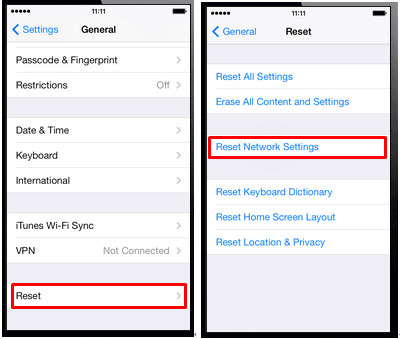
Some unknown network errors can also cause AirDrop Contacts Only to not work properly. You can reset network settings to clear all network configurations. Here is how to do it:
Step 1. Go to "Settings" > "General" > "Reset" > "Reset Network Settings".
Step 2. After restarting your device, reconfigure the network settings and try AirDrop again.
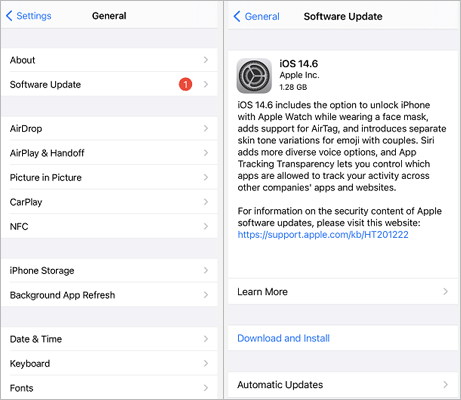
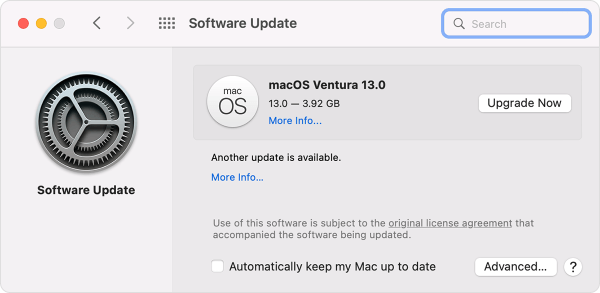
Only iOS 7 and later and Mac OS X Lion (Mac OS X 10.7) and later support the AirDrop feature. If the device is running an older software version, compatibility issues or bugs may occur. Updating the system can resolve these problems.
Here are the steps:
For iPhone, navigate to "Settings" > "General" > "Software Update", then tap "Download and Install". (iPhone stuck on software update?)
For Mac, click the Apple icon > "System Preferences" > "General" > "Software Update", then click "Upgrade Now".
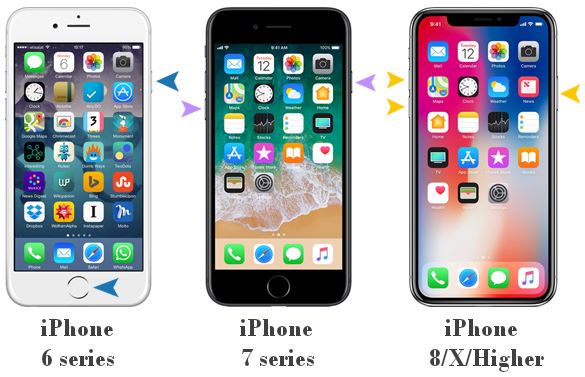
Restarting is an effective way to resolve many iPhone issues. If AirDrop doesn't work when set to "Contacts Only", you can try this method. Restarting can clear the device's memory and temporary files, allowing the device to reboot in a clean state, which may resolve potential software problems. Here is how to do it:
For iPhone:
For Mac:
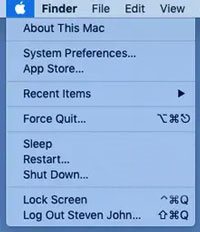
Click the "Apple" menu, then select "Restart" to reboot your Mac.
If AirDrop Contacts Only is still not working after trying the fixes above, you can use a professional data transfer tool instead. Unlike AirDrop, these tools do not rely only on Bluetooth or nearby device detection and can help you transfer large amounts of data more efficiently.
Coolmuster Mobile Transfer is a dedicated phone transfer tool that allows you to move data directly between two mobile devices. It is especially useful when AirDrop fails, when transferring a large number of files, or when switching to a new phone.
Key features of Coolmuster Mobile Transfer:
Follow the steps below to transfer data from iPhone to iPhone using Mobile Transfer:
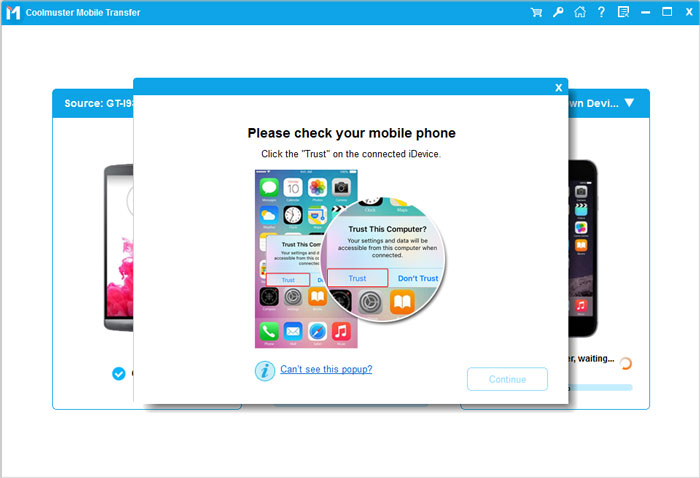
01Download, install, and open this tool on your computer. Connect both of your iPhones to the computer using USB cables. Tap "Trust" on each iPhone when prompted to "Trust This Computer".
02Once you have successfully connected two iOS devices to the program, you will see the following interface. Ensure that the source and target devices are correctly positioned. If not, click the "Flip" button to swap their positions.
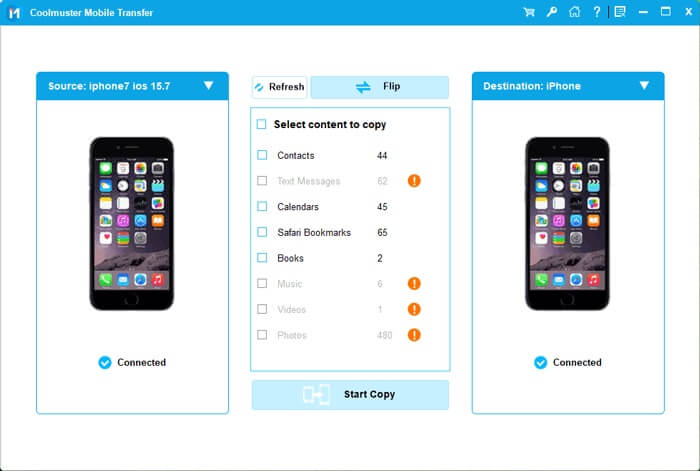
03Choose the items you want to transfer from the list of content, such as Contacts, Notes, Calendars, Bookmarks, and Books. Then, click the "Start Copy" button to begin the transfer process automatically.
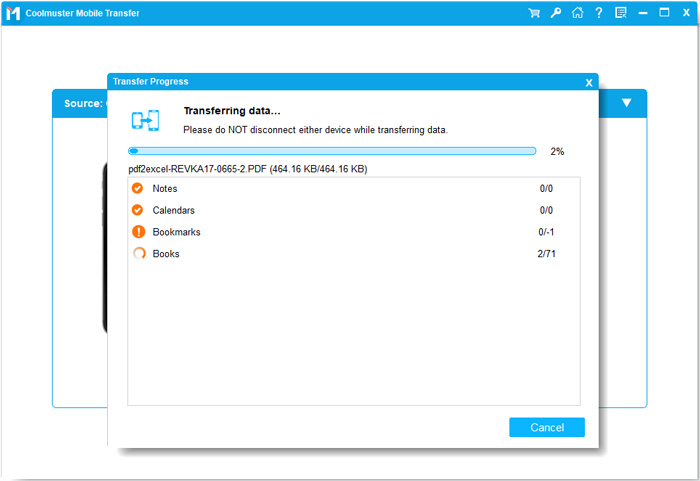
Video Tutorial:
If you need to transfer data from iPhone/iPad to Mac or import data from Mac to iPhone and iPad, Coolmuster iOS Assistant is an ideal choice. It allows you to manage, back up, export, and import iPhone data directly from your Mac.
Key Features of Coolmuster iOS Assistant:
Follow these steps to transfer files between your iPhone and Mac:
01Download, install, and launch the tool on your Mac computer. Connect your iPhone to your Mac using a USB cable and ensure you trust the device when prompted. Once connected successfully, you will see the interface below.
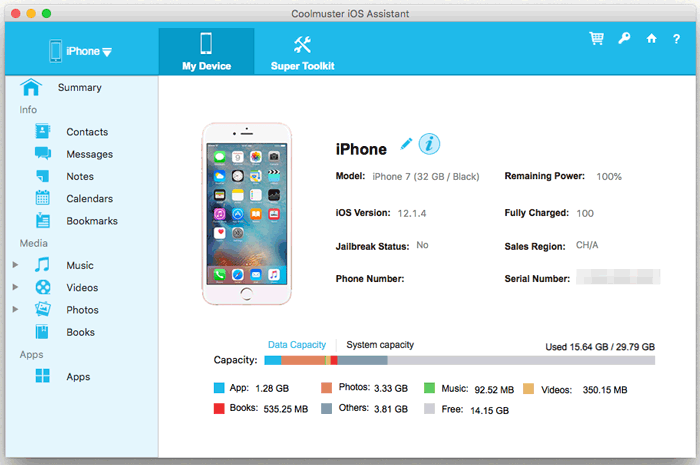
02After the program detects your iPhone, choose a data category from the left sidebar. Select the files you want to transfer.
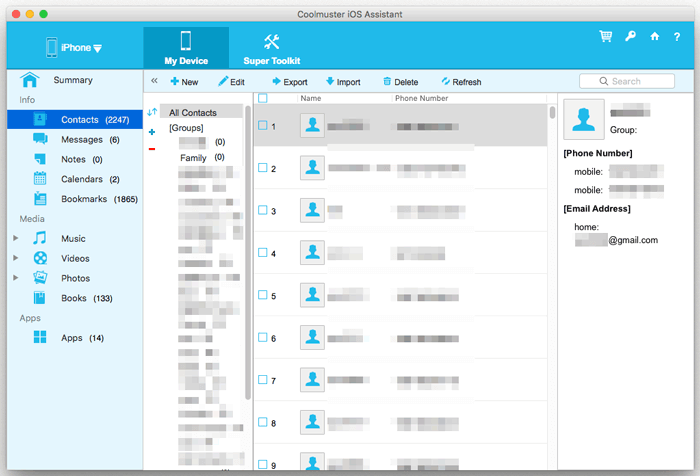
03Click "Export" to transfer files from iPhone to Mac, or click "Import" to move files from Mac to iPhone.
Video Tutorial:
Q1. Do both people need to have each other's contact information for AirDrop Contacts Only to work?
Yes. When using the "Contacts Only" option, both users should make sure their contact information is correctly saved. The phone number or email address associated with the Apple ID should match the information stored in the Contacts app. If AirDrop cannot verify the contact, switching to "Everyone" temporarily can help confirm whether the issue is related to contact recognition.
Q2. Why does AirDrop say "No People Found" even though the person is in my contacts?
This issue can happen when AirDrop cannot match the contact information between the two devices. Try checking whether both devices are signed in to iCloud, enabling Contacts sync, restarting Wi-Fi and Bluetooth, or turning AirDrop off and back on. Updating iOS or macOS may also fix compatibility issues.
Q3. Why is my iPhone not showing up on AirDrop?
Your iPhone may not appear if AirDrop receiving is turned off, the devices are too far apart, Personal Hotspot is enabled, or the devices are not using compatible software versions. Make sure both devices have Wi-Fi and Bluetooth enabled and set AirDrop receiving to "Contacts Only" or "Everyone".
Q4. Can I use AirDrop without saving someone as a contact?
Yes. If you do not want to add someone to your Contacts, you can change AirDrop receiving settings to "Everyone" (or "Everyone for 10 Minutes" on newer iOS versions). This allows nearby Apple devices to send files without contact verification.
When AirDrop Contacts Only stops working, you can troubleshoot the issue by checking contact settings, enabling Wi-Fi and Bluetooth, adjusting AirDrop receiving options, disabling Personal Hotspot, updating your system, or restarting your devices. If AirDrop still fails to connect, professional transfer tools like Coolmuster Mobile Transfer and Coolmuster iOS Assistant can provide a more stable way to move data between devices. With the right method, you can easily overcome AirDrop connection problems and transfer your files without hassle.
Related Articles:
[Complete Guide] How to AirDrop Contacts from iPhone to iPhone?
12 Fixes for AirDrop Stuck on Waiting or Stopped Working
Easy Ways to AirDrop from iPhone to Mac [Support Various File Types]







 Free Download for PC
  Free Download for Mac


