Are you frustrated because you can't download apps on your iPhone? Whether your App Store is stuck on "Waiting", endlessly spinning, showing "Verification Required", or refusing to install apps entirely, this issue is more common than you might think. The good news is that most App Store download issues can be fixed without replacing your device.
In this guide, we'll explain why your iPhone cannot download apps and walk you through 14 proven fixes step by step.
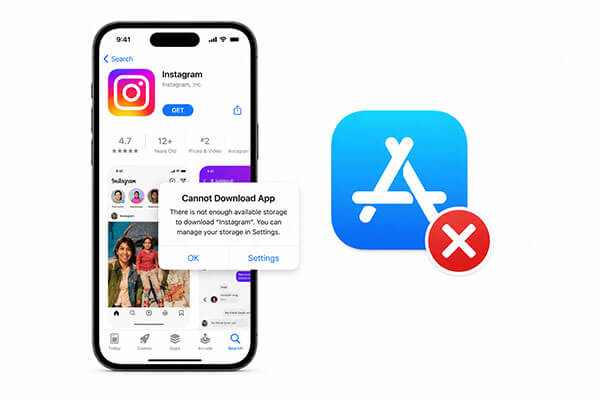
Before jumping into solutions, it's important to understand what causes the problem. If your apps are not downloading on your iPhone, the following are some possible reasons:
- Unstable Network Connection.
- Apple ID Login Issues.
- App Store Server Issues.
- Insufficient iPhone Storage.
- Outdated iOS Version.
- App Store Restrictions.
- Payment Method Problems.
- Incorrect Date and Time Settings.
- App Download Stuck.
- iOS System Malfunction.
Different causes require different solutions. You can try them one by one below.
Now, let's go through the most effective methods to fix the issue.
A stable internet connection is required to download apps from the App Store. If your Wi-Fi is weak, disconnected, or your cellular data is unstable, your iPhone may fail to communicate with Apple's servers. This is one of the most common reasons behind apps not downloading on iPhone. Before trying advanced fixes, always start by checking your network.
To check the network connection, follow these steps:
Step 1. Open "Settings" → "Wi-Fi" and connect to a stable network. If issues persist, turn Wi-Fi off and on again or reconnect to the network to refresh the connection.
Step 2. Go to "Settings" → "Cellular" (Mobile Data) and make sure the App Store is allowed to use mobile data. Turn it on if it's disabled.
Step 3. Turn on "Airplane Mode" in Settings, wait 10–15 seconds, then turn it off. This reconnects Wi-Fi, cellular, and Bluetooth, which can fix temporary network issues.
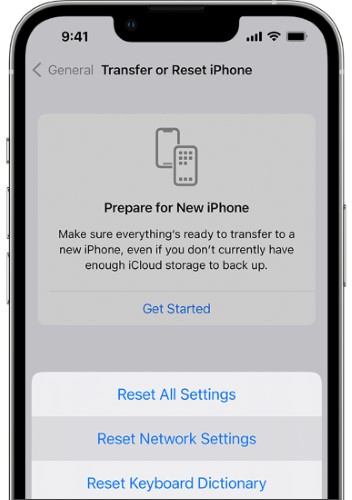
Step 4. If downloads still fail, reset your network settings via "Settings" → "General" → "Transfer or Reset iPhone" → "Reset" → "Reset Network Settings". This will erase saved Wi-Fi networks, passwords, and VPN settings, so have your Wi-Fi credentials ready. Reconnect to Wi-Fi and try the App Store again.
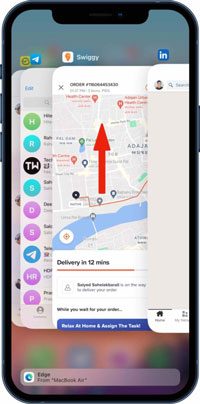
If you are unable to download apps on your iPhone, try restarting the App Store and your iPhone to refresh them.
Restart the App Store:
Swipe up from the bottom of the screen and pause to open the app switcher, find the App Store, swipe it up to close it, then reopen the App Store.
Restart the iPhone:

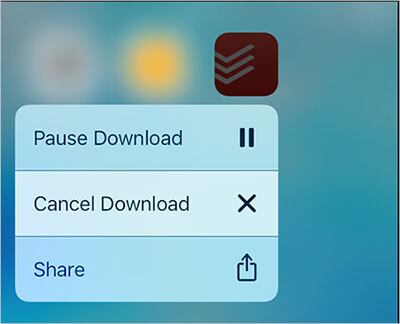
If you have an iPhone 14 or later, press and hold the app on the Home screen. You'll see three options: Pause Download, Cancel Download, and Share App.
Tap "Cancel Download" to stop the download completely. If the download is stuck, tap "Pause Download", then press the app again to resume.
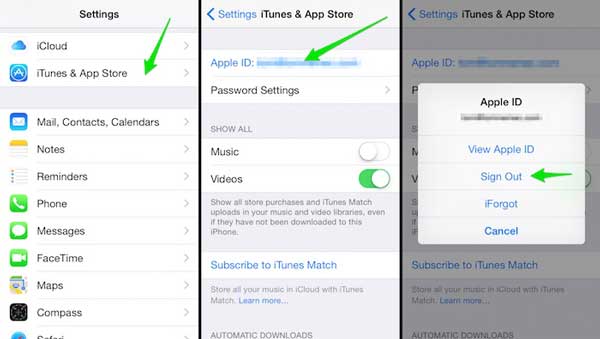
Apple ID authentication problems can prevent app downloads. If your account session becomes corrupted or expires, you may see errors like can't download apps on iPhone verification required. Signing out and back into your Apple ID refreshes your account information and App Store authorization.
Here is how to fix the "can't download apps from App Store":
Step 1. Open the "Settings" app on your iPhone.
Step 2. Go to "iTunes & App Store" and tap your Apple ID.
Step 3. When the pop-up appears, select "Sign Out". (Can't sign out of your Apple ID?)
Step 4. Then sign in again and check if the issue is resolved.
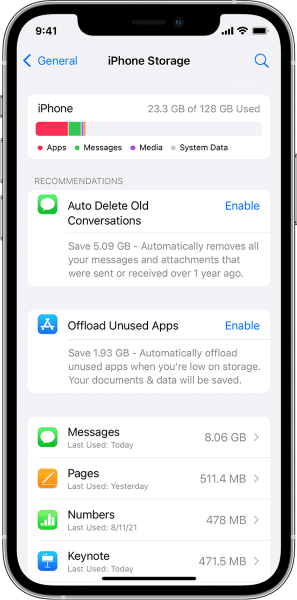
If your iPhone doesn't have enough storage, you are unable to download apps on your iPhone, and existing apps won't update either.
Here is how to check your available storage:
Step 1. Go to "Settings" > "General" > "iPhone Storage" to see how much free space is left on your device.
Step 2. To free up space, you can delete unused apps, photos, videos, music, documents, or even old WhatsApp chats to make room for new downloads.
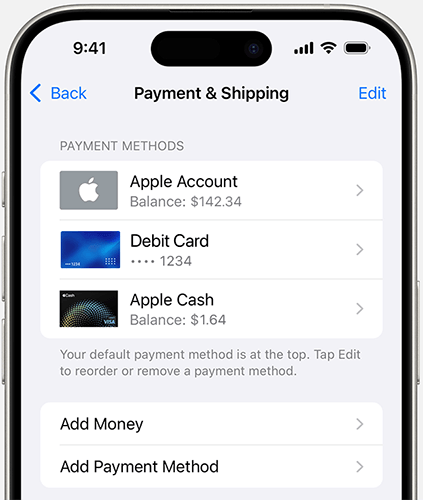
Do you have a valid payment method linked to your Apple ID? Without one, you won't be able to download apps. If your card has expired, it can also prevent downloads and trigger a "Verification Required" pop-up. Adding a valid payment method may resolve the issue of apps not downloading on your iPhone.
Here is how to do it:
Step 1. On your iPhone, go to "Settings" > [your name] > "Payment & Shipping".
Step 2. Tap "Add Payment Method" and follow the prompts to enter your card or bank details.
Step 3. After adding it, tap Done. Once a valid payment method is on file, you can try downloading apps again.
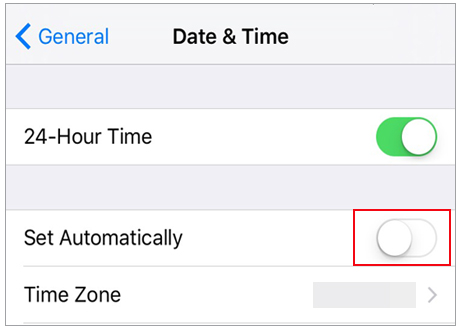
The date and time on your iPhone can affect app downloads and updates. To ensure they are set correctly, enable the "Set Automatically" option:
Step 1. Open "Settings" > "General" > "Date & Time".
Step 2. Turn on the "Set Automatically" toggle.
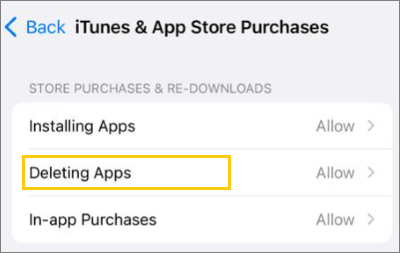
If app downloads are blocked on your iPhone, it might be because app purchases are disabled under Content & Privacy Restrictions. Enabling iTunes & App Store downloads and purchases can resolve this issue.
Steps to allow App Store purchases on iPhone:
Step 1. Go to "Settings" > "Screen Time".
Step 2. Tap "Content & Privacy Restrictions".
Step 3. Enter your passcode if prompted.
Step 4. Tap "iTunes & App Store Purchases".
Step 5. Set "Installing Apps" and "In-app Purchases" to "Allow".
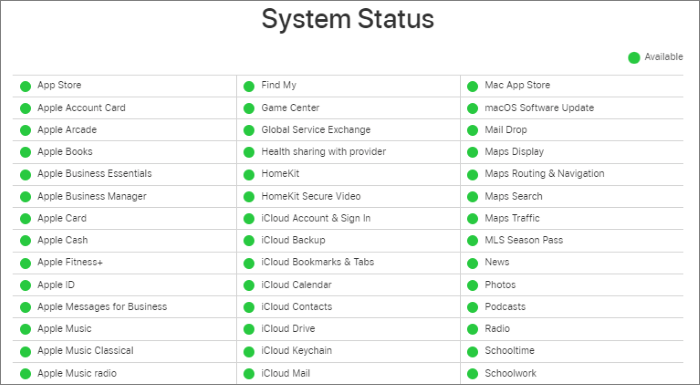
Sometimes, the issue isn't with your iPhone, but with Apple's servers. If the App Store servers are down, all users may be unable to download apps. Before trying any complicated fixes, it's recommended to first check whether Apple's services are functioning properly.
Visit Apple's System Status page to check the App Store's status. If it appears yellow or red, the servers are experiencing issues, so wait for Apple to resolve them before trying to download apps again.
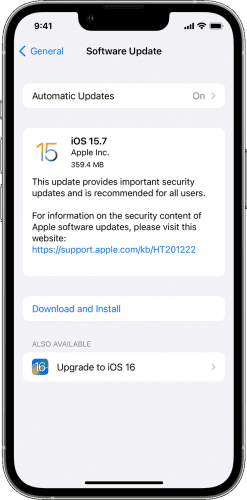
Running an outdated version of iOS can cause compatibility issues with the App Store and newer applications. Apple frequently releases updates that fix bugs related to apps not downloading on iPhone.
Here is how to update your iPhone:
Step 1. Open "Settings" on your iPhone.
Step 2. Go to "General" > "Software Update".
Step 3. If an update is available, tap "Update Now".
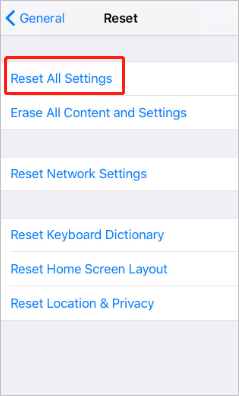
Incorrect system settings can interfere with App Store functionality. Resetting all settings restores default configurations without deleting personal data.
Here are the steps:
Step 1. On your iPhone, go to "Settings" > "General" > "Transfer or Reset iPhone" > "Reset".
Step 2. Tap "Reset All Settings" and enter your passcode.
Step 3. Confirm by tapping "Reset All Settings"—the process will take a few minutes.
If the usual methods cannot resolve the "can't download apps on iPhone" issue, it's likely that there's a deeper problem with the iOS system. In this case, using a professional tool is more efficient. iOS System Recovery can fix a variety of iOS system issues, including problems with downloading apps from the App Store, a white Apple logo, a black screen, being stuck in recovery mode, and more—while the standard mode does not delete any data.
Main features of iOS System Recovery:
Here is how to fix apps that won't download on iPhone without losing data:
01Download and install the software on your computer. It will launch automatically after installation.
02Connect your iOS device to the computer with a working USB cable. Select "iOS System Recovery" and click "Start".

03Choose a repair mode—"Standard Mode" or "Advanced Mode"—and click "Confirm".

04Check your device information, then click "Repair" to start. Once the process finishes, your iPhone will be restored to normal.

If none of the previous methods work, a factory reset may be necessary. This completely erases the device and reinstalls iOS from scratch. Because this process deletes everything, make sure to back up your iPhone first.
To factory reset your iPhone, follow these steps:
Step 1. Go to "Settings" > "General" > "Transfer or Reset iPhone".
Step 2. Tap "Erase All Content and Settings", then select "Continue" and enter your passcode.
Step 3. Tap "Erase iPhone". Your device will restart several times and be fully wiped when finished.

If you've tried every solution and still can't download apps from App Store, your issue may involve hardware failure, account restrictions, or deeper iOS problems. In that case, contacting Apple Support is the best option.
If your iPhone won't download apps, the methods mentioned above can help you easily resolve the issue. However, if apps still won't download due to deeper system corruption, iOS System Recovery can be the most effective solution. It not only fixes problems with the App Store failing to download apps, but also resolves various iOS system issues—while the standard mode preserves your data, making it ideal for users who want to quickly restore their iPhone to normal.
Related Articles:
How to Fix the iPhone/iPad App Store Not Working? - 10 Solutions
How to Fix iPhone Cannot Connect to App Store Issue Easily
[SOLVED!] 7 Quick Fixes to Solve Apps Didn't Transfer to New iPhone
9 Quick Fixes to Fix iCloud Files Not Downloading on iPhone/iPad




 Free Download for PC
  Free Download for Mac


