Are your iPhone photos stuck uploading to iCloud at 1 percent with no sign of progress? You're not alone. Many iPhone users report the frustrating issue of iCloud Photos stuck at 1 percent, especially after setting up a new device, restoring from a backup, or uploading a large number of photos and videos. In this guide, we'll explain why iCloud Photos upload is stuck at 1 percent and walk you through step-by-step solutions.
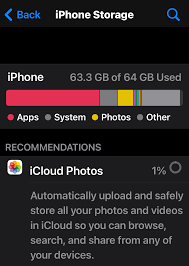
Why is my iCloud Photo upload stuck on 1 percent? Before attempting to fix the issue, understanding the cause can help you quickly pinpoint the problem. Here are some common reasons why iCloud Photos gets stuck at 1%:
* Unstable or slow Wi-Fi connection, causing upload interruptions.
* iPhone is in Low Power Mode, which pauses background uploads.
* Syncing issues with iCloud Photos itself.
* Temporary downtime of Apple's iCloud service.
* Insufficient iCloud storage, preventing further uploads.
* Outdated iOS version or system bugs.
* iCloud account sync errors or cache issues.
To fix iCloud Photos sync stuck at 1%, you can try the following 10 solutions step by step.
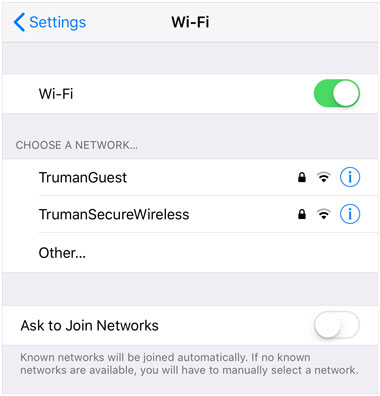
Since iCloud Photos requires a stable network connection for uploads, weak or unstable Wi-Fi is one of the most common reasons for iCloud Photos getting stuck at 1%. Follow these steps to check and switch to a more stable Wi-Fi network:
Step 1. Open "Settings" > "Wi-Fi".
Step 2. Make sure you're connected to a high-speed, stable Wi-Fi network. Avoid using public Wi-Fi or networks with weak signals.
Step 3. Try switching to a different Wi-Fi network or restarting your router.
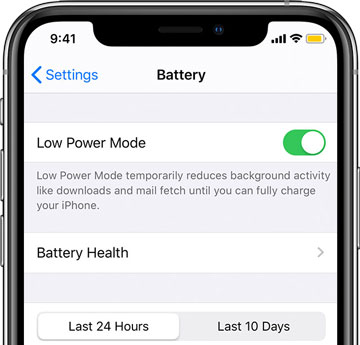
When Low Power Mode is enabled, iOS limits background processes, including iCloud photo uploads, which may cause the upload to stall.
Just open "Settings" > "Battery" and turn off the "Low Power Mode" to fix it.
If there's an issue with the iCloud Photos sync process, turning the feature off and on again can refresh the upload task and re-establish the sync connection.
To do it, follow these steps:
Step 1. Go to "Settings" > "Apple ID" > "iCloud" > "Photos".
Step 2. Toggle off "iCloud Photos".
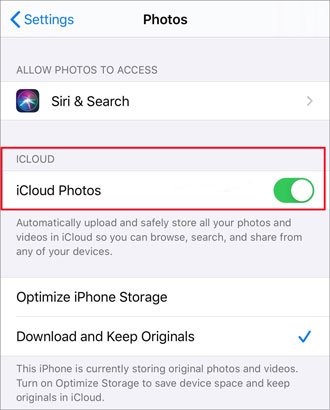
Step 3. Wait 1–2 minutes and turn it back on.
Temporary system glitches can also be a common cause of iCloud Photos getting stuck at 1%. Restarting your iPhone can clear cache processes and refresh the system, helping resolve the issue.
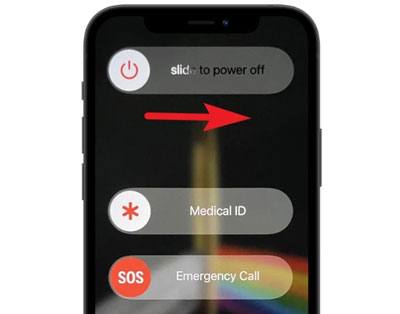
Step 1. Press and hold down the "Power" button until the slider shows on the screen.
Step 2. Slide to the right to switch off the phone.
Step 3. When the device turns off, press the "Power" button till you see the Apple logo.
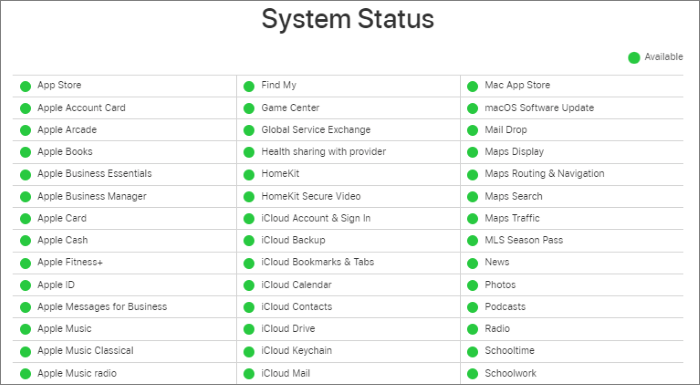
Sometimes, iCloud Photos stuck at 1 percent is not caused by your iPhone or network settings at all. Apple's iCloud services occasionally experience outages or maintenance issues, which can temporarily prevent photos from uploading or syncing properly. When this happens, no amount of local troubleshooting will resolve the issue until Apple restores normal service. Therefore, visit Apple's System Status page to look for iCloud Photos. If it's down, wait until Apple restores service.
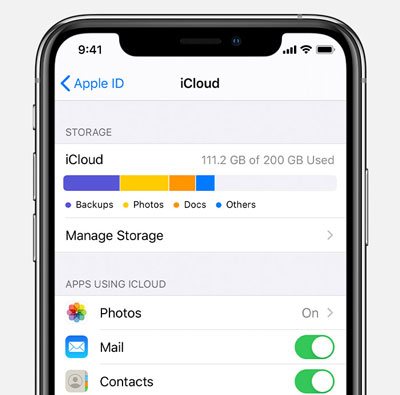
When iCloud storage is full, uploads are automatically paused, causing iCloud Photos to stay stuck at 1 percent. Follow the steps below to free up iCloud space:
Step 1. Open "Settings" > "Apple ID" > "iCloud".
Step 2. Check available iCloud storage.
Step 3. Delete old backups or upgrade your storage plan.
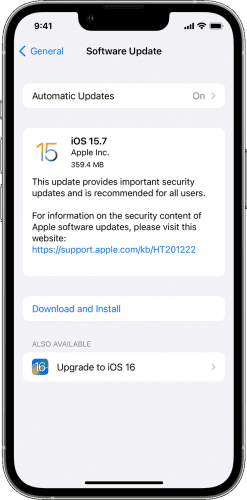
Outdated iOS versions may contain bugs that interfere with iCloud Photos syncing. Updating iOS often resolves these issues.
Here are the steps:
Step 1. Go to "Settings" > "General" > "Software Update".
Step 2. Download and install the latest version.
If your iCloud photo sync is stuck, signing out of your account and signing back in might help resolve the issue. Here's how to do it:
Step 1. Open the "Settings" app.
Step 2. Tap on [Your Name] at the top of the screen.
Step 3. Scroll down and select "Sign Out". (Can't sign out of your Apple ID?)
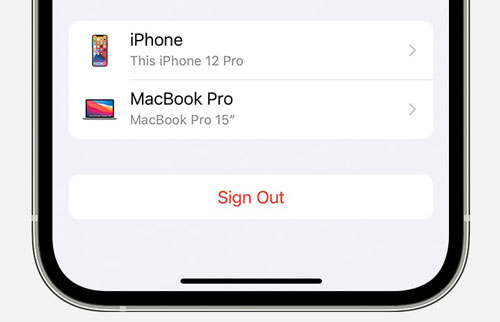
Step 4. Follow the prompts to enter your Apple ID password and choose whether to keep your data (such as contacts, photos, etc.).
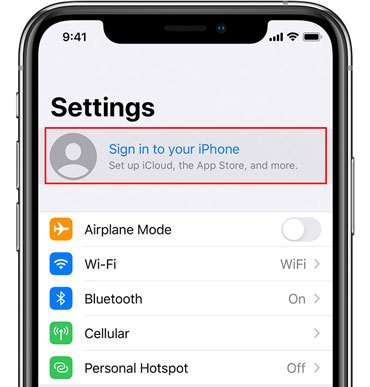
Step 5. Once signed out, go back to "Settings", tap on "Sign in to your iPhone" (or Sign in to your iPad), and enter your Apple ID and password to log back in.
If none of the above methods work, the issue may be caused by underlying iOS system errors. In this case, you can use an iPhone system repair tool to fix your iPhone. iOS System Recovery is one such tool. It can safely scan and repair the iOS system, restore normal background services, and fix the iCloud Photos stuck at 1%, all while avoiding the loss of photos or personal data.
Main features of iOS System Recovery:
Here is how to fix iCloud Photos upload stuck at 1 percent using iOS System Recovery:
01Launch the software on your computer and use a USB cable to connect your iPhone to the PC. Then, click "More tools" > "iOS System Recovery" on the interface.

02The software will detect issues on your iPhone, such as being stuck on the Apple logo, being in recovery mode, screenshot not working, iPhone disabled, etc. Simply click the "Start" button to proceed.

03Next, you'll be prompted to check and confirm your iPhone's details. Once confirmed, click "Repair" to start fixing the iPhone issue.

If none of the above methods work, you may need to restore your iPhone to factory settings to resolve the "iCloud Photos stuck at 1%" issue. Make sure to back up your iPhone before proceeding.
To reset your iPhone, follow these steps:
Step 1. Open "Settings" > "General" > "Transfer or Reset iPhone".
Step 2. Select "Erase All Content and Settings" to reset your iPhone. Follow the on-screen instructions until the device reboots and completes the reset.

Although iCloud Photos is designed to automatically back up and sync your iPhone photos, it heavily relies on a stable network connection and sufficient iCloud storage space. As a result, issues like iCloud Photos getting stuck at 1% can unexpectedly occur, interrupting the backup process. For users who frequently face slow uploads, failed syncs, or storage limitations, relying solely on iCloud may not be the most reliable long-term solution.
In this section, we'll introduce Coolmuster iOS Assistant, a powerful alternative to iCloud that allows you to directly back up your iPhone photos to your computer. By eliminating reliance on network and storage constraints, it offers a more stable, controlled, and efficient way to safeguard your photo data.
Key features of iOS Assistant:
Here is how to back up iPhone photos to a computer using iOS Assistant:
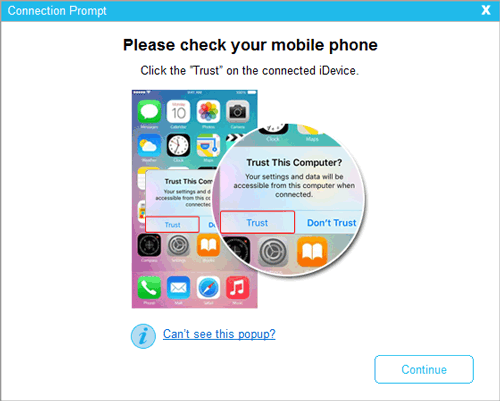
01Download and install the correct version of the app, then launch it. Once the main interface appears, connect your iPhone to the PC using a USB cable. When prompted, click "Trust" and press "Continue" to proceed.
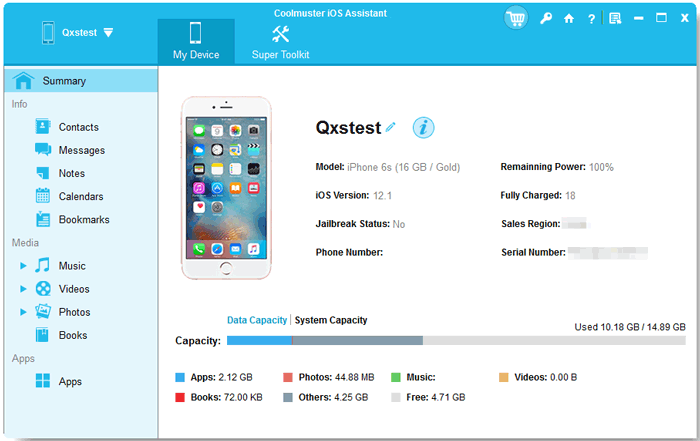
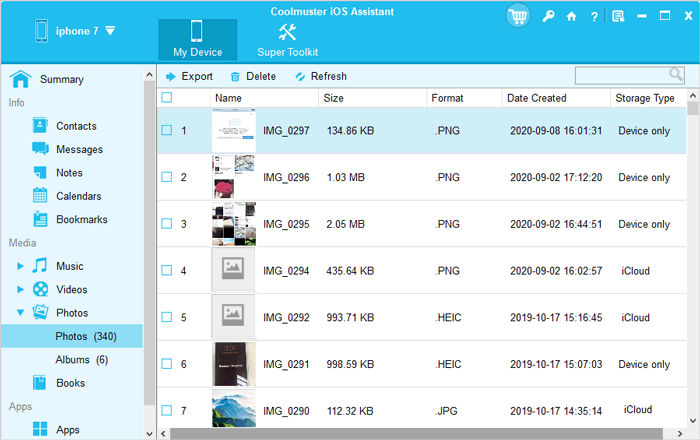
02After the device is detected, you'll see all your iPhone data displayed in folders on the left panel. Click on the "Photos" folder, preview the images, and select the ones you wish to export to your computer.
03Once you've made your selection, click the "Export" button in the top menu, choose a destination on your computer to save the photos, and the transfer will begin immediately.
Video Tutorial:
When you encounter the issue of iCloud Photos getting stuck at 1%, you can try the methods we've mentioned above to resolve it. If the problem is caused by system errors, iOS System Recovery offers a safe, efficient solution without any data loss.
At the same time, if you want to completely eliminate the frustration of iCloud upload delays, Coolmuster iOS Assistant provides a more direct and reliable way to back up your photos.
Related Articles:
[2026 Updated] 12 Expert Solutions for iCloud Photos Not Loading
[Solved] How to Fix iCloud Photos Not Syncing on iPhone/iPad/Mac?
iPhone Downloading Messages from iCloud Stuck (Reasons & Fixes)







 Free Download for PC
  Free Download for Mac


