TL;DR: Forgot your iPhone passcode and don't have a computer? This guide shows you how to reset your iPhone without a passcode and a computer using 2 free official methods, including the lock screen reset option and Find My iPhone. Whether your device is locked, disabled, or stuck on "iPhone Unavailable", you can follow the step-by-step solutions to erase and restore your iPhone without iTunes.
If you cannot access your Apple ID or the built-in methods fail, a professional iPhone unlocking tool provides an easier way to remove the passcode and regain access to your device.
Forgetting your iPhone passcode can be a very frustrating experience. After entering the wrong passcode too many times, your iPhone may become "iPhone Unavailable" or enter "Security Lockout" mode. Traditional methods usually require connecting your device to a computer and using iTunes or Finder to restore it. So, how to reset iPhone without passcode and computer?
Fortunately, Apple provides several methods that allow you to reset your iPhone without using a computer. In this article, we will introduce several ways to reset an iPhone without passcode and computer and help you choose the most suitable solution for your situation.
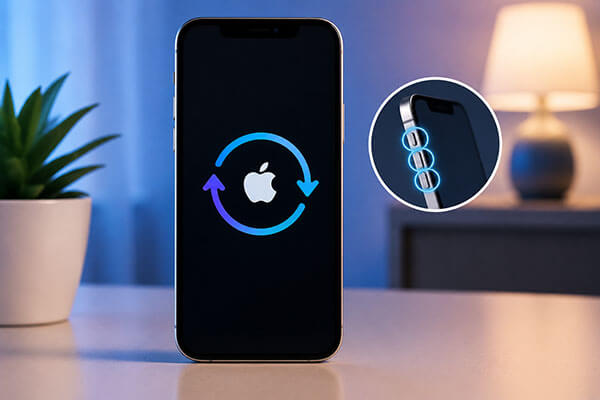
If your iPhone is running iOS 15.2 or later and has entered "Security Lockout" or "iPhone Unavailable" mode, you can reset it directly from the lock screen. This is an official method provided by Apple that does not require a computer. You only need to remember your Apple ID and password to complete the reset process.
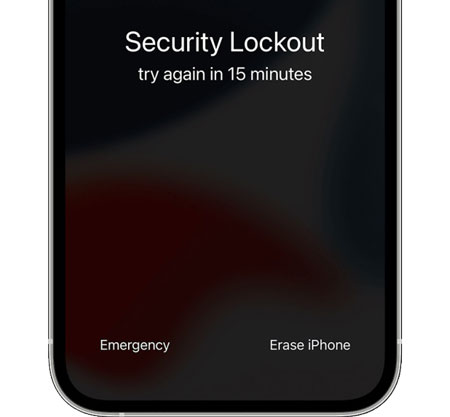
For iPhones running iOS 15.2 to iOS 16, Apple provides the "Erase iPhone" option on the lock screen. This option appears after multiple failed passcode attempts and allows you to remove the existing passcode by erasing the device.
Here is how to reset an iPhone without a passcode and a computer for free:
Step 1. Enter an incorrect passcode repeatedly on the iPhone lock screen until the device enters "iPhone Unavailable" or "Security Lockout" mode.
Step 2. When the "Erase iPhone" option appears at the bottom of the screen, tap it. Your iPhone will display a warning that all content and settings on the device will be deleted.
Step 3. Tap "Erase iPhone" again to confirm the operation. Keep in mind that this process will permanently delete all data on your iPhone, including photos, apps, files, and personal settings.
Step 4. Enter the password for the Apple ID associated with the iPhone to verify your identity and disable Activation Lock.
Step 5. After verification, your iPhone will erase all data and remove the existing passcode automatically. Once the process is complete, you can set up your iPhone again and choose to restore data from an iCloud backup or set it up as a new device.
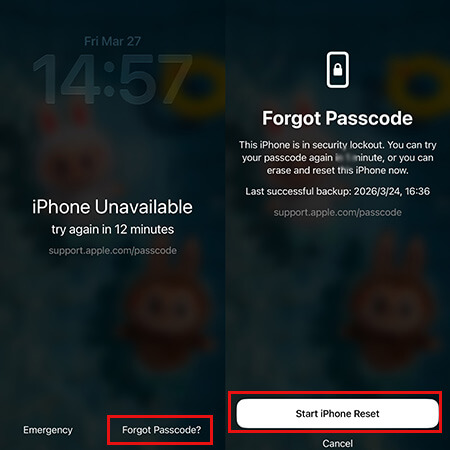
On iPhones running iOS 17 or later, if you forget your device passcode, you can use the built-in "Forgot Passcode?" feature to reset your iPhone and regain access without using a computer.
Here is how to reset an iPhone without a passcode and a computer or iTunes:
Step 1. Enter the wrong passcode on the lock screen until the "iPhone Unavailable" message appears.
Step 2. Tap the "Forgot Passcode?" option at the bottom of the screen.
Step 3. Select "Start iPhone Reset".
Step 4. Enter your Apple ID password to verify your identity.
Step 5. Wait for the system to erase the data and remove the passcode from your iPhone.
Step 6. After your iPhone restarts, follow the on-screen instructions to complete the setup process.
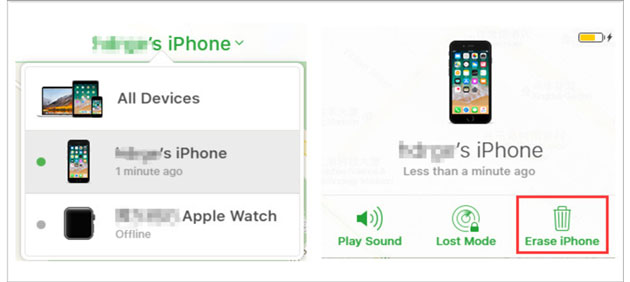
Another official method to reset an iPhone without a passcode or computer is by using Apple's Find My iPhone feature. This method allows you to remotely erase your iPhone from another device, such as another phone, tablet, or a web browser. However, it requires the following conditions:
Here is how to reset an iPhone without a passcode and a computer when disabled:
Step 1. Open icloud.com in a web browser on any available device, such as a smartphone or tablet.
Step 2. Sign in to iCloud using the Apple ID and password linked to the iPhone you want to reset.
Step 3. Once signed in, select the "Find iPhone" option to access the "iCloud Find My iPhone" page.
Step 4. Click "All Devices" at the top of the page, then choose the target iPhone from the device list.
Step 5. After selecting the iPhone, click "Erase iPhone" and follow the on-screen instructions. iCloud will then remotely erase all data and reset the iPhone.
Although Apple provides several free methods, they do not work in every situation. For example, you may have forgotten your Apple ID password, the Erase iPhone option may not appear, or Find My iPhone may not have been enabled before the device was locked. In these cases, a professional iPhone unlocking tool can provide an alternative solution.
iPhone Unlocker is designed to remove iPhone screen passcodes and help users regain access to locked or disabled devices. Unlike Apple's official methods, iPhone Unlocker does not require the original screen passcode. It can help resolve issues such as a disabled iPhone, a forgotten passcode, or a device that is inaccessible due to a locked screen.
Key features of iPhone Unlocker:
Here is how to reset iPhone without passcode and Apple ID via iPhone Unlocker:
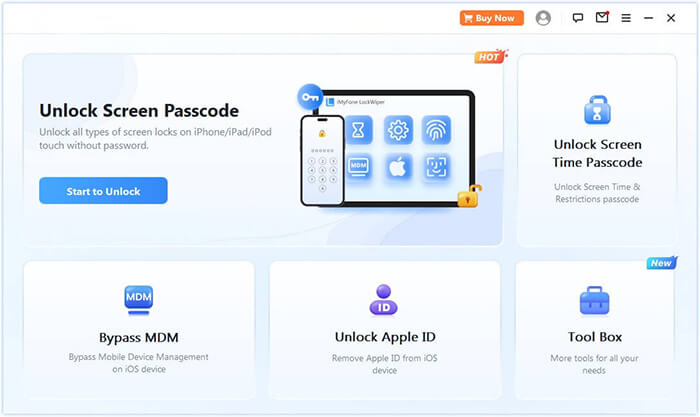
01Launch iPhone Unlocker and choose "Unlock Screen Passcode" from the main interface. Click "Start to Unlock", then connect your iPhone to the computer using a USB cable.
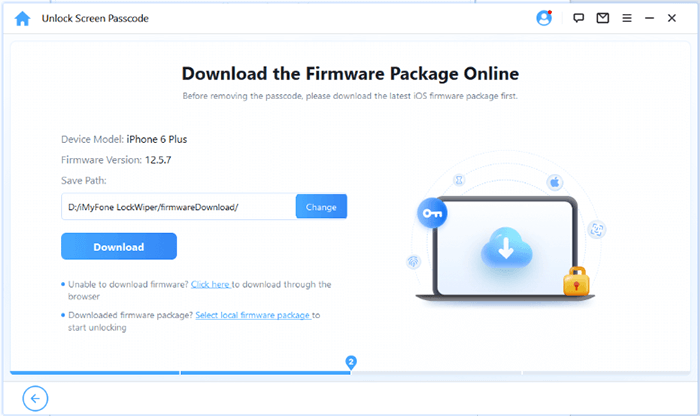
02Follow the on-screen instructions to enter Recovery Mode or DFU Mode. Once your iPhone is detected, select a location to save the firmware package and click "Download".
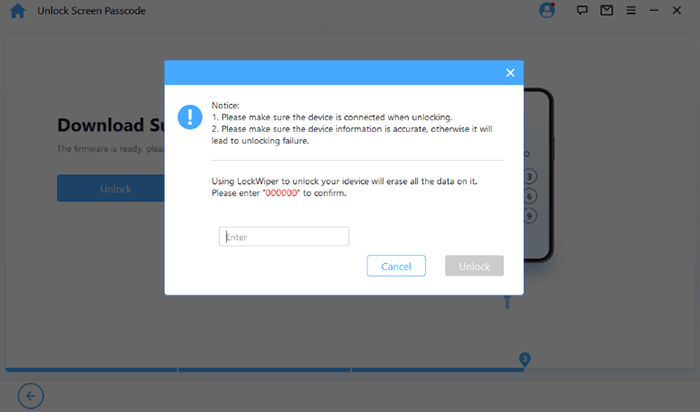
03After the firmware package has finished downloading, click "Unlock". Carefully review the warning message, enter "000000" to confirm, and click "Unlock" again to continue.
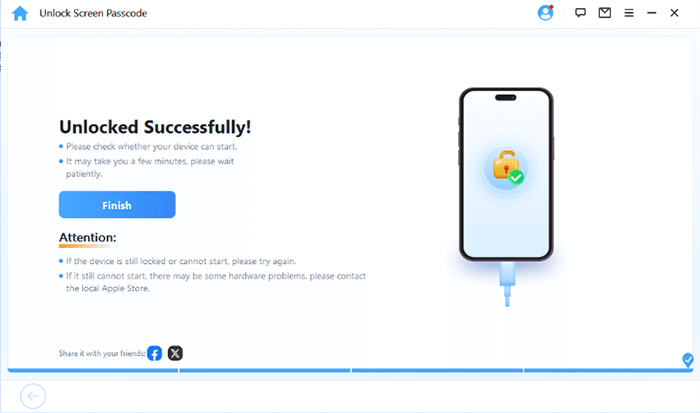
04Wait for the unlocking process to complete. Once finished, your iPhone will be erased, the passcode will be removed, and the device will be restored to its factory settings.
When you need to reset an iPhone without a passcode and computer, the easiest methods are to use the iPhone's built-in "Forgot Passcode?" reset option or remotely erase the device through iCloud. These official methods do not require a computer, but they require your Apple ID information and will erase all data stored on the device.
If your iPhone cannot be reset using the official methods, iPhone Unlocker can provide a more comprehensive solution to help you reset your iPhone without a passcode. Regardless of which method you choose, it is recommended to verify your Apple ID information and create a backup in advance to prevent the loss of important files.
Related Articles:
4 Best Methods to Factory Reset iPhone without Password/Passcode
How to Reset iPhone without Apple ID or Password: 3 Easy Ways
[Comprehensive Guide] How to Factory Restore a Locked iPhone?
[Solved] How to Erase iPhone Without iCloud Password Safely and Quickly?







 Free Download for PC
  Free Download for Mac


