TL;DR: AirDropped photos not showing up on your iPhone, iPad, or Mac? Don't worry—your photos are usually still recoverable. This guide explains where AirDrop photos are saved, why they may not appear in the Photos app or Camera Roll, and walks you through 6 proven fixes to restore them quickly.
If you frequently transfer photos between Apple devices and want a faster, more reliable solution, you'll also discover an excellent AirDrop alternative for seamless photo transfers and management.
"I share photos through AirDrop from my other iPhone; it's been 2 times already, but it's still not appearing. A bit annoying since it takes up a lot of space, but the photos & videos are not appearing and I can't delete either. Kindly help with the best practice to solve this issue :D Thanks."
- from Apple Community
AirDrop is one of the easiest ways to share photos between Apple devices, but things can get frustrating when you find airdropped photos not showing up after the transfer is finished. You may wonder, "Why can't I see my AirDropped photos?" or "Where did my AirDrop photos go on my iPhone?" The good news is that your photos are usually not lost.
In this guide, we'll explain where AirDrop photos go, why airdropped photos are not showing up on iPhone, iPad, or Mac, and share simple fixes to help you get your photos back quickly.

When you receive photos via AirDrop, they are usually saved automatically to the default app on your device. However, the exact location depends on your device type and file format.
On iPhone and iPad, AirDrop photos are usually saved automatically to the Photos app > Recents.
On Mac, AirDrop photos are typically saved to the Downloads folder.
Under normal circumstances, photos received via AirDrop are automatically saved to the Photos app on iPhone and iPad or the Downloads folder on Mac. However, if the photos do not appear, it is usually caused by one of the following reasons:
When you encounter airdropped photos not showing up on iPhone/iPad/Mac, try the following solutions one by one.
The first step is to make sure AirDrop is enabled correctly. Incorrect receiving permissions are one of the most common reasons why users cannot see transferred photos. If your device cannot be discovered, AirDrop may not save photos correctly even when both devices are nearby. Follow these steps:
On iPhone or iPad: Open "Settings" > "General" > "AirDrop" and change the receiving option to "Contacts Only" or "Everyone". (AirDrop Contacts Only not working?)

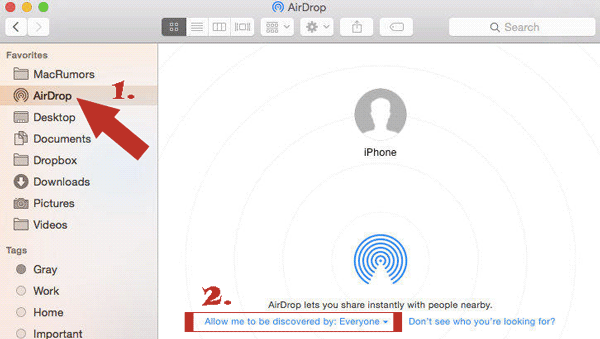
On Mac: Open "Finder" > "AirDrop" and check the "Allow me to be discovered by" setting.
AirDrop relies on Wi-Fi and Bluetooth to establish a connection between devices. If there is a temporary issue with the wireless features, airdropped photos may not show up in the camera roll. Turning Wi-Fi and Bluetooth off and on again can help your devices reconnect and restore a stable connection.
Here are the steps:
Step 1. Open "Control Center" by swiping down from the top-right corner of the screen, then turn off "Wi-Fi" and "Bluetooth".
Step 2. Wait about 10 seconds and turn Wi-Fi and Bluetooth back on.
Step 3. Try the AirDrop transfer again and check if the photos appear in your Camera Roll.

Temporary system glitches can also cause airdropped photos not to show up in the Photos app. Restarting your device can usually fix these minor issues.
Restart iPhone: Press and hold the "power" button and "volume" button, then slide to power off. Turn it back on after a few seconds.
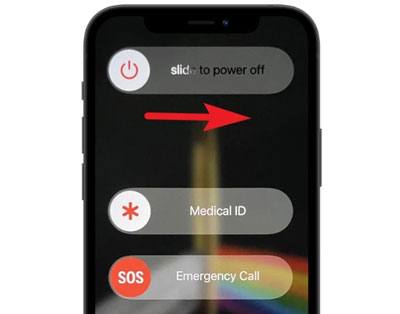
Restart iPad: Press and hold the "top" button and "volume" button, slide to power off, then turn it on again.

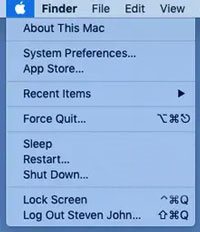
Restart Mac: Click the "Apple" menu and select "Restart".
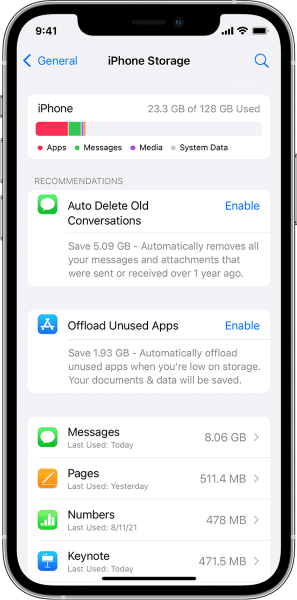
AirDrop needs to write received photos to your device storage. If your iPhone, iPad, or Mac does not have enough available space, airdropped photos may not show up. To check the storage space, follow these steps:
On iPhone or iPad:
Step 1. Go to "Settings" > "General" > "iPhone Storage" (or iPad Storage) and check your available storage space.
Step 2. Delete unnecessary apps, photos, videos, or files if storage is low, then try receiving the AirDrop photos again.
On Mac:
Step 1. Go to the "Apple" menu > "System Settings" > "General" > "Storage" to check your available storage space.
Step 2. Free up storage if needed, then try the AirDrop transfer again.
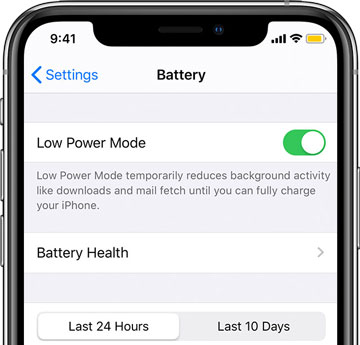
Low Power Mode reduces background activity to save battery life and may interfere with AirDrop. If airdropped photos are not showing up on your iPhone, turn off Low Power Mode and try the transfer again.
Here is how to do it:
Step 1. Open "Settings" > Tap "Battery".
Step 2. Turn off "Low Power Mode".
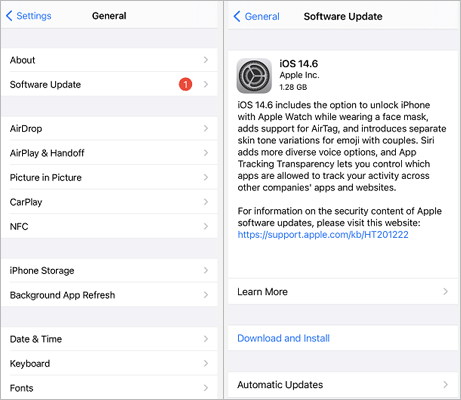
If none of the above solutions work, the issue may be caused by an outdated version of iOS or macOS. Keeping your system up to date improves compatibility and fixes known bugs that may affect AirDrop. Follow the steps below to update your device:
Update iPhone or iPad: Go to "Settings" > "General" > "Software Update", then download and install any available update. (iPhone stuck on software update?)
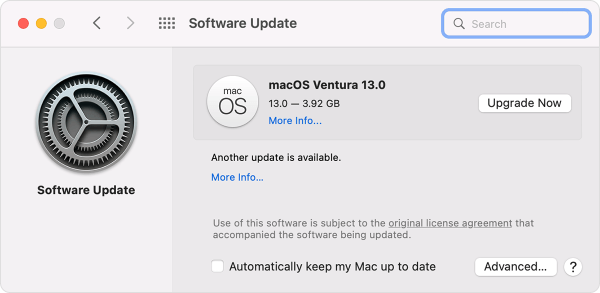
Update Mac: Go to "System Settings" > "General" > "Software Update", then install the latest macOS update if available.
Although AirDrop is a convenient way to transfer photos between Apple devices, it relies on a wireless connection and may experience slow transfer speeds, connection failures, or photos not appearing, especially when transferring a large number of images. If you frequently move photos between your iPhone, iPad, and Mac computer, a dedicated data transfer tool is a more reliable choice.
iOS Transfer is an iOS data management and transfer tool that lets you quickly transfer photos between your iPhone, iPad, and computer without relying on AirDrop. Unlike AirDrop, iOS Transfer uses a USB connection for more stable transfers and also supports batch photo management, making it ideal for handling large photo libraries.
Key features of iOS Transfer:
Here is how to transfer photos between Apple devices using iOS Transfer:
01Install and launch iOS Transfer on your computer, then connect your iPhone or iPad using a USB cable.
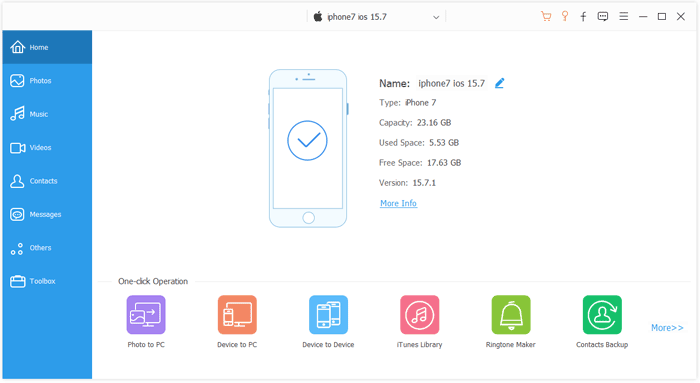
02Once your device is detected, select "Photos" from the left panel and choose the photos you want to transfer.

If you're dealing with airdropped photos not showing up, the solutions in this guide should help you get your missing photos back and restore smooth AirDrop transfers. If the issue keeps happening or you want a more reliable way to move photos between your Apple devices, iOS Transfer is a great alternative. It lets you transfer photos quickly, securely, and without relying on AirDrop, making it an excellent choice for managing and backing up your iPhone and iPad photos with ease.
Related Articles:
[Solved] How to Fix AirDrop No People Found Problem on iPhone/iPad?
How to Fix AirDrop Not Working on iPhone/iPad? - 10 Effective Tips
AirDrop Is Not Working on Mac? 8 Solutions to Fix It
How to AirDrop from iPhone to Mac, and Vice Versa [Full Tutorial]







 Free Download for PC
  Free Download for Mac


