"So I wanted to reset my iPhone because I wanted to start afresh, so I went to General > Reset > Erase All Content. So everything went smoothly until the progress bar got stuck, and it remained like that for 2 days. It won't enter DFU mode, and it won't be recognized by iTunes. Can someone help please?"
- from Apple Community
When you're preparing to erase old data, sell your device, or troubleshoot system issues, performing a factory reset is often the most straightforward solution. However, many users encounter a frustrating problem during the reset process: their iPhone gets stuck on the factory reset screen and fails to complete the operation. Common scenarios include the Apple logo spinning endlessly, a white or black screen, a frozen progress bar, or the device repeatedly restarting.
So, why does the "iPhone stuck on factory reset" issue occur, and how can it be fixed? This article will analyze the causes in detail and provide five practical solutions to help get your iPhone back to normal.
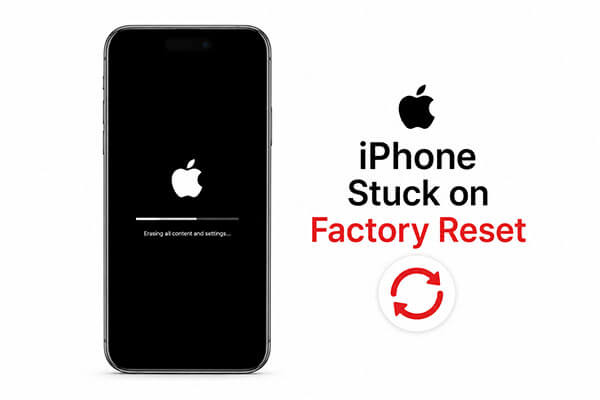
Before jumping into the fixes for iPhone 17 stuck on factory reset, it's important to understand the reasons. iPhone getting stuck during a factory reset is usually related to the following:
What do I do if my iPhone is stuck while resetting? The following are 5 effective ways. You can try them one by one.
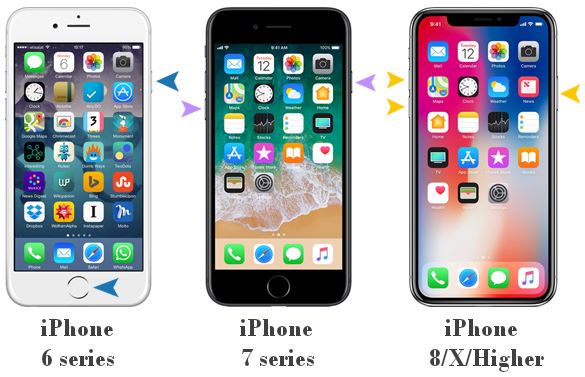
The first thing you should try when dealing with an iPhone stuck on factory reset is a force restart. Sometimes the device is not truly damaged — it may simply be frozen temporarily during the reset process. A force restart refreshes the system and interrupts any stuck background processes without erasing your data. This method is quick, safe, and does not require a computer.
The method to force restart an iPhone varies by model:
If a force restart doesn't work, the issue is likely related to deeper iOS system corruption. In this situation, using a professional iOS repair tool is often the easiest and safest solution.
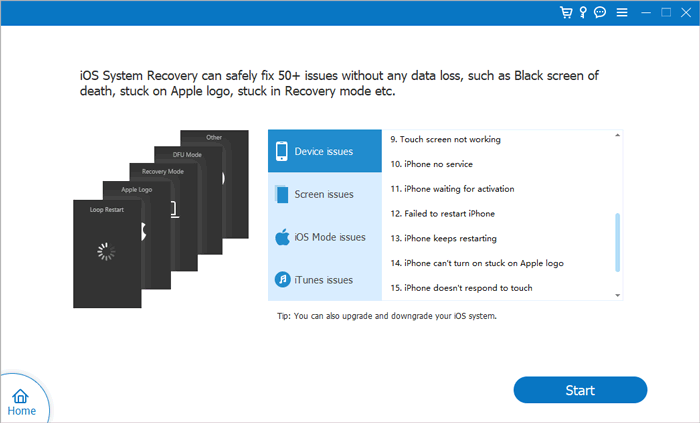
iOS System Recovery is designed to fix various iOS problems, including an iPhone stuck in a factory reset. One of its biggest advantages is that it can repair the system in Standard Mode without deleting your data. This makes it an excellent option for users who want to fix the issue without restoring the entire device.
The core features of iOS System Recovery:
Here is how to fix an iPhone stuck on the factory reset screen without losing data:
01Download and install the software on your computer. It will launch automatically once installation is complete.
02Connect your iOS device to the computer using a functional USB cable. Select "iOS System Recovery" and click "Start".
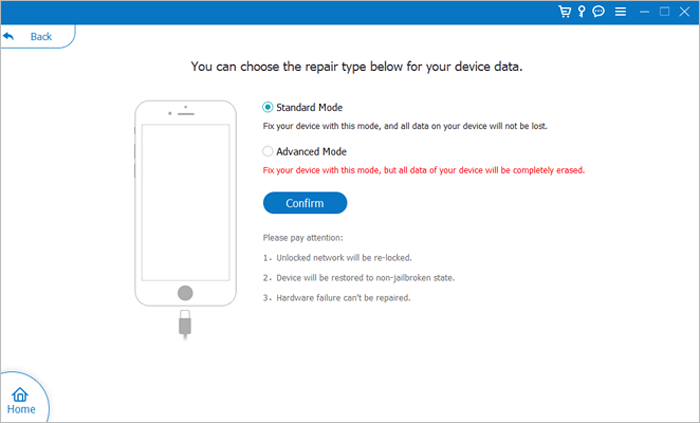
03Choose a repair mode—"Standard Mode" or "Advanced Mode"—then click "Confirm".
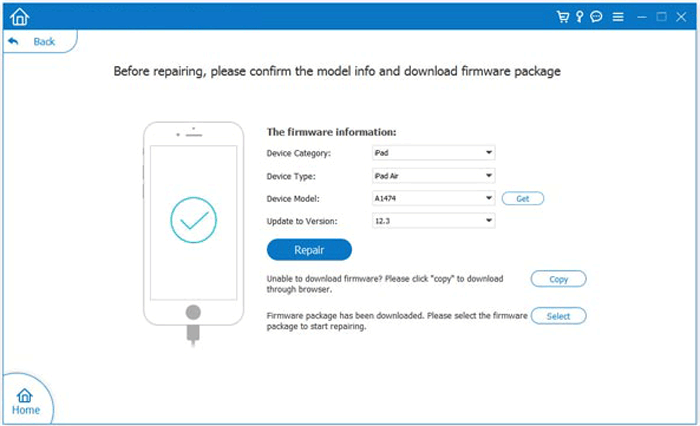
04Verify your device information, click "Repair", and wait for the process to finish. Your iPhone will then be restored to normal.
Recovery Mode is Apple's official troubleshooting feature for repairing serious iOS issues. If your iPhone is stuck on factory reset and cannot boot normally, putting it in Recovery Mode can resolve the problem.
Here is how to fix an iPhone 17 stuck on factory reset using Recovery Mode:
Step 1. First, make sure you have the latest version of iTunes installed on your computer.
Step 2. Connect your iPhone to the PC and open iTunes. If iTunes is already running, close it and reopen it after connecting your device.
Step 3. Next, follow the steps to put your iPhone into recovery mode.
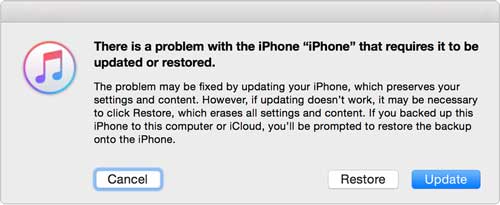
Step 4. Once detected, iTunes will prompt you to either update or restore your iPhone. Select "Update" to install the latest iOS version, or choose "Restore" to revert your iPhone to a previous backup.
If the problem persists, consider reaching out to Apple Support, either online or in person. They can help diagnose the issue and provide a solution. If your device is still under warranty, you may also be eligible for a free repair.
Many users believe a regular factory reset permanently deletes everything from the iPhone. In reality, some deleted data can still be recovered using professional recovery tools. If you plan to sell, donate, or recycle your device, using a professional iPhone erasing tool is much safer.
Coolmuster iOS Eraser allows you to permanently wipe all iPhone data so it becomes completely unrecoverable. This is especially useful for protecting personal privacy and sensitive information.
Key features of Coolmuster iOS Eraser:
Here is how to factory reset your iPhone using iOS Eraser:
01Connect your iPhone to your computer using a USB cable. The software will automatically detect your device and display the main interface, ready for the erasure process.
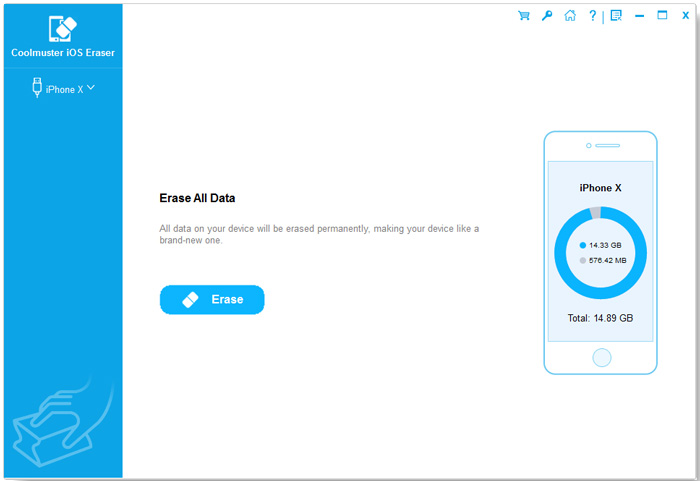
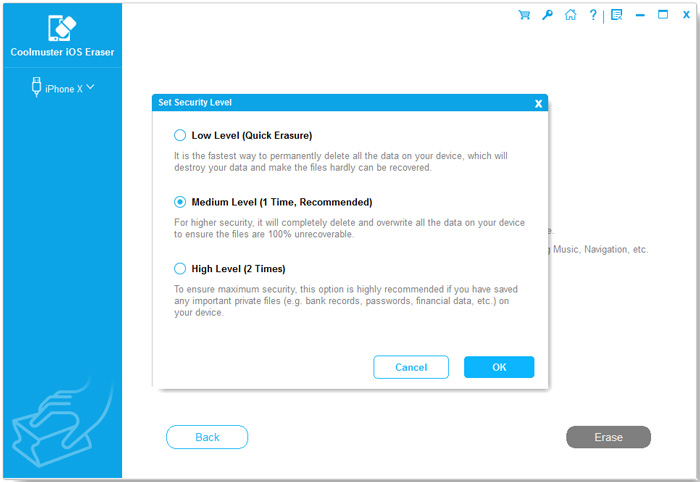
02Click the "Erase" button, choose your desired security level (Low, Medium, or High), and confirm by selecting "OK".
03When prompted, type "delete" to confirm, then click "Erase" again. A final confirmation message will appear—click "OK" to begin permanent data deletion.
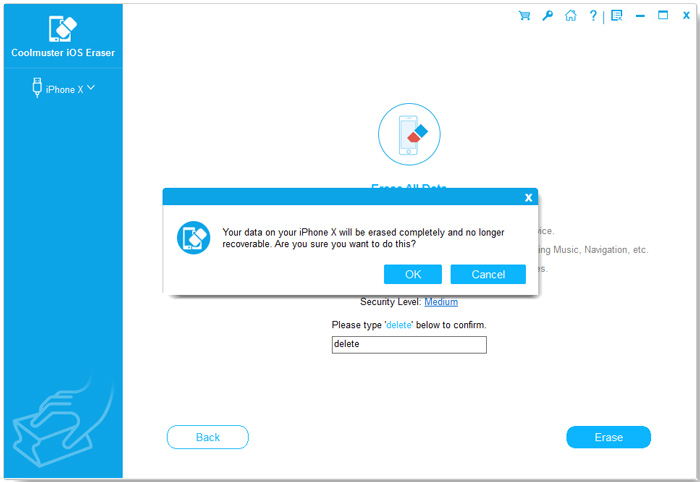
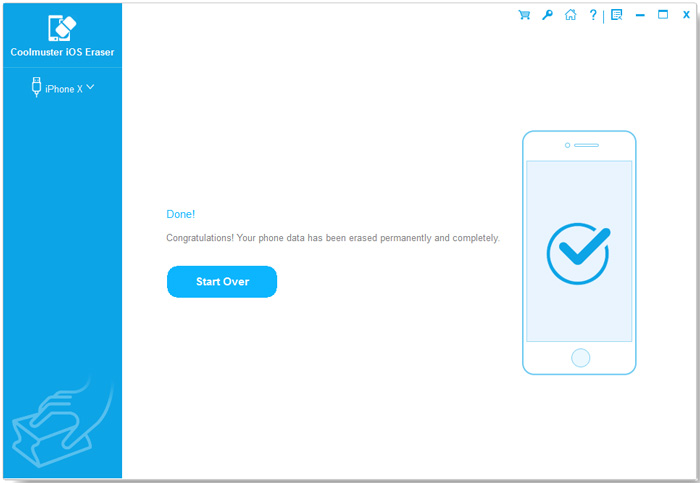
04Once the process is complete, all data on your device will be permanently erased and unrecoverable. You can now set up your iPhone as new.
Video Tutorial:
If your iPhone is stuck during a factory reset, start with simple troubleshooting solutions. If the problem persists, iOS System Recovery can quickly and safely repair your iOS system without risking data loss. For hardware issues, contacting Apple Support promptly is the safest option.
Additionally, if you want to perform a truly thorough factory reset and ensure that your data cannot be recovered, Coolmuster iOS Eraser is an excellent choice—especially useful when selling an old device or protecting your privacy.
Related Articles:
Erase All Content and Settings Not Working: 6 Ways to Fix iPhone Won't Erase
Does Reset iPhone Delete Everything? Check the Answer Here!
Reset All Settings vs Erase All Content [Informative Comparison]
How to Factory Reset iPhone Without Computer? Solved in 2 Easy Ways







 Free Download for PC
  Free Download for Mac


