"The right side of my screen (around 1cm wide) suddenly stopped responding to touch. The phone has never been dropped or exposed to moisture. Forced restarting and even a full restore didn't fix the issue. Has anyone else had this issue and found a solution? I'm hoping I don't need to replace the screen."
- from Apple Community
Have you also encountered the problem of the right side of your iPhone screen not working? So, how do I fix the right side of my iPhone screen not working? Fortunately, there are several effective solutions you can try before paying for an expensive screen replacement. In this guide, we will explain why the issue happens and show you how to fix the right side of iPhone screen not working step by step.
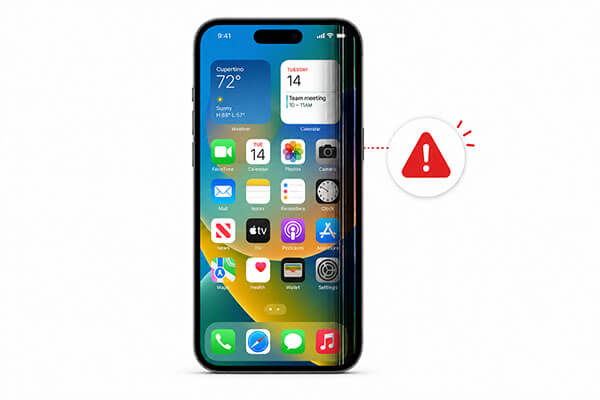
Before jumping into the solutions for the right side of the touchscreen not working on the iPhone, it is important to understand what may cause the issue. The following are some possible reasons:
If you are wondering how to fix the right side of the iPhone screen not working, the good news is that many users can solve the issue without replacing the screen. The fixes below start with simple troubleshooting methods and gradually move to more advanced solutions. It is recommended to follow them in order.
A dirty screen is a surprisingly common cause of touchscreen issues that many people overlook. Things like oil, moisture, fingerprints, or dust can stop your iPhone from registering your touches correctly, making part of the screen unresponsive.
Before jumping into complicated fixes, start with a simple cleaning. Turn off your iPhone, then grab a soft microfiber cloth and gently wipe the screen. If needed, slightly dampen the cloth with a bit of alcohol and make sure to clean the edges carefully, especially the right side. Once it's completely dry, turn your iPhone back on and test the touchscreen—you might find it works perfectly again!

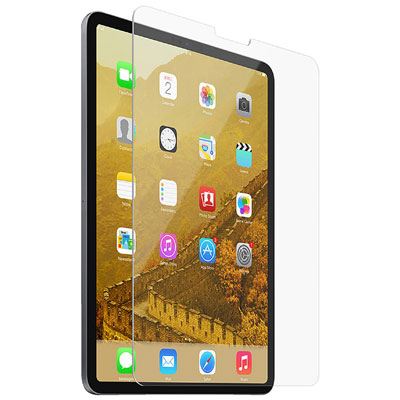
Some low-quality screen protectors can reduce touch sensitivity, and overly tight phone cases may press on the edges of the screen, causing the right side to become unresponsive. If you recently changed your screen protector or phone case, the issue is likely related to these accessories.
To fix it, remove the screen protector completely and take off the phone case. Clean the edges of the screen, restart your iPhone, and then test whether the right side of the touchscreen is working properly again.
Temporary iOS glitches can also cause the left and right sides of the iPhone screen to not work. A force restart refreshes the system and clears temporary bugs without deleting your data.
For iPhone 8 and Later:
For iPhone 7/7 Plus:
For iPhone 6s and Earlier:

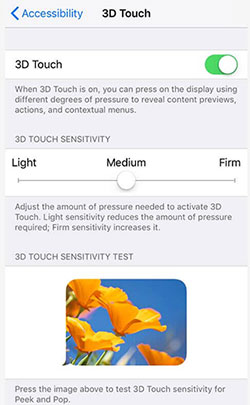
Still having issues with the right side of your iPhone's screen not responding? You can adjust the 3D Touch sensitivity to help. Follow these three steps:
Step 1. Open the "Settings" app and tap "Accessibility".
Step 2. Select "Touch" or "3D Touch & Haptic Touch".
Step 3. Make sure the feature is turned on, then use the slider to adjust the sensitivity to your preference.
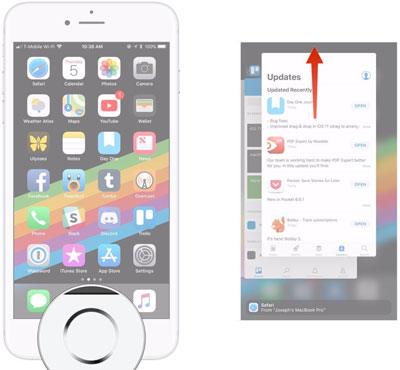
If an app becomes unresponsive or freezes, it may cause the right side of your iPhone's screen to stop working properly. You can try closing the problematic app by following these steps:
Step 1. Double-tap the "Home" button or swipe up from the bottom of the screen to view your recently used apps.
Step 2. Swipe left or right to locate the app that may be frozen.
Step 3. When you find the app, swipe up on its preview to close it completely.
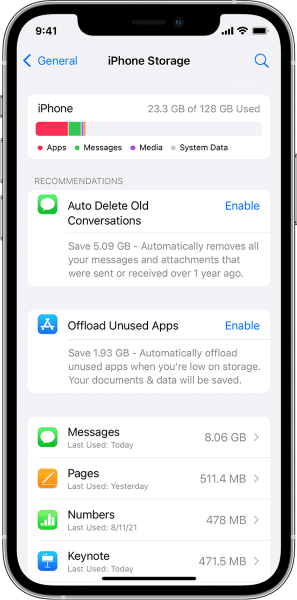
When your iPhone's storage is running low, the system can become very sluggish, which may even cause issues like the iPhone 17's right side of the screen not working. In this case, freeing up some space might resolve the problem.
Here is how to do it:
Step 1. First, open "Settings" > "General" > "iPhone Storage" to check your available space.
Step 2. You'll see a list of apps sorted by the amount of storage they use. Delete any files, apps, photos, or videos you don't need to free up space.
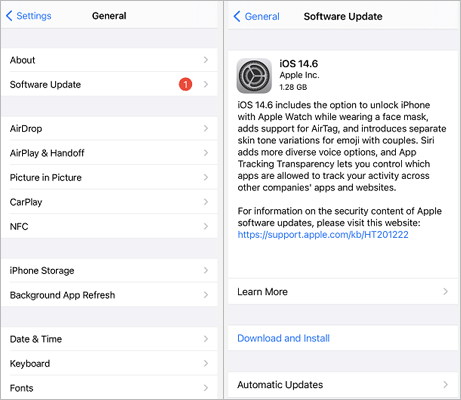
Apple frequently releases updates to fix bugs and improve system stability. If your iPhone is running an outdated version of iOS, updating it may resolve touchscreen issues.
Here is how to update your iPhone:
Step 1. Open "Settings" on your iPhone and go to "General". Then, tap "Software Update" to see if a new iOS version is available.
Step 2. If an update is available, tap "Download and Install" to update your iPhone. (iPhone software update failed?)
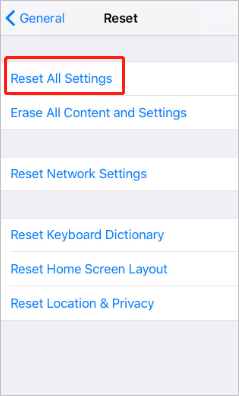
Resetting all settings is also an effective way to resolve the issue where the far right side of the iPhone screen is not working. This will reset all your customized settings to their default values. If the issue is caused by a problematic setting, this should resolve it. Follow these steps:
Step 1. Open the "Settings" app and go to "General".
Step 2. Tap "Transfer or Reset iPhone", then select "Reset All Settings".
Step 3. Enter your password to confirm and proceed.
If your iPhone 17 right side of screen is still not working, you may need to perform a factory reset. Keep in mind that this will erase all data on your device, so proceed with caution and make sure to back up your iPhone first.
Step 1. Open "Settings" > "General".
Step 2. Go to "Transfer or Reset iPhone", then select "Erase All Content and Settings".

If the issue persists, it's likely that your iPhone may have a hardware problem. In this case, visit an Apple Store and have a technician inspect the device. A trained expert can identify the issue and repair it appropriately.
If you are still searching for a faster and safer way to fix the right side of the iPhone screen not working, using a professional iOS repair tool may be the best option. iOS System Recovery is designed to repair various iOS system problems without requiring advanced technical knowledge. Additionally, using Standard Mode will not cause any data loss, so you can use it with confidence.
The main features of iOS System Recovery:
Here's how to fix the left and right sides of the iPhone screen not working without data loss:
01Download and install the software on your computer. It will launch automatically after installation.
02Connect your iOS device to the computer using a working USB cable. Select "iOS System Recovery" and click "Start".

03Choose a repair mode—either "Standard" or "Advanced"—then click "Confirm" to proceed.

04Verify your device information, then click "Repair" to begin. Once the process finishes, your iPhone will be restored to normal.

Experiencing the right side of the iPhone screen not working issue can be extremely frustrating, especially when you cannot type, swipe, or use important apps properly. Fortunately, in many cases, the problem is caused by software glitches rather than hardware damage. By following the solutions above, you can troubleshoot issues effectively.
If basic fixes do not help, iOS System Recovery provides a reliable one-stop solution for repairing iOS-related touchscreen problems without complicated operations or data loss.
Related Articles:
iPhone Touch Screen Not Working or Responding? Here's The Fix
5 Ways to Fix the iPhone Frozen on Lock Screen Issue with Ease
How to Unlock iPhone with Unresponsive Screen? [Full Guide]
[Solved] How to Fix a Glitching iPhone Screen - 12 Easy Methods




 Free Download for PC
  Free Download for Mac


